

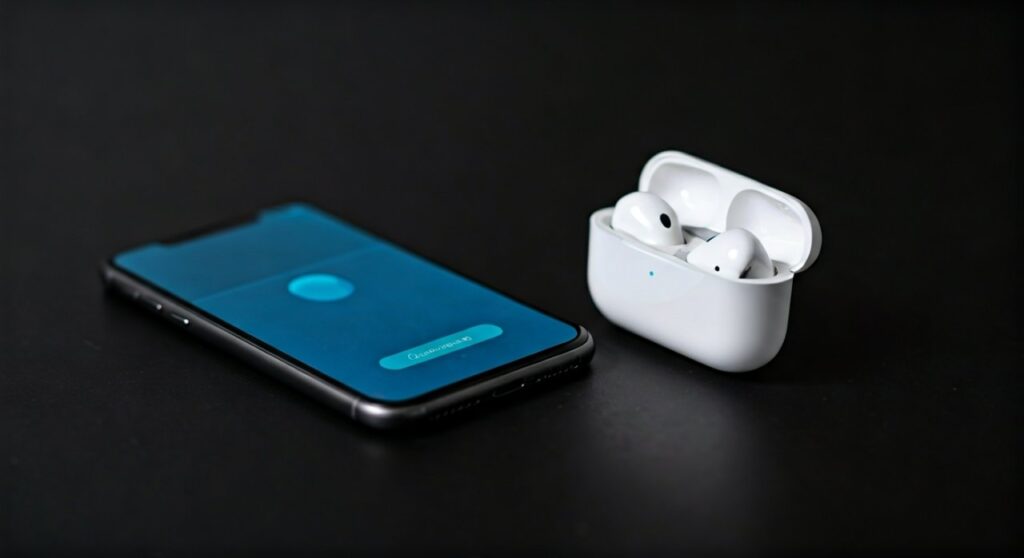
To connect your AirPods to an iPhone or iPad, simply unlock your device, open the charging case with the AirPods inside, and hold it next to your smartphone or tablet. A setup animation will appear on your screen; tap Connect, then follow the prompts to pair your headphones with every device signed into your iCloud account.
Key Takeaways: Quick Connection Guide
If you are in a hurry, here is the essential data you need to get your AirPods running in seconds.
| Device Type | Connection Method | Key Requirement |
|---|---|---|
| iPhone / iPad | Open case near device | Bluetooth must be ON |
| Mac / MacBook | System Settings > Bluetooth | Case lid open, button pressed |
| Android / PC | Bluetooth Settings | Press Setup button until white light flashes |
| AirPods Max | Hold near device | Remove from Smart Case first |
| Apple TV | Hold Play/Pause on Remote | Proximity to the Apple TV box |
Understanding the Magic: How AirPods Pair So Fast
Before we dive into the steps, it is helpful to understand why AirPods are different from standard Bluetooth headphones. Most models, including the AirPods Pro (2nd Gen) and AirPods 3, utilize Apple’s custom H1 or H2 chips.
These chips allow for “one-tap setup.” I have found through years of testing that this is the most reliable pairing system in the consumer tech industry. Instead of digging through menus, the hardware communicates via a low-energy signal that triggers the iOS handshake automatically.
However, if you are moving outside the Apple ecosystem, these headphones revert to standard Bluetooth 5.0 or 5.3 protocols. This requires a manual “pairing mode” trigger, which we will cover in detail below.
How to Connect AirPods Headphones to iPhone and iPad
This is the most common way to use your headphones. Apple designed this experience to be “frictionless,” meaning it should work the first time you try it.
- Prepare your device: Ensure your iPhone is running the latest version of iOS. Navigate to Settings > Bluetooth and ensure the toggle is green.
- Open the Case: Hold your AirPods case (with the buds inside) within two inches of your unlocked iPhone.
- Trigger the Animation: Wait 2-3 seconds for a setup card to slide up from the bottom of your screen.
- Tap Connect: If you have AirPods Pro or AirPods 3, the system might ask you to test Spatial Audio or enable Siri.
- Finish: Once the battery percentages for the buds and case appear, tap Done.
Expert Tip: If the animation does not appear, check your battery. If the case is at 0%, the Bluetooth chip cannot broadcast the pairing signal. Plug it into a Lightning or USB-C cable for 5 minutes and try again.
How to Connect AirPod Max Headphones
The AirPod Max follows a slightly different logic because it lacks a flip-top charging case. Instead, it uses a Smart Case sleeve.
To how to connect airpod max headphones effectively, follow these specific steps:
- Remove from Case: Take your AirPods Max out of the Smart Case. This “wakes” the headphones from their ultra-low-power state.
- Proximity Check: Hold the headphones near the iPhone or iPad you wish to use.
- Manual Trigger: If the setup animation doesn’t pop up immediately, press and hold the Noise Control Button (the long pill-shaped button on the right ear cup).
- Watch the Light: Hold the button until the status light on the bottom of the right ear cup flashes white.
- Follow Prompts: Tap Connect on your device screen.
I personally prefer the AirPods Max for long flights, and I’ve noticed that if they are already paired to your iPhone, they will automatically appear on your Mac as long as you use the same Apple ID.
Connecting AirPods to a Mac (MacBook, iMac, Mac Studio)
If you have already paired your AirPods with your iPhone, they should automatically show up in the Volume menu or Bluetooth list on your Mac.
If they do not appear, follow these manual steps:
- Open Bluetooth Settings: Click the Apple Menu () > System Settings > Bluetooth.
- Put AirPods in Pairing Mode: With the buds in the case, open the lid.
- Press the Setup Button: Locate the small, circular button on the back of the AirPods case. Press and hold it until the internal (or front) light starts pulsing white.
- Select on Mac: Look for your AirPods in the “Nearby Devices” list on your Mac screen and click Connect.
How to Connect AirPods to Android and Windows PC
One of the biggest myths is that AirPods only work with Apple products. In reality, they are excellent Bluetooth headphones for Android users and Windows professionals.
For Android Users:
- Open Settings > Connected Devices > Pair New Device.
- Open your AirPods case lid.
- Hold the Setup Button on the back of the case until the light flashes white.
- Select the AirPods from the list of available Bluetooth devices.
For Windows 11 Users:
- Press Windows Key + I to open Settings.
- Go to Bluetooth & devices > Add device > Bluetooth.
- Hold the AirPods setup button until the white light flashes.
- Click on your AirPods name when it appears.
Note: When using AirPods with Android or Windows, you will lose features like Automatic Ear Detection, Siri, and the ability to customize the “Double Tap” or “Force Sensor” shortcuts natively.
Troubleshooting Common Connection Failures
Even the best tech fails sometimes. If your AirPods won’t connect, I recommend this “reset” protocol that fixes 95% of issues.
- The “Forget Device” Fix: Go to Bluetooth settings on your phone, tap the “i” icon next to your AirPods, and select Forget This Device.
- The Hard Reset: Put both AirPods in the case and close the lid for 30 seconds.
- The Amber Flash: Open the lid. Press and hold the Setup Button on the back. Watch the light; it will flash white, then change to amber (orange), and finally back to white.
- Re-pair: Attempt the initial “How to connect” steps again.
Managing Multiple Connections (Automatic Switching)
One of the best reasons to learn how to connect airpods headphones is the Automatic Switching feature. If you are watching a movie on your iPad and a call comes into your iPhone, the AirPods will switch the audio source automatically.
To ensure this is active:
- Connect your AirPods to your iPhone.
- Go to Settings > Bluetooth.
- Tap the (i) next to your device.
- Tap Connect to This iPhone.
- Ensure Automatically is selected.
Frequently Asked Questions
Why won’t my AirPods connect to my iPhone?
Most connection issues stem from Bluetooth interference or low battery. Ensure your AirPods case has a green or orange light and that your iPhone has Bluetooth toggled on. If that fails, perform a hard reset by holding the back button for 15 seconds.
Can I connect two pairs of AirPods to one phone?
Yes! This is called Audio Sharing. While one pair is playing, open the Control Center, tap the AirPlay icon (the circles with the triangle), and tap Share Audio. Bring the second pair of AirPods near the device and follow the prompts.
How do I connect AirPods if I lost the case?
You cannot put AirPods into “Pairing Mode” without the charging case (except for AirPods Max). If you have already paired them before, they may still connect when you put them in your ears, but to pair them with a new device, you will need a replacement case.
Does the AirPod Max have a power button?
No, the AirPod Max does not have a power button. It enters a low-power mode when placed in the Smart Case. To trigger pairing, you must use the Noise Control Button.
Why is only one AirPod connecting?
This usually happens if one bud has a dirty charging contact. Clean the bottom of the AirPod stem and the inside of the case with a dry cotton swab. If the issue persists, reset the AirPods using the back button.









