

Quick Guide: How to Pair DeWalt Headphones
To pair DeWalt headphones, start by turning the device off. Press and hold the Power/Center Button for approximately 3 to 5 seconds until the LED indicator light flashes red and blue (or just blue, depending on the model), signifying it is in Pairing Mode. Open the Bluetooth settings on your smartphone or tablet, select the device name (usually DEWALT Pro-X1 or Jobsite Pro), and tap to connect.
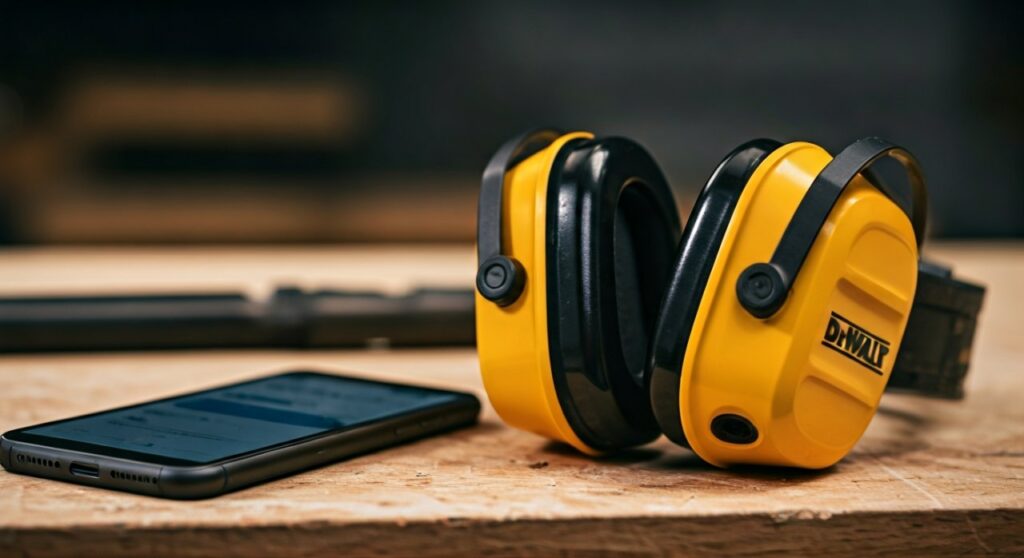
Working on a loud jobsite is stressful enough without struggling with your gear. Whether you are using the DeWalt Jobsite Pro Neckband or the DeWalt Pro-X1 Over-Ear Headphones, getting a stable wireless connection is the first step to a productive day. This guide covers every step, troubleshooting trick, and expert tip I have learned from using these rugged audio tools in the field.
Key Takeaways: Troubleshooting and Pairing
If you are in a rush, here is the essential information for a successful connection:
- Pairing Mode: Always initiated from a powered-off state.
- LED Indicators: Rapid flashing Blue/Red means it is searching; solid Blue means it is connected.
- Default Passcode: If prompted, the code is usually 0000.
- Reset Fix: If pairing fails, hold the Volume Up (+) and Volume Down (-) buttons simultaneously for 10 seconds.
- Range: Most DeWalt Bluetooth headphones maintain a stable connection up to 33 feet (10 meters).
Step-by-Step: How to Pair DeWalt Bluetooth Headphones
The process for how to pair DeWalt bluetooth headphones is standardized across most of their industrial-grade lineup. Follow these specific steps to ensure your device recognizes the headset immediately.
Enable Pairing Mode on the Headset
Ensure the headphones are completely powered down first. Locate the Multifunction Button (MFB), which is typically found between the volume controls. Press and hold this button.
Do not let go when you hear “Power On.” Keep holding until the LED light begins to flash rapidly. This indicates the internal Bluetooth transmitter is broadcasting its signal to nearby devices.
Prepare Your Mobile Device
On your iOS or Android device, navigate to the Settings menu and toggle the Bluetooth switch to the ON position. It is helpful to stay within three feet of the headphones during this initial handshake to prevent signal interference from other power tools or machinery.
Identify and Select the Device
Look at the list of “Available Devices” on your screen. You should see a name like DEWALT Jobsite Pro or DEWALT RX Pro. Tap the name to initiate the link.
Confirm the Connection
Once selected, the LED on your DeWalt headphones will stop flashing and likely turn into a slow-pulsing blue light or stay solid. You may also hear a voice prompt saying, “Connected.”
Comparing Popular DeWalt Audio Models
Not all DeWalt headphones are built the same. Some prioritize noise isolation, while others focus on battery longevity for 12-hour shifts.
| Feature | DeWalt Jobsite Pro (Neckband) | DeWalt Pro-X1 (Over-Ear) | DeWalt TWS Earbuds |
|---|---|---|---|
| Pairing Method | Center Button (5s) | Power Switch + Hold | Case Button / Auto-pair |
| Battery Life | Up to 15 Hours | Up to 30 Hours | 10 Hours (plus case) |
| Water Resistance | IPX6 (Waterproof) | IPX4 (Splashproof) | IPX7 (Submersible) |
| Best For | Construction Workers | Workshop/Woodworking | General Contractors |
| Noise Reduction | 25dB NRR | 21dB NRR | Passive Isolation |
Expert Tips for a Stronger Bluetooth Connection
As someone who has used the DeWalt Jobsite Pro in environments filled with heavy metal interference and electrical noise, I’ve found that a few simple habits can prevent audio drops.
Maintain a Clear Line of Sight
Bluetooth signals (2.4GHz) struggle to pass through solid concrete walls or thick steel beams. If you leave your phone on a workbench and walk to the other side of a structural pillar, you may experience “stuttering” audio. Keep your phone in a pocket on the same side of your body as the headphone’s receiver.
Update Your Device Software
If you are wondering how to pair DeWalt headphones but the device simply won’t appear, check your phone’s firmware. Older versions of Android or iOS can have compatibility issues with newer Bluetooth 5.0 chips used by DeWalt.
Manage Multi-Point Connections
Some DeWalt models attempt to connect to the last two used devices. If your headphones are “stolen” by a tablet in your truck, they won’t pair with your phone. Always turn off Bluetooth on secondary devices when trying to establish a new primary link.
Troubleshooting Common Pairing Issues
Even with “contractor-tough” gear, technology can be finicky. If you followed the steps above and are still stuck, try these expert-verified fixes.
The Device is Not Appearing in the List
This is usually because the headphones are not actually in Pairing Mode. If the light is only blinking blue slowly, it is “Searching” for a previously paired device, not “Pairing” with a new one. Power it off and try the long-press again, ensuring you see the Red/Blue alternating pattern.
Audio is Only Coming from One Side
This is a common issue with the DeWalt TWS (True Wireless) Earbuds.
- Place both buds back into the charging case.
- “Forget” the device in your phone’s Bluetooth settings.
- Remove both simultaneously to force them to sync with each other before they sync with the phone.
Dealing with Signal Interference
Job sites are often “noisy” in an electronic sense. Large generators, Wi-Fi routers, and even some high-powered DeWalt 60V FlexVolt tools can create electromagnetic interference. If your connection is choppy, move at least 10 feet away from large power sources and try re-pairing.
How to Reset DeWalt Headphones
When all else fails, a hard reset is the “nuclear option” that clears the internal memory of all previously paired devices.
- For Neckband Models: While the device is on, hold the Volume Up (+) and Power Button simultaneously for 10-15 seconds. You will see the LED flash rapidly, indicating the memory is wiped.
- For Over-Ear Models: Locate the small Reset Hole (usually near the charging port) and use a paperclip to press the internal button for 5 seconds.
Maintaining Your DeWalt Audio Gear
To ensure you don’t have to keep researching how to pair DeWalt bluetooth headphones due to hardware failure, follow these maintenance tips:
- Clean the Charging Port: Sawdust is the enemy of electronics. Use compressed air to blow out the USB-C or Micro-USB port weekly.
- Check the Battery Level: Bluetooth pairing requires a certain voltage. If your battery is below 10%, the Bluetooth chip may not have enough power to broadcast a pairing signal.
- Inspect the Ear Gels: Sweat and grime can degrade the seal. A poor seal doesn’t affect pairing, but it ruins the Noise Reduction Rating (NRR) that protects your hearing.
Frequently Asked Questions
Can I pair DeWalt headphones to multiple devices?
Most DeWalt Bluetooth models support multi-point pairing, allowing you to connect to a phone and a laptop simultaneously. However, you must pair them one at a time. Connect the first device, turn its Bluetooth off, pair the second device, and then re-enable the first.
Why do my DeWalt headphones keep disconnecting?
The most common reasons are low battery or physical distance. If the battery is low, the headphones may drop the connection to save power. Additionally, check for interference from other 2.4GHz devices like microwave ovens or Wi-Fi boosters on the job site.
Are DeWalt headphones compatible with iPhones?
Yes, DeWalt headphones use standard Bluetooth protocols. They are fully compatible with iPhone, iPad, and Mac computers. You do not need any special apps to pair them; use the standard iOS Bluetooth menu.
How do I know if my DeWalt headphones are in pairing mode?
Look for a rapid, alternating Red and Blue flashing light. If the light is a steady Blue or flashes slowly, the device is already connected or simply waiting for its “saved” partner.
Does DeWalt have a pairing app?
Currently, DeWalt does not require a dedicated app for pairing. The connection is handled directly through your operating system’s native Bluetooth settings. This makes them more reliable in areas with poor cellular data.









