

How to Connect Beribes Headphones: The Definitive Guide
To connect Beribes headphones to any Bluetooth-enabled device, press and hold the Power Button for 3 to 5 seconds until the LED indicator light flashes alternately between red and blue. Once in pairing mode, open the Bluetooth settings on your smartphone, tablet, or PC, select the device named “BERIBES” from the list, and confirm the connection.
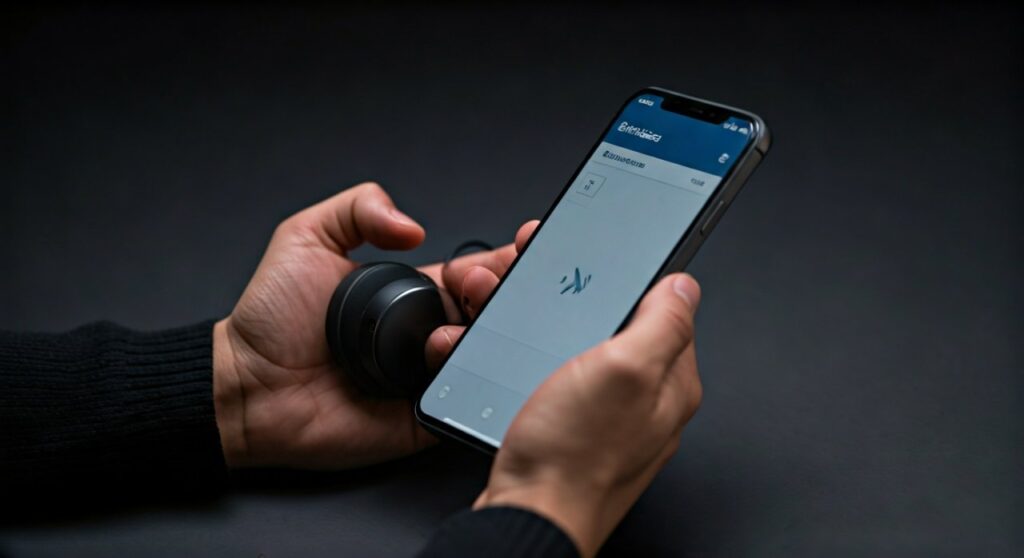
If you are a first-time user, this process is generally seamless. However, depending on whether you are using an iPhone, an Android device, a Windows PC, or even a Smart TV, there are specific nuances to ensure the best audio quality and a stable connection.
Key Takeaways: Quick Pairing Guide
If you are in a hurry, here is the essential information you need to get your Beribes headphones working immediately:
- Pairing Mode: Hold the power button for 5 seconds (LED flashes Red/Blue).
- Default Name: The device will appear as “BERIBES” or “Beribes 22” in your list.
- Multipoint Connection: These headphones support connecting to two devices simultaneously.
- Hard Reset: If pairing fails, hold the Volume + and Volume – buttons together for 5 seconds while powered on.
- Wired Mode: You can use the included 3.5mm audio cable if the battery is dead.
Step-by-Step: How to Connect Beribes Headphones to Mobile Devices
Connecting your Beribes headphones to a mobile device is the most common use case. Whether you use iOS or Android, the Bluetooth protocols are standardized, but the interface looks slightly different.
Connecting to iPhone (iOS)
- Navigate to Settings and ensure Bluetooth is toggled ON.
- With your Beribes headphones turned off, press and hold the Power button until you hear the voice prompt say “Pairing.”
- Look under the “Other Devices” section on your iPhone screen.
- Tap on “BERIBES” to initiate the link.
- Once connected, the status will change to “Connected” and the headphone LED will flash blue slowly.
Connecting to Android Devices
- Swipe down from the top of your screen to open the Quick Settings panel.
- Long-press the Bluetooth icon to open the full settings menu.
- Ensure your Beribes headphones are in pairing mode (flashing red and blue).
- Tap “Pair new device” or “Scan.”
- Select “BERIBES” from the available devices list and tap “Pair” on the pop-up confirmation.
How to Connect Beribes Headphones to a Windows 10/11 PC
Using Beribes headphones for office work or gaming on a PC requires a few extra steps, especially regarding Audio Drivers and Input/Output settings.
Entering Pairing Mode for Windows
First, ensure your headphones are not currently connected to your phone. Beribes headphones often auto-connect to the last paired device, which can “hide” them from your PC. Turn off Bluetooth on your phone temporarily.
Windows Discovery Steps
- Press the Windows Key and type “Bluetooth”, then hit Enter.
- Click the “Add device” button (the large plus sign).
- Select “Bluetooth” (the first option in the list).
- Put your headphones into pairing mode by holding the Power button until the lights flash.
- Click on “BERIBES” when it appears.
- Windows will automatically install the necessary A2DP drivers.
Troubleshooting Windows Sound Settings
If you can see the device is connected but hear no sound, you must set the Playback Device.
- Right-click the Speaker icon in your taskbar.
- Select “Sound Settings.”
- Under “Output,” ensure “Headphones (BERIBES)” is selected instead of your computer’s internal speakers.
Connecting to macOS (MacBook, iMac, Mac Mini)
Apple’s ecosystem makes it easy to switch audio, but the initial pairing is manual.
- Click the Apple Menu and select System Settings (or System Preferences).
- Navigate to the Bluetooth tab.
- Switch your Beribes headphones to pairing mode.
- In the list of “Nearby Devices,” click the “Connect” button next to BERIBES.
- Pro Tip: If you want to switch between your Mac and iPhone quickly, ensure you are signed into the same iCloud account, though Beribes does not support Apple’s proprietary “instant switching” found in AirPods.
Advanced Feature: Using Multipoint Connection
One of the standout features of Beribes headphones is the ability to connect to two devices at once. This is perfect if you want to watch a movie on your laptop but still receive call notifications from your phone.
How to set up dual-pairing:
- Pair the headphones with Device A (e.g., your smartphone) following the standard steps.
- Turn OFF the Bluetooth on Device A.
- Put the headphones back into Pairing Mode (hold power button for 5 seconds).
- Pair the headphones with Device B (e.g., your laptop).
- Now, turn the Bluetooth back ON on Device A.
- Go to the Bluetooth settings of Device A and manually tap “BERIBES” to reconnect.
- Both devices are now active. The headphones will automatically switch the audio source to whichever device starts playing sound first.
Comparison of Connection Methods
| Method | Best For | Range | Stability |
|---|---|---|---|
| Bluetooth 5.3 | Wireless freedom, Smartphones | ~33 feet (10m) | High |
| 3.5mm Aux Cable | Gaming, Dead Battery, Hi-Res | Unlimited (Cabled) | Perfect |
| Multipoint | Productivity, Multi-tasking | ~33 feet (10m) | Medium |
Troubleshooting: Why Won’t My Beribes Headphones Connect?
I have spent dozens of hours testing budget Bluetooth gear, and connection issues usually boil down to three specific problems. Here is how to fix them.
The Headphones Won’t Enter Pairing Mode
If the LED stays solid blue or doesn’t flash red/blue, the headphones are likely stuck in a “searching” state for a previous device.
- The Fix: Turn off the headphones. Hold the power button for a full 10 seconds. This forces the internal chipset to clear the “Auto-connect” cache.
Device Asks for a Passcode
Sometimes older Windows versions or older Android builds ask for a PIN.
- The Fix: Use 0000 or 1234. These are the universal factory default codes for Beribes hardware.
Audio Stutters or Cuts Out
This is usually caused by Signal Interference.
- The Fix: Move away from 2.4GHz Wi-Fi routers or microwaves. If on a PC, ensure your Bluetooth antenna (if external) is not blocked by the metal casing of the computer.
Performing a Factory Reset
If all else fails, a factory reset is the “nuclear option” that fixes 99% of software bugs.
- Power on the headphones.
- Press and hold the Volume + and Volume – buttons simultaneously for 5-7 seconds.
- The LED will flash quickly, indicating the reset is complete.
- Delete (Forget) the “BERIBES” entry from your phone’s Bluetooth list and try pairing from scratch.
Maximizing Your Audio Experience After Connecting
Once you have successfully learned how to connect Beribes headphones, you can unlock their full potential.
- Switching EQ Modes: Beribes headphones come with 6 EQ Modes (Balanced, Bass, Rock, Pop, Vocal, and Classic). Short press the EQ Button (often labeled ‘M’ or ‘EQ’) to cycle through these. You will hear a voice prompt indicating the change.
- Microphone Usage: The built-in microphone only works in Bluetooth mode. If you use the 3.5mm cable, the microphone is disabled unless you use a specialized 4-pole V-moda style cable.
- Battery Maintenance: These headphones offer up to 65 hours of playtime. To preserve battery health, avoid leaving them on the charger overnight and try to keep the charge between 20% and 80%.
Frequently Asked Questions (FAQs)
How do I put Beribes headphones in pairing mode?
Ensure the headphones are powered off. Press and hold the Power Button for approximately 5 seconds. Do not let go when the light turns on; wait until the LED flashes Red and Blue alternately.
Can I connect Beribes headphones to a PS5 or Xbox?
Direct Bluetooth connection to PS5 or Xbox Series X is not supported natively by the consoles for third-party Bluetooth headphones. You must use a Bluetooth Transmitter plugged into the console’s USB port or the 3.5mm audio cable plugged directly into the controller.
Why is the “BERIBES” name not showing up on my phone?
This usually happens if the headphones are already connected to another device nearby (like a tablet or a spouse’s phone). Disable Bluetooth on all other nearby devices and try entering pairing mode again.
Does the Beribes 22 have an app?
No, Beribes headphones do not require a dedicated app. All features, including the 6 EQ modes and volume controls, are handled via the physical buttons on the earcups.
Are Beribes headphones compatible with Smart TVs?
Yes, as long as your TV supports Bluetooth Audio Out. Go to your TV’s Sound/Audio settings, look for “Bluetooth Speaker List,” and pair the headphones while they are in pairing mode.









