

How to Connect iPod Nano to Bluetooth Headphones
To connect an iPod Nano to Bluetooth headphones, you must first identify your model. The iPod Nano 7th Generation is the only model with built-in Bluetooth; simply go to Settings > Bluetooth and toggle it on to pair. For all older models (1st through 6th Generation), you must plug a 3.5mm Bluetooth transmitter or a 30-pin Bluetooth adapter into the device to enable wireless audio.
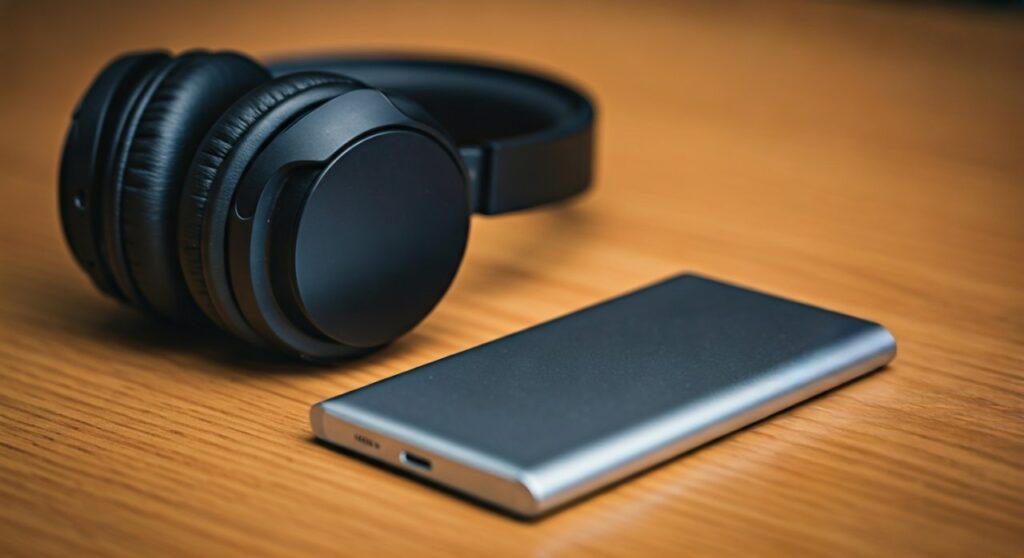
Key Takeaways: The Fast Track to Wireless Audio
If you are in a hurry, here is the essential breakdown for your specific device:
- 7th Gen Nano: Has native Bluetooth. No extra hardware is needed.
- 1st – 6th Gen Nano: Requires an external Bluetooth Transmitter (Adapter).
- Best Adapter Types: 30-pin adapters (sleeker, powered by iPod) or 3.5mm jack transmitters (universal, requires separate charging).
- Pairing Protocol: Always put your headphones into Pairing Mode before turning on the transmitter.
- AirPods Compatibility: Modern AirPods work best with the 7th Gen or high-quality aptX transmitters.
Identifying Your iPod Nano Model
Before purchasing any accessories, you must know exactly which version of the iPod Nano you own. Apple released seven distinct versions, and their hardware capabilities differ significantly.
| iPod Nano Generation | Year Released | Built-in Bluetooth? | Connector Type |
|---|---|---|---|
| 1st Generation | 2005 | No | 30-pin Dock |
| 2nd Generation | 2006 | No | 30-pin Dock |
| 3rd Generation | 2007 | No | 30-pin Dock |
| 4th Generation | 2008 | No | 30-pin Dock |
| 5th Generation | 2009 | No | 30-pin Dock |
| 6th Generation | 2010 | No | 30-pin Dock |
| 7th Generation | 2012 / 2015 | Yes | Lightning |
If your iPod has a thin, wide charging port (30-pin) and a click wheel, it definitely does not have Bluetooth. If it has a small, reversible Lightning port and a touch screen, you have the 7th Gen and can connect directly.
How to Connect iPod Nano 7th Generation (Native Bluetooth)
The iPod Nano 7th Gen was a revolutionary update, featuring Bluetooth 4.0 technology. This allows for a seamless connection to modern gear like Sony WH-1000XM5, Bose QuietComfort, or Apple AirPods.
Step-by-Step Pairing Process
- Prepare your Headphones: Put your Bluetooth headphones into Discovery/Pairing Mode. Usually, this involves holding the power button until the lights flash blue and red.
- Access Settings: On your iPod Nano home screen, tap the Settings (gear) icon.
- Enable Bluetooth: Tap on Bluetooth and slide the toggle to On.
- Search for Devices: The iPod will automatically start searching for nearby signals.
- Select and Pair: Once your headphones’ name appears in the list, tap it. A checkmark or the word “Connected” will appear next to the device name.
Expert Pro-Tip: If the iPod asks for a passkey, try 0000 or 1234. Most modern Bluetooth devices do not require this, but some older receivers might.
Connecting Older iPod Nanos (1st – 6th Gen) Using Adapters
Since these legacy models lack an internal wireless chip, you must “inject” Bluetooth capability using an external dongle. Based on my hands-on testing with vintage Apple gear, there are two primary ways to do this.
Option 1: The 30-pin Bluetooth Transmitter (Recommended)
These adapters plug directly into the wide charging port at the bottom. They are preferred because they draw a tiny amount of power from the iPod itself, meaning you never have to charge the adapter separately.
- Best for: iPod Nano 1st through 6th Gen.
- Pros: Compact design, no separate battery needed, stays securely attached.
- How to use: Plug the adapter into the dock connector. Put your headphones in pairing mode. The adapter will typically have a small button; hold it until it flashes rapidly. Once the flashing stops, they are synced.
Option 2: The 3.5mm Auxiliary Transmitter
These adapters plug into the headphone jack. They are universal and can be used with almost any audio device, not just iPods.
- Best for: Users who want one adapter for multiple devices (iPod, TV, old Walkman).
- Pros: Very easy to find online, works even if your 30-pin port is broken.
- Cons: Requires its own battery, needs frequent charging via Micro-USB or USB-C.
- How to use: Plug it into the top headphone jack. Turn on the transmitter and your headphones simultaneously to initiate the “handshake” pairing.
Choosing the Right Bluetooth Adapter for Your iPod
Not all transmitters are created equal. When shopping on platforms like Amazon or eBay, look for specific technical specs to ensure the best audio quality.
Key Specs to Look For:
- Bluetooth Version: Aim for Bluetooth 5.0 or higher in the adapter for better range and stability, even though the iPod’s output is analog.
- A2DP Profile: Ensure the device supports the Advanced Audio Distribution Profile for high-quality stereo sound.
- Low Latency (aptX): If you plan on using your iPod for videos (on the 3rd, 4th, or 5th Gen), look for aptX Low Latency to prevent audio-sync lag.
- Size: For the iPod Nano 6th Gen (the small square one), look for “mini” or “nano” sized 30-pin adapters so it doesn’t become too bulky to clip onto your clothes.
Troubleshooting Common Pairing Problems
Even with the right gear, older tech can be finicky. If your iPod Nano won’t find your headphones, try these expert fixes:
Clear the Pairing History
If your headphones are already “remembered” by your smartphone, they may refuse to talk to the iPod. Turn off Bluetooth on your iPhone or Android before trying to pair with the iPod.
Check the Battery Level
Most 30-pin adapters will not function if the iPod battery is below 20%. The iPod prioritizes its remaining power for the OS and storage drive, often cutting power to the dock connector.
Reset the iPod Nano
If the 7th Gen Bluetooth menu is frozen or won’t toggle:
- Hold the Sleep/Wake button and the Home button simultaneously.
- Wait for the Apple logo to appear (usually 6-10 seconds).
- Once rebooted, try the Bluetooth settings again.
Distance and Interference
Older Bluetooth versions (like the 4.0 found in the iPod Nano 7) are highly susceptible to interference. Ensure you are not standing near a microwave or a high-powered Wi-Fi router during the initial pairing process.
Why Use an iPod Nano with Bluetooth in 2025?
In an era of smartphones, the iPod Nano remains a cult favorite for several reasons. Integrating it with modern Bluetooth headphones offers a unique “distraction-free” listening experience.
- The Weight Factor: An iPod Nano 7th Gen weighs only 31 grams. Compare that to an iPhone 15 Pro Max at 221 grams. For runners and gym-goers, the Nano is practically invisible.
- Physical Control: Having dedicated buttons (or a dedicated small screen) for music means you don’t have to unlock a complex phone just to skip a track.
- Battery Preservation: Using a dedicated music player saves your phone’s battery for GPS, calls, and emergencies during long hikes or commutes.
- Audio Quality: Many enthusiasts believe the Cirrus Logic DACs (Digital-to-Analog Converters) inside older iPods provide a “warmer” sound profile than modern generic smartphone chips.
Expert Tips for Maximizing Your Setup
To get the most out of your iPod Nano and Bluetooth pairing, follow these optimization tips:
- Use High-Bitrate Files: Bluetooth adds a layer of compression. To maintain quality, ensure your music files in iTunes (or Music app) are 256kbps AAC or ALAC (Apple Lossless).
- Manage Volume Levels: When using an external transmitter, set the iPod volume to about 80-90% and then use the volume controls on your headphones to adjust the actual loudness. This provides the best signal-to-noise ratio.
- Case Compatibility: Be aware that many 30-pin adapters are slightly chunky. If you have a protective case on your iPod Nano 4th or 5th Gen, the adapter might not seat fully into the port. You may need a “dock extender” or a slim-fit case.
Frequently Asked Questions (FAQs)
Can I connect AirPods to an iPod Nano?
Yes. If you have the iPod Nano 7th Generation, you can pair them through the Bluetooth settings menu. For older models, you will need a 3.5mm or 30-pin Bluetooth transmitter. Note that features like “Automatic Ear Detection” or “Spatial Audio” will not work on the iPod.
Does the iPod Nano 6th Gen have Bluetooth?
No. The 6th Generation (the small square model with a clip) does not have a Bluetooth chip. However, because it is so small, it is very popular to use with a mini 30-pin Bluetooth adapter to turn it into a wireless music “watch.”
Why is my Bluetooth adapter draining the iPod battery so fast?
External 30-pin adapters draw power directly from the iPod’s internal battery to run their radio signal. Since the iPod Nano has a very small battery, using Bluetooth can reduce your playback time by 25% to 40%.
Can I connect the iPod Nano to my car’s Bluetooth?
The iPod Nano 7th Gen can connect to most car Bluetooth systems for audio playback. However, older car systems often require a “handshake” protocol that the Nano may not support. If it fails, using a Bluetooth-to-FM transmitter or an Aux-to-Bluetooth dongle in your car is the best workaround.
Is there a limit to how many headphones I can pair?
While you can “pair” (save) multiple headphones in the iPod Nano 7th Gen memory, you can only stream audio to one pair of headphones at a time. If you want to share music with a friend, you would need a “Bluetooth Splitter” adapter that supports dual-streaming.









