

To connect your Crusher Evo headphones, ensure they are powered off, then press and hold the Power Button for about 3–5 seconds until the LED indicator flashes red and blue. Open the Bluetooth settings on your device (phone, tablet, or PC), locate “Crusher Evo” in the list of available devices, and tap to pair.
Quick Start: How to Connect Crusher Evo Headphones (TL;DR)
If you are in a hurry to experience that famous Sensory Bass, here is the “cheat sheet” for a successful connection:
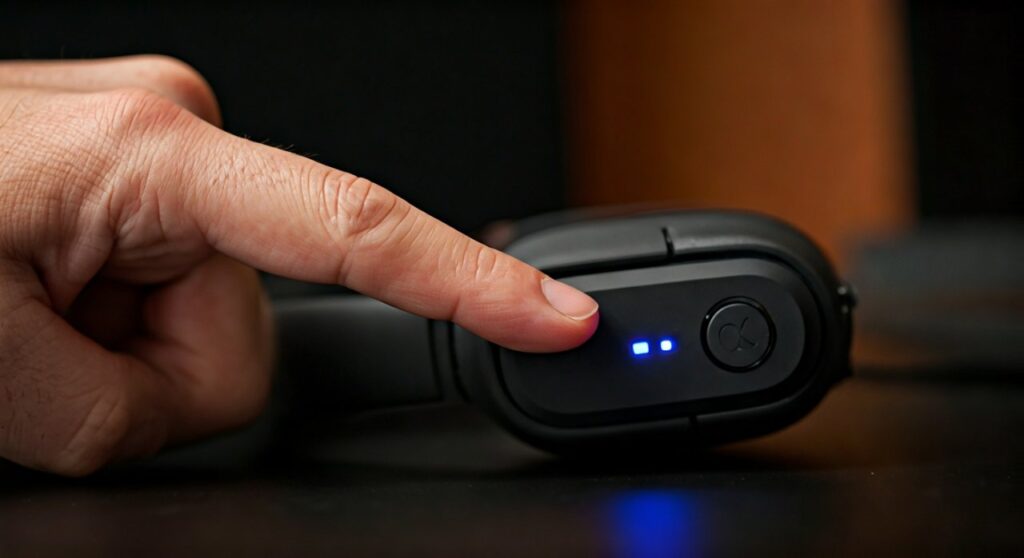
- Step 1: Turn off your Skullcandy Crusher Evo.
- Step 2: Hold the Power Button (top button on the left ear cup) for 5 seconds.
- Step 3: Wait for the LED to flash Blue/Red.
- Step 4: Select “Crusher Evo” on your device’s Bluetooth menu.
- Step 5: Confirm the pairing request if prompted.
| Feature | Specification/Action |
|---|---|
| Pairing Mode Signal | Flashing Red and Blue LED |
| Primary Button | Power/Pairing Button (Circular) |
| Bluetooth Version | Bluetooth 5.0 |
| App Support | Skullcandy App (iOS/Android) |
| Hard Reset | Hold Volume Up (+) and Volume Down (-) for 10 seconds |
Detailed Guide: How to Pair Crusher Evo Headphones with Mobile Devices
Setting up your Crusher Evo on a smartphone is the most common way to enjoy these bass-heavy cans. Whether you are on iOS or Android, the process is seamless if you follow these expert-tested steps.
Pairing with iPhone (iOS)
- Navigate to Settings > Bluetooth and ensure Bluetooth is toggled On.
- With your Crusher Evo powered off, hold the Power Button until the light flashes Red and Blue.
- Look under “Other Devices” on your iPhone screen.
- Tap “Crusher Evo.” A “Connected” status will appear once successful.
Pairing with Android
- Swipe down from the top of your screen and long-press the Bluetooth icon.
- Ensure Bluetooth is active. Tap “Pair new device.”
- Put your headphones into pairing mode (holding the power button for 5 seconds).
- Select Crusher Evo from the list of available devices.
- Pro Tip: Android users can often use Google Fast Pair; a pop-up may automatically appear on your screen the moment you put the headphones in pairing mode.
Connecting Crusher Evo to Your PC or Mac
Using the Crusher Evo for gaming or office work is a great choice due to the 40-hour battery life. However, desktop operating systems can sometimes be finicky with Bluetooth handshakes.
On Windows 10 & 11
- Press the Windows Key, type “Bluetooth,” and select Bluetooth and other devices settings.
- Click Add device > Bluetooth.
- Ensure your Crusher Evo is flashing Red and Blue.
- Select the headphones from the list.
- Note: If you see two options, choose the one with the headphone icon, not the “LE” (Low Energy) version.
On macOS
- Click the Apple Menu > System Settings (or System Preferences).
- Go to the Bluetooth section.
- While the headphones are in pairing mode, find Crusher Evo in the “Nearby Devices” list.
- Click Connect.
Troubleshooting: Why Won’t My Crusher Evo Connect?
In my years of testing Skullcandy products, connection issues usually stem from a “stuck” pairing record or interference from previously paired devices.
Perform a Factory Reset
If your device cannot find the headphones, a Hard Reset is the most effective solution.
- Turn your headphones On.
- Hold the Volume Up (+) and Volume Down (-) buttons simultaneously.
- Continue holding for 10 seconds until you hear two short beeps.
- The LED will flash Yellow or Purple (depending on firmware) and then enter pairing mode again.
Clear Previous Pairing Records
Sometimes the Crusher Evo tries to connect to your laptop in the other room while you are trying to pair it with your phone.
- Turn off Bluetooth on all nearby devices except the one you are currently using.
- “Forget” or “Unpair” the Crusher Evo from your device settings before trying to reconnect.
Check Battery Levels
The Crusher Evo requires a minimum amount of power to broadcast the Bluetooth signal effectively. If the battery is below 10%, you might experience drops or pairing failures. Charge for at least 10 minutes (Rapid Charge gives you 4 hours of play) before trying again.
Optimizing the Connection with the Skullcandy App
To unlock the full potential of your Crusher Evo, you must connect them to the Skullcandy App. This is not just for EQ—it is vital for keeping your connection firmware up to date.
- Download the Skullcandy App from the Apple App Store or Google Play Store.
- Ensure your headphones are already paired via the standard Bluetooth settings first.
- Open the app and tap “Add Device.”
- The app will scan and identify your Crusher Evo.
- Follow the prompts to set up Personal Sound by Audiodo. This calibrates the audio to your specific hearing profile.
Expert Insights: Getting the Most Out of Your Connection
The Crusher Evo utilizes Bluetooth 5.0, which offers a range of about 30 feet (10 meters). In my experience, physical barriers like thick concrete walls can cause the Sensory Bass to stutter.
For the best stability:
- Avoid interference: Keep away from high-powered Wi-Fi routers or microwaves when pairing.
- Firmware Updates: Always check the Skullcandy App for updates. These often fix “ghost” disconnection issues that users report on older versions.
- Tile Tracking: The Crusher Evo has Tile Finding Technology built-in. To use this, you must download the Tile App and “ring” your headphones. This requires a separate Bluetooth bond within the Tile app itself.
Wired Connection: The Backup Plan
If you run out of battery or want to use the Crusher Evo with a device that lacks Bluetooth (like some older gaming controllers or airplane seats), use the included 3.5mm AUX cable.
- Plug and Play: Simply plug the cable into the left ear cup.
- Active vs. Passive: You can use the headphones while they are turned off (Passive Mode), but the Sensory Bass slider will not work. To use the bass slider in wired mode, you must turn the power On.
Frequently Asked Questions
How do I put Crusher Evo in pairing mode?
Ensure the headphones are off. Press and hold the Power Button for 5 seconds until the LED light flashes Red and Blue. You will hear a voice prompt saying “Pairing.”
Can Crusher Evo connect to two devices at once?
The Crusher Evo does not natively support Multipoint Pairing. You must disconnect from one device before connecting to another. However, you can toggle between them quickly if both devices have been previously paired.
Why is the light on my Crusher Evo flashing purple?
A flashing Purple light usually indicates that the internal memory has been cleared after a factory reset. It should automatically enter pairing mode (Red/Blue) immediately after.
Does Crusher Evo work with PS5 or Xbox Series X?
These consoles do not support Bluetooth audio directly. To connect wirelessly, you will need a Bluetooth Transmitter plugged into the console’s USB port or the controller’s jack. Alternatively, use the 3.5mm cable directly into the controller.
Why does the Skullcandy App not see my headphones?
Ensure the headphones are already paired to your phone’s system Bluetooth settings. Close the app, toggle Bluetooth off and on, then restart the app. Ensure Location Services are enabled, as this is required for Bluetooth scanning on many Android versions.









