

Understanding How Presenter View Operates with Projectors
Does presenter view work on projector setups? Yes, it absolutely does, provided you configure your computer to “Extend” its display rather than “Duplicate” it. By using this mode, your laptop screen functions as a private dashboard showing your notes and upcoming slides, while the projector displays only the current slide to your audience.
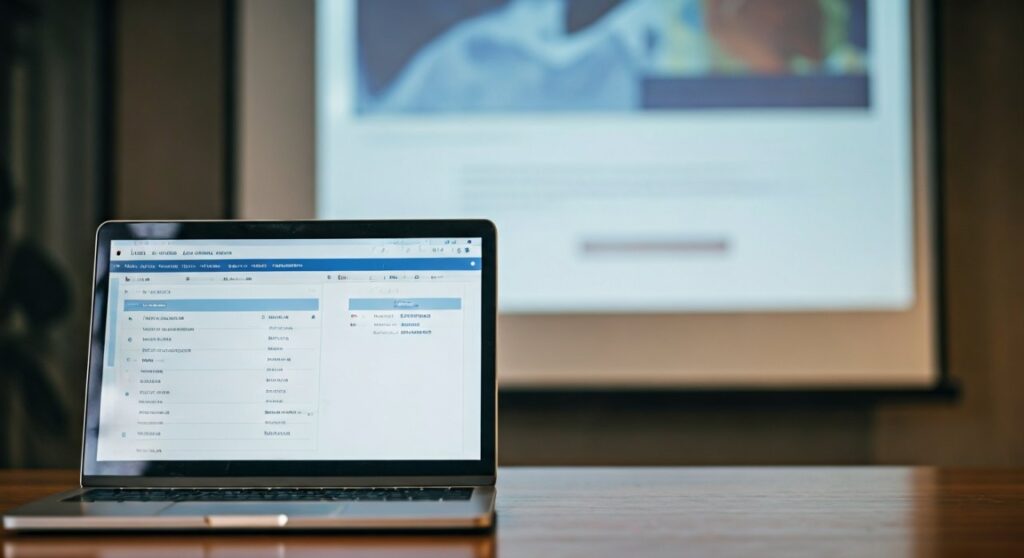
This setup is the industry standard for professional speakers, educators, and corporate executives. It relies on the computer recognizing the projector as a second, independent monitor. Whether you are using Windows 10/11 or macOS, the process involves a simple toggle in your display settings and a quick check in your presentation software (like Microsoft PowerPoint or Google Slides).
Key Takeaways: Presenter View Essentials
If you are in a hurry to get your presentation started, here is the essential information you need to know:
- Primary Requirement: You must set your display mode to Extend, not Mirror/Duplicate.
- Hardware: Use high-quality HDMI, DisplayPort, or USB-C cables to ensure the computer detects the projector immediately.
- Software Check: In PowerPoint, ensure the “Use Presenter View” checkbox is ticked under the Slide Show tab.
- Swap Shortcut: If the notes appear on the big screen, use the Swap Presenter View and Slide Show button at the top of the presenter screen.
- Confidence Booster: Using this view allows you to see a timer, your speaker notes, and a thumbnail gallery of future slides.
| Feature | Duplicate/Mirror Mode | Extend Mode (Presenter View) |
|---|---|---|
| Audience Sees | Everything on your laptop | Only the active slide |
| Speaker Sees | Same as audience | Notes, timer, and next slide |
| Best For | Software demos | Formal presentations and speeches |
| Privacy | Low (Desktop icons/notifications visible) | High (Only slide content is shared) |
Does Presenter View Work on Projector Systems? The Technical Breakdown
To understand why does presenter view work on projector configurations, we have to look at how modern operating systems handle video output. When you plug in a cable, your computer asks: “Should I show the same thing on both screens, or create a larger workspace?”
Presenter View requires a “larger workspace.” This is technically known as Multi-Monitor Support. When the projector is an “Extension” of your desktop, the presentation software can send two different video signals: one for the “Control Room” (your laptop) and one for the “Stage” (the projector).
In my experience as a technical consultant for live events, the number one reason will presenter view show on projector instead of the laptop is a simple setting error. If your computer is set to “Duplicate,” it is physically impossible for the software to show two different things. You must tell the OS that the projector is a separate entity.
Step-by-Step: Setting Up Presenter View on Windows
Setting up your workspace correctly is the first step to a stress-free delivery. Follow these steps for Windows 10 and Windows 11 devices.
Connect the Hardware
Plug your HDMI or VGA cable into your laptop and the projector. Ensure the projector is turned on and set to the correct input source (e.g., HDMI 1).
Configure Display Settings
Press the Windows Key + P on your keyboard. This opens the “Project” sidebar. Select Extend from the four options available (PC screen only, Duplicate, Extend, Second screen only).
Open PowerPoint
Launch your presentation. Navigate to the Slide Show tab on the top ribbon. In the Monitors group, make sure the box for Use Presenter View is checked.
Start the Show
Press F5 or click Start from Beginning. Your laptop should now display the navigation interface, while the projector shows the full-screen slide.
Step-by-Step: Setting Up Presenter View on macOS
Apple users have a slightly different interface, but the logic remains the same. Here is how to ensure your MacBook works perfectly with a projector.
Connection and Detection
Connect your Mac to the projector using a Thunderbolt or USB-C to HDMI adapter. Go to the Apple Menu > System Settings (or System Preferences) > Displays.
Disable Mirroring
In the Displays window, you will see your laptop screen and the projector icon. Ensure that Mirror Displays is unchecked. This forces macOS into “Extended Desktop” mode.
Keynote or PowerPoint Settings
If using Keynote, go to Keynote > Settings > Presenting. Ensure “Use Presenter Display” is enabled. For PowerPoint for Mac, the settings are identical to the Windows version under the Slide Show tab.
Arrange Displays
In the Displays menu, click Arrange. You can drag the blue boxes to match the physical layout of your room. I recommend placing the projector “above” or “to the side” of your laptop screen.
Troubleshooting: Why Will Presenter View Show on Projector instead of Laptop?
Sometimes, the screens are swapped. Your audience sees your notes, and you see the slide. This is a common hiccup, but it is easily fixed.
- The “Swap” Button: On the screen that is showing the Presenter View, look at the top toolbar. Click Display Settings and select Swap Presenter View and Slide Show.
- Identify Monitors: In your Windows Display Settings, click Identify. A number “1” and “2” will appear on the screens. Ensure your presentation software is set to send the “Slide Show” to the number corresponding to the projector.
- Resolution Mismatch: Sometimes a high-resolution laptop (4K) struggles with an older 720p projector. If the screen looks “cut off,” try lowering your laptop’s resolution to match the projector’s native resolution.
Advanced Tips for Pro Speakers
Once you have mastered the basic setup, use these expert-level strategies to enhance your presentation flow.
Use the “B” and “W” Keys
During a presentation, pressing the “B” key will turn the projector screen completely black. Pressing “W” will turn it white. This is incredibly useful when you want the audience to stop looking at the slides and focus entirely on you during a story or Q&A.
Laser Pointer and Pen Tools
Inside Presenter View, there is a set of icons below the current slide. You can use your mouse or trackpad as a Virtual Laser Pointer. This is much more effective than a physical laser pointer because it doesn’t shake and is visible even on recorded sessions or digital livestreams.
The “See All Slides” Feature
In the navigation pane, there is an icon that looks like a grid of four squares. Clicking this allows you to see every slide in your deck simultaneously on your laptop. The audience continues to see only the current slide. This allows you to jump ahead or go back to a specific slide without the audience seeing you “scroll” through the deck.
Essential Hardware for Reliable Presenter View
The quality of your cables directly impacts whether your computer can “handshake” with the projector. Using cheap adapters often leads to flickering or the computer failing to recognize the “Extend” capability.
- Active Adapters: If you are converting DisplayPort to HDMI, use an Active Adapter. These have an internal chip that handles the signal conversion more reliably.
- Cable Length: Avoid HDMI cables longer than 25 feet without a signal booster. Long cables can cause the “Extend” option to disappear from your settings.
- Wireless Options: Tools like ClickShare or Airtame allow for wireless Presenter View. However, they require specific drivers to be installed on your laptop to treat the wireless receiver as a second monitor.
Frequently Asked Questions
Can I use Presenter View if I only have one monitor?
Yes, you can practice. In PowerPoint, press Alt + F5. This launches Presenter View even if you aren’t connected to a projector. This is a great way to rehearse your timing and notes.
Does Presenter View work with Google Slides on a projector?
Absolutely. When you click the arrow next to “Present” in Google Slides, select Presenter View. A separate window will pop up with your notes. You simply need to drag the main presentation window onto the “Extended” projector screen and maximize it.
Why are my notes too small to read in Presenter View?
In the Presenter View interface, there are two “A” icons (one small, one large) at the bottom left of the notes section. You can click the large “A” to increase the font size of your speaker notes without affecting the slide on the projector.
Will my audience see my mouse cursor?
In Extend mode, the audience will only see your cursor if you move it onto the projector’s “space.” If you keep your mouse on your laptop screen to navigate your notes, the cursor remains invisible to the audience.
Does Presenter View work on Zoom or Microsoft Teams?
Yes, but you must share the “Slide Show” window specifically, not your entire desktop. This allows you to keep the Presenter View on your physical screen while the remote participants only see the content.









