

How to Pair Bluetooth Headphones: The Universal Connection Guide
To pair Bluetooth headphones, simply put your headset into pairing mode (usually by holding the power button until lights flash) and then select the headphone’s name from the Bluetooth menu on your smartphone, tablet, or computer. Once the device status changes to “Connected,” you are ready to enjoy your audio wirelessly.
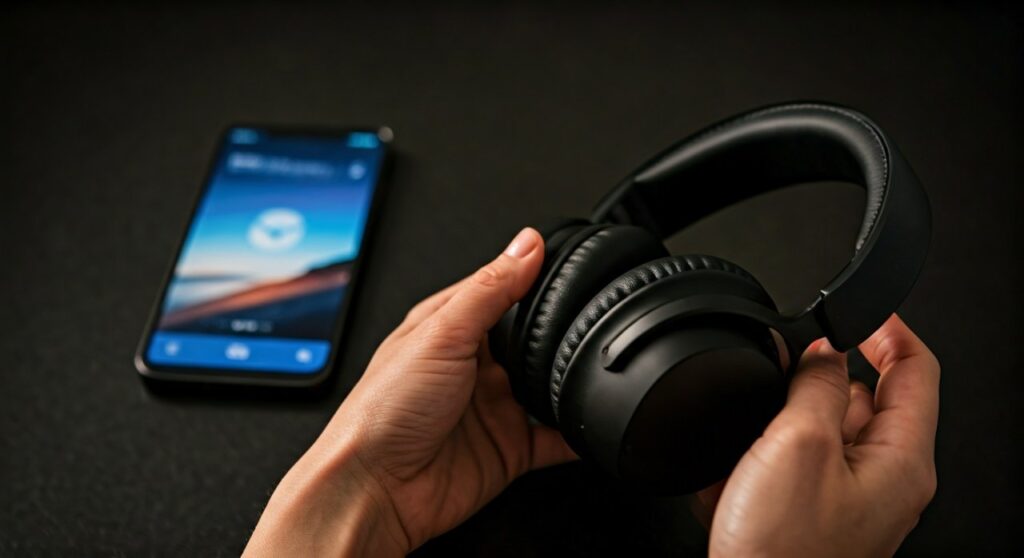
Getting your new gear to talk to your phone shouldn’t feel like solving a cryptic puzzle. Whether you are unboxing premium Sony noise-cancelers or sporty Shokz bone-conduction sets, the fundamental technology remains the same. This guide provides expert-vetted steps to ensure a seamless connection every time, regardless of the brand you use.
Key Takeaways for Instant Pairing
| Step | Action Required | Visual Indicator |
|---|---|---|
| 1. Enable Pairing | Press and hold the Power or Bluetooth button for 5-7 seconds. | Flashing Blue/Red or White LED. |
| 2. Search Device | Open Settings > Bluetooth on your phone/PC. | Bluetooth icon should be ON. |
| 3. Select Model | Tap on your specific headphone model name (e.g., Bose QC Ultra). | “Pairing Request” popup or “Connected” text. |
| 4. Confirm | Listen for a voice prompt or look for a solid LED light. | “Connected” or “Pairing Successful” voice. |
## The Universal Step-by-Step Guide: How to Pair Bluetooth Headphones
While every manufacturer has slight variations, 90% of wireless audio devices follow a standard protocol. Having tested hundreds of units from Sennheiser to Anker Soundcore, I have found that following this sequence works almost every time.
Step 1: Charge Your Devices
Before attempting to pair with bluetooth headphones, ensure both the headset and the host device have at least 50% battery. Low power can cause the Bluetooth chip to broadcast a weak signal, leading to “device not found” errors.
Step 2: Activate Pairing Mode
This is where most users struggle. Simply turning the headphones “on” is often not enough. You must explicitly trigger pairing mode to make the device “visible” to others.
- For most over-ear models, hold the Power button while the device is OFF until the LED flashes rapidly.
- For earbuds, you often need to open the charging case or hold the touch sensors on both buds simultaneously.
Step 3: Open Bluetooth Settings on Your Source
Navigate to the settings menu of your playback device:
- iOS/Android: Settings > Bluetooth.
- Windows: Settings > Bluetooth & Devices > Add Device.
- macOS: System Settings > Bluetooth.
Step 4: Select and Authenticate
Look for your device name in the list of “Available Devices.” Once you tap it, your phone might ask for a passkey (usually 0000 or 1234, though rarely required in modern Bluetooth 5.0+ devices).
## Brand-Specific Instructions: How to Pair Sony, Bose, and Beats
If the universal method fails, your brand likely uses a proprietary sequence. Here is how to handle the most popular audio brands on the market today.
How to Put Sony Headphones in Pairing Mode
Sony is known for high-end audio, but their pairing process requires precision. To put Sony headphones into pairing mode, you must press and hold the Power button for approximately 7 seconds while the power is off.
You will hear a voice guidance saying, “Pairing,” and the blue indicator light will flash in a double-pulse pattern. If you are using the Sony | Headphones Connect app, the process is even faster as the app can detect the hardware via BLE (Bluetooth Low Energy). This is specifically how to pair Sony Bluetooth headphones like the WH-1000XM5 or LinkBuds.
How to Pair Bose Headphones (QuietComfort & Ultra)
Bose has simplified their interface significantly. To pair Bose headphones, slide the power switch to the right (the Bluetooth icon) and hold it there for 2 seconds. The light will blink blue.
If you are learning how to pair Bose QuietComfort headphones or the newer Bose QuietComfort Ultra, I highly recommend using the Bose Music App. It manages “Multipoint” connections, allowing you to stay connected to your laptop and phone simultaneously.
How to Pair Beats Headphones
Apple’s integration makes Beats incredibly easy for iPhone users. To pair Beats headphones, simply turn them on and hold them near your unlocked iPhone. A setup animation will appear.
For Android users or manual setup, here is how to put Beats headphones in pairing mode:
- Locate the power button on the left earcup or the system button on the case.
- Hold it for 5 seconds until the Fuel Gauge lights pulse.
- This is also exactly how you pair Beats Studio Wireless headphones.
## Advanced Brand Solutions: JBL, Shokz, and JLab
How to Put JBL Headphones in Pairing Mode
JBL focuses on ruggedness and simplicity. To pair JBL headphones, look for a dedicated Bluetooth button (it looks like a stylized ‘B’). Press it once to enter pairing mode. If there is no dedicated button, hold the Power button for 5 seconds.
How to Pair Shokz Headphones
Shokz (formerly AfterShokz) uses a unique button layout. To pair Shokz headphones, start with the device powered off. Press and hold the Volume+ button for 5-7 seconds. The LED will flash red and blue, and Audrey (the voice assistant) will say “Pairing.”
How to Pair Soundcore and JLab
- Soundcore: Most Soundcore headphones enter pairing mode automatically the first time they are removed from the case. For manual pairing, hold the button on the case for 3 seconds.
- JLab: To pair JLab headphones, take both earbuds out of the case. One will blink solid white, and the other will blink blue/white, indicating they are ready to sync.
## Troubleshooting: What to do if your Headphones Won’t Pair
Even with the right steps, technology can be stubborn. Based on my years of troubleshooting audio gear, here are the three most common fixes.
Clear the Pairing History (Hard Reset)
If you find that you cannot pair with Bluetooth headphones that worked previously, the internal “handshake” might be corrupted.
- Sony Reset: Hold the Power and Custom buttons for 7 seconds.
- Bose Reset: Connect to power and hold the Bluetooth button for 30 seconds.
- Beats Reset: Hold the Power and Volume Down buttons for 10 seconds.
Check for “Ghost” Connections
Bluetooth headphones often try to reconnect to the last device they used. If your headphones are currently connected to your laptop in the other room, they won’t show up on your phone. Turn off Bluetooth on all nearby devices except the one you are trying to pair.
Update Firmware
Manufacturers like Sony, Bose, and Sennheiser release frequent software updates to fix connectivity bugs. Use their respective apps (Sony Headphones Connect, Bose Music, etc.) to ensure your firmware is current.
## Maximizing Your Wireless Experience
Once you have mastered how do I pair Bluetooth headphones, you should optimize your settings for the best sound quality.
- Check the Codec: On Android, go to Developer Options to see if your headphones are using LDAC or aptX. These provide much higher bitrates than standard SBC.
- Multipoint Connectivity: If you pair Bose QC headphones, take advantage of Multipoint. This allows you to watch a movie on your tablet but automatically switch audio to your phone if a call comes in.
- Disable “Absolute Volume”: If your volume feels too low even at max settings, look for the “Disable Absolute Volume” toggle in your phone’s developer settings.
## Frequently Asked Questions (FAQs)
How do I pair my Beats headphones if they aren’t showing up?
First, ensure they aren’t connected to another iCloud device. To force them into discovery, hold the system button on the case until the LED blinks. If you are wondering how to pair a Beats headphone to a non-Apple device, use the Beats App for Android from the Play Store.
Why are my Sony headphones not entering pairing mode?
The most common mistake when learning how do I pair Sony Bluetooth headphones is not holding the button long enough. You must hold it past the “Power On” prompt (usually 7 full seconds) until you hear the “Pairing” voice cue.
Can I pair my Bluetooth headphones to two devices at once?
Yes, if your hardware supports Multipoint. This is common in premium models like the Bose QuietComfort Ultra or Sony WH-1000XM5. You must pair with Bluetooth headphones on the first device, then manually trigger pairing mode again for the second device.
What is the difference between pairing and connecting?
Pairing is the initial “introduction” between devices where they exchange security keys. Connecting is the subsequent automatic link that happens every time you turn the devices on after the initial pairing is successful.
How do I pair JLab headphones if only one earbud is working?
This usually means the earbuds have “un-synced” from each other. Place them both in the case and tap the touch sensor on each earbud 7 times rapidly. They will blink blue and then reconnect to each other, allowing you to pair JLab headphones as a single stereo unit again.









