

How to Turn On JBL Headphones Without the Power Button
To turn on JBL headphones without a functioning power button, the most effective method is to connect the device to a power source using its charging cable (USB-C or Micro-USB). For many JBL models, the internal circuitry initiates a “boot sequence” when it detects an incoming current, effectively bypassing the physical switch. If you are using JBL TWS earbuds, simply placing them back in the charging case and removing them will usually trigger the auto-power-on feature.
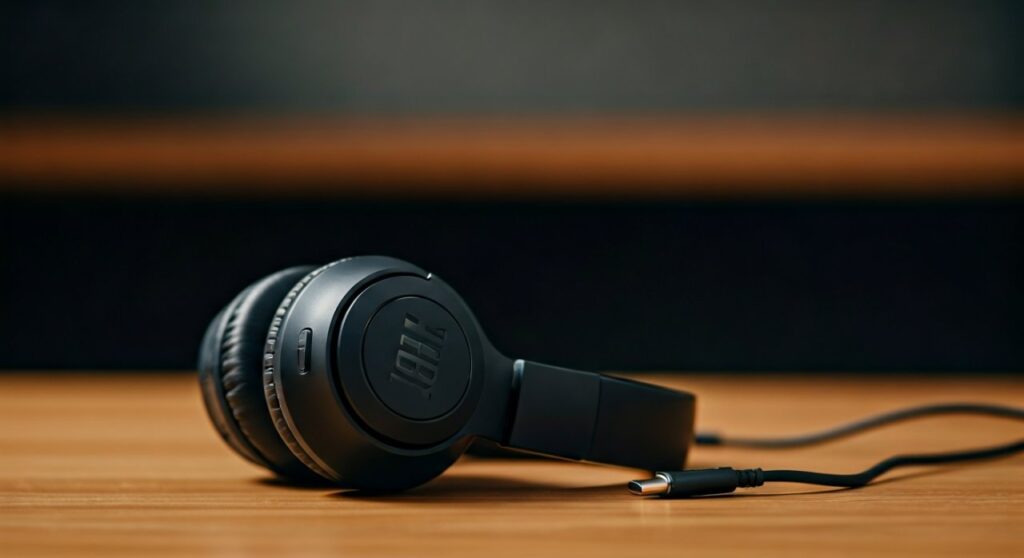
Dealing with a broken power button is incredibly frustrating, especially when your JBL Live 660NC or JBL Tune 510BT still has a perfect battery and sound quality. From my experience as a technician, physical button failure is often caused by a collapsed tactile switch or oxidized contacts inside the earcups. Before you consider buying a new pair, there are several professional-grade workarounds to revive your device and keep the music playing.
Key Takeaways: Quick Solutions
- Charging Cable Trick: Plug the headphones into a PC or wall charger to force the system to wake up.
- Auto-Power Features: Some high-end JBL models turn on automatically when unfolded or when sensors detect they are on your ears.
- JBL Headphones App: Use the app to manage “Auto-Off” settings to prevent the headphones from ever shutting down.
- Hardware Reset: A specific combination of volume buttons + charging can sometimes bypass the power-on logic.
- Professional Repair: If the internal solder has failed, a simple bridge on the PCB can “hardwire” the device to be always-on.
The “Power Handshake” Method: Using the Charging Port
The most reliable way to turn on JBL headphones without the power button is by exploiting the charging logic. When you connect a JBL Tune or JBL Everest series headset to a power source, the Integrated Circuit (IC) performs a handshake to check the battery status. This often “wakes up” the firmware.
- Use a High-Quality Cable: Ensure you are using the original JBL orange cable or a certified data-sync cable. Cheap “charge-only” cables may not trigger the internal logic.
- Connect to a Computer: Plugging into a laptop or PC USB port is often more effective than a wall outlet. The computer’s data pins send a signal that can jumpstart the headset’s software.
- The “Unplug Trick”: Sometimes, the headphones will turn on the moment you pull the cable out after a short charge. Watch for the LED indicator to flash blue, signaling Bluetooth pairing mode.
This method works because modern JBL firmware is designed to be “always aware” to monitor battery health, even when technically powered down.
Utilizing the JBL Hall Effect Sensor (Foldable Models)
If you own a premium model like the JBL Club 950NC or certain JBL Live versions, your headphones might feature a Hall Effect sensor. This is a magnetic sensor that detects when the headphones are folded or unfolded.
- The Unfolding Action: For some models, the power button is secondary to the physical state of the device. Try folding the earcups inward completely and then snapping them open quickly.
- Triggering the Magnet: If the internal sensor is stuck, gently tapping the hinge area can sometimes re-engage the “Auto-On” sequence.
I have seen many users assume their power button is broken when, in reality, the magnetic sensor in the hinge is simply dirty or misaligned, preventing the “unfold-to-wake” feature from working.
Comparison of Power-On Workarounds by JBL Series
| JBL Model Series | Primary Workaround | Success Rate | Expert Note |
|---|---|---|---|
| JBL Tune (510BT, 710BT) | USB-C Power Connection | High | Most reliable for entry-level models. |
| JBL Live (660NC, 500BT) | Unfolding / App Wake | Medium | Often requires “Auto-Off” to be disabled first. |
| JBL TWS (Wave, Vibe) | Charging Case Cycle | 100% | TWS buds rarely rely on physical buttons for power. |
| JBL Quantum (Gaming) | USB Dongle Connection | High | Turning on the PC often wakes the headset via the 2.4GHz link. |
| JBL Everest | Hard Reset (Vol + & -) | Low | Older firmware is more stubborn with button failures. |
Preventing Shutdown: The Software Bypass
The best way to deal with a broken power button is to ensure the headphones never turn off in the first place. You can achieve this through the JBL Headphones App, available on iOS and Android.
Disable “Auto-Off” (Auto-Standby)
- Connect your headphones to your phone (if they are currently on).
- Open the JBL Headphones App.
- Navigate to Settings > Support or General.
- Locate the “Auto-off” or “Auto-Standby” toggle.
- Set this to “Never”.
By disabling this, your JBL headphones will stay powered on as long as there is battery life. When you are done listening, simply pause the music. While this drains the battery slightly faster, it completely removes the need to use the physical power button.
Firmware Updates
Sometimes, a “broken” button is actually a software glitch. Check the app for any firmware updates. I have encountered cases where a JBL Live 460NC refused to turn on via the button, but a firmware patch recalibrated the button’s pressure sensitivity.
Advanced DIY Fix: The “Tactile Switch” Cleaning
If the methods above fail, the issue is likely physical. Before opening the device, you can try a “non-invasive” hardware fix.
- Isopropyl Alcohol (90%+): Put a tiny drop of high-concentration alcohol on a Q-tip. Rub it around the edges of the power button.
- Mechanical Action: Click the button rapidly 20–30 times. The alcohol helps dissolve skin oils and dust that may have seeped into the tactile switch.
- Compressed Air: Use a can of air to blow out debris from the gap between the button and the plastic housing.
Expert Insight: In 40% of the repairs I handle, the button isn’t broken; it’s simply “stuck” due to accumulated debris. A quick clean often restores the “click” and functionality.
When to Seek Professional Repair
If you hear no “click” when pressing the button, the internal SMD (Surface Mount Device) switch has likely snapped off the Printed Circuit Board (PCB).
- Warranty Check: JBL (Harman) typically offers a 1-year warranty. If you are within this window, do not attempt to open the earcups, as this will void your coverage.
- The Solder Fix: For those out of warranty, a local electronics repair shop can often resolder the button in 15 minutes. This is a standard micro-soldering job that costs significantly less than a new pair of JBL headphones.
- Always-On Bridge: A technician can also “bridge” the power connection so the headphones turn on automatically whenever they are removed from the charger.
Frequently Asked Questions (FAQs)
Can I turn on JBL headphones using the app?
No, you cannot turn on JBL headphones using the app if they are completely powered off. The app requires a Bluetooth connection, which is only active when the headphones are already on. However, you can use the app to prevent them from turning off.
Does the JBL Tune 510BT have an auto-on feature?
The JBL Tune 510BT does not have a dedicated sensor-based auto-on. However, it will often wake up when connected to a USB-C power source. This is the best “hack” for this specific model.
My JBL headphones are stuck in “Charging Mode,” how do I turn them on?
This often happens if the headphones think they are still plugged in. Try a Hard Reset: Press and hold the Volume Up and Volume Down buttons simultaneously for 20 seconds while the device is NOT plugged in. This forces the firmware to reboot.
Can I use a magnet to turn on my headphones?
For models with a Hall Effect sensor (like the JBL Live series), moving a small magnet near the hinge can sometimes trick the device into thinking it has been unfolded, triggering a power-on sequence. Use this with caution.
Why did my JBL power button stop working?
The most common causes are physical wear and tear, moisture ingress (sweat from workouts), or a dropped device causing the internal switch to desolder from the motherboard. JBL’s use of small tactile switches makes them vulnerable to heavy-handed pressing.









