

Headphones usually sound weird due to physical cable damage, loose connections, or incorrect software settings like enabled audio enhancements. To fix this, you should first check for debris in the audio jack, ensure the plug is fully seated, and disable any “Spatial Sound” or “3D Audio” features in your device settings.
If you have ever been immersed in a movie or a competitive gaming match only to have the audio suddenly turn tinny or muffled, you know how jarring it is. Identifying why does my headphones sound weird is often a process of elimination between hardware failure and software glitches.
This guide provides an expert-level deep dive into every possible reason your audio quality has degraded. From impedance mismatching to corrupted drivers, we will walk through the steps to restore your high-fidelity sound.
Key Takeaways for Fixing Weird Headphone Sound
If you are in a hurry, here are the most common solutions to get your audio back to normal:
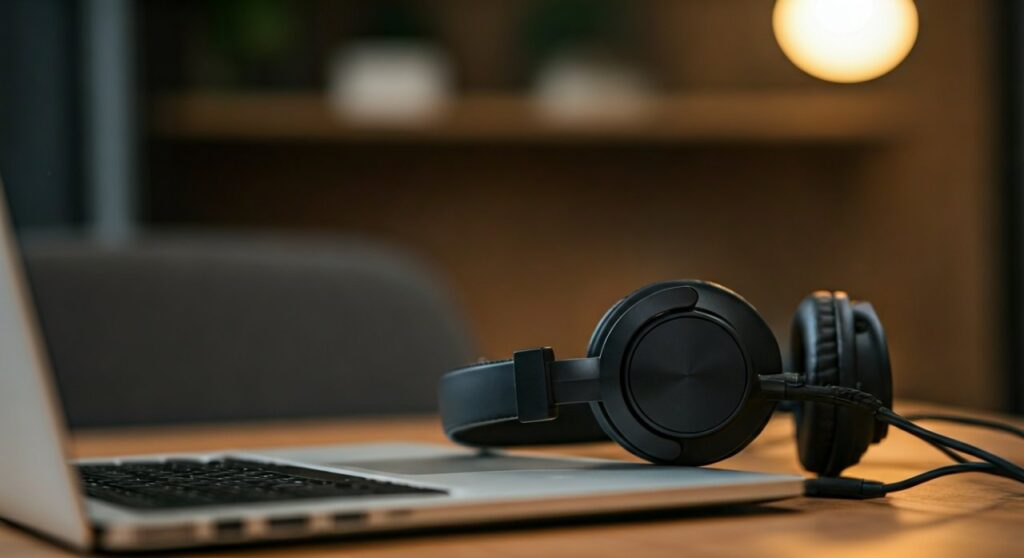
- Check the Jack: Ensure there is no lint or dust inside the 3.5mm port or USB-C slot.
- The “Wiggle” Test: If the sound cuts in and out when you move the wire, you likely have a frayed internal cable.
- Disable Enhancements: Turn off Windows Sonic, Dolby Atmos, or manufacturer-specific “Equalizer” presets.
- Mono Audio: Check if your device accessibility settings have “Mono Audio” turned on, which flattens the soundstage.
- Update Firmware: For wireless models like the Sony WH-1000XM5 or Apple AirPods Pro, ensure the latest firmware is installed via their respective apps.
Common Symptoms: Identifying Your Specific Audio Issue
Before fixing the problem, you must define what “weird” sounds like. Different symptoms point to different culprits.
The “Underwater” or Muffled Sound
This usually indicates a partial connection or a phase cancellation issue. If the ground wire in your cable is failing, you might hear the background music but not the vocals.
Tinny and Hollow Audio
If your premium Sennheiser or Beyerdynamic headphones suddenly sound like a cheap radio, it is often due to an impedance mismatch or a software filter.
Static, Crackling, or Popping
Constant crackling is a hallmark of interference or physical hardware damage. This is common in wired headphones with a damaged TRS (Tip-Ring-Sleeve) connector.
Robotic or Distorted Voices
This is frequently a digital issue. It happens when the Sample Rate in your OS settings does not match the hardware’s capability, causing “aliasing” or “jitter.”
Hardware Troubleshooting: Why Does My Headphones Sound Weird Physically?
Most audio issues start at the physical level. Even a microscopic layer of oxidation on a plug can ruin your listening experience.
Inspect the Audio Connector (The Jack)
Over time, pocket lint accumulates in phone or laptop jacks. This prevents the plug from clicking in fully, leading to a “hollow” sound.
Use a non-conductive toothpick or a compressed air canister to gently clean the port. Never use metal needles, as they can short the internal pins.
The Problem with TRRS vs. TRS
If you are using a headset with a built-in microphone, it uses a TRRS (4-pole) connector. If you plug this into an older TRS (3-pole) extension cable, the segments won’t align.
This misalignment causes the left and right channels to bleed into each other. Use a PC Splitter Cable (Y-adapter) if you are connecting a gaming headset to a desktop computer with separate green and pink ports.
Internal Wiring Fraying
Wires inside the cable are thinner than a human hair. Repeatedly bending the cable near the plug causes these wires to snap.
Expert Tip: Perform a “segmental wiggle test.” Start at the plug and slowly move your way up the wire, flexing it gently. If the sound clears up at a specific spot, you have found the break. You may need to solder a new jack or replace the cable if it is detachable.
Software Settings: Digital Fixes for Distorted Sound
If the hardware looks perfect, the issue is likely hidden in your operating system’s sound processing layer.
Disable Windows Audio Enhancements
Windows often tries to “improve” sound by adding virtual surround effects. Often, these conflict with your headphones’ natural frequency response.
- Right-click the Speaker Icon in the taskbar.
- Select Sound Settings > More sound settings.
- Right-click your headphones and select Properties.
- Navigate to the Enhancements tab.
- Check the box “Disable all enhancements”.
Adjust the Sample Rate and Bit Depth
If you hear “robotic” clicking, your PC might be sending more data than your DAC (Digital-to-Analog Converter) can handle.
Set your output to 24-bit, 48,000 Hz (Studio Quality). This is the “sweet spot” for most modern media and prevents clock-timing errors that lead to distortion.
Check for “Mono Audio” Toggle
In Windows and iOS, there is an accessibility feature called Mono Audio. If enabled, it combines the Left and Right channels.
While helpful for some, it destroys the stereo image and makes high-end headphones sound flat and “weird.” Ensure this is toggled OFF in the Accessibility settings menu.
Bluetooth and Wireless Issues: Interference and Codecs
Wireless headphones introduce a new set of problems. Why do my headphones sound weird when they aren’t even plugged in? The answer usually lies in the Bluetooth Codec.
Bandwidth Bottlenecks (Hands-Free AG Audio)
Windows has two modes for Bluetooth: Stereo (A2DP) and Hands-Free (HFP). If your PC thinks you are in a call, it switches to Hands-Free mode.
Hands-Free mode limits the bitrate to a very low level to save bandwidth for the microphone. This makes your music sound like a 1990s telephone call. Ensure your default playback device is set to the Stereo profile, not the “Hands-Free” profile.
Signal Interference
Bluetooth operates on the 2.4 GHz frequency. This is the same frequency used by:
- Microwaves
- Older Wi-Fi routers
- Wireless mice and keyboards
If you are surrounded by these devices, your audio will “stutter” or sound “metallic” as packets of data are lost in the air.
Codec Mismatch
High-end headphones like the Sony WH-1000XM4 support LDAC or aptX HD. If your phone defaults to the basic SBC codec, the audio will lack detail. Use the “Developer Options” on Android or the manufacturer’s app to force a higher-quality codec.
Advanced Concepts: Impedance and Power
For audiophiles using gear from Audeze, Focal, or Hifiman, the “weird” sound might be a power issue.
Impedance Mismatch
High-impedance headphones (measured in Ohms) require more voltage to drive the drivers correctly. If you plug 300-ohm Sennheiser HD600s directly into a cheap laptop, they will sound quiet, thin, and lack bass.
To fix this, you need a dedicated Headphone Amplifier. Without proper power, the drivers cannot move fast enough to reproduce low frequencies, leading to a “tinny” sound profile.
Blown Drivers
If you consistently listen at maximum volume, you may have physically damaged the diaphragm. A blown driver usually produces a distinct “buzzing” or “rattling” sound, especially during bass-heavy tracks.
| Issue | Likely Cause | Fix |
|---|---|---|
| Hollow/Echoey | Partial Plug Insertion | Clean jack; push plug until it clicks. |
| Vocals Missing | Broken Ground Wire | Replace cable or solder new connector. |
| Static/Crackling | Dirty Contacts | Use DeoxIT or Alcohol to clean the plug. |
| Low Volume/Thin Bass | High Impedance | Use a dedicated DAC/Amp. |
| Robotic Stuttering | Driver Conflict | Reinstall Realtek or ASIO drivers. |
Step-by-Step Guide to Resetting Your Audio Drivers
Sometimes, the driver software becomes corrupted after an OS update. Follow these steps for a clean slate.
- Press Windows Key + X and select Device Manager.
- Expand the Sound, video and game controllers section.
- Right-click your audio device (e.g., Realtek High Definition Audio).
- Select Uninstall device.
- Restart your computer. Windows will automatically reinstall the driver upon reboot.
This simple “power cycle” for drivers fixes 80% of software-related audio “weirdness.”
Why Does My Headphones Sound Weird When Gaming?
Gaming audio is a unique beast. Many games use Binaural Audio or HRTF (Head-Related Transfer Function) to simulate 3D space.
If you have 7.1 Virtual Surround Sound enabled in your headset software (like Logitech G Hub or Razer Synapse) AND the game’s own 3D audio enabled, they will “fight” each other. This results in a “flanging” effect or weird echoing.
Expert Advice: Always disable the headset’s software surround sound and use the game’s internal audio engine for the most accurate positioning.
Frequently Asked Questions
Why do my headphones sound like they are underwater?
This is almost always a sign of a short circuit in the ground wire of the cable. The “underwater” effect is caused by the left and right channels cancelling each other out (out-of-phase). Try a different cable or check the jack for debris.
Can a low battery make wireless headphones sound weird?
Yes. Many Bluetooth headphones enter a “Power Saving Mode” when the battery drops below 10-15%. This can reduce the sampling rate or disable Active Noise Cancellation (ANC), causing a noticeable shift in sound quality.
Why do my headphones sound weird on only one side?
One-sided audio is usually a hardware failure. The wire leading to one ear cup has likely snapped internally. If the headphones are wired, try wiggling the cord near the ear cup to see if the sound returns.
Is it possible for my ears to be the problem?
Excessive earwax buildup can block the high frequencies, making your headphones sound muffled. Additionally, if you have been listening to loud music, you may experience Temporary Threshold Shift (TTS), which dulls your hearing.
Does a cheap DAC cause weird noises?
Yes. Integrated motherboards often have poor shielding. This allows electromagnetic interference (EMI) from the GPU or CPU to bleed into the audio path, resulting in high-pitched “whining” or “hissing” sounds when you move your mouse or play a game.
**
**
**
**









