

Yes, the Steam Deck (both the LCD and OLED models) features a dedicated 3.5mm headphone jack located on the top edge of the device. This allows you to plug in any standard wired headphones or headsets for high-fidelity, zero-latency gaming audio right out of the box.
Key Takeaways: Steam Deck Audio at a Glance
If you are in a hurry, here is the essential information regarding the Steam Deck’s audio connectivity:
| Feature | Specification / Detail |
|---|---|
| 3.5mm Jack Location | Top right side, next to the volume buttons. |
| Jack Type | TRRS (Supports both stereo audio and microphone input). |
| Bluetooth Support | Yes, Bluetooth 5.0 (LCD) / Bluetooth 5.3 (OLED). |
| USB-C Audio | Supported via the top USB-C port or a docking station. |
| Audio Latency | Wired (0ms), USB-C (Near zero), Bluetooth (Variable). |
| Best For | Competitive gaming, rhythm games, and preserving battery life. |
The Physical Location: Finding the Jack on Your Steam Deck
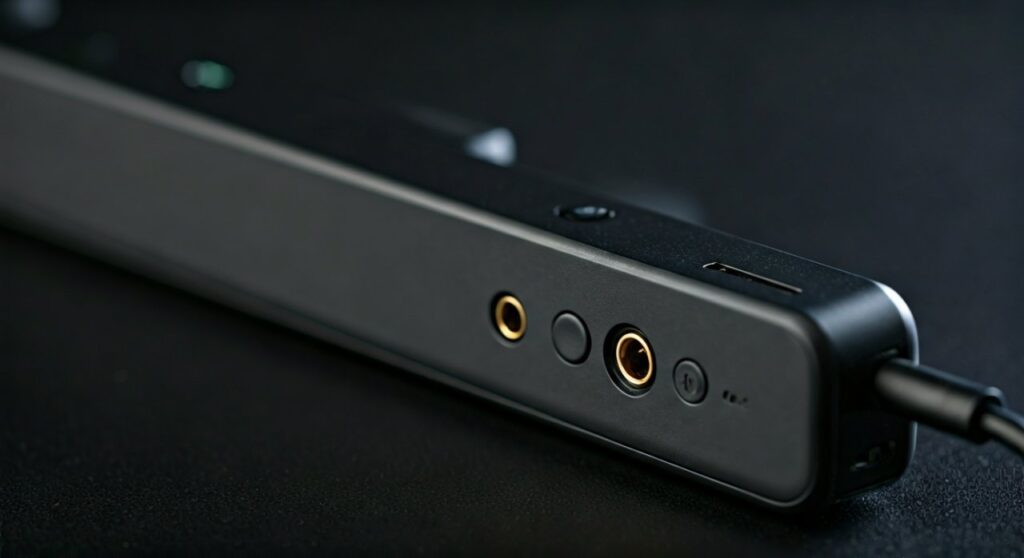
When you first unbox your Valve handheld, you might be overwhelmed by the buttons and triggers. The Steam Deck headphone jack is conveniently placed on the top right-hand side of the unit.
It sits nestled between the Volume Up/Down buttons and the right exhaust vent. Valve chose this location specifically so that your headphone cable drapes naturally away from your body while playing in a seated or laying position.
Having used the Steam Deck for hundreds of hours in handheld mode, I’ve found this placement superior to the bottom-mounted jacks found on some smartphones. It prevents the cable from digging into your palms or stomach while you are deep into a session of Elden Ring or Cyberpunk 2077.
Why the 3.5mm Jack Matters for Handheld Gaming
In an era where many tech giants are removing the legacy jack, Valve’s decision to include it is a massive win for gamers. Here is why the Steam Deck headphone jack remains a critical feature:
- Zero Latency: Wireless earbuds often suffer from “audio lag.” In fast-paced games like Hades or Hi-Fi RUSH, even a 100ms delay can ruin the experience. Wired audio is instantaneous.
- Microphone Integration: The jack is a TRRS (Tip-Ring-Ring-Sleeve) port. This means if you use a smartphone-style headset with an inline mic, the Steam Deck will recognize it immediately for voice chat in games like Apex Legends.
- Battery Efficiency: Bluetooth radios consume power. By plugging in a wired headset, you can squeeze an extra 10-15 minutes of playtime out of your battery—a crucial margin for Steam Deck users.
- High-End Audio: If you own high-impedance audiophile headphones (like the Sennheiser HD600 series), the Steam Deck’s internal DAC (Digital-to-Analog Converter) provides surprisingly clean power for a mobile device.
Does the Steam Deck have a headphone jack on the OLED model?
Many users wonder if the upgraded Steam Deck OLED followed the “pro” smartphone trend of removing ports. Fortunately, the Steam Deck OLED retains the 3.5mm headphone jack.
In fact, the audio experience on the OLED model is slightly improved. Valve upgraded the Bluetooth 5.3 chip and tweaked the internal speakers, but the wired jack remains the gold standard for consistency. Whether you have the 64GB LCD model or the 1TB OLED flagship, your wired gear will work perfectly.
Step-by-Step: How to Configure Audio on Steam Deck
While the Steam Deck usually switches audio automatically when you plug something in, sometimes you need to manually toggle settings. Follow these steps:
- Plug in your headphones into the 3.5mm jack.
- Press the Steam Button on the left side of the device.
- Navigate down to Settings.
- Select the Audio tab from the left sidebar.
- Under Output Device, ensure it says “External Headphones” or “Speakers.”
- (Optional) If you are using a headset mic, scroll down to Input Device and select “External Microphone.”
Comparing Audio Options: Wired vs. Bluetooth vs. USB-C
While the Steam Deck headphone jack is the most convenient option, it isn’t your only choice. Here is a breakdown of how different audio methods compare based on my testing:
The 3.5mm Wired Jack (The Reliable Choice)
- Pros: No charging required, zero lag, best sound quality.
- Cons: Wires can get tangled or snagged during intense movement.
Bluetooth (The Portable Choice)
- Pros: Total freedom of movement, works great with AirPods or Sony WH-1000XM5.
- Cons: Significant latency in some titles, requires managing another battery.
- Pro Tip: If using Bluetooth, check for “AptX Low Latency” support to reduce lag.
USB-C Audio / Dacs (The Audiophile Choice)
- Pros: Allows for high-resolution audio through external DACs like the FiiO BTR7.
- Cons: Occupies the charging port unless you use a Steam Deck Dock.
Recommended Headsets for the Steam Deck Jack
Based on extensive testing with the SteamOS environment, these headsets provide the best “plug-and-play” experience:
- SteelSeries Arctis Nova 1: Lightweight, affordable, and features a retractable mic that works perfectly with the Steam Deck’s port.
- HyperX Cloud II: The gold standard for comfort. The 3.5mm connection is robust and provides great passive noise isolation for planes or trains.
- Koss Porta Pro: A cult classic for handheld gamers. They are ultra-portable, open-back, and sound incredible for their price.
Troubleshooting: What to do if the Headphone Jack isn’t working
If you plug in your headphones and hear nothing, don’t panic. Try these fixes:
- Check the Volume: It sounds simple, but the Steam Deck maintains separate volume levels for speakers and headphones. Use the volume buttons on top.
- Clean the Port: Pocket lint can often get stuck in the jack. Use a toothpick or compressed air to gently clear any debris.
- Restart SteamOS: Occasionally, the PipeWire audio server in SteamOS can glitch. A quick reboot usually solves the issue.
- Desktop Mode Check: If problems persist, switch to Desktop Mode, click the Speaker Icon in the bottom right, and ensure the “Headphones” output isn’t muted in the system settings.
Expert Perspective: The Future of Audio on Handhelds
As a specialist in handheld hardware, I’ve seen many competitors like the ASUS ROG Ally and Lenovo Legion Go follow Valve’s lead. Keeping the 3.5mm jack is not just about nostalgia; it’s about accessibility.
The Steam Deck is often used in environments with high wireless interference (like airports). In these scenarios, Bluetooth often stutters. Having a physical port ensures that your gaming session remains immersive regardless of your surroundings.
Frequently Asked Questions
Can I use Apple Earpods with the Steam Deck?
Yes. Any 3.5mm Apple Earpods will work for audio. However, the volume buttons on the wire may not function due to Apple’s proprietary wiring, but the microphone and sound will work fine.
Does the Steam Deck support 7.1 Surround Sound via the jack?
The 3.5mm jack provides high-quality stereo sound. If you want 7.1 Virtual Surround Sound, you will typically need a USB-C headset or a specific software solution compatible with Linux/SteamOS.
Can I use the headphone jack and the speakers at the same time?
No. By default, plugging into the Steam Deck headphone jack will mute the internal speakers. You can technically override this in Desktop Mode using advanced ALSA settings, but it is not recommended for general use.
Is the Steam Deck jack powerful enough for “Studio” headphones?
Yes, for most headphones up to 80-100 Ohms. If you are using very demanding 250 Ohm or 600 Ohm headphones, the volume may be lower than desired, and you might benefit from a portable amp.
Does the Steam Deck OLED have a different jack?
The physical port is identical. However, the OLED model has improved internal shielding which reduces the “hiss” or static noise that some users reported on early LCD models when using high-sensitivity IEMs (In-Ear Monitors).









