

Why Your Headphones Are Making a Rattling Noise
To fix rattling noise in headphones, you must first identify if the cause is mechanical (loose parts) or environmental (hair/debris). Most rattles are solved by removing hair from the driver diaphragm, tightening external screws, or securing loose internal wiring with a small amount of electronics-safe adhesive. If the rattle persists at high volumes, you may be dealing with a blown driver or a damaged voice coil that requires part replacement.
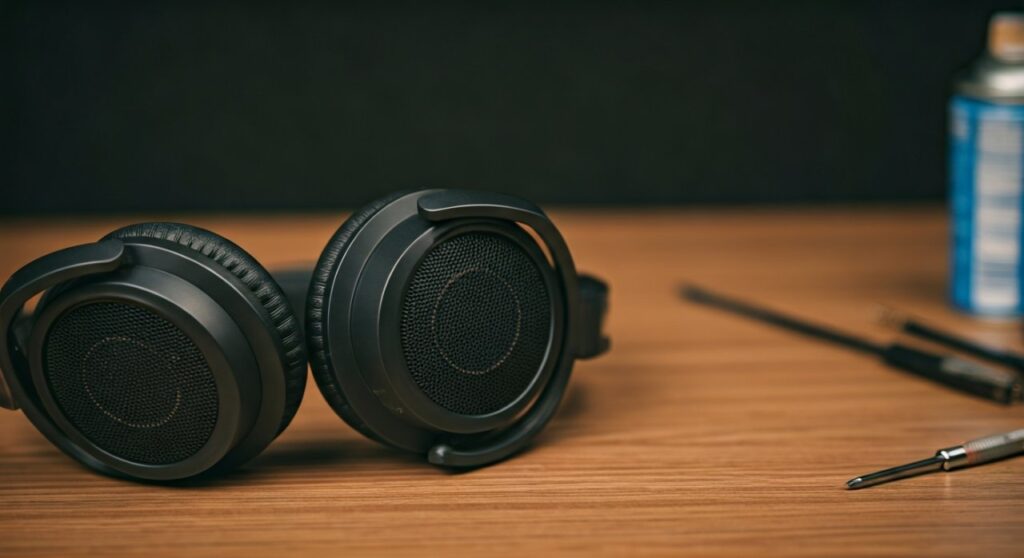
Few things are more frustrating than a high-end pair of Sennheiser, Sony, or Bose headphones being ruined by a persistent “buzz” or “click” every time the bass kicks in. As someone who has disassembled hundreds of acoustic devices, I can tell you that 90% of these issues are solvable at home with minimal tools. This guide provides a professional-grade walkthrough to silencing those annoying vibrations and restoring your audio clarity.
Key Takeaways: How to Fix Rattling Noise in Headphones Fast
If you are in a hurry, here is the essential “cheat sheet” for diagnosing and repairing headphone rattles:
| Problem Type | Common Cause | Quick Fix |
|---|---|---|
| Low-frequency Buzz | Hair or lint on the driver | Use compressed air or tweezers to clean the membrane. |
| Mechanical Click | Loose screw or plastic hinge | Tighten with a precision screwdriver (PH00 or PH000). |
| Internal Rattle | Loose wire or solder blob | Open the earcup and secure wires with Kapton tape. |
| Distorted Crackle | Blown driver/damaged coil | Lower the volume or replace the dynamic driver unit. |
| External Vibration | Worn-out ear pads | Replace pads to ensure a tight acoustic seal. |
Essential Tools You’ll Need for the Repair
Before you begin, gather these items to ensure a clean, damage-free repair process:
- Precision Screwdriver Set: Essential for the tiny screws found in Sony WH-1000XM4 or Apple AirPods Max.
- Canned Compressed Air: To blow out microscopic debris without touching the sensitive driver.
- Tweezers (Fine-tipped): For removing hairs or small particles.
- Plastic Spudgers/Prying Tools: To open plastic housings without scratching the finish.
- Isopropyl Alcohol (90%+): For cleaning adhesive residue.
- Double-Sided Tape or Blue Loctite: To prevent screws from loosening again.
Step 1: Rule Out Software and Source Issues
Before taking your hardware apart, ensure the rattle isn’t actually “digital clipping” or a faulty cable. Digital distortion can often sound like a mechanical rattle.
- Test with a different source: Plug your headphones into a dedicated DAC/AMP or a different smartphone. If the rattle disappears, the original source was the problem.
- Check the EQ settings: Heavily boosted bass (anything over +6dB in the 20Hz-100Hz range) can cause driver excursion limits to be reached, creating a “farting” or rattling sound. Reset your EQ to flat.
- Inspect the cable: A fraying cable or a loose 3.5mm jack can create intermittent static that mimics a rattle. Wiggle the cable near the connector to see if the noise correlates with movement.
Step 2: Clear Debris and Hair from the Driver (The #1 Culprit)
In my experience, the most common cause of a “buzzing” rattle—especially in open-back headphones like the Sennheiser HD600 series—is a single human hair resting on the driver membrane. When the driver moves to produce bass, it hits the hair, creating a rattle.
How to Clean the Driver Membrane:
- Remove the Ear Pads: Most ear pads either “pop” off or require a slight twist. Be gentle to avoid tearing the foam.
- Remove the Foam Disc: There is usually a thin layer of foam protecting the driver. Lift it carefully.
- Inspect under bright light: Use a flashlight to look at the clear or dark plastic diaphragm. Look for “micro-hairs” that have poked through the mesh.
- Use the “Sticky Tape” Method: Take a small piece of transparent tape, loop it, and very—I repeat, very—lightly dab the hair to lift it off. Do not press hard, or you will dent the driver.
- Use Compressed Air: Hold the can at least 6 inches away. Use short, controlled bursts to blow dust out of the crevices.
Step 3: Tighten Loose External Hardware
Headphones are subject to constant movement. Over time, the screws holding the yoke, hinges, and earcups can back out slightly. This creates a mechanical rattle that occurs when you move your head.
- Locate all screws: Some are hidden under rubber plugs or inside the headband adjustment slider.
- Check the “Creak”: If the rattle happens when you walk, it’s likely the hinges. Apply a tiny drop of silicone-based lubricant to the joints.
- Apply Threadlocker: If you find a loose screw, remove it completely, apply a microscopic dab of Blue Loctite (242), and screw it back in. This prevents vibrations from loosening it again.
Step 4: Inspect and Repair Internal Components
If the rattle sounds like something “rolling around” inside, a component has likely come loose inside the earcup housing. This is common after a drop.
- Open the Earcup: Use your plastic spudger to find the seam. Carefully pry it open. Note: This may void your warranty.
- Look for “Solder Blobs”: During manufacturing, a small bead of solder can sometimes break off and bounce around inside. Shake the earcup over a white cloth to see if anything falls out.
- Secure the Battery: In wireless headphones (like Bose QuietComfort), the internal lithium battery is often held by adhesive. If that adhesive fails, the battery will rattle. Use 3M VHB tape to re-secure it.
- Check the Wiring: Ensure the thin wires aren’t vibrating against the plastic shell. You can use a tiny piece of acoustic foam or cotton wool to dampen internal wire vibrations.
Step 5: Dealing with a “Blown” Headphone Driver
If you have cleaned the driver and tightened the screws, but the rattle persists specifically during deep bass notes, your driver may be physically damaged (blown).
Signs of a Blown Driver:
- The rattle is consistent and gets louder with volume.
- There is a visible “crinkle” or “dent” in the plastic diaphragm that cannot be popped back out.
- The voice coil has overheated and warped, causing it to rub against the magnet.
Expert Insight: If the driver is blown, “fixing” it is rarely possible. You will need to contact the manufacturer for a replacement driver unit. For brands like Beyerdynamic, drivers are easily purchasable and user-replaceable via soldering. For Apple or Sony, you likely need a professional swap.
Maintenance Tips to Prevent Future Rattling
To keep your headphones in pristine condition and avoid future repairs, follow these professional maintenance steps:
- Store in a Case: This prevents hair, dust, and pet fur from entering the driver mesh.
- Avoid Max Volume: Pushing headphones to 100% volume for extended periods causes “driver fatigue” and can loosen internal components.
- Regular Cleaning: Every 2 weeks, wipe down your ear pads and use a soft brush to clear the outer grilles.
- Keep them Dry: Moisture can cause the paper or plastic diaphragms to lose their structural integrity, leading to odd vibrations.
Comparison: Home Repair vs. Professional Service
| Factor | DIY Home Repair | Professional Service |
|---|---|---|
| Cost | $0 – $15 (Tools) | $50 – $150+ |
| Time | 30 Minutes | 2 – 4 Weeks |
| Risk | Moderate (Void Warranty) | Low (Guaranteed) |
| Success Rate | High for debris/screws | High for driver failure |
Frequently Asked Questions (FAQs)
Why do my headphones rattle only when I walk?
This is usually a mechanical rattle in the headband or hinges. It occurs when the plastic components have too much “play” between them. Tightening the pivot screws or applying a small piece of electrical tape to the hinge gap usually fixes this.
Can a software update fix a rattling noise?
Rarely. However, if the “rattle” is actually a digital artifact or “crackling” in Bluetooth headphones, a firmware update or resetting the Bluetooth pairing can sometimes resolve signal processing errors that mimic mechanical noise.
Is it safe to use a vacuum cleaner on my headphones?
No. The suction from a standard vacuum cleaner is far too powerful and can easily pull the delicate driver diaphragm out of alignment or tear it completely. Always use compressed air or gentle manual cleaning.
How do I know if my driver is “crinkled”?
Remove the ear pads and look at the driver under a bright light at an angle. If you see a fold or a non-uniform dent in the plastic, it is crinkled. You can sometimes fix this by creating a very light suction with your mouth (using a straw) to “pop” the dent back out, though this requires extreme caution.
Why does my left earcup rattle more than the right?
This often happens because the left earcup usually houses the main control board, battery, or microphone hardware in many wireless models. More internal components mean a higher statistical chance of something coming loose.









