

To connect Razer headphones, you must first identify your connection method: for Bluetooth, hold the Power button for 5-7 seconds until the status indicator blinks blue; for 2.4GHz Wireless, insert the USB-C/USB-A dongle into your device; and for Wired, simply plug the 3.5mm audio jack or USB cable into the appropriate port. Ensure you install Razer Synapse 3 on PC to unlock full driver support and THX Spatial Audio features.
Key Takeaways: Connecting Your Razer Headset
- Bluetooth Pairing: Hold the power button until the LED flashes blue, then select the device in your host’s Bluetooth menu.
- HyperSpeed Wireless: Requires the specific USB dongle included in the box; it is pre-paired but may require a firmware update via Razer Synapse.
- Console Compatibility: Most Razer BlackShark and Kraken models use a USB dongle for PS5, while Xbox versions require specific “Kaira” or “Thresher” models designed for Xbox Wireless.
- Software Optimization: Always download the Razer Audio App (Mobile) or Razer Synapse (PC) to manage EQ settings and battery life.
- SmartSwitch Feature: On models like the Razer Barracuda, you can toggle between 2.4GHz and Bluetooth by double-tapping the Razer SmartSwitch button.
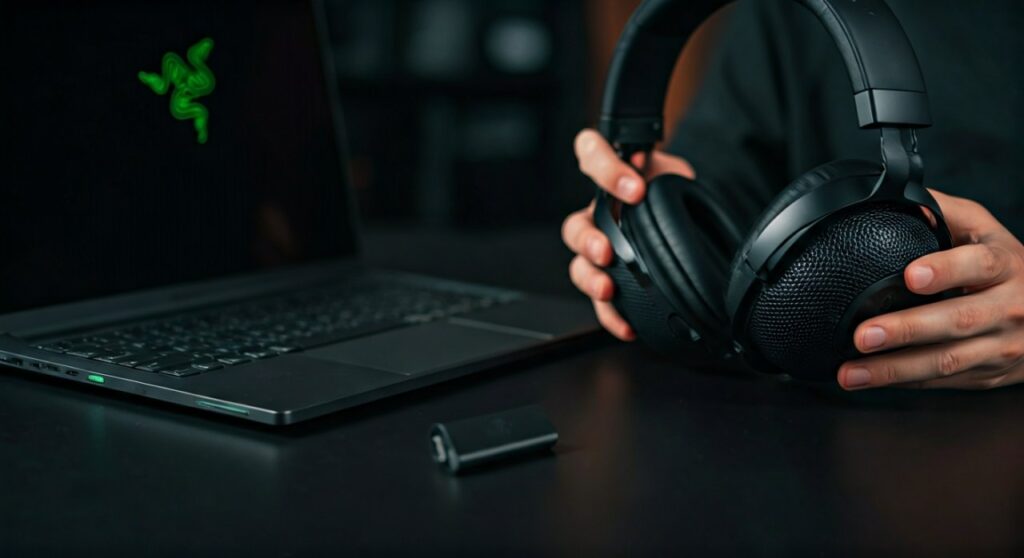
Understanding Your Razer Headset Connection Types
Before attempting to sync your gear, you need to know which technology your specific model uses. Razer designs its peripherals with three primary connection protocols, each serving a different purpose for gaming and productivity.
1. Razer HyperSpeed Wireless (2.4GHz)
This is the gold standard for competitive gaming. It uses a USB dongle to provide a lag-free, “lossless” connection. It is significantly faster than Bluetooth and is the primary connection for the Razer BlackShark V2 Pro and Razer DeathAdder series.
2. Bluetooth Connectivity
Bluetooth is designed for versatility and mobile use. While it has slightly higher latency than 2.4GHz, it allows you to connect to Smartphones, Tablets, and Laptops without needing a dongle. This is common in the Razer Hammerhead and Razer Barracuda lines.
3. Wired Connections (USB & 3.5mm)
Traditional wired connections offer the highest reliability. A 3.5mm analog jack works with almost any device, including Xbox controllers and older PCs. USB-A or USB-C wired connections often provide power for Chroma RGB lighting, which is found in the Razer Kraken V3 series.
How to Connect Razer Headphones via Bluetooth (Step-by-Step)
Connecting via Bluetooth is the most common method for users on the go. Whether you are using Razer Hammerhead True Wireless earbuds or a Razer Opus headset, the process follows a standardized “Pairing Mode” protocol.
Step 1: Enter Pairing Mode
Start with your headphones powered off. Press and hold the Power Button (or the Multi-function button on earbuds) for approximately 5 to 7 seconds.
You should look for a visual cue. The Status Indicator LED will typically blink in a Blue color, indicating it is now discoverable by other devices. Some models will also provide a voice prompt saying “Pairing.”
Step 2: Enable Bluetooth on Your Source Device
On your Windows PC, Mac, iPhone, or Android device, navigate to the Bluetooth settings menu. Ensure that the Bluetooth toggle is switched to the ON position.
Step 3: Select Your Razer Device
Wait for your device to scan the area. You should see your specific model name appear (e.g., “Razer Barracuda X (BT)”). Click or tap on the name to initiate the handshake.
Step 4: Confirm Successful Connection
Once connected, the LED indicator will usually turn Solid Blue for a few seconds before dimming. Your device should now list the headset as “Connected for Audio.”
| Razer Model Series | Primary Connection Method | Best For |
|---|---|---|
| BlackShark V2 Pro | 2.4GHz HyperSpeed Dongle | Competitive Esports |
| Kraken V3 HyperSense | USB Wired | Immersive PC Gaming |
| Barracuda / Barracuda X | Dual (2.4GHz + Bluetooth) | Multi-platform / Travel |
| Hammerhead TW | Bluetooth 5.2 | Mobile Gaming / Music |
| Kaira Pro | Xbox Wireless / Bluetooth | Console Gaming |
Connecting via 2.4GHz HyperSpeed Wireless Dongle
If you prioritize low latency for games like Valorant or Call of Duty, using the USB Wireless Transceiver is mandatory. This bypasses the standard Windows Bluetooth stack for a more stable experience.
Plug and Play Setup
Most modern Razer headsets are pre-paired to the dongle that comes in the box. Simply plug the USB-C dongle (or USB-A via the included adapter) into your PC or Console.
Turn on the headset by holding the power button for 2 seconds. The connection should be near-instantaneous. If the LED blinks Green, you are successfully connected via the 2.4GHz channel.
Using the Razer SmartSwitch Button
Many newer Razer models feature SmartSwitch. This allows the headset to be connected to a PC via the dongle and a phone via Bluetooth simultaneously.
To switch between the two sources, Double-Tap the dedicated Razer SmartSwitch button. This is incredibly useful if you want to take a phone call in the middle of a gaming session without removing your headset.
How to Connect Razer Headphones to a PC (Windows 10/11)
While the physical connection is the first step, Windows requires specific configuration to ensure you are getting the best audio quality, especially for 7.1 Surround Sound.
- Check Sound Settings: Right-click the speaker icon in your system tray and select Sound Settings.
- Set Default Output: Ensure your Razer Headset is selected as the Default Output Device.
- Configure Input: If your headset has a retractable mic, ensure the Razer Microphone is selected as the Default Input Device.
- Install Razer Synapse 3: This software is vital. It allows you to customize Chroma RGB, adjust the EQ Mixer, and toggle THX Spatial Audio.
Pro Tip: If your PC has both a front-panel and back-panel audio jack, always prefer the back-panel (motherboard) ports for wired 3.5mm Razer headsets to reduce electromagnetic interference (buzzing sounds).
Setting Up Razer Headphones on Gaming Consoles
Razer offers specific “Console Editions,” but many of their “Multi-platform” headsets work across the board.
PlayStation 4 & PlayStation 5
For wireless models like the Razer BlackShark V2 Pro, plug the USB dongle into the front USB port of the PS5. Go to Settings > Sound > Audio Output and set the “Output Device” to the USB Headset.
Xbox Series X | S
Xbox uses a proprietary wireless protocol. If you have the Razer Kaira or Kaira Pro for Xbox, you do not need a dongle. Press the Pairing Button on the console and the Pairing Button on the headset simultaneously to sync them directly, just like an Xbox controller.
Nintendo Switch
The Nintendo Switch now supports Bluetooth audio natively. However, for the best experience, use a Razer Barracuda X with the USB-C dongle plugged into the bottom of the Switch (in handheld mode) or the dock (in TV mode).
Optimizing Your Audio with Razer Synapse 3
Once connected, your experience isn’t complete until you calibrate the software. Razer Synapse 3 serves as the command center for your peripheral.
- EQ Customization: Use the 10-band equalizer to boost the “Bass” for cinematic games or “Treble” to hear footsteps more clearly in FPS titles.
- Mic Settings: Enable Mic Noise Cancellation and Vocal Clarity to ensure your teammates don’t hear your mechanical keyboard clicks.
- Power Saving: Set the “Auto-Shutdown” timer to 15 minutes to preserve battery life when the headset is idle.
- Firmware Updates: Always check the “Software Update” section. Razer frequently releases patches that improve Bluetooth stability and battery efficiency.
Troubleshooting Common Connection Issues
Even with premium gear like the Razer BlackShark, you might encounter “Sync” errors or “Ghosting” where the device isn’t recognized.
The Headset Won’t Enter Pairing Mode
If the LED isn’t blinking blue, the headset might be stuck in a “Search” loop. Perform a Hard Reset by holding the Power Button and the Mic Mute Button simultaneously for 10 seconds. This clears the internal cache.
Audio Stutters or Cuts Out
This is often caused by 2.4GHz Interference. Ensure your USB dongle is not plugged in directly next to another high-speed USB 3.0 device or a Wi-Fi router. Use the USB Extension Cable provided by Razer to move the dongle closer to your seating position.
Microphone Not Working on PC
Check the Windows Privacy Settings. Go to Settings > Privacy > Microphone and ensure “Allow apps to access your microphone” is turned ON. Many users forget this step after a Windows update.
FAQ: Frequently Asked Questions
Why is my Razer headset not showing up in Bluetooth?
Ensure the headset is in Pairing Mode (blinking Blue), not just “On” (Solid Green/White). If it was previously paired to another phone, turn off Bluetooth on that phone to prevent it from auto-connecting before you can pair it with the new device.
Can I use Razer Synapse on my Mac?
Currently, Razer Synapse 3 is only available for Windows. For Mac users, Razer headsets will work as “Plug and Play” devices, but you will not be able to customize RGB or advanced EQ settings through Razer’s proprietary software.
How do I update the firmware on my Razer headphones?
You must visit the Razer Support website and download the specific Firmware Updater tool for your model. Connect your headset to your PC via the charging cable and the USB dongle simultaneously to run the update.
Does the Razer Hammerhead work with the PS5?
Yes, but only via Bluetooth (if your TV supports it) or by using a Bluetooth USB Adapter. The Hammerhead Hyperspeed version comes with a dedicated dongle specifically for low-latency console gaming.
**
**
**
**









