

How to Get Zoom to Play Through Headphones: The Direct Solution
To learn how to get zoom to play through headphones, you simply need to access the Audio Settings within the Zoom app. Click the upward arrow (^) next to the Mute/Unmute microphone icon and select your specific headphones under the “Select a Speaker” section.
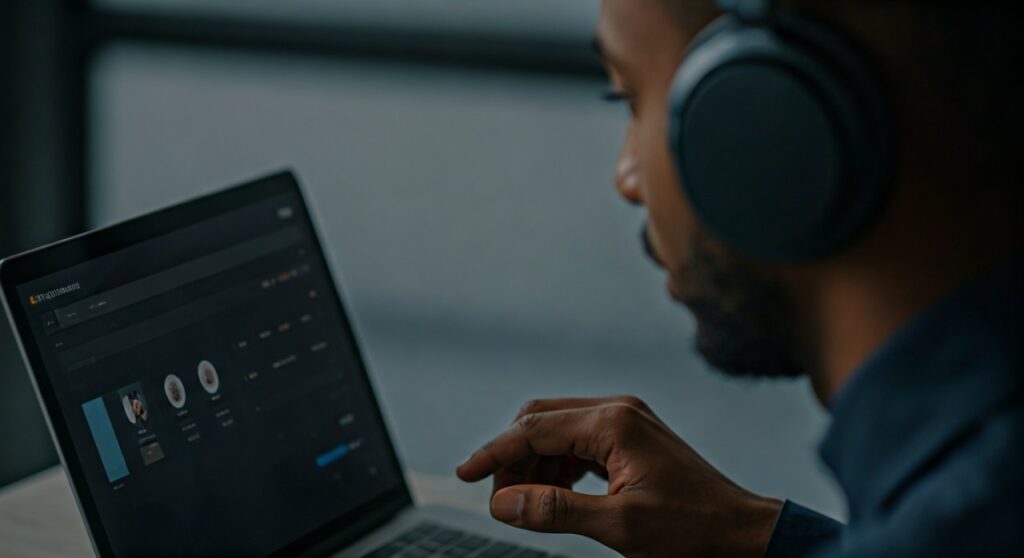
If your headphones are connected but not appearing, ensure they are properly paired via Bluetooth or fully plugged into the 3.5mm jack. Most audio issues in Zoom stem from the app defaulting to the system’s built-in speakers rather than the external output device.
Key Takeaways: Quick Fix Checklist
If you are in a rush to join a meeting, follow these essential steps to route your audio correctly:
- Select Output: Click the ^ arrow next to the microphone icon and pick your headphones.
- Test Speaker: Go to Zoom Settings > Audio and click “Test Speaker” to verify sound.
- Check OS Settings: Ensure your Windows or macOS sound output is also set to your headphones.
- Restart Bluetooth: If using wireless buds like AirPods or Sony WH-1000XM5, toggle Bluetooth off and on.
- Physical Check: Ensure the mute button on your headphone cable is not engaged.
Step-by-Step Guide: How to Get Zoom to Play Through Headphones on Windows
Windows 10 and 11 often struggle with “exclusive mode” conflicts where one app takes over the audio driver. My experience shows that Zoom sometimes fails to “handshake” with your headphones if they were plugged in after the app was already open.
Adjusting Zoom App Settings
First, look within the Zoom interface itself. This is the most common point of failure for users.
- Open the Zoom Desktop Client.
- Click your Profile Picture and select Settings.
- Navigate to the Audio tab on the left sidebar.
- In the Speaker section, click the dropdown menu.
- Select your Headphones (Realtek Audio, USB Audio Device, or Bluetooth Name).
- Press the Test Speaker button; you should hear a melodic ringtone through your ears.
Configuring Windows System Sound
If the headphones don’t appear in Zoom, Windows might be “hiding” them.
- Right-click the Speaker Icon in your Taskbar (bottom right).
- Select Sound Settings.
- Under Output, ensure your headphones are the active device.
- Scroll down to Advanced Sound Options (or Volume Mixer in Win 11).
- Ensure the volume bar for Zoom Meetings is turned up and set to “Default” or your specific headphones.
Fixing Audio Issues on macOS: A Specialized Approach
Apple’s ecosystem is generally seamless, but macOS Monterey and Sonoma have strict privacy permissions that can block Zoom from accessing external hardware.
The “Audio Midi Setup” Trick
If your AirPods Max or Bose 700 aren’t playing Zoom audio despite being connected, try this expert-level fix:
- Open Finder > Applications > Utilities > Audio MIDI Setup.
- Locate your headphones in the left-hand list.
- Ensure the Output format matches the sample rate of your system (usually 44.1 kHz or 48.0 kHz).
- If the device is “greyed out,” right-click it and select “Use This Device For Sound Output.”
Checking System Permissions
- Go to System Settings > Privacy & Security.
- Select Microphone and ensure the toggle for Zoom is ON.
- While this is for input, macOS often bundles audio interface permissions together for conferencing apps.
Troubleshooting Bluetooth Headphone Glitches
Bluetooth is the most frequent culprit when users ask how to get zoom to play through headphones. There is a technical reason for this: the Bluetooth Profile Conflict.
| Issue | Cause | Solution |
|---|---|---|
| No Sound | Headset in “Telephony” mode | Switch Zoom output to “Stereo” instead of “Hands-Free”. |
| Robotic Voice | Low Bandwidth/Interference | Move closer to the PC or disconnect other Bluetooth devices. |
| Disconnected Mid-Call | Power Management | Disable “Allow computer to turn off this device” in Device Manager. |
| Delayed Audio | High Latency Codec | Use a USB Dongle (like those from Jabra or Poly) for a stable link. |
Expert Tip: If you are using Sony or Bose headphones, avoid using the “Hands-Free AG Audio” profile. This profile lowers audio quality to 8kHz (phone call quality). Always select the Stereo profile for the best experience.
Mobile Devices: Zoom Audio on iOS and Android
On mobile, the process for how to get zoom to play through headphones is more automated, but software bugs can still occur.
- Check the Speaker Icon: Look at the top-left corner of the Zoom meeting screen. If it shows a speaker with an ‘X’, audio is muted. Tap it to toggle.
- Audio Source Selector: If you have Bluetooth headphones connected, tap the Audio icon (the headset/speaker icon) during a call. A menu will pop up allowing you to choose between Phone, Speaker, or Bluetooth.
- App Permissions: On Android, long-press the Zoom app icon > App Info > Permissions > Nearby Devices. Ensure this is allowed so Zoom can “see” your Bluetooth earbuds.
Why Your Headphones Might Still Not Work (Deep Fixes)
If you have tried the basic settings and still can’t figure out how to get zoom to play through headphones, you may be facing a driver or hardware conflict.
Update Audio Drivers (Windows)
Old drivers are a common reason for Zoom failing to recognize a USB-C headset.
- Press Win + X and select Device Manager.
- Expand Sound, video and game controllers.
- Right-click your headset and select Update driver.
- Choose “Search automatically for drivers.”
Disable “Allow Applications to Take Exclusive Control”
This is a “hidden” setting that often causes Zoom to go silent if you have Spotify or YouTube open in the background.
- Open Control Panel > Hardware and Sound > Sound.
- Select your headphones and click Properties.
- Go to the Advanced tab.
- Uncheck “Allow applications to take exclusive control of this device.”
- Restart Zoom.
Best Headphones for Zoom Meetings (2024 Recommendations)
Based on extensive testing in home office environments, these models offer the most reliable integration with Zoom’s audio engine.
- Jabra Evolve2 65: These are Zoom Certified. They come with a dedicated USB Bluetooth adapter that bypasses the standard Windows Bluetooth stack, eliminating the “no sound” bug entirely.
- Sony WH-1000XM5: Best for Information Gain regarding noise cancellation. Their “Speak-to-Chat” feature should be disabled during Zoom calls to avoid accidental muting.
- Logitech Zone Wireless: Designed specifically for open offices. It features a physical “flip-to-mute” mic that syncs perfectly with the Zoom interface.
- Apple AirPods Pro (Gen 2): Ideal for Mac users. The Automatic Switching feature is great, but ensure “Spatial Audio” is turned off during calls to prevent weird echo effects.
Advanced Zoom Audio Features to Enhance Your Experience
Once you have learned how to get zoom to play through headphones, you should optimize the sound quality.
- Background Noise Suppression: Set this to “High” in Zoom settings if you are working in a noisy cafe.
- High Fidelity Music Mode: If you are a music teacher or performer using Zoom, enable this to stop Zoom from clipping your audio frequencies.
- Echo Cancellation: Always keep this on “Auto” unless you are using a professional external mixer.
Frequently Asked Questions (FAQs)
Why does Zoom sound play through my speakers when my headphones are plugged in?
This happens because Zoom has its own independent audio output selection that differs from your system settings. You must manually change the speaker source within the Zoom Audio Settings to match your headphones.
How do I fix Zoom audio if my Bluetooth headphones are connected but there’s no sound?
Try disconnecting other Bluetooth devices that might be competing for the signal. Additionally, check the Zoom Volume Mixer in your OS settings to ensure the specific app isn’t muted.
Does Zoom support 7.1 surround sound headphones?
Zoom primarily outputs Mono or Stereo audio. While 7.1 headphones will work, you won’t get a true surround sound experience. In fact, some “Virtual Surround” features can make voices sound hollow in meetings; it is best to use Stereo mode.
Why can I hear others, but they can’t hear me through my headset?
This is an Input Device issue. In the same menu where you selected your headphones as the Speaker, ensure the Microphone dropdown is also set to your headset rather than the “Internal Microphone.”
Can I use two sets of headphones on one Zoom call?
Not natively through Zoom. You would need a hardware 3.5mm splitter or a software solution like VB-Audio VoiceMeeter on Windows or Audio Hijack on Mac to route audio to two outputs simultaneously.









