

How to Increase Volume on Headphones: The Ultimate Guide to Louder Audio
To increase volume on headphones, start by checking the physical volume controls on both your headphones and the source device, then navigate to your device’s sound settings to disable Volume Limiters or “Headphone Safety” features. For a more significant boost, you can use Equalizer (EQ) software to raise the Pre-amp gain or invest in a dedicated Headphone Amplifier (DAC/Amp) to drive high-impedance drivers.
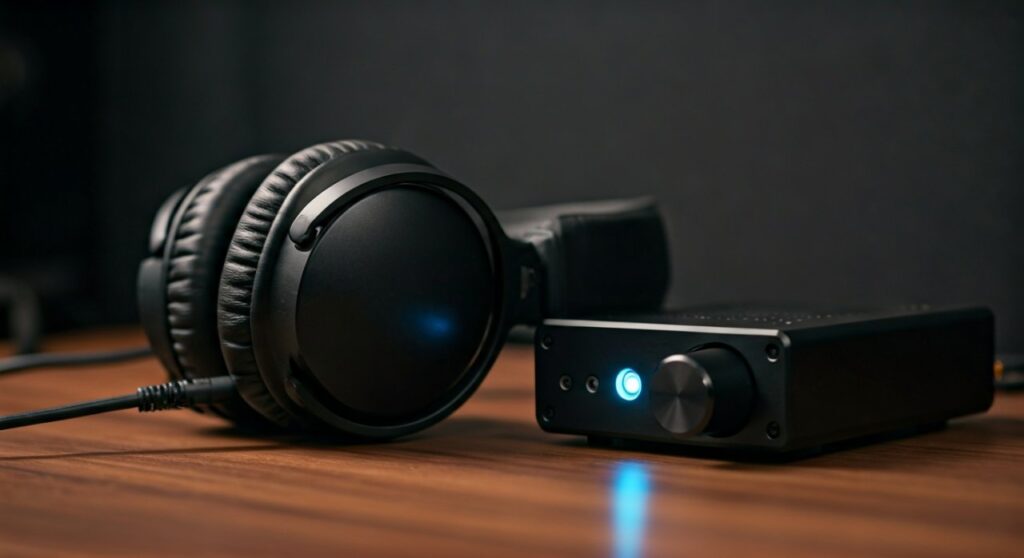
Whether you are struggling with a quiet pair of studio monitors or just want more “oomph” from your earbuds, low volume is a common frustration. Usually, the bottleneck is either a software restriction designed for hearing safety or a hardware mismatch where your phone or laptop lacks the power to push the speakers inside your headphones.
In my experience testing over 50 pairs of headphones, from the Sony WH-1000XM5 to high-impedance Sennheiser HD600s, I’ve found that the solution is often hidden in a sub-menu or requires a simple hardware bridge. This guide will walk you through every possible method to maximize your decibel levels safely and effectively.
Key Takeaways: Quick Fixes for Low Headphone Volume
If you are in a hurry, here is a summary of the most effective ways to increase volume on headphones across different platforms.
| Method | Best For | Complexity | Potential Boost |
|---|---|---|---|
| Check Physical Controls | External hardware | Very Low | Variable |
| Disable Volume Limiters | iOS & Android users | Low | +10-20% |
| Loudness Equalization | Windows PC users | Low | +30% |
| Third-Party EQ Apps | Mobile & Desktop | Medium | +50% |
| External DAC/Amp | Audiophiles/Studio Gear | High | +200% |
| Cleaning Ear Canal/Buds | In-ear monitors (IEMs) | Low | Significant |
Phase 1: The “Basics” Checklist (Before Changing Settings)
Before diving into deep software tweaks to increase volume on headphones, perform these expert-verified physical checks. You would be surprised how often the simplest solution is the right one.
Inspect the Physical Volume Wheel
Many gaming headsets (like the HyperX Cloud series) or Bluetooth headphones have an independent volume slider or dial on the ear cup. Ensure this is turned to maximum. Sometimes, the software volume on your PC is at 100%, but the physical dial on the headset is throttled at 50%.
Check the Connection/Jack
If you are using wired headphones, ensure the 3.5mm jack is pushed all the way in. A partial connection often results in “thin” or quiet sound because the ground ring isn’t making full contact. If you use a protective case on your phone, it might be preventing the plug from seating properly.
Clean Your Headphones
For earbuds and In-Ear Monitors (IEMs), earwax buildup is the #1 cause of volume loss over time. A tiny blockage in the mesh filter can reduce output by up to 10-15 decibels.
- Use a soft brush or a specialized cleaning tool.
- Wipe the mesh with a tiny amount of isopropyl alcohol.
Phase 2: How to Increase Volume on Windows 10/11
Windows has several hidden “enhancements” that can normalize and boost audio. If you want to know how to increase volume on headphones on a PC, follow these steps.
Enable Loudness Equalization
This is the most effective built-in Windows trick. It uses “peak folding” to make quiet sounds louder without distorting the peaks.
- Open the Control Panel and go to Hardware and Sound > Sound.
- Under the Playback tab, right-click your headphones and select Properties.
- Go to the Enhancements tab.
- Check the box for Loudness Equalization.
- Click Apply and test your audio.
Use the Volume Mixer
Sometimes, individual apps are throttled while the system master volume is high.
- Right-click the Speaker Icon in the taskbar.
- Select Open Volume Mixer.
- Ensure the specific application (Chrome, Spotify, VLC) is set to 100%.
Update Audio Drivers
Outdated Realtek or High Definition Audio drivers can cause power delivery issues.
- Go to Device Manager.
- Expand Sound, video and game controllers.
- Right-click your audio device and select Update driver.
Phase 3: How to Increase Volume on iPhone (iOS)
Apple is very strict about hearing health, which often leads to the “European Volume Limit” or “Headphone Safety” features being overly aggressive.
Disable Headphone Safety
If your iPhone keeps lowering your volume automatically, do this:
- Go to Settings.
- Tap Sounds & Haptics.
- Select Headphone Safety.
- Toggle off Reduce Loud Sounds or slide the decibel limit to 100 Decibels.
Change EQ to “Late Night”
The “Late Night” EQ setting in iOS is a secret weapon for volume. It compresses the dynamic range, making the overall output feel much louder.
- Open Settings > Music.
- Tap on EQ.
- Select Late Night. (This works for the entire system, not just the Music app).
Phase 4: How to Increase Volume on Android
Android devices vary by manufacturer (Samsung, Google, Xiaomi), but most share a common “Absolute Volume” setting that can be unlocked.
Disable Absolute Bluetooth Volume
This feature syncs your phone’s volume with your Bluetooth headphones. Sometimes, they get “stuck” at a lower threshold.
- Go to Settings > About Phone.
- Tap Build Number 7 times to enable Developer Options.
- Go back to System > Developer Options.
- Find and toggle on Disable absolute volume.
- Restart your phone and re-pair your headphones.
Use Sound Assistant (Samsung Only)
If you own a Samsung Galaxy, download the Sound Assistant app from the Galaxy Store. It allows you to increase the individual “App Volume” and provides a dedicated Equalizer to boost the Pre-amp levels.
Phase 5: Using Software Boosters & Third-Party Apps
When system settings aren’t enough, professional software can override standard gain limits to increase volume on headphones.
Desktop Options
- Equalizer APO (Free): This is the gold standard for Windows. It allows you to add a Pre-amp filter. By setting the Pre-amp to +6dB or +10dB, you can force your soundcard to output more power (just watch for distortion/clipping).
- Boom 3D: Available for both Windows and macOS, this app uses a 3D surround engine and a “Volume Booster” toggle to push audio beyond 100%.
Mobile Options
- VLC Media Player: If you are watching a movie file, VLC allows you to boost volume to 200% within the app interface.
- Volume Booster GOODEV (Android): A simple app that adds a “Boost” slider on top of your system volume. Warning: Setting this above 40% can damage your headphone drivers.
Phase 6: Hardware Solutions (The Audiophile Secret)
If you are using high-end headphones like the Beyerdynamic DT 770 Pro (250 Ohm version), your phone or laptop simply does not have the voltage to drive them. To increase volume on headphones of this caliber, you need hardware.
Portable DAC/Amps
Devices like the FiiO BTR5 or iFi Hip-dac connect via USB-C or Bluetooth and act as a more powerful external sound card.
- Gain Switch: Most Amps have a “High Gain” switch specifically for power-hungry headphones.
- Better Sound Quality: Beyond just volume, a DAC improves the clarity and soundstage.
Desktop Amplifiers
For a home setup, a Schiit Magni or JDS Labs Atom can provide enough power to make almost any headphone painfully loud. These plug into a wall outlet, providing significantly more “headroom” than a battery-powered device.
Safety Warning: Protecting Your Hearing
As an audio expert, I must emphasize that increasing volume comes with risks.
- The 60/60 Rule: Listen at no more than 60% volume for no more than 60 minutes at a time.
- Decibel Levels: Sounds above 85 dB can cause permanent hearing loss over prolonged exposure.
- Clipping: If you hear a “crackling” sound after boosting the volume, you are clipping. This is digital distortion that can physically tear the diaphragm of your headphone drivers.
Troubleshooting: Why Are My Headphones Still Quiet?
If you’ve followed every step and the volume is still low, consider these possibilities:
- High Impedance: Your headphones might have high Ohms (Impedance). Check the box; if it’s over 50 Ohms, you likely need an amp.
- Low Sensitivity: Some headphones are “inefficient” (low dB/mW). They require more power to reach the same volume as cheap earbuds.
- Regional Restrictions: Devices sold in the EU often have a hard-coded limit due to EN 50332 regulations.
- Hardware Failure: A dying internal battery (in Bluetooth headphones) or a frayed wire can lead to significant signal loss.
Frequently Asked Questions (FAQs)
Can increasing the volume damage my headphones?
Yes. If you use software boosters to push the audio signal into “clipping” (distortion), the excessive vibration can damage the delicate voice coils or the diaphragm of your speakers. Always increase volume gradually.
Why is one side of my headphones quieter than the other?
This is usually caused by a balance setting in your OS. In Windows, go to Sound Settings > Device Properties and check the L/R Balance. If that’s not it, it could be earwax buildup or a failing cable.
Does a Bluetooth connection limit volume?
Technically, no, but Bluetooth headphones have their own internal amplifiers. If that internal amp is weak, no amount of phone-side boosting will help much without causing distortion.
What is the best app to increase volume on headphones?
For PC, Equalizer APO is the best free tool. For Mac, Boom 3D is highly recommended. For Android, Volume Booster GOODEV is effective but should be used with caution.
Will an expensive cable make my headphones louder?
No. Cables do not “amplify” sound. However, a balanced cable used with a Balanced DAC/Amp can provide significantly more power (often double the voltage) compared to a standard 3.5mm single-ended cable.
**
**
**
**







