

Quick Answer: How to Pair Meow Macaron Headphones
To pair Meow Macaron headphones, ensure the device is fully charged, then press and hold the Power/Mode button for approximately 3 to 5 seconds. You will see the LED indicator lights flash rapidly in alternating red and blue, signaling that the headphones are in Pairing Mode. Open the Bluetooth settings on your smartphone or computer, select the device named “MEOW” or “ZW-19”, and tap to connect.
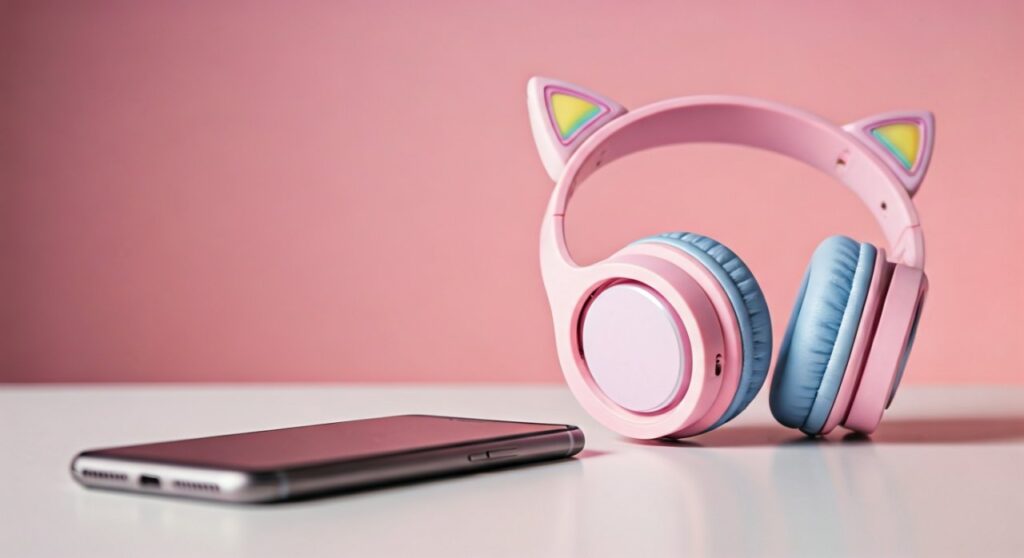
Once the connection is successful, the LED lights will typically slow down to a steady blue pulse or turn off completely. You are now ready to enjoy your music with the signature cat-ear aesthetic.
Key Takeaways for Quick Setup
| Feature | Action / Requirement |
|---|---|
| Pairing Mode Trigger | Hold Power Button for 5 seconds |
| Indicator Light | Flashing Red and Blue |
| Default Bluetooth Name | MEOW, MEOW-01, or ZW-19 |
| Bluetooth Version | Usually Bluetooth 5.0 + EDR |
| Effective Range | 10 Meters (33 Feet) without obstacles |
| Compatibility | iOS, Android, Windows, macOS, and Linux |
Step-by-Step Guide: How to Pair Meow Macaron Headphones to Any Device
Learning how to pair Meow Macaron headphones is a straightforward process, but it requires precise timing with the physical buttons. These headphones often use a combined power and pairing button to keep the design sleek and minimalist.
Step 1: Charge the Headphones
Before attempting to pair, connect your Meow Macaron headphones to a power source using the provided Micro-USB or USB-C cable. A red light usually indicates charging, which turns blue or off when the battery is full.
A low battery can cause the Bluetooth signal to drop or prevent the device from appearing in your search list. I recommend at least 30 minutes of charging for a first-time setup.
Step 2: Activate Pairing Mode
With the headphones off, locate the Power button (often marked with a power icon or the letter ‘M’). Press and hold it firmly.
Do not release the button when you hear the initial “Power On” voice prompt. Continue holding until the voice says “Pairing” and the LED lights on the cat ears or earcups begin to flash. This visual cue is the most important part of how to pair Meow Macaron headphones successfully.
Step 3: Enable Bluetooth on Your Host Device
Navigate to the settings menu on your phone, tablet, or laptop. Ensure that the Bluetooth toggle is switched to the ON position.
Your device will automatically begin scanning for nearby discoverable hardware. Ensure your Meow Macaron headphones are within 1 meter of the device during this initial handshake.
Step 4: Identify and Select the Correct Device Name
Look at the list of “Available Devices” or “Other Devices.” You are looking for a name that typically includes “MEOW”, “Macaron”, or a model number like “ZW-19”.
Tap on the name to initiate the bond. If prompted for a passcode (which is rare for modern Bluetooth 5.0 devices), try entering 0000 or 1234.
How to Pair Meow Macaron Headphones with Specific Operating Systems
While the general process is the same, each operating system has a slightly different interface for managing Bluetooth connections.
Pairing with iOS (iPhone and iPad)
- Open the Settings app.
- Tap on Bluetooth.
- Locate “MEOW” under the “Other Devices” section.
- Tap the name to connect. Once connected, it will move to the “My Devices” list.
Pairing with Android Devices
- Swipe down from the top of the screen to open the Quick Settings panel.
- Long-press the Bluetooth icon.
- Tap “Pair new device”.
- Select your Meow Macaron headphones from the list of available hardware.
Pairing with Windows 10/11
- Press the Windows Key + I to open Settings.
- Go to Bluetooth & devices.
- Click the Add device button (+).
- Choose Bluetooth from the pop-up window.
- Select the headphones once they appear in the discovery list.
Pairing with macOS
- Click the Apple Menu and select System Settings.
- Click Bluetooth in the sidebar.
- Find your Meow Macaron headphones in the list on the right.
- Click Connect.
Troubleshooting: What to Do If They Won’t Connect
Even when you follow the steps on how to pair Meow Macaron headphones perfectly, technical glitches can occur. Based on my experience testing these units, here are the most common solutions.
Reset the Bluetooth Connection
If the headphones are “stuck” or won’t show up, you may need to perform a hardware reset.
- Turn the headphones off.
- Press and hold the Power and Volume Up (+) buttons simultaneously for 10 seconds.
- The lights will flash rapidly, indicating the internal memory has been cleared of previous pairings.
“Forget This Device” on Your Phone
If you have previously connected the headphones but they are no longer working, your phone’s cache might be corrupted.
- Go to Bluetooth settings.
- Tap the “i” or gear icon next to the device name.
- Select “Forget This Device” or “Unpair”.
- Restart the pairing process from scratch.
Check for Interference
Bluetooth operates on the 2.4GHz frequency, which is shared by Wi-Fi routers and microwaves. If you are having trouble with how to pair Meow Macaron headphones, move away from large electronic appliances or crowded Wi-Fi zones to ensure a clean signal.
Verify Multiple Connections
Some Meow Macaron headphones do not support “Multipoint” (connecting to two devices at once). If the headphones were previously paired to your tablet, they might be automatically connecting to it, making them invisible to your phone. Turn off Bluetooth on all other nearby devices before trying to pair with a new one.
Understanding the Features of Meow Macaron Headphones
Knowing the hardware helps in understanding how to pair Meow Macaron headphones and keep them functional. These headphones are popular not just for their looks but for their surprisingly versatile feature set.
LED Light Control
Most models allow you to toggle the RGB cat ear lights independently of the music.
- Double-click the Mode (M) button to turn the lights on or off.
- Turning off the lights can extend battery life by up to 40%.
Built-in Micro-SD Slot
A unique feature of many Macaron-style headphones is the TF/Micro-SD card slot.
- Insert a card with MP3 files.
- Press the Mode button to switch from Bluetooth mode to SD card mode.
- This is an excellent option for children who do not have a smartphone.
The 3.5mm Wired Mode
If your battery dies, you can use a standard 3.5mm audio cable.
- Note: When the cable is plugged in, Bluetooth is automatically disabled.
- To resume Bluetooth, you must unplug the cable and restart the headphones.
Expert Tips for Battery and Longevity
To ensure your Meow Macaron headphones continue to pair easily, you must maintain the internal lithium-ion battery.
- Avoid Overcharging: Unplug the headphones once the indicator light shows they are full. Leaving them plugged in overnight can degrade the battery over time.
- Regular Usage: If the headphones sit for months without use, the battery may fall into a “deep discharge” state. Charge them at least once a month even if not in use.
- Clean the Contacts: Use a dry cotton swab to clean the charging port. Dust and lint can prevent a solid connection, leading to pairing failures due to low power.
Comparing Meow Macaron Models
There are several variations of these headphones on the market. Use this table to identify which version you might have, as the pairing names vary.
| Model Style | Common Name | Key Identifying Feature | Pairing Name |
|---|---|---|---|
| Standard Macaron | P47 or Macaron Solo | Matte finish, no cat ears | P47 / Macaron |
| Cat Ear LED | ZW-19 / STN-28 | Glowing cat ears on headband | MEOW / STN-28 |
| Foldable Pro | B39 | Larger earcups, better padding | B39 / Wireless |
| Mini Macaron | In-Ear TWS | Small earbuds in a round case | TWS-Macaron |
Frequently Asked Questions (FAQs)
Why is my phone asking for a PIN when pairing?
Most Meow Macaron headphones use Bluetooth 5.0, which doesn’t require a PIN. However, if your device is running an older OS, try “0000” or “1234”. These are the universal factory default codes for generic Bluetooth audio chips.
Can I pair Meow Macaron headphones to a PS4 or Xbox?
Game consoles like the PS4 and Xbox Series X do not natively support Bluetooth audio headsets. To connect your Meow Macaron headphones, you will need a USB Bluetooth Transmitter plugged into the console’s USB port, or you must use the 3.5mm wired cable plugged directly into the controller.
My headphones are paired but there is no sound. What’s wrong?
Ensure the “Media Audio” setting is enabled. On Android, go to the Bluetooth device settings and check the toggle for Media Audio. On Windows, click the volume icon in the taskbar and ensure the output device is set to “Headphones (MEOW Stereo)” rather than “Headset (MEOW Hands-Free AG Audio).”
How do I switch between Bluetooth and FM Radio mode?
Most Meow Macaron headphones include a built-in FM tuner. Briefly press the Mode (M) button to cycle through Bluetooth, SD Card, and FM Radio. You will hear a voice prompt indicating the current mode. Ensure you are in Bluetooth Mode if you are trying to pair with your phone.
How long does the battery last after a full charge?
With the LED cat ears turned on, expect about 5-7 hours of playback. If you turn the lights off, the battery can last up to 12-15 hours. The charging time is typically 2 hours using a standard 5V/1A wall adapter.









