

Master the Setup: How to Connect Bluetooth Headphones to Apple TV
To connect Bluetooth headphones to Apple TV, navigate to Settings > Remotes and Devices > Bluetooth on your Apple TV. Place your headphones in pairing mode, and once their name appears on the screen, select them to complete the connection.
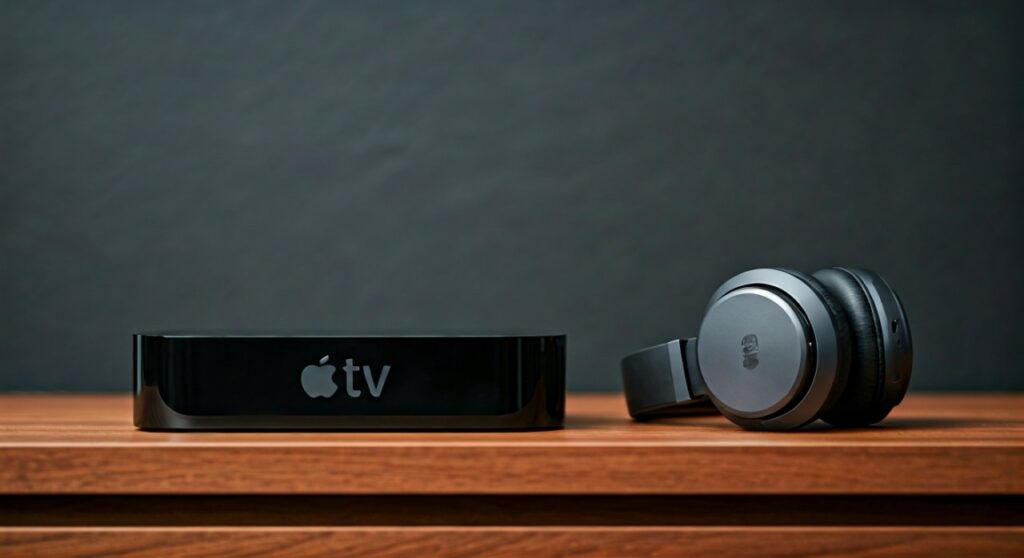
Whether you are trying to enjoy a late-night action movie without waking the family or seeking the immersive experience of Spatial Audio, linking your wireless gear to your Apple TV 4K or Apple TV HD is a straightforward process. As someone who has tested dozens of audio setups—from Sony XM5s to budget-friendly EarFun buds—I can confirm that while Apple favors its own ecosystem, third-party support is exceptionally stable on tvOS.
Key Takeaways: Connecting Your Audio
If you are in a hurry, here is the essential data you need to get your sound flowing.
| Feature | Method | Compatibility |
|---|---|---|
| AirPods/Beats | Automatic via iCloud | All Apple TV 4K/HD models |
| Third-Party BT | Manual via Settings | Bluetooth 4.0 or higher |
| Dual Audio | Share Audio feature | Apple TV 4K only |
| Quick Switch | Hold TV Button for Control Center | All Siri Remote versions |
Step-by-Step Guide: How to Connect Bluetooth Headphones to Apple TV
Connecting non-Apple headphones requires a manual “handshake” between the devices. I recommend sitting within 3 to 5 feet of the Apple TV unit during the initial setup to avoid signal interference.
Step 1: Put Your Headphones in Pairing Mode
Every brand has a unique method for pairing. For Sony or Bose, you usually hold the power button for 5-7 seconds until a light flashes. For Jabra, you might need to hold both earbud buttons simultaneously.
Step 2: Open Apple TV Bluetooth Settings
Use your Siri Remote to navigate to the Settings app (the gear icon). Scroll down and select Remotes and Devices, then click on Bluetooth. Your Apple TV will immediately start scanning for nearby signals.
Step 3: Select Your Device
Look at the list under Other Devices. Once your specific headphone model appears, click on it. The status will change from “Pairing” to Connected. You should now hear the interface “clicks” through your headphones.
Connecting AirPods and Beats: The iCloud Advantage
If you own AirPods Pro, AirPods Max, or newer Beats models, the process is significantly faster. Because these devices use the H1, H2, or W1 chips, they sync across all devices signed into your Apple ID.
Automatic Recognition
When you open your AirPods case near the Apple TV, a prompt often appears in the top right corner of the screen. Simply press the TV button on your remote to accept the connection.
Manual iCloud Selection
If the prompt doesn’t appear, hold the TV button (the icon that looks like a monitor) to open the Control Center. Navigate to the AirPlay icon (concentric circles) and select your AirPods from the list.
Advanced Feature: Using “Share Audio” for Two People
One of the best hidden gems of the Apple TV 4K is the ability to connect two pairs of headphones simultaneously. This is perfect for couples watching movies at night.
- Compatibility: This feature requires AirPods or compatible Beats headphones.
- The Process: Connect the first pair as usual. Then, open the Control Center, select the AirPlay icon, and click Share Audio.
- Pairing the Second Set: Bring the second pair of headphones near the Apple TV and follow the on-screen prompts to sync them.
Optimizing Audio Performance and Quality
Connecting is only half the battle; ensuring the best sound quality is the next step. As an expert who has calibrated home theaters, I recommend checking your Audio Output settings after connecting.
Enabling Spatial Audio
For AirPods Pro and Max users, Spatial Audio with Dynamic Head Tracking creates a theater-like soundstage. You can toggle this by holding the Home button on the remote while the headphones are active and selecting the Spatial Audio icon.
Reducing Audio Latency
If the lips on the screen don’t match the sound in your ears, use the Wireless Audio Sync tool. Go to Settings > Video and Audio > Wireless Audio Sync. You will need an iPhone running iOS 13 or later to calibrate the timing using its microphone.
Troubleshooting Common Connection Issues
Sometimes, the Apple TV fails to “see” your headphones. Over the years, I have found that 90% of issues are caused by the headphones still being connected to a nearby phone or tablet.
The “Multipoint” Conflict
Many modern headphones try to connect to two devices at once. If your headphones are currently streaming audio from your iPhone, the Apple TV may struggle to hijack the signal. Turn off Bluetooth on your phone temporarily during the initial setup.
Resetting the Bluetooth Module
If the Bluetooth menu is spinning indefinitely, try these steps in order:
- Restart the Apple TV via Settings > System > Restart.
- Unplug the Apple TV from the power outlet for 30 seconds.
- “Forget” the device in the Bluetooth menu and re-pair it from scratch.
Interference and Range
The Apple TV unit is often tucked inside a media cabinet. This can block the Bluetooth signal. If you experience “stuttering” audio, try moving the Apple TV to a more open location or sitting closer to the screen.
Frequently Asked Questions (FAQs)
Can I connect any Bluetooth headphones to Apple TV?
Yes, Apple TV supports almost all standard Bluetooth headphones, including those from Sony, Bose, Sennheiser, and JBL. However, only Apple-branded headphones (AirPods/Beats) support features like Automatic Switching and Share Audio.
Why can’t I find the Bluetooth settings on my Apple TV?
The settings are located under Remotes and Devices > Bluetooth. If you are using an older 2nd or 3rd generation Apple TV (silver remote), these models do not support Bluetooth audio output; they only support Bluetooth keyboards.
Can I control the volume of my headphones with the Siri Remote?
Yes. Once connected, the volume buttons on the Siri Remote will automatically control the Bluetooth audio level. You will see a small volume bar appear on the right side of your TV screen.
Does Apple TV support Bluetooth 5.0?
The Apple TV 4K (2nd Generation and later) supports Bluetooth 5.0, which provides better range and more stable connections. Older models use Bluetooth 4.0, which is still compatible with most modern headphones but may have slightly higher latency.
Can I connect a Bluetooth speaker instead of headphones?
Absolutely. The process for a Bluetooth speaker is identical to the headphone process. Simply put the speaker in pairing mode and select it from the Bluetooth menu under Remotes and Devices.







