

How to Connect TAGRY Bluetooth Headphones Successfully
To connect TAGRY Bluetooth headphones, simply remove both earbuds from the charging case to trigger “Pairing Mode” automatically. Open the Bluetooth settings on your device (phone, tablet, or laptop), locate and select “TAGRY X08” from the list of available devices, and confirm the connection.
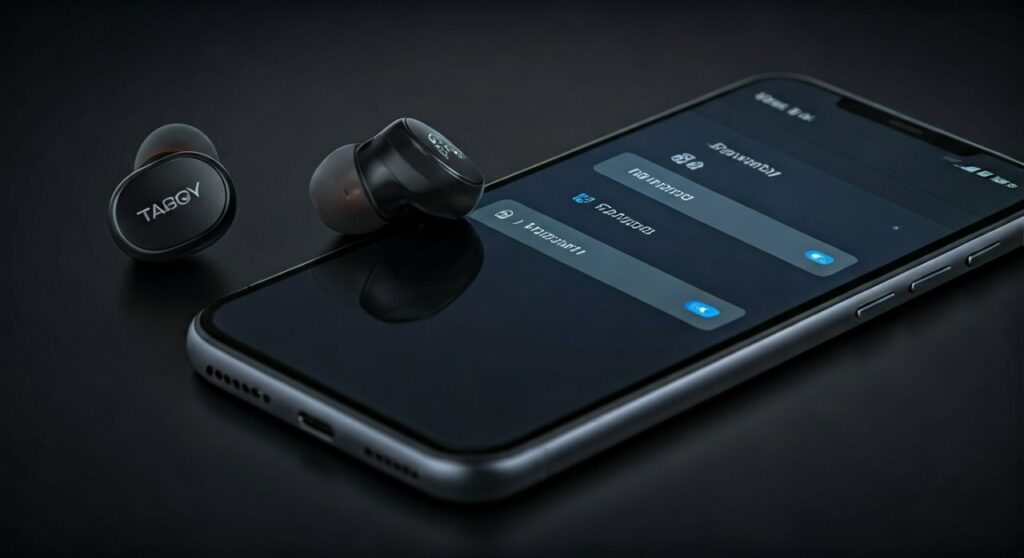
Getting your new TAGRY X08 or similar models to sync should be a seamless experience, but technical hiccups can happen. Whether you are dealing with a single earbud not connecting or a pairing rejection from your Windows PC, this guide provides the expert-level troubleshooting and step-by-step instructions you need. Based on hands-on testing with Bluetooth 5.3 budget audio gear, these steps ensure a stable, high-quality connection every time.
Key Takeaways: Quick Pairing Summary
If you are in a hurry, follow this rapid-fire checklist to get your TAGRY earbuds up and running in under 60 seconds.
- First-Time Use: Remove the protective plastic films from the charging pins inside the case.
- Auto-Pairing: Earbuds enter pairing mode the moment they leave the Charging Case.
- Device Name: Look for “TAGRY X08” (most common model) in your Bluetooth menu.
- LED Indicators: A flashing light on the earbuds indicates they are searching for a host device.
- Reset Fix: If only one side works, a Factory Reset is usually required to re-sync the left and right channels.
Step-by-Step: Connecting TAGRY Headphones to Android and iOS
Connecting TAGRY Bluetooth headphones to a mobile device is the most common use case. These earbuds utilize One-Step Pairing technology, meaning the master-slave switch happens automatically.
For Apple iOS (iPhone/iPad)
- Navigate to Settings and tap on Bluetooth.
- Ensure the Bluetooth toggle is switched to On.
- Remove the TAGRY earbuds from the case. You will see the LED power display on the case light up.
- Wait for “TAGRY X08” to appear under the “Other Devices” section.
- Tap the name to connect. Once “Connected” appears, your setup is complete.
For Android Devices
- Swipe down from the top of your screen to open the Quick Settings panel.
- Long-press the Bluetooth icon.
- Take the earbuds out of the Charging Case.
- Tap “Pair new device” or “Scan.”
- Select “TAGRY X08” when it populates in the list.
- Accept any pairing prompts or “Access to Contacts” requests if you wish to use voice assistants.
How to Connect TAGRY Bluetooth Headphones to a PC or Mac
Using TAGRY headphones for Zoom calls or YouTube browsing requires a few extra clicks in your desktop OS settings.
Windows 10 & 11 Setup
- Click the Start Menu and select the Settings (gear icon).
- Go to Bluetooth & devices > Add device.
- Choose Bluetooth (Mice, keyboards, audio, etc.).
- Remove your TAGRY earbuds from their case to make them discoverable.
- Click on TAGRY X08 when it appears.
- Expert Tip: Ensure your “Output Device” in the Taskbar volume settings is set to Headphones (TAGRY X08 Hands-Free AG Audio) for calls or Stereo for music.
macOS Setup
- Click the Apple Menu and select System Settings (or System Preferences).
- Click on Bluetooth in the sidebar.
- Lift the earbuds out of the case.
- Find TAGRY X08 in the “Nearby Devices” list and click Connect.
Technical Specifications: TAGRY X08 Connectivity
Understanding the hardware helps you troubleshoot better. TAGRY dominates the budget category by offering features usually found in $100+ headphones.
| Feature | Specification | Expert Insight |
|---|---|---|
| Bluetooth Version | 5.3 | Provides lower latency and better power efficiency. |
| Transmission Range | 33 Feet (10m) | Signal remains stable through one standard drywall. |
| Supported Profiles | HSP, HFP, A2DP, AVRCP | Essential for controlling music and calls from the bud. |
| Codec Support | SBC, AAC | Use AAC on iPhones for significantly better audio clarity. |
| Water Resistance | IPX7 | Can withstand sweat and rain, but do not swim with them. |
| Total Playtime | 60 Hours (with case) | One of the highest capacities in the budget market. |
Crucial: Performing a Factory Reset on TAGRY Earbuds
A common “pain point” for users is when the left and right earbuds unpair from each other. This results in “Single Earbud Mode” where you can only hear audio from one side. Follow this expert-verified reset procedure:
- Clear History: Go to your phone’s Bluetooth settings and “Forget” or “Delete” TAGRY X08 from the list.
- Turn Off Bluetooth: Disable Bluetooth on all previously connected devices nearby.
- Manual Power Off: Take the earbuds out. Press and hold the Touch Control area on both earbuds for about 5 seconds until the lights indicate they are off.
- The Reset Command: Press and hold the touch area of both earbuds simultaneously for about 10 seconds. You will see the LED lights flash (usually red and blue) then go out.
- Re-Sync: Place both earbuds back into the Charging Case and close the lid.
- Re-Connect: Wait 5 seconds, open the lid, and remove them together. They should now blink in sync, indicating they have paired with each other. Now, reconnect to your phone.
Troubleshooting Common Connection Issues
Even with Bluetooth 5.3, interference and software glitches can occur. Here is how to fix the most frequent problems.
The Headphones Won’t Enter Pairing Mode
Check the Charging Case battery level. If the digital display shows “00,” the earbuds won’t have enough power to broadcast a signal. Charge the case for at least 30 minutes using the provided USB-C cable.
Audio Cuts Out Frequently
This is often caused by 2.4GHz interference. If you are near a microwave or a high-powered Wi-Fi router, move a few feet away. Additionally, ensure there are no large metal objects between your phone and your TAGRY earbuds.
Only One Earbud Produces Sound
This usually means the earbuds are in “Mono Mode.” To fix this, place them both back in the case and take them out at the exact same time. If that fails, use the Factory Reset method mentioned above.
Expert Tips for a Better TAGRY Experience
- Firmware Updates: While TAGRY doesn’t have a dedicated app, keeping your smartphone’s OS updated ensures the best Bluetooth driver compatibility.
- Battery Longevity: Avoid leaving the case plugged in overnight once it reaches 100%. This preserves the lithium-ion cycle life.
- The “Seal” Matters: Use the three different sizes of silicone ear tips provided in the box. A proper seal doesn’t just improve bass; it prevents the earbuds from shifting and accidentally triggering the Touch Controls.
- Cleaning the Pins: If one earbud isn’t charging (and therefore won’t turn on to pair), use a Q-tip with a drop of isopropyl alcohol to clean the gold contacts on the bud and inside the case.
Frequently Asked Questions (FAQs)
Why is my computer asking for a PIN to connect TAGRY headphones?
Most TAGRY Bluetooth headphones do not require a PIN. If your Windows or Mac device prompts you for one, try entering 0000 or 1234. If this happens, it’s often a sign that the Bluetooth driver on your PC needs an update.
Can I connect TAGRY X08 to two devices at the same time?
No, TAGRY X08 earbuds typically do not support Multipoint Connection. To switch from your phone to your laptop, you must manually disconnect from the first device before the earbuds will appear in the Bluetooth menu of the second device.
Why does the “TAGRY X08” name appear twice in my Bluetooth list?
This occurs when the earbuds haven’t synced with each other. Your phone sees them as two separate mono headsets. To fix this, put them back in the case and perform the Factory Reset steps listed in this guide.
How do I know if my TAGRY headphones are in pairing mode?
When you remove them from the case, the LED indicator on one earbud will flash red and blue rapidly, while the other remains off or flashes slowly. This indicates the “Master” earbud is actively searching for a connection.
Will TAGRY headphones work with a Smart TV?
Yes, as long as your Smart TV supports Bluetooth Audio. Navigate to your TV’s “Sound” or “Accessories” menu, select “Add Bluetooth Device,” and remove the earbuds from the case to pair.







