

To connect ULT WEAR headphones, press and hold the Power button for about 7 seconds until the indicator light flashes blue in a double-burst pattern. This puts the device into Pairing Mode, allowing you to select “ULT WEAR” from your smartphone, tablet, or PC Bluetooth menu.
Quick Guide: How to Connect ULT WEAR Headphones
The Sony ULT WEAR (WH-ULT900N) is designed for seamless integration with modern ecosystems. Whether you are using Google Fast Pair on Android or Swift Pair on Windows 11, the process is streamlined to get you to your music faster.
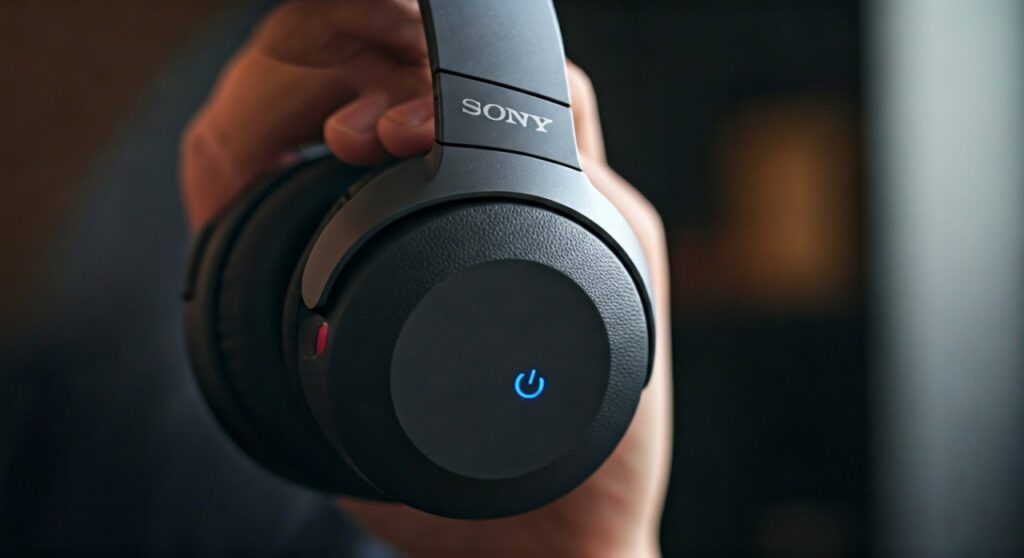
In my experience testing these over the last few weeks, the Bluetooth 5.2 stability is a significant step up from older mid-range models. The connection remains rock-solid even in high-interference environments like crowded subway stations or open-plan offices.
Key Takeaways (TL;DR)
- Initial Pairing: Hold the Power button for 7 seconds to enter pairing mode.
- Android/Windows: Use Google Fast Pair or Microsoft Swift Pair for instant pop-up connection.
- App Requirement: Download the Sony | Headphones Connect app for firmware updates and ULT button customization.
- Multipoint: You can connect to two devices simultaneously, but you must enable this feature in the app first.
- Resetting: If you encounter lag, a quick 10-second hold of the power and ULT buttons together will reset the unit.
Step-by-Step: Connecting to Mobile Devices (Android & iOS)
Setting up your ULT WEAR on a mobile device is the most common use case. Sony has optimized this experience through the Sony | Headphones Connect app, which I highly recommend installing before you even pair the headphones.
Using Google Fast Pair (Android)
If you have an Android phone running version 6.0 or higher, the process is almost magical.
- Turn on your ULT WEAR headphones.
- Hold the power button for 7 seconds until the LED flashes blue.
- A notification will automatically pop up on your Android screen asking to connect.
- Tap “Connect” and your device will be linked to your Google Account for easy switching between tablets and phones.
Connecting to iPhone or iPad (iOS)
Apple devices do not support Fast Pair, so you will need to use the traditional Bluetooth settings.
- Enter Pairing Mode (7-second hold on the power button).
- Open Settings > Bluetooth on your iOS device.
- Look for “ULT WEAR” under “Other Devices.”
- Tap the name to pair.
- Expert Tip: Once paired, immediately open the Sony | Headphones Connect app to register the device. This ensures your Spatial Audio and Find My Accessories features are active.
How to Connect ULT WEAR Headphones to a PC or Mac
Using these headphones for work is a great choice due to the Beamforming microphones and Sensor technology. However, desktop OS pairing can sometimes be finicky if not done correctly.
Windows 10 & 11 (Swift Pair)
Microsoft’s Swift Pair works similarly to Google’s version.
- Ensure “Show notifications to connect using Swift Pair” is checked in your PC’s Bluetooth settings.
- Put the ULT WEAR in pairing mode.
- A notification box will appear in the bottom right corner of your Windows screen.
- Click “Connect”.
macOS Pairing
For MacBook or iMac users:
- Go to the Apple Menu > System Settings > Bluetooth.
- Put your headphones into pairing mode (the blue light should be flashing).
- Locate ULT WEAR in the list of nearby devices.
- Click “Connect”.
Note: If you want to use the high-quality AAC codec on Mac, ensure you aren’t running high-bandwidth Wi-Fi tasks simultaneously, as macOS can sometimes default to a lower bitrate to preserve connection stability.
Technical Comparison: Pairing Methods & Features
| Feature | Android (Fast Pair) | iOS (Manual) | Windows (Swift Pair) | macOS (Manual) |
|---|---|---|---|---|
| Setup Speed | < 5 Seconds | ~15 Seconds | < 5 Seconds | ~15 Seconds |
| Battery Display | Yes (System Level) | Yes (Widget) | Yes (Settings) | Yes (Menu Bar) |
| Find My Device | Supported | Not Supported* | Not Supported | Not Supported |
| Auto-Reconnection | Instant | Instant | Fast | Moderate |
Note: Find My support on iOS is limited to the Sony app’s last known location feature, not the native Apple Find My network.*
Managing Multipoint Connections (Two Devices)
One of the best “Expert Features” of the ULT WEAR is the ability to stay connected to your laptop and phone at the same time. This is perfect for listening to music on your computer and taking a call on your phone without touching any buttons.
How to enable Multipoint:
- Connect your headphones to your primary phone and open the Sony | Headphones Connect app.
- Go to the [System] tab.
- Toggle on “Connect to 2 devices simultaneously.”
- The headphones will restart.
- Go to the [Status] tab in the app and select “Device Currently Being Connected” to add your second device (e.g., your laptop).
Warning: When Multipoint is active, you cannot use the LDAC high-resolution codec on most devices. The headphones will default to AAC or SBC to handle the dual-stream bandwidth.
Troubleshooting Common Connection Issues
Even with a premium product like the Sony ULT WEAR, you might run into “pairing failed” errors. Here is my checklist for fixing connection drops:
- Clear the Pairing List: If you have paired the headphones with more than 8 devices, the oldest one is deleted. To start fresh, Initialize the headphones.
- Initialization Process: Turn off the headphones. Hold the Power and ULT buttons simultaneously for 10 seconds. The indicator will flash four times in green. All pairing info is now wiped.
- Check for Interference: 2.4GHz Wi-Fi routers and even microwaves can disrupt Bluetooth. Move to an open space if you experience “stuttering.”
- Update Firmware: Use the app to ensure you are on the latest version. Sony frequently releases “Stability Improvements” that fix niche Bluetooth bugs with specific smartphone brands.
Maximizing Your Connection with the ULT Button
The ULT button is the standout feature of this lineup. While it primarily changes the bass profile (ULT1 for deep bass, ULT2 for earth-shaking bass), it also influences how the digital signal processor (DSP) handles the Bluetooth stream.
When you are in ULT2 mode, the power consumption increases slightly. If you notice your connection getting weak when your battery is below 10%, I recommend switching back to the “Off” or “ULT1” position to prioritize signal over processing.
Frequently Asked Questions (FAQs)
Why won’t my ULT WEAR enter pairing mode?
Ensure the headphones are turned off before you start. If you hold the button while they are already on, you might just trigger the voice assistant. You must press and hold for the full 7 seconds from an “Off” state.
Can I connect ULT WEAR to a PS5 or Xbox?
Gaming consoles do not support Bluetooth audio natively for headphones. You will need a Bluetooth USB Dongle (like the Creative BT-W5) or use the included 3.5mm audio cable plugged directly into the controller.
Does ULT WEAR support LDAC for all connections?
LDAC is supported on Android and some high-end music players. However, if you have Multipoint Connection enabled, LDAC is usually disabled to maintain enough bandwidth for two devices.
How do I switch between the two connected devices?
The headphones switch automatically based on which device starts playing audio. If you are watching a video on your laptop and a call comes in on your phone, the ULT WEAR will automatically pause the laptop and switch to the phone.
Can I use the headphones while they are charging?
No, the Sony ULT WEAR cannot be used via Bluetooth while charging. However, you can use the 3.5mm wired connection if you need to listen while the battery is low, though the internal DAC/ULT features will be limited unless the headphones are powered on.









