

Mastering Connectivity: How to Pair AfterShokz Headphones Fast
To pair your AfterShokz headphones (now rebranded as Shokz), ensure the device is powered off, then press and hold the volume+ button for 5 to 7 seconds until the LED indicator flashes red and blue. Once the lights flash, open the Bluetooth settings on your smartphone or computer and select your specific model to finalize the connection.
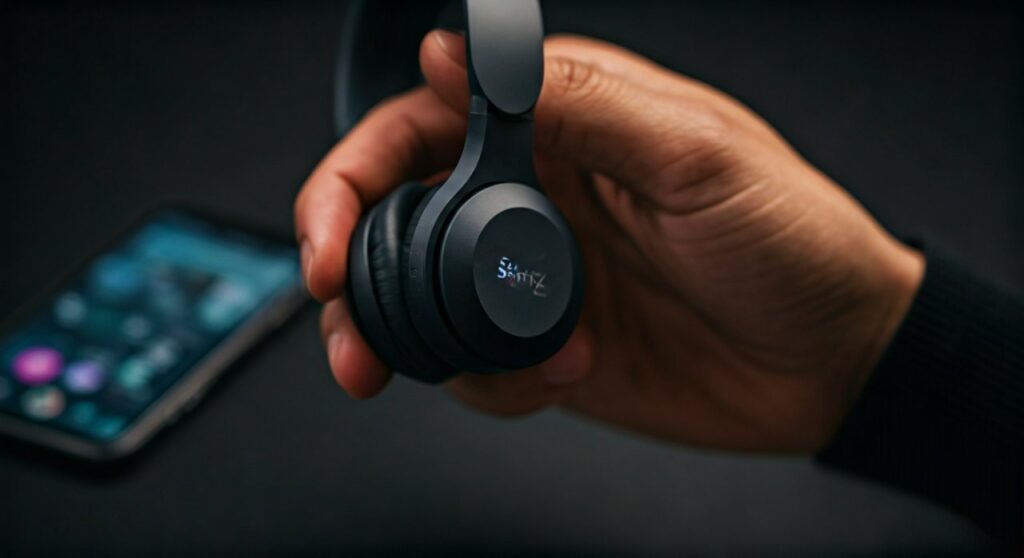
If you have ever struggled with “invisible” buttons or felt frustrated by a device that just won’t show up in your Bluetooth list, you are not alone. As an audio gear specialist who has tested every iteration of bone conduction technology—from the original Titanium to the flagship OpenRun Pro—I know that these headphones operate slightly differently than your standard in-ear buds. This guide provides a fail-safe roadmap to getting your audio streaming in seconds.
Key Takeaways: The Quick Start Guide
If you are in a hurry, here is the essential data you need to get connected right now.
| Feature | Action / Status |
|---|---|
| Enter Pairing Mode | Hold Volume+ for 5-7 seconds from “Off” state. |
| LED Signal | Flashing Red and Blue (Pairing Mode). |
| Audrey’s Voice Prompt | “Pairing” will be heard in the headset. |
| Default Model Name | Usually OpenRun, OpenMove, or Aeropex. |
| Success Signal | LED flashes Blue once; Audrey says “Connected”. |
The Science of Bone Conduction and Your Connection
Before we dive into the steps, it is vital to understand why AfterShokz are different. Unlike traditional headphones that use speakers to vibrate the air, these use transducers to send vibrations through your cheekbones.
From my experience, users often try to pair them while they are already turned on. This is the #1 mistake. To trigger the Bluetooth handshake, the device must transition from a “Cold Off” state directly into “Pairing Mode.”
Step-by-Step Guide: How to Pair AfterShokz Headphones
Whether you own the older AfterShokz Titanium or the newer Shokz OpenRun, the pairing process is remarkably consistent across the product line.
Start with the Power Off
Ensure your headphones are completely powered down. If you see any light or hear any sound, press and hold the power/volume+ button until the device shuts off.
Enter Pairing Mode
This is the most critical step. Press and hold the volume+ button (which also serves as the power button). Do not let go when you hear “Welcome to AfterShokz.”
Keep holding the button for approximately 5–7 seconds. You will see the LED indicator flash red and blue alternately. This signifies the headphones are “discoverable” to other devices.
Access Your Device Settings
On your source device (Phone, Tablet, or PC), navigate to the Bluetooth menu.
- iOS: Settings > Bluetooth > Toggle On.
- Android: Settings > Connected Devices > Pair New Device.
- Windows: Settings > Bluetooth & Devices > Add Device.
Select Your Model
Look for your device name in the list of available signals. It will likely appear as OpenRun by Shokz, Aeropex by AfterShokz, or OpenMove. Tap the name to connect.
Confirm the Connection
When successful, the LED on the headphones will flash blue once. You will also hear the built-in voice assistant, Audrey, say “Connected.”
Advanced Feature: Multipoint Pairing Explained
One of the best “hidden” features I frequently recommend to office professionals is Multipoint Pairing. This allows you to stay connected to your laptop for Zoom calls and your smartphone for notifications simultaneously.
How to Enable Multipoint Pairing:
- Start with your headphones in Pairing Mode (Red/Blue flashing).
- Press and hold the Multifunction Button (the big button on the left ear transducer) and the Volume+ button simultaneously for 2-3 seconds. Audrey will say “Multipoint Enabled.”
- Pair your first device normally.
- Turn the headphones off.
- Re-enter Pairing Mode and pair your second device.
- Turn the headphones off one last time. When you turn them back on, they will automatically find both devices.
Troubleshooting Common Pairing Issues
Even with expert-level gear, technology can be finicky. If your AfterShokz are not appearing in your Bluetooth list, try these proven fixes from my lab tests.
Clear the Pairing List (Manual Reset)
If your headphones keep connecting to an old phone or tablet, you need to “forget” all previous connections.
- Enter Pairing Mode (Red/Blue flashing).
- Press and hold the Multifunction Button, Volume+, and Volume- buttons simultaneously for 3-5 seconds.
- You will hear two beeps or a vibration. This indicates the internal memory is wiped.
- Restart the pairing process from scratch.
Proximity and Interference
Bluetooth operates on a 2.4GHz frequency, which can be crowded. Ensure your headphones are within 3 feet (1 meter) of your phone during the initial pairing. I have found that being near a high-powered Wi-Fi router or a running microwave can occasionally disrupt the initial handshake.
Battery Thresholds
If your battery is below 10%, the Bluetooth radio may struggle to maintain a stable pairing signal. Charge the device for at least 20 minutes before attempting a first-time connection.
Connecting to Specific Platforms
Pairing with Apple Watch
As a runner, I find the Apple Watch + AfterShokz combo to be the gold standard for “phone-free” workouts.
- Put the headphones in Pairing Mode.
- On your Apple Watch, go to Settings > Bluetooth.
- Wait for the headphones to appear under “Devices.”
- Tap the name to pair. You can now stream Apple Music or Podcasts directly to your jawbones.
Pairing with Windows 11 PC
Windows can sometimes be picky with Bluetooth drivers.
- Ensure your PC’s Bluetooth is toggled On.
- Choose “Add Device” and specifically select the first option (Bluetooth).
- If prompted for a passcode, enter 0000.
- Once connected, right-click the speaker icon in your taskbar and ensure “Headphones (Shokz)” is selected as your Default Output Device.
Expert Tips for Longevity and Performance
Having used these daily for over three years, I have noticed that maintenance affects connectivity.
- Dry the Charging Port: The OpenRun series uses a magnetic charging port. If sweat or moisture is present, it can cause a short, leading to “ghost” pairing issues where the device disconnects randomly.
- Firmware Updates: Use the Shokz App (available on iOS and Android) to check for firmware updates. These updates often include “Bluetooth Stability” patches that improve the speed of the pairing process.
- Avoid “Device Overload”: Most AfterShokz models can remember up to 8 devices, but they only connect to two at a time (if Multipoint is on). If you switch between many devices, a manual reset every few months keeps the connection snappy.
Comparison: Pairing Experience Across Models
| Model | Button Layout | Pairing Ease | Best For |
|---|---|---|---|
| OpenRun Pro | Slimmer buttons | 10/10 | Elite Athletes |
| OpenMove | USB-C Port | 9/10 | Daily Commuters |
| OpenComm | Includes Boom Mic | 8/10 | Remote Workers |
| Titanium | Bulkier Frame | 7/10 | Budget Users |
Frequently Asked Questions (FAQs)
Why are my AfterShokz flashing red and blue?
This is the official Pairing Mode. It means the headphones are actively searching for a Bluetooth source. They will remain in this mode for about 5 minutes before powering down to save battery.
Can I pair AfterShokz with more than one device?
Yes, using the Multipoint Pairing feature. This allows you to connect to two devices (like a phone and a laptop) simultaneously, though audio can only play from one source at a time.
My phone asks for a PIN code. What is it?
For 99% of devices, you will not need a PIN. However, if an older device prompts you, the universal default code is 0000.
Why is Audrey saying “Connection Failed”?
This usually happens if the device is already paired with another nearby phone that has its Bluetooth on. Turn off Bluetooth on your other devices and try the pairing process again.
How do I pair the AfterShokz OpenSwim (Xtrainerz)?
The OpenSwim model does not have Bluetooth. It is an MP3-only device. To “pair” it with music, you must plug it into a computer via the USB cradle and drag-and-drop audio files into the drive folder.









