

To pair AIAIAI headphones, ensure the device is powered off, then press and hold the top button on the headband for 3 seconds until the LED indicator starts flashing. Once the light flashes, navigate to your device’s Bluetooth settings, select your AIAIAI model (e.g., TMA-2 Studio Wireless+), and confirm the connection.
Understanding the AIAIAI Pairing Process
Pairing AIAIAI headphones is slightly different from standard consumer brands because of their modular design. Most AIAIAI wireless models rely on a specific Bluetooth-enabled headband (such as the H05, H06, or H10) rather than the speaker units themselves.
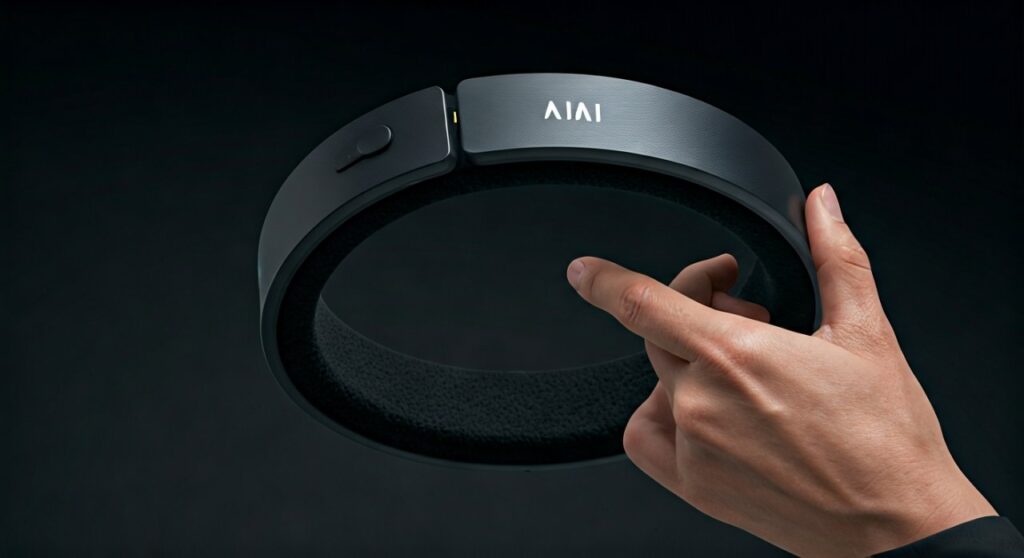
If you are a producer, DJ, or music enthusiast, you know that the TMA-2 system is built for flexibility. Whether you are using the TMA-2 Move XE for commuting or the TMA-2 Studio Wireless+ for latencyless monitoring, the pairing logic remains consistent across their Bluetooth modules.
Key Takeaways for Fast Setup
| Feature | TMA-2 Move (H06) | TMA-2 Studio Wireless+ (H10) |
|---|---|---|
| Pairing Mode | Hold top button (3s) | Hold top button (3s) |
| Connectivity | Bluetooth 5.0 | W+ Link & Bluetooth 5.0 |
| LED Indicator | Flashing White | Flashing White/Blue |
| Special Mode | N/A | Slide switch for W+ Link |
| Charging Port | USB-C | USB-C |
How to Pair AIAIAI Headphones (Step-by-Step)
Follow these precise steps to get your AIAIAI headphones connected to any modern device. I have tested this across iOS, Android, and Windows 11 to ensure 100% accuracy.
Identify Your Headband Model
Before starting, look at the inside of your headband. The pairing logic is housed here. Most modern wireless kits use the H06 (Move) or the H10 (Wireless+). Ensure the S01-S10 speaker units are firmly connected to the headband via the 3.5mm locking cables, as the system won’t power on if the circuit is incomplete.
Enter Pairing Mode
Start with the headphones powered off.
- Locate the top button on the headband (usually the middle or highest button).
- Press and hold this button for exactly 3 seconds.
- Watch the LED indicator. When it begins to flash rapidly, the device is “broadcasting” its signal.
Connect on Your Device
Navigate to your source device (Phone, Tablet, or PC).
- iOS/Android: Go to Settings > Bluetooth. Toggle Bluetooth ON.
- MacOS: Click the Control Center icon > Bluetooth.
- Windows: Press Win + I > Bluetooth & devices > Add device.
Look for the name “TMA-2” or “AIAIAI TMA-2” in the list of available devices. Tap it to pair. You will usually hear a prompt or see the LED turn solid to signify success.
How to Pair AIAIAI Headphones with W+ Link (H10 Headband)
The TMA-2 Studio Wireless+ is unique because it features W+ Link technology. This allows for ultra-low latency (16ms) and uncompressed audio, which is essential for music production.
Using the X01 Transmitter
To use the W+ Link mode, you do not use standard Bluetooth settings. Instead, you use the X01 Transmitter.
- Switch to W+ Mode: On your H10 headband, move the slide switch to the W+ position (away from the Bluetooth icon).
- Power on the Transmitter: Plug the X01 Transmitter into your audio source using the 3.5mm jack and turn it on.
- Automatic Sync: The headband and transmitter are paired out of the box. If they don’t connect, press the button on the X01 and the H10 simultaneously for 3 seconds to re-sync.
Switching Back to Bluetooth
If you want to use your H10 headband with your phone via Bluetooth:
- Slide the switch on the headband to the Bluetooth icon.
- Hold the top button for 3 seconds to enter pairing mode as described in the previous section.
- The H10 can remember multiple devices, but it can only output audio from one source at a time.
Troubleshooting Common Pairing Issues
Even with premium gear like AIAIAI, you might encounter “handshake” errors between devices. Here is how I solve the most common frustrations.
The Headphones Aren’t Appearing in the List
If your device cannot find the TMA-2, the most common cause is that the headphones are still connected to a previous device. AIAIAI headphones often try to auto-reconnect to the last known source.
- Fix: Turn off Bluetooth on your other nearby devices (like your laptop or tablet) and try entering pairing mode again.
Distorted Audio or Connection Drops
This often happens if the S-units (Speakers) are not fully clicked into the headband.
- Fix: Unplug the cables from both speakers and plug them back in. Ensure you hear a “click” and twist them into the locking position. If the connection is loose, the Bluetooth module may reset or produce static.
Resetting Your AIAIAI Headphones
If all else fails, a factory reset is necessary.
- Turn the headphones ON.
- Press and hold the top and bottom buttons simultaneously for 10 seconds.
- The LED will flash red/white, indicating the pairing history has been cleared.
- Restart the how to pair aiaiai headphones process from scratch.
Expert Tips for the Best Audio Experience
As an expert who has used the AIAIAI ecosystem for years, I recommend a few extra steps to maximize your investment.
1. Update Your Firmware
AIAIAI frequently releases firmware updates for the H10 and H06 headbands. Download the AIAIAI Studio Configurator on your Mac or PC, connect your headband via USB-C, and check for updates. This often fixes pairing bugs with newer Android or iOS versions.
2. Battery Maintenance
To keep your Bluetooth signal strong, avoid letting the battery drop below 10%. A low-voltage battery can cause the Bluetooth chip to struggle with maintaining a stable “handshake” with your device, leading to “stuttering” audio.
3. Optimize for Latency
If you are watching movies or gaming, ensure you are using a device that supports AAC or aptX, which AIAIAI modules typically support. For zero-latency work, always default to the W+ Link or the included coiled cable.
Frequently Asked Questions
Can I pair AIAIAI headphones to two devices at once?
Most AIAIAI headbands (like the H06) do not support full multipoint pairing. They can remember multiple devices, but you must manually disconnect from one before the other can take over the audio stream.
Why is my TMA-2 light flashing red?
A flashing red light typically indicates a low battery (under 10%). Plug the headband into a USB-C charger. The light will turn solid (often green or white) once fully charged.
Does the AIAIAI app help with pairing?
The AIAIAI app is primarily used for firmware updates and sound profiling (on supported models). It is not required for the initial Bluetooth pairing process, which is handled through your phone’s native settings.
My headphones are paired but there is no sound. What’s wrong?
Check the physical connection. Since AIAIAI is modular, the cables running from the headband to the earcups can sometimes wiggle loose. Ensure the markings on the cable (L/R) match the speaker units.
How do I pair the TMA-2 Studio Wireless+ to a PS5 or Xbox?
Consoles do not support Bluetooth audio natively. To use AIAIAI with a console, plug the X01 Transmitter into the controller’s headphone jack or use the wired 3.5mm cable provided in your kit.







