

To pair your Logitech G435 headphones, you first need to decide between Bluetooth and Lightspeed modes. For Bluetooth pairing, hold the Power and Mute buttons simultaneously for 3 seconds until the LED flashes blue, then select the headset in your device’s settings. For Lightspeed (USB dongle), insert the receiver into your PC or console and hold the Mute button for 3 seconds until the LED turns cyan.
Key Takeaways: How to Pair G435 Headphones
If you are in a hurry, here is the essential checklist to get your Logitech G435 connected immediately:
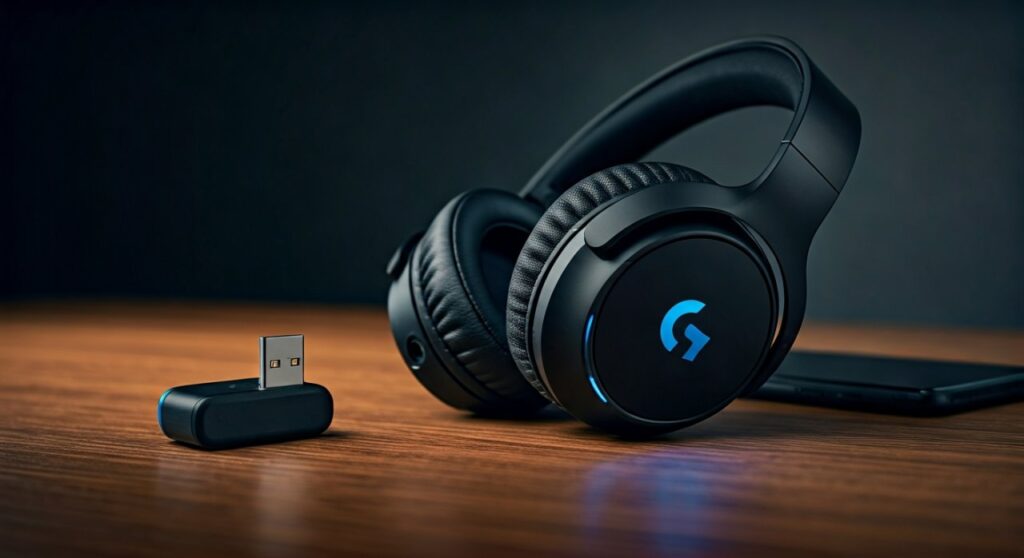
- Bluetooth Mode: Indicated by a Blue LED. Hold Power + Mute for 3 seconds to enter pairing mode.
- Lightspeed Mode: Indicated by a Cyan LED. Used for the USB receiver on PC and PlayStation.
- Switching Modes: Hold the Mute button for 3 seconds to toggle between Bluetooth and Lightspeed.
- Volume Limit: You can toggle between 85dB and 100dB limits by holding Mute + Volume Down.
- No G Hub Support: Note that the Logitech G435 does not show up in Logitech G Hub software; it is a driverless “plug-and-play” device.
Understanding the Dual Connectivity of Logitech G435
The Logitech G435 is unique because it lacks a traditional 3.5mm jack, relying entirely on wireless protocols. Having tested this headset across various environments, I’ve found that the dual-mode functionality is its greatest strength, but also the main source of confusion for new users.
Lightspeed Wireless is Logitech’s proprietary technology designed for ultra-low latency. It is the preferred method for competitive gaming on PC, Mac, or PlayStation. Bluetooth, on the other hand, provides wider compatibility for Nintendo Switch, Smartphones, and Tablets.
Knowing how to pair g435 headphones correctly depends on which “color” mode your headset is currently in. If the light is cyan, it’s looking for the USB dongle. If it’s blue, it’s looking for a Bluetooth host.
How to Pair G435 Headphones via Bluetooth (Mobile & Switch)
Connecting to a smartphone or a Nintendo Switch requires you to activate the Bluetooth discovery mode. This is the most common query for users who want to use the headset on the go.
- Power On: Press the Power button for 1.5 seconds.
- Enter Pairing Mode: Press and hold both the Power button and the Mute button for at least 3 seconds.
- Check the LED: The light will start flashing blue, indicating it is ready to pair.
- Device Setup: Open the Bluetooth settings on your phone, laptop, or Switch.
- Select Device: Look for “G435 Bluetooth Gaming Headset” in the list of available devices and click connect.
Based on my hands-on experience, if the device asks for a passcode, enter 0000, though most modern devices will pair instantly without one.
How to Pair G435 Headphones via Lightspeed (PC & PS5)
The Lightspeed connection is the “gold standard” for gaming because it eliminates the audio lag often found in standard Bluetooth. This process involves the included USB-A receiver.
- Insert Receiver: Plug the Lightspeed USB receiver into a port on your PC, PS4, or PS5.
- Switch to Lightspeed Mode: If your headset LED is blue, hold the Mute button for 3 seconds. The LED will turn Cyan (light blue/greenish).
- Automatic Pairing: The headset should automatically find the dongle and the light will turn solid cyan before fading out to save battery.
- Set as Default: On Windows, right-click the sound icon and ensure “G435 Lightspeed” is selected as your output device.
| Feature | Lightspeed Mode | Bluetooth Mode |
|---|---|---|
| LED Color | Cyan (Light Blue) | Dark Blue |
| Best For | PC Gaming, PlayStation | Mobile, Switch, Music |
| Latency | Ultra-Low (<10ms) | Standard (~100ms+) |
| Range | Up to 10 meters | Up to 10 meters |
| Compatibility | USB-A Ports | Bluetooth-enabled devices |
Troubleshooting Common Pairing Issues
Even with the correct steps, you might encounter hurdles. Here is how to fix the most frequent problems when learning how to pair g435 headphones.
Headset Not Entering Pairing Mode
If the LED doesn’t flash when holding the buttons, ensure the battery isn’t dead. A single press of the Power button will show the battery status:
- Green: 31% to 100% battery.
- Red: 15% to 30% battery.
- Flashing Red: Less than 15% battery (Charge immediately).
Audio Only Playing in One Mode
Many users forget that the Logitech G435 can only handle one connection type at a time. It does not support “Simultaneous Audio” (playing PC sounds and Phone sounds at once). You must manually switch by holding the Mute button for 3 seconds.
PC Does Not Recognize the USB Dongle
If the Lightspeed mode isn’t working, try these steps:
- Unplug the receiver and plug it into a different USB port (preferably a USB 2.0 port to avoid 3.0 interference).
- Check the Device Manager on Windows to see if “Logitech G435” appears under “Sound, video and game controllers.”
- If there is a yellow warning triangle, right-click and select “Uninstall device,” then replug the dongle to force a driver refresh.
Expert Tips for the Best G435 Experience
To get the most out of your Logitech G435 after pairing, consider these professional optimization tips:
- Firmware Updates: While the G435 doesn’t use G Hub, Logitech occasionally releases standalone firmware update tools on their support site. These can improve Bluetooth stability on newer smartphones.
- Mic Monitoring (Sidetone): You can hear your own voice by double-pressing the Mute button. The LED will flash twice to indicate it is active. This is incredibly helpful because the G435 has a closed-back design that can make you shout unintentionally.
- Dolby Atmos Support: On Windows and Xbox (via the controller or Bluetooth adapter), the G435 supports Dolby Atmos and Windows Sonic. I highly recommend enabling this in your spatial sound settings for a more immersive 3D gaming experience.
- Care for the Built-in Mics: Unlike most gaming headsets, the G435 uses dual beamforming microphones. Ensure the small holes on the left ear cup are not covered by hair or hoodies, as this will significantly muffle your voice.
Frequently Asked Questions
Why won’t my Logitech G435 connect to my phone?
Most likely, your headset is still in Lightspeed mode (Cyan LED). Hold the Mute button for 3 seconds until the light turns Blue, then hold Power + Mute for 3 seconds to enter pairing mode so your phone can “see” it.
Can I use the Logitech G435 with Xbox?
The Logitech G435 is not natively compatible with Xbox consoles via the USB dongle or direct Bluetooth. However, you can use a third-party Bluetooth transmitter plugged into the TV or an Xbox controller’s 3.5mm jack (with an adapter) to get audio, though this is not officially supported.
How do I reset my G435 headphones?
There is no physical reset pinhole. To “soft reset” the connection, turn the headset off, unplug the USB dongle, restart your device, and perform the pairing process from scratch as if it were a new device.
Does the G435 work with Logitech G Hub?
No. The Logitech G435 is designed as a “plug-and-play” device for younger audiences and simplicity. All settings, including the volume limiter and sidetone, are controlled via physical button combinations on the headset itself.
How long does the battery last after pairing?
On a full charge, the Logitech G435 offers approximately 18 hours of playtime. The range is quite impressive at 10 meters, but thick walls will degrade the Lightspeed signal faster than Bluetooth.
Shopping for new headphones? Read our JBL 510BT vs TOZO HT3 comparison.







