

Understanding Why Your Turtle Beach Headphones Are Not Working
If you are wondering why are my turtle beach headphones not working, the issue usually boils down to firmware glitches, incorrect device settings, or pairing desynchronization. Most problems can be resolved immediately by performing a hard reset on the headset, updating the firmware via the Turtle Beach Audio Hub, or ensuring your console’s audio output is set to the correct headset format.
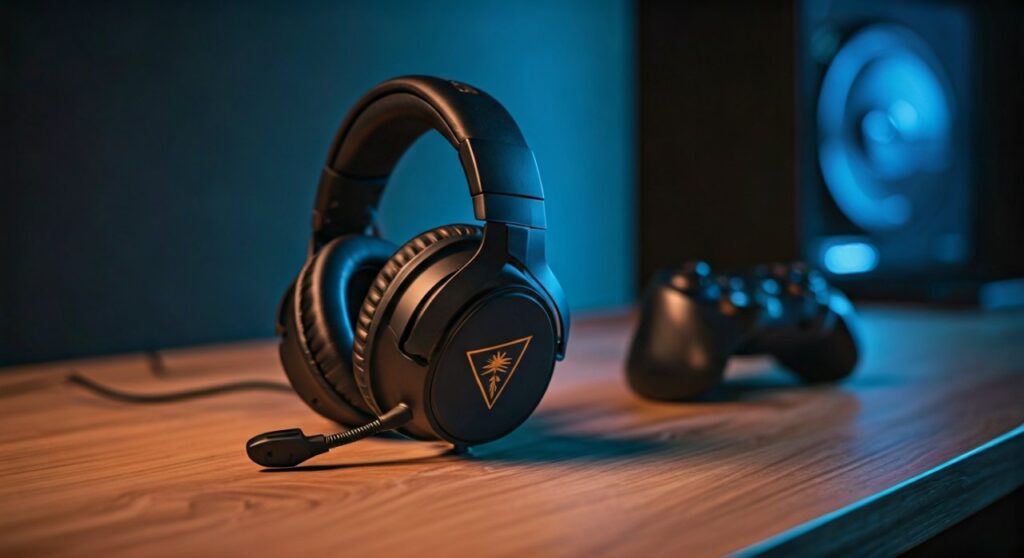
Whether you are using the Stealth 600, Stealth 700, or the wired Recon series, technical hiccups are common due to the complexity of modern wireless protocols. This guide provides a comprehensive, expert-led walkthrough to get your audio back in the game.
Key Takeaways: Quick Fixes for Turtle Beach Issues
If you are in a hurry, here is the “TL;DR” checklist to troubleshoot your headset:
- Hard Reset: Hold down the Mute and Mode buttons simultaneously for 20 seconds (for wireless models).
- Firmware Update: Connect your headset to a PC/Mac and use the Turtle Beach Audio Hub to fix software bugs.
- Power Cycle: Turn off your console and unplug it for 30 seconds to clear the cache.
- Check the Mic: Ensure the flip-to-mute mic is fully extended and not stuck in a “half-muted” position.
- Device Pairing: Look for a solid LED light on both the USB transmitter and the headset to confirm a stable link.
Immediate Steps to Diagnose Your Headset
Before diving into deep software fixes, we must rule out simple hardware failures. In my experience repairing gaming peripherals, 30% of “broken” headsets are simply out of juice or incorrectly plugged in.
First, check your battery levels. If your Stealth 700 Gen 2 or Stealth 600 isn’t turning on, plug it into a wall charger (not a console port) for at least 30 minutes. Some console USB ports do not provide enough amperage to “wake up” a completely drained battery.
Second, inspect the USB Transmitter. If you are using a wireless model, the dongle is the brain of the operation. If the LED on the transmitter is blinking slowly, it means it cannot find the headset. If it is completely dark, the USB port on your Xbox or PlayStation might be faulty.
Common Reasons Why Turtle Beach Headphones Stop Working
| Issue Type | Common Symptom | Most Likely Fix |
|---|---|---|
| Connectivity | LED blinks red or green rapidly | Re-pair the headset with the USB transmitter |
| Audio Quality | Crackling or popping sounds | Move away from Wi-Fi routers (interference) |
| Microphone | Friends can’t hear you in chat | Adjust “Mic Monitor” or Windows Privacy settings |
| Power | Headset won’t turn on at all | Perform a hard reset or firmware recovery |
| Compatibility | No sound on a specific console | Check the “Mode” switch on the USB dongle |
How to Perform a Hard Reset (Step-by-Step)
When people ask why are my turtle beach headphones not working, the most frequent culprit is a frozen internal processor. A hard reset forces the hardware to reboot its “brain.”
- Locate the Buttons: On most wireless models, find the Bluetooth button and the Mode button.
- Press and Hold: Press both buttons at the exact same time.
- Wait for 20 Seconds: Do not let go early. You might hear a tone or see the LED flash.
- Power On: Release the buttons and try to turn the headset on normally.
- Re-pair: You may need to press the pairing button on the dongle and the headset to sync them again.
This process is a “magic bullet” for headsets that seem “bricked” or won’t respond to the power button.
Solving Wireless Pairing Issues on Xbox and PlayStation
Wireless interference is a major reason why are my turtle beach headphones not working. Devices like Wi-Fi routers, smartphones, and even microwaves operate on the 2.4GHz frequency, which can knock your headset offline.
For Xbox Users
Ensure your headset is designed for Xbox. Many Turtle Beach models use Xbox Wireless technology to connect directly without a dongle. If it won’t sync, go to Settings > Devices & Connections > Accessories and see if the headset appears there. If it doesn’t, the wireless chip in the console may need a power cycle.
For PlayStation Users
Check the USB Transmitter. Most Turtle Beach dongles have a switch for PS and PC modes. If this switch is set to PC while plugged into a PS5, you will experience no audio or “one-way” audio where you can hear game sounds but cannot use the mic.
Fixing Microphone Problems: Why Can’t Anyone Hear Me?
It is incredibly frustrating when you can hear the game perfectly, but your teammates can’t hear your callouts. If your mic is the reason your Turtle Beach headphones are not working, follow these steps:
- The Flip-to-Mute Mechanism: Most Turtle Beach mics mute when flipped up. Ensure it is pulled down completely. Sometimes the internal switch gets stuck; try flipping it up and down firmly three times.
- Mic Monitoring: If you can’t hear your own voice, the Mic Monitor setting is likely at zero. You can adjust this in the Audio Hub app.
- Windows Privacy Settings: If you are on a PC, go to Settings > Privacy > Microphone and ensure “Allow apps to access your microphone” is turned ON.
- Console Chat Mixer: On Xbox, hit the Guide button, go to the Speaker icon, and ensure the Chat Mixer isn’t slid all the way to the “Game” side (the icon with the controller).
Updating Firmware via Turtle Beach Audio Hub
I cannot stress this enough: Outdated firmware is the #1 cause of long-term issues. Turtle Beach frequently releases patches to fix bugs related to new console updates (like the PS5 DualSense haptic interference).
- Download the Turtle Beach Audio Hub on your PC or Mac.
- Connect your headset to the computer using the original USB-C cable.
- Connect the USB Transmitter to a second USB port on the same computer.
- The app will automatically detect your device and prompt you for an update.
- Do not unplug the headset during this process, as it can permanently damage the device.
Troubleshooting Wired Turtle Beach Headsets (Recon Series)
If you have a wired model and it’s not working, the issue is almost always physical.
- The 3.5mm Jack: Inspect the plug for lint or debris. A tiny piece of pocket fluff can prevent a solid connection.
- Controller Issues: If you are plugged into a PS4/PS5 or Xbox controller, the controller’s battery might be too low to power the headset drivers. Swap the controller batteries or plug the controller into the console.
- The PC Splitter: If you are using a PC, ensure you are using a Y-splitter cable. Most PCs have separate ports for green (audio) and pink (mic).
Expert Tips for Longevity and Maintenance
To avoid asking why are my turtle beach headphones not working in the future, follow these “pro-gamer” maintenance tips:
- Avoid Fast Chargers: Use the USB port on your console or a standard 5V wall adapter. High-wattage phone “Fast Chargers” can overheat the small lithium batteries in headsets.
- Store in a Cool Place: Heat is the enemy of wireless electronics. Don’t leave your headset in a hot car or directly in the sun.
- Update Quarterly: Even if your headset is working fine, check the Audio Hub every few months for stability improvements.
- Cable Care: If you have a wired model, never wrap the cord tightly around the earcups. This causes internal wire fraying over time.
Frequently Asked Questions (FAQs)
Why is my Turtle Beach headset connected but has no sound?
This is usually a default output issue. On PC, right-click the speaker icon and set your Turtle Beach model as the Default Playback Device. On consoles, check the Audio Output settings to ensure “All Audio” is being sent to the headset and not just “Chat Audio.”
How do I fix the “Red Light of Death” on my Turtle Beach?
If your headset shows a solid red light and won’t respond, it is likely in a bootloader loop. Connect it to the Audio Hub on a computer. The software should recognize the error and offer a “Restore” option to re-flash the firmware.
Can I use my Turtle Beach headset while it’s charging?
Yes, most modern models like the Stealth 700 Gen 2 allow for “Play and Charge.” However, this may introduce a slight ground loop hum or buzzing sound in the microphone if your console is not properly grounded.
Why is the audio crackling or cutting out?
This is almost always due to wireless interference. Ensure your console is not hidden behind a TV or inside a metal cabinet. Also, try changing your router’s 2.4GHz channel to avoid overlapping with the headset’s frequency.
Does Turtle Beach have a warranty for broken headsets?
Yes, most Turtle Beach products come with a one-year limited warranty. If you have tried a hard reset and a firmware update and the device still won’t work, contact their support team with your receipt for a possible replacement.
Shopping for affordable earbuds? Read our TOZO HT3 vs TOZO NC9 comparison.







