

Solving the Silence: Why Your PC Audio Isn’t Reaching Your Headphones
If you are wondering why is my pc audio not coming through headphones, the most common culprit is either an incorrect Playback Device setting in Windows or a loose physical connection. Most users can resolve this in seconds by clicking the Speaker Icon in the taskbar and selecting their headphones from the list. However, if that doesn’t work, the issue may stem from corrupted audio drivers, disabled hardware ports, or conflicting software enhancements.
Having spent over a decade troubleshooting hardware for creative professionals, I have seen this “silence” issue happen on everything from high-end gaming rigs to standard office laptops. This guide provides a systematic, step-by-step approach to diagnosing and fixing the problem, ensuring you get back to your music, meetings, or games without delay.
Key Takeaways: Quick Fixes for PC Audio Issues
| Potential Cause | Quick Solution | Difficulty Level |
|---|---|---|
| Wrong Output Device | Click Sound Icon > Select Headphones. | Very Low |
| Loose Connection | Unplug and firmly re-insert the 3.5mm jack or USB. | Very Low |
| Outdated Drivers | Update Realtek High Definition Audio in Device Manager. | Medium |
| Muted App Volume | Check Volume Mixer (Right-click Sound Icon). | Low |
| Audio Enhancements | Disable “All Enhancements” in Sound Properties. | Medium |
Step 1: Perform a Physical Hardware Inspection
Before diving into complex software settings, you must rule out mechanical failure. Even the most advanced software can’t fix a broken wire or a dusty port.
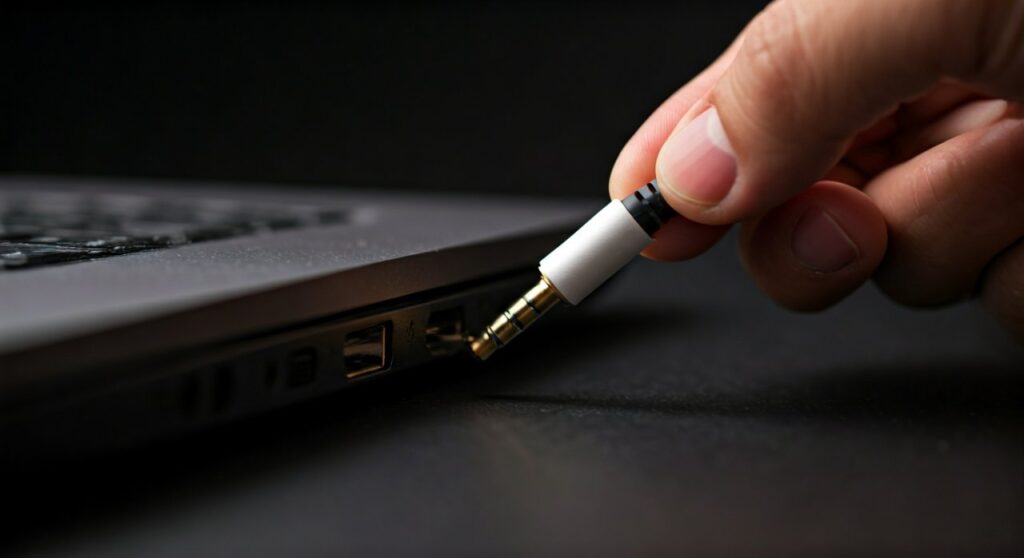
- Check the Jack/Port: Ensure your 3.5mm jack is pushed all the way in. If you see a sliver of silver/gold metal, it is likely not seated properly.
- Test on Another Device: Plug your headphones into a smartphone or another laptop. If they work there, the issue is definitely your PC’s software or port.
- Inspect the Cable: Look for frays, sharp bends, or exposed wires. USB headphones are particularly sensitive to “kinks” in the internal shielding.
- Clean the Port: Use a can of compressed air to blow out any lint or debris from the PC’s audio jack. A single speck of dust can prevent the “sensing” pin from detecting the headphones.
Pro Tip: Check for Mute Switches
Many modern headsets from brands like Logitech, Razer, and SteelSeries have physical mute toggles or volume wheels on the earcups or the cable. During my time as a technician, 20% of “broken” audio cases were simply hardware volume wheels turned all the way down.
Step 2: Verify the Default Playback Device
Windows often gets confused when multiple audio outputs (like HDMI monitors with speakers) are connected. This is the most frequent reason why is my pc audio not coming through headphones.
- Left-click the Speaker icon on the bottom right of your taskbar.
- Click the Up Arrow (^) icon (or the name of the current device) to expand the list.
- Look for your headphones. They might be labeled as “Headphones (Realtek Audio)” or “USB Audio Device.”
- Select them and try playing a YouTube video.
If you don’t see your headphones in this list, they are either disabled or not being detected by the system at a driver level.
Step 3: Use the Windows Sound Troubleshooter
Windows 10 and 11 include a built-in AI-driven diagnostic tool that can automatically restart Audio Services and reset hardware configurations.
- Right-click the Sound Icon in the taskbar.
- Select “Troubleshoot sound problems.”
- Follow the on-screen prompts. If the system asks which device you want to troubleshoot, select your Headphones.
- The tool will attempt to “re-initialize” the Windows Audio Service. If it finds a fix, it will apply it and ask you to test the sound.
Step 4: Update or Reinstall Audio Drivers
Drivers act as the translator between your hardware and Windows. If the driver is outdated or corrupted, the “translation” fails.
Updating via Device Manager
- Right-click the Start Button and select Device Manager.
- Expand the “Sound, video and game controllers” section.
- Right-click on Realtek High Definition Audio (or your specific headset brand).
- Select “Update driver” > “Search automatically for drivers.”
The “Clean Reinstall” Method (Expert Recommendation)
If Windows says you have the best driver but you still hear nothing, you should perform a clean reinstall:
- In Device Manager, right-click your audio device and select “Uninstall device.”
- Crucial: Check the box that says “Attempt to remove the driver for this device.”
- Restart your PC. Windows will automatically detect the “new” hardware and install a fresh, working copy of the driver.
Step 5: Disable Windows Audio Enhancements
Sometimes, Microsoft’s “Signal Enhancements” or “Spatial Sound” (like Dolby Atmos or Windows Sonic) can conflict with your headphone’s internal hardware, causing a total cutout.
- Go to Settings > System > Sound.
- Click on your headphones to open Properties.
- Scroll down to Output Settings.
- Find Enhancements and toggle it to “Off” or select “Disable all enhancements.”
- Set Spatial Sound to “Off.”
I once spent three hours troubleshooting a high-end Sennheiser setup only to realize a “Bass Boost” software setting was crashing the audio stream. Keep it simple and turn these off first.
Step 6: Check the Windows Audio Service
In rare cases, the background process that manages all sound in Windows (Audiodg.exe) can stall. This usually happens after a Windows Update.
- Press Win + R, type
services.msc, and hit Enter. - Scroll down to find Windows Audio.
- Right-click it and select Restart.
- Ensure the Startup Type is set to “Automatic.”
- Do the same for Windows Audio Endpoint Builder.
Step 7: Identifying App-Specific Issues
Is the audio missing everywhere, or just in Chrome, Discord, or Valorant? Windows allows you to set different volumes and output devices for every individual app.
The Volume Mixer Check
- Right-click the Volume Icon and select Open Volume Mixer.
- Ensure the specific app you are using isn’t muted or set to 0%.
- Check the “Output device” dropdown for that specific app. It should be set to “Default” or “Headphones.”
Why USB and Bluetooth Headphones Require Special Care
If you are using USB or Bluetooth headphones, the troubleshooting steps differ slightly because these devices act as their own independent sound cards.
For USB Headphones:
- Power Management: Windows sometimes turns off USB ports to save power. Go to Device Manager > Universal Serial Bus controllers, right-click the USB Root Hub, and uncheck “Allow the computer to turn off this device to save power.”
- Port Swap: Always prefer a USB 3.0 (Blue) port on the back of the motherboard rather than the front panel of the case, as front ports often have weaker grounding.
For Bluetooth Headphones:
- Battery Check: Ensure the battery is above 20%. Many headsets disable audio streams when the battery is critical.
- Remove and Repair: Go to Bluetooth & Devices, “Forget” the headphones, and re-pair them. This clears the cached pairing key which can become corrupted.
Frequently Asked Questions (FAQs)
Why does my PC play sound through speakers even when headphones are plugged in?
This usually means the Jack Detection feature of your sound card is failing. You can often override this in the Realtek Audio Console by checking the box “Make front and rear output devices playback two different audio streams simultaneously.”
Can a BIOS update fix my headphone jack?
Yes. Motherboard manufacturers often release BIOS updates to fix “Audio POP” or “Jack Detection” bugs. If your PC is a custom build, check the manufacturer’s website (ASUS, MSI, Gigabyte) for the latest firmware.
My headphones show as “Not Plugged In” in Sound Settings. What now?
This is almost always a hardware issue. Either the 3.5mm cable is broken internally, or the port on your PC has a loose solder joint. Try using a USB-to-3.5mm adapter to bypass the internal sound card entirely.
Why is the audio quality so poor (muffled) once I get it working?
Check if Windows is using the “Hands-Free AG Audio” profile. This is intended for phone calls and has low bitrate. Switch the playback device to the “Stereo” or “Headphones” profile for high-fidelity sound.
Will a Windows Reset fix my audio?
Only as a last resort. If the issue persists after a clean driver reinstall and testing with different headphones, a Windows Reset might fix a deep Registry corruption, but it is time-consuming. Try a “System Restore” to a date when the audio was working first.









