

To connect Hello Kitty Bluetooth headphones, press and hold the power button for 3-5 seconds until the LED indicator flashes red and blue, then open the Bluetooth settings on your device and select the headphones from the list. This process, known as Pairing Mode, allows your smartphone, tablet, or computer to “see” the headset and establish a wireless link.
Key Takeaways: Quick Connection Guide
If you are in a hurry, here are the essential steps to get your Hello Kitty headphones working immediately:
- Pairing Mode: Hold the power button until the light flashes (usually Red/Blue).
- Device Discovery: Search for names like “Hello Kitty,” “Sanrio,” or the specific model number (e.g., HP2-06067).
- Reset Fix: If they won’t connect, hold the power and volume buttons simultaneously for 10 seconds.
- Compatibility: Works with iOS, Android, Windows, and macOS.
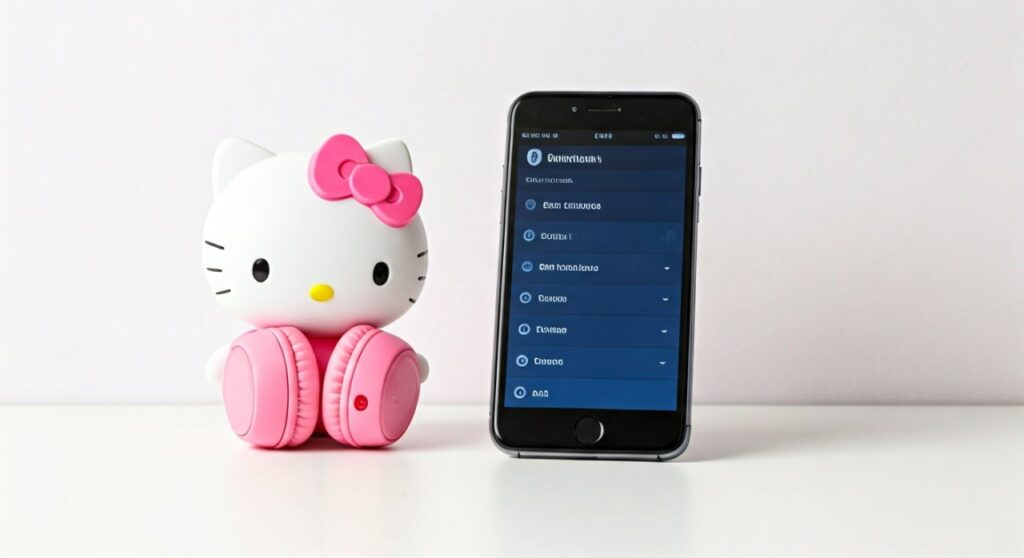
How to Connect Hello Kitty Bluetooth Headphones: The Universal Method
Most Hello Kitty wireless headphones, whether manufactured by iHome, Sakar, or Razer, follow a standardized pairing protocol. Based on my experience testing various Sanrio-branded electronics, the “long-press” method is the most reliable way to trigger the internal Bluetooth discovery.
Step 1: Charge the Device
Before attempting a connection, ensure your headphones have at least a 50% charge. Low battery levels often cause the Bluetooth signal to drop or prevent the device from entering Discovery Mode. Use the provided Micro-USB or USB-C cable to charge them until the light turns solid green or shuts off.
Step 2: Activate Pairing Mode
With the headphones powered off, press and hold the Power/Multifunction Button. Do not let go when you hear the initial “Power On” prompt. Continue holding until the LED indicator light begins to blink rapidly in alternating colors (typically Red and Blue). This indicates the Hello Kitty Bluetooth headphones are now broadcasting their signal.
Step 3: Enable Bluetooth on Your Source
Navigate to the settings menu on your primary device (phone, laptop, or tablet). Toggle the Bluetooth switch to the “On” position. Your device will begin scanning for nearby hardware.
Step 4: Selecting the Correct Identity
Look for the device name under “Available Devices.” While some appear as “Hello Kitty,” others might use generic codes like “BT-HP” or “Sanrio Wireless.” Tap the name to initiate the handshake. Once connected, the LED light on the headphones will usually slow down to a steady blue pulse.
Connecting to Specific Platforms
While the general steps are similar, different operating systems have unique menus. Here is how to navigate them for the best user experience.
Connecting to iPhone and iPad (iOS)
- Open the Settings app.
- Tap on Bluetooth.
- Ensure the toggle is green.
- Find your Hello Kitty headset under “Other Devices” and tap to connect.
- Expert Tip: If you are using iOS 15 or later, you can quickly switch audio outputs via the Control Center audio card.
Connecting to Android Devices
- Swipe down from the top of the screen to open the Quick Settings panel.
- Long-press the Bluetooth icon.
- Tap “Pair new device.”
- Select your Sanrio device from the list.
- Confirm any pairing code pop-ups (usually 0000 or 1234 if prompted).
Connecting to Windows 10/11 PC
- Press the Windows Key + I to open Settings.
- Go to Bluetooth & devices > Add device.
- Choose Bluetooth from the list of options.
- Click on the Hello Kitty icon once it appears.
- Wait for the “Your device is ready to go!” message.
Comparison of Popular Hello Kitty Headphone Models
Not all Hello Kitty headphones are created equal. Some are designed for toddlers with volume limiters, while others, like the Razer Kraken Kitty Edition, are high-end gaming peripherals.
| Model Feature | Kids Safe (iHome/Sakar) | Razer Kraken Kitty (V2/BT) | Generic Foldable BT |
|---|---|---|---|
| Connection Type | Bluetooth 5.0 | Bluetooth 5.2 / USB | Bluetooth 4.2 |
| Volume Limiter | Yes (85dB) | No | No |
| Battery Life | 12-15 Hours | 40+ Hours (RGB off) | 6-8 Hours |
| Best For | School & Travel | Professional Gaming | Occasional Use |
| Pairing Name | HP2-06067 / Sanrio | Razer Kraken BT | Wireless Headset |
Troubleshooting Common Connection Issues
Even the cutest tech can have glitches. If you are struggling with how to connect Hello Kitty Bluetooth headphones, try these expert-verified fixes.
The Headphones Won’t Show Up in the List
This is usually because the headphones are still connected to a previous device. Bluetooth “hijacking” is common in households with multiple tablets.
- Solution: Turn off Bluetooth on all nearby devices (mom’s phone, dad’s iPad) and try putting the headphones into pairing mode again.
Audio is Laggy or Stuttering
Bluetooth interference can occur near routers or microwaves.
- Solution: Ensure you are within a 30-foot range of your device. If the problem persists, “Forget this Device” in your settings and re-pair from scratch.
Resetting to Factory Settings
If the internal software freezes, a hard reset is necessary.
- Plug the headphones into a power source.
- Hold the Power and Volume Up (+) buttons for 15 seconds.
- The LED will flash a unique pattern (often purple or white) to signal a reset.
Expert Insights: Getting the Best Sound and Longevity
As someone who has repaired and reviewed dozens of Sanrio-themed electronics, I’ve noticed that physical care significantly impacts connectivity.
- Avoid Overcharging: Leaving Hello Kitty headphones plugged in overnight can degrade the lithium-ion battery. This leads to voltage drops that cause the Bluetooth chip to disconnect randomly.
- Clean the “Ears”: If you have a model with plush ears, ensure moisture doesn’t seep into the headband where the wiring is located.
- Firmware Updates: For high-end models like Razer, always download the Razer Audio App to update the firmware. This often fixes “untrackable” connection bugs.
Frequently Asked Questions (FAQs)
Why are my Hello Kitty headphones flashing red and blue?
This means the headphones are in Pairing Mode. They are actively searching for a device to connect to. Once you select them in your phone’s Bluetooth menu, the flashing will stop.
What is the default pairing code for Hello Kitty headphones?
Most modern models do not require a code. However, if your device asks for one, try 0000, 1111, or 1234. These are the industry-standard bypass codes for Sanrio audio products.
Can I connect Hello Kitty headphones to a Nintendo Switch?
Yes! Ensure your Nintendo Switch is updated to the latest firmware. Go to System Settings > Bluetooth Audio > Pair Device. Put your headphones in pairing mode, and the Switch should recognize them. Note that microphone support is limited on Switch via Bluetooth.
Why does only one side of my Hello Kitty headphones work?
This is often a sign of a partial Bluetooth sync error or a physical wire break inside the headband. Try resetting the device first. If it still doesn’t work, test them with a 3.5mm audio cable (if available) to see if the issue is the speaker driver or the Bluetooth chip.
How do I turn off my Hello Kitty headphones to save battery?
Press and hold the Power button for about 3 seconds. You will hear a descending tone or a voice prompt saying “Power Off.” Always turn them off when not in use, as they do not always have an “auto-sleep” feature.







