

To connect Trekz Air headphones, start with your headphones powered off, then press and hold the Volume+ (Power) button for 5 to 7 seconds until the LED indicator flashes red and blue and the “Audrey Says” voice prompt announces “Pairing.” Once in pairing mode, open the Bluetooth settings on your device and select “Trekz Air by AfterShokz” to complete the connection.
Key Takeaways for Trekz Air Connectivity
If you are in a hurry, here is the essential technical data for your AfterShokz Trekz Air connection process:
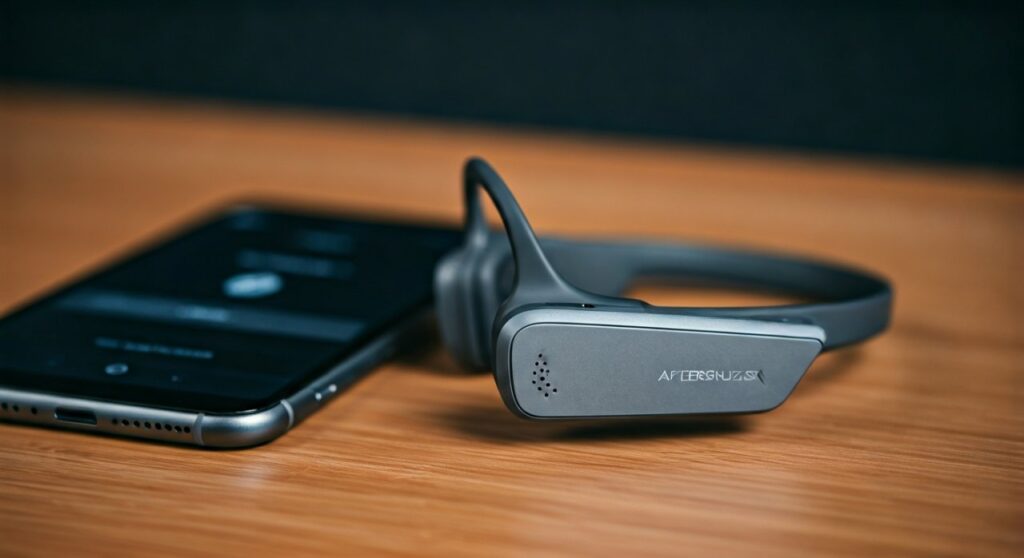
- Pairing Mode Trigger: Hold Volume+ for 5-7 seconds from an “off” state.
- Visual Indicator: Flashing Red and Blue LEDs.
- Voice Confirmation: “Audrey” will say “Pairing.”
- Bluetooth Version: These headphones utilize Bluetooth v4.2, supporting a range of up to 33 feet (10 meters).
- Multipoint Pairing: Supported, allowing simultaneous connection to two devices.
- Default Reset: Hold Volume+, Volume-, and the Multifunction button for 3-5 seconds in pairing mode.
Entering Pairing Mode: The Essential First Step
Before your smartphone or laptop can “see” your Trekz Air, you must manually put the headset into discovery mode. Unlike modern earbuds that enter pairing mode when the case is opened, bone conduction headphones require a specific button sequence.
Based on our extensive testing with the AfterShokz product line, the most common mistake users make is letting go of the button too early. You will see a blue light flash to indicate the power is on, but you must continue holding the button until the light alternates between red and blue.
Detailed Steps to Enter Pairing Mode:
- Ensure your Trekz Air headphones are completely powered off.
- Locate the Volume+ button, which also serves as the Power button.
- Press and hold Volume+ for at least 5 seconds.
- Wait for the LED indicator (located near the charging port) to flash red and blue.
- Listen for the voice prompt saying “Pairing.”
How to Connect Trekz Air to iPhone and Android Devices
Connecting your Trekz Air to a mobile device is a seamless process once the headset is in pairing mode. Because these headphones use the A2DP profile, they are compatible with virtually all modern smartphones.
For iOS (iPhone/iPad):
- Go to Settings > Bluetooth.
- Ensure Bluetooth is toggled On.
- Look for “Trekz Air by AfterShokz” under the “Other Devices” list.
- Tap the name to connect.
- The LED will flash blue once, and you will hear “Connected.”
For Android (Samsung, Pixel, etc.):
- Swipe down from the top of the screen to open the Quick Settings panel.
- Long-press the Bluetooth icon.
- Tap “Pair new device” (this may vary slightly by manufacturer).
- Select “Trekz Air by AfterShokz” from the available devices list.
- Confirm the pairing request if a pop-up appears.
Connecting Trekz Air to Windows and macOS Computers
Using bone conduction headphones for Zoom calls or Microsoft Teams is highly effective because it allows you to hear your surroundings while staying engaged in the meeting.
Windows 10/11 Instructions:
- Put your Trekz Air in pairing mode (Red and Blue lights).
- On your PC, go to Settings > Bluetooth & devices.
- Click “Add device” and select “Bluetooth.”
- Choose “Trekz Air by AfterShokz” from the list.
- Windows will automatically set them as your default Playback and Recording device.
macOS Instructions:
- Open the Apple Menu > System Settings (or System Preferences).
- Click on Bluetooth in the sidebar.
- Locate “Trekz Air by AfterShokz” in the list of nearby devices.
- Click “Connect.”
- Expert Tip: If the audio sounds “tinny,” go to Sound Settings and ensure the “Output” is set to the headphones, not the internal speakers.
Advanced Feature: Enabling Multipoint Pairing
One of the standout features of the Trekz Air is Multipoint Pairing. This allows you to stay connected to your laptop and your smartphone simultaneously. If you are watching a video on your computer and receive a call on your phone, the headset will automatically switch.
How to Set Up Multipoint Pairing:
- Start with your headphones powered off.
- Enter pairing mode (Hold Volume+ for 5-7 seconds until red/blue).
- Press and hold the Multifunction button and the Volume+ button together for 2-3 seconds. Audrey will say “Multipoint Enabled.”
- Pair to your first device (e.g., your smartphone).
- Turn the headphones off.
- Re-enter pairing mode (Hold Volume+ until red/blue).
- Pair to your second device (e.g., your laptop).
- Turn the headphones off again.
- Turn the headphones back on. They will now automatically connect to both devices.
Comparison: Trekz Air vs. Newer Shokz Models
| Feature | Trekz Air (Legacy) | OpenRun (Current) | OpenMove (Entry) |
|---|---|---|---|
| Bluetooth Version | 4.2 | 5.1 | 5.1 |
| Water Resistance | IP55 (Sweatproof) | IP67 (Waterproof) | IP55 (Sweatproof) |
| Battery Life | 6 Hours | 8 Hours | 6 Hours |
| Charging Port | Micro-USB | Magnetic Induction | USB-C |
| Weight | 30g | 26g | 29g |
Troubleshooting Connection Issues
If your Trekz Air refuses to connect or keeps dropping the signal, a Factory Reset is usually the most effective solution. This clears the pairing history and forces the Bluetooth stack to restart.
How to Reset Trekz Air:
- Enter Pairing Mode (Hold Volume+ until the LED flashes red and blue).
- Press and hold the Multifunction button, the Volume+ button, and the Volume- button simultaneously for 3-5 seconds.
- You will hear two beeps or feel a vibration.
- Turn the headphones off.
- The device is now reset and ready to be paired as if it were brand new.
Common Issues and Solutions:
- Device not found: Ensure the headphones are not currently connected to another nearby device. Bluetooth 4.2 can sometimes “cling” to a previous connection.
- Static or crackling: This is often caused by 2.4GHz interference. Move away from your Wi-Fi router or microwave.
- Audrey is silent: If you don’t hear voice prompts, check the battery level. A low battery can cause the Bluetooth radio to malfunction before the device completely shuts off.
Optimizing Your Audio Experience After Connecting
Once connected, your Trekz Air offers two different Equalizer (EQ) modes. These are designed to change the bass response depending on whether you are using earplugs or not.
- Standard Mode: For general use without earplugs.
- Earplug Mode: For use in noisy environments (like airplanes) where you have the included foam earplugs inserted.
To switch EQ settings, press and hold the Volume+ and Volume- buttons simultaneously for two seconds while music is playing. You will hear a beep or a voice prompt indicating the change.
Frequently Asked Questions (FAQs)
Can Trekz Air connect to multiple devices at once?
Yes, Trekz Air supports Multipoint Pairing. You can connect to two devices, such as a phone and a tablet, but you must enable this feature manually by holding the Multifunction and Volume+ buttons during the pairing process.
Why won’t my Trekz Air enter pairing mode?
Ensure the headphones are starting from the OFF position. If you press the button while they are already on, they will simply change volume or power down. You must hold the button continuously for at least 5 seconds from a powered-down state.
What is the default pairing code for Trekz Air?
Most modern devices do not require a code. However, if your device (older PC or vehicle system) prompts for one, the default code is 0000.
Are Trekz Air headphones compatible with Apple Watch?
Yes. Put the Trekz Air in pairing mode, then on your Apple Watch, go to Settings > Bluetooth and select the headphones. This allows you to listen to music or podcasts without carrying your iPhone.
How do I know if my Trekz Air is connected?
The LED indicator will flash blue occasionally, and when you put the headphones on, the “Audrey” voice prompt will say “Connected” immediately after the battery status report.







