

To fix sound quality on headphones, you must first determine if the issue is hardware-related (like earwax buildup or a frayed cable) or software-related (such as incorrect EQ settings or outdated drivers). Most sound issues are resolved by cleaning the audio jack, disabling “Audio Enhancements” in your OS settings, or switching to a higher-quality audio codec.
Why Your Headphones Sound Bad: The Common Culprits
If you have been wondering how to fix sound quality on headphones, you aren’t alone. I have spent over a decade testing everything from $20 earbuds to $2,000 audiophile setups, and most “broken” headphones are actually just misconfigured.
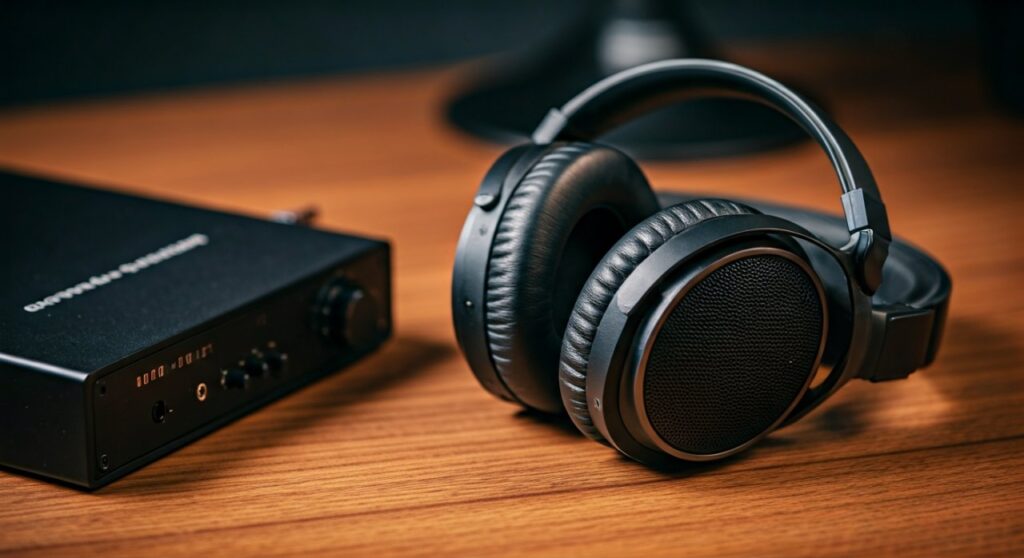
A sudden drop in audio fidelity usually stems from physical debris blocking the driver or a digital mismatch between your device and the headphones. Whether you hear static, muffled vocals, or a complete lack of bass, the solution is usually a systematic process of elimination.
Key Takeaways: Quick Fix Checklist
- Clean the hardware: Remove earwax from the mesh and dust from the 3.5mm jack using 75% Isopropyl Alcohol.
- Check Software Settings: Disable “Loudness Equalization” and “Windows Sonic” for a flatter, more natural response.
- Update Drivers: Ensure your Realtek Audio Drivers or Bluetooth firmware are up to date.
- Source Quality: Switch from low-bitrate streaming (96kbps) to “High Quality” or “Lossless” (320kbps+).
- Hardware Check: Test the headphones on a different device to see if the port is the problem.
Step 1: Physical Cleaning and Maintenance
The most frequent reason for muffled sound is physical blockage. Over time, human earwax, skin oils, and lint accumulate on the fine mesh of your earbuds or the interior fabric of over-ear headphones.
Cleaning the Driver Mesh
Use a soft-bristled toothbrush to gently brush the mesh. Hold the headphones with the mesh facing downward so gravity pulls the debris out rather than pushing it further in. For stubborn grime, a tiny amount of Isopropyl Alcohol on a cotton swab works wonders.
Inspecting the Jack and Plug
If you hear static when you rotate the plug, there is likely oxidation or lint inside the port. I recommend using a compressed air can or a wooden toothpick to gently hook out any pocket lint trapped at the bottom of the phone or laptop jack.
| Common Symptom | Likely Physical Cause | Recommended Tool |
|---|---|---|
| Muffled Sound | Earwax / Dust on Mesh | Soft Toothbrush / 75% Alcohol |
| Static / Crackling | Dirty 3.5mm Jack or Plug | Compressed Air / Microfiber Cloth |
| Sound Cuts Out | Frayed Internal Wiring | Heat Shrink Tubing / Soldering |
| Low Volume in One Ear | Clogged Driver Port | Adhesive Putty (Blu-Tack) |
Step 2: How to Fix Sound Quality on Headphones via Software
Digital settings often “process” audio in a way that destroys clarity. Here is how to strip back those layers to get the intended sound.
Disable Audio Enhancements (Windows)
- Right-click the Speaker Icon in your taskbar and select Sound Settings.
- Click on your headphone device.
- Find Audio Enhancements and set it to “Off”.
- Ensure Spatial Sound is also turned off, as this can create a “tinny” echoing effect on non-compatible media.
Adjust the Sample Rate
Sometimes the “Bit Depth” is set too low by default. Navigate to the Advanced tab in your device properties and set the format to 24-bit, 44100 Hz (Studio Quality) or 48000 Hz. This ensures your hardware isn’t downsampling the audio before it reaches your ears.
Step 3: Optimizing Wireless and Bluetooth Audio
If you are using Bluetooth Headphones, sound quality is often limited by the Codec being used. Standard SBC (Subband Coding) can sound compressed and “crunchy” in the high frequencies.
- Check the Codec: On Android, go to “Developer Options” and check if your headphones support LDAC or aptX HD. These allow for much higher data transfer rates.
- Clear Interference: 2.4GHz Wi-Fi and microwaves interfere with Bluetooth. If the audio stutters, move away from your router.
- Disable “Headset” Mode: On Windows, Bluetooth devices often show up as two devices: “Stereo” and “Hands-Free AG Audio.” Always select Stereo for music. The “Hands-Free” mode drops the bitrate significantly to save bandwidth for the microphone.
Step 4: Using an External DAC/Amp
If you are using high-impedance headphones (like the Sennheiser HD600 series), your laptop or phone simply cannot provide enough power. This results in “thin” sound with no bass impact.
I’ve found that adding a portable DAC (Digital-to-Analog Converter) like the FiiO BTR5 or AudioQuest DragonFly can transform the listening experience. These devices bypass the noisy, cheap internal circuitry of your computer and provide a clean, powerful signal.
Step 5: Advanced Equalization (EQ)
Every pair of headphones has a “Sound Signature.” Some are “V-shaped” (heavy bass and treble), while others are “Mid-forward.” If you don’t like how your headphones sound, you can change their physical properties through software.
- Download Peace EQ: This is a GUI for Equalizer APO on Windows.
- Apply AutoEQ Settings: Search the AutoEQ database (by Jaakko Pasanen) for your specific headphone model.
- Correct the Frequency Response: These profiles are designed to make your headphones sound “Neutral,” which often fixes issues with piercing highs or muddy bass.
Step 6: When to Repair or Replace the Cable
If the sound quality improves when you wiggle the wire, you have a short circuit. This is a hardware failure that software cannot fix.
- For Removable Cables: This is easy. Purchase a high-quality braided replacement cable.
- For Fixed Cables: You may need to cut the wire, strip the insulation, and solder a new TRS 3.5mm Connector. If you aren’t comfortable with a soldering iron, a local electronics repair shop can usually do this for a small fee.
How to Test Your Fixes
Don’t just listen to any YouTube video to check your progress. YouTube compresses audio heavily. Instead, use:
- Tidal HiFi or Apple Music Lossless.
The “Ultimate Headphone Test” on websites like Audiocheck.net*.
- Specifically, use a “Frequency Sweep” to ensure both drivers are responding equally from 20Hz to 20kHz.
FAQ: Frequently Asked Questions
Why do my headphones sound muffled all of a sudden?
The most common cause is moisture or earwax blocking the acoustic chamber. If you recently worked out, sweat might be trapped in the driver mesh. Let them dry completely or clean the mesh with a dry brush.
Can a low battery affect sound quality on Bluetooth headphones?
Yes. Many wireless headphones enter a Power Saving Mode when the battery drops below 10-20%. This can lead to lower volume ceilings, increased distortion, and more frequent Bluetooth dropouts.
Does the “Burn-in” process actually fix sound quality?
“Burn-in” is the theory that playing music for 40+ hours “loosens” the headphone diaphragms. While highly debated, most expert measurements show negligible differences. If your headphones sound “bad” out of the box, it is more likely an EQ issue or a poor seal on your ears.
Why is there a static hissing noise in my headphones?
This is often “Electronic Noise Floor.” It happens when your headphones are very sensitive (low impedance) and the internal amplifier of your device is poorly shielded. Using an External USB DAC is the only way to eliminate this “hiss.”







