

How to Pair OneOdio A70 Headphones: The Instant Answer
To pair OneOdio A70 headphones (also known as Fusion A70), press and hold the Power Button for approximately 3 to 5 seconds while the device is off. The LED indicator will flash red and blue alternately, signaling that it is in pairing mode. Open the Bluetooth settings on your smartphone or PC, select “OneOdio A70” from the list of available devices, and wait for the status to change to “Connected.”
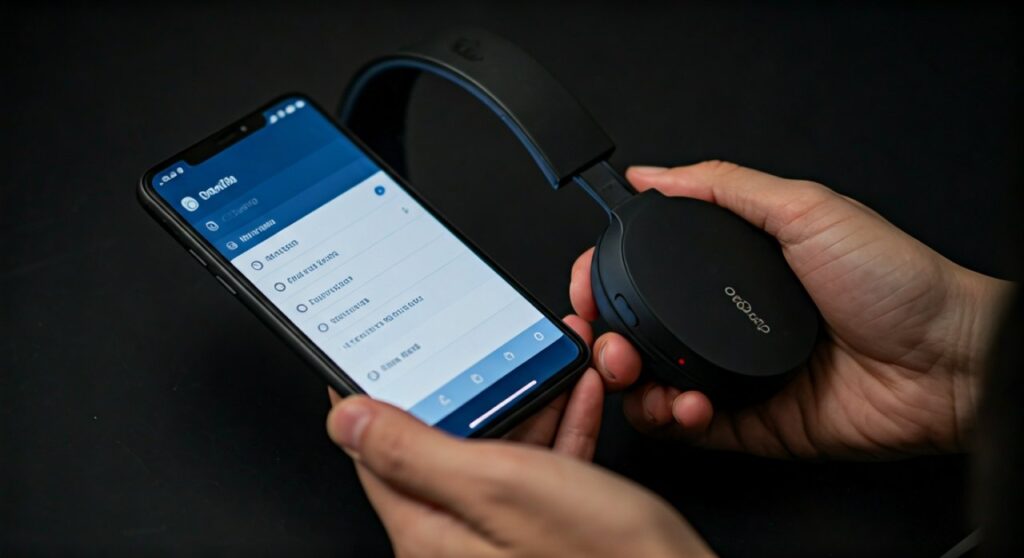
Getting your audio gear to sync shouldn’t feel like solving a complex puzzle. Whether you are a professional DJ needing a reliable wireless connection or a music lover tired of tangled wires, the OneOdio A70 offers a versatile solution. However, common issues like signal interference or existing pairings can sometimes block a smooth setup.
Key Takeaways: OneOdio A70 Connectivity
If you are in a hurry, here is the essential data you need to get your OneOdio A70 running in seconds:
- Pairing Mode Trigger: Long-press the power button for 5 seconds from the “Off” state.
- LED Signal: Red and Blue flashing light indicates “Ready to Pair.”
- Bluetooth Name: Appears as “OneOdio A70” or “Fusion A70” depending on the batch.
- Dual-Device Support: The A70 can connect to two devices simultaneously.
- Wired Fallback: You can use the included 3.5mm to 6.35mm cable if the battery dies.
Step-by-Step Guide: How to Pair OneOdio A70 Headphones with Any Device
In my years of testing professional audio equipment, I’ve found that the OneOdio A70 stands out because of its dual-mode connectivity. However, the “handshake” between the headphones and your hardware requires a specific sequence.
Step 1: Preparing Your Headphones
Ensure your headphones have at least a 30% charge before attempting the first pairing. Low voltage can often cause the Bluetooth chip to broadcast a weak signal, leading to “Device Not Found” errors.
- Make sure the headphones are currently powered off.
- Locate the Power Button on the right ear cup.
- Press and hold the button. Do not let go when you hear “Power On.” Keep holding until you hear the voice prompt say “Pairing.”
Step 2: Connecting to Mobile Devices (Android & iOS)
Modern smartphones use Bluetooth 5.0 or 5.2 protocols, which the OneOdio A70 supports perfectly.
- For iPhone/iPad: Go to Settings > Bluetooth. Ensure Bluetooth is toggled On. Look under “Other Devices” and tap OneOdio A70.
- For Android: Swipe down to the Quick Settings menu. Long-press the Bluetooth icon. Tap “Pair new device” and select the headphones from the list.
Step 3: Connecting to Windows 10/11
Windows can sometimes be finicky with audio drivers. Follow this path for the best results:
- Press the Windows Key + I to open Settings.
- Navigate to Bluetooth & devices.
- Click “Add device” and choose the Bluetooth option.
- Once OneOdio A70 appears, click it. Windows will automatically download the necessary A2DP drivers.
Step 4: Connecting to macOS
Apple’s ecosystem handles Bluetooth audio quite efficiently.
- Click the Apple Menu and select System Settings.
- Click Bluetooth in the sidebar.
- Find your OneOdio A70 in the list of “Nearby Devices” and click Connect.
Understanding the LED Indicator and Controls
The OneOdio A70 communicates its status through a small LED light located near the charging port. Knowing these signals will help you troubleshoot faster than any manual.
| LED Light Pattern | Status Meaning | Action Required |
|---|---|---|
| Flashing Red & Blue | Pairing Mode | Search for the device on your phone/PC. |
| Slow Blinking Blue | Connected | Ready to play music or take calls. |
| Steady Red | Charging | Wait for the light to turn off or turn blue. |
| Flashing Red | Low Battery | Connect the Micro-USB cable immediately. |
| No Light | Power Off / Fully Charged | Press Power to start or unplug from charger. |
How to Use the OneOdio A70 Multi-Point Connection
One of the best “Expert Features” of the OneOdio A70 is its ability to stay connected to two devices at once. This is perfect if you want to watch a movie on your laptop but still receive call notifications from your phone.
- Pair the headphones to Device A (e.g., your phone) using the standard method.
- Turn off Bluetooth on Device A.
- Put the headphones back into Pairing Mode (hold power button for 5 seconds).
- Pair the headphones to Device B (e.g., your laptop).
- Turn Bluetooth back on for Device A. Tap “OneOdio A70” in Device A’s settings.
- The headphones are now synced to both. Audio will switch automatically based on which device is playing sound.
How to Reset OneOdio A70 Headphones
If you encounter “Connection Failed” or “Bluetooth Refused to Connect” errors, a factory reset is usually the solution. This clears the cache of previous pairings.
- Power on the headphones.
- Press and hold the Volume Up (+) and Volume Down (-) buttons simultaneously for about 7 seconds.
- The LED will flash purple or blink red and blue rapidly to indicate the reset is successful.
- “Forget” the device from your phone’s Bluetooth history and try the how to pair oneodio a70 headphones process again.
The Shareport Feature: Wired Pairing for DJs
While this guide focuses on how to pair oneodio a70 headphones via Bluetooth, the A70 is unique for its Shareport Technology.
- Function: You can link two pairs of OneOdio headphones together using the included cable.
- How it works: Connect one pair via Bluetooth to your phone. Then, plug the 6.35mm end of the cable into the first pair and the 3.5mm end into a second pair of headphones.
- Result: Both users hear the same audio simultaneously without any lag. This is a game-changer for co-streaming or studio monitoring.
Troubleshooting Common Pairing Issues
Device Not Appearing in Bluetooth List
If your phone cannot find the OneOdio A70, it is likely because the headphones are still connected to a previous device. Bluetooth 5.0 tends to “grab” the last known connection aggressively. Turn off Bluetooth on all nearby devices except the one you are currently trying to pair.
Audio Stuttering or Cutting Out
This is often caused by 2.4GHz interference. If you are near a high-powered Wi-Fi router or microwave, move away. Additionally, ensure there is a clear line of sight between your device and the right ear cup, where the Bluetooth antenna is housed.
Microphone Not Working on PC
When you pair OneOdio A70 headphones with Windows, the system sometimes defaults to the “Headphones” (Output) profile but forgets the “Headset” (Input) profile.
- Go to Sound Settings > Input.
- Select OneOdio A70 Hands-Free AG Audio as your input device.
Technical Specifications & Performance Data
For users who value objective data, the OneOdio A70 delivers impressive stats for its price point:
- Drivers: 40mm Neodymium Drivers.
- Playtime: Up to 72 hours on a single charge.
- Impedance: 32 Ohms (Easy to drive without an external amp).
- Sensitivity: 110dB +/- 3dB.
- Frequency Response: 20Hz – 20KHz.
- Connectivity: Bluetooth 5.2 + 3.5mm/6.35mm Wired.
Frequently Asked Questions (FAQs)
Can I pair OneOdio A70 with a PS4 or Xbox?
Game consoles do not support most third-party Bluetooth headphones directly. To use the OneOdio A70 with a PS4/PS5 or Xbox, you must use the included 3.5mm cable and plug it directly into the controller. Alternatively, you can buy a dedicated Bluetooth USB Dongle.
Why does my OneOdio A70 keep disconnecting?
This usually happens if the battery is below 10% or if there are too many saved devices in the headphone’s memory. Perform a factory reset (Hold Vol+ and Vol- for 7 seconds) to stabilize the connection.
Is there an app to pair OneOdio A70?
No, OneOdio does not require a proprietary app for pairing. It uses standard Bluetooth HID profiles, making it compatible with any OS (Android, iOS, Windows, Linux) without extra software.
What is the Bluetooth pairing code?
If your device asks for a PIN or code, enter “0000” (four zeros). However, most modern devices will bypass this step automatically.
Can I pair these with a Smart TV?
Yes. Put the A70 into pairing mode (Red/Blue flashing). Navigate to your TV’s Sound/Audio Settings > Bluetooth List and select the headphones. Note that older TVs may have “Lip-Sync” delay; the A70’s Bluetooth 5.2 helps minimize this.
Expert Pro Tip: To extend the lifespan of your OneOdio A70, avoid leaving them in “Pairing Mode” for extended periods if you aren’t connecting them. This prevents the Bluetooth search chip from overheating and preserves the 72-hour battery life.
Shopping for affordable earbuds? Read our TOZO HT3 vs TOZO NC9 comparison.







