

To pair WF C500 headphones with your device, simply remove the earbuds from the charging case to trigger automatic pairing for new setups, or hold the buttons on both earbuds for five seconds to enter manual pairing mode for secondary devices. Once the blue indicator light flashes in a double-pulse pattern, select “WF-C500” from your device’s Bluetooth settings to complete the connection.
Quick Summary: Key Takeaways for Pairing Success
If you are in a hurry, here is the essential data you need to get your Sony WF-C500 earbuds connected in under 60 seconds.
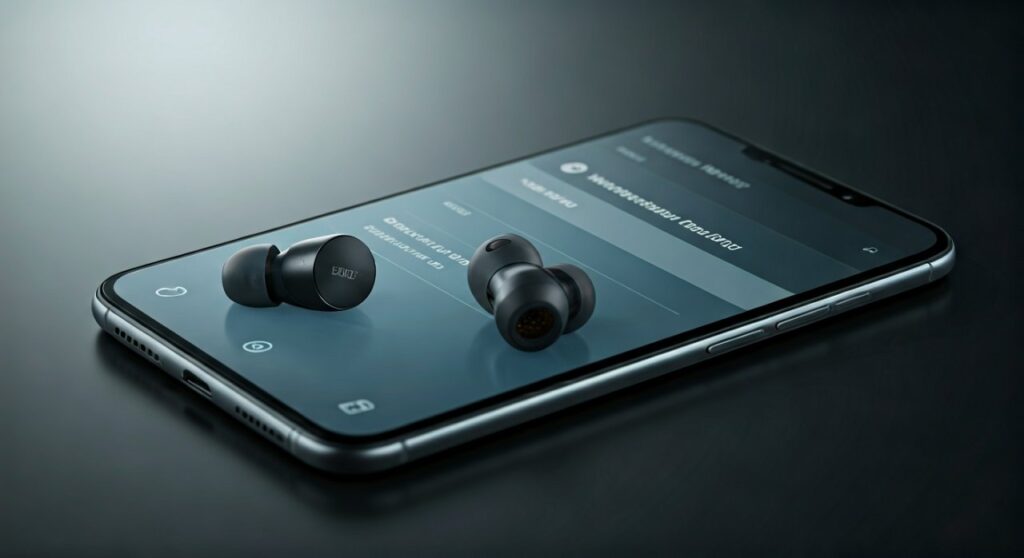
| Feature | Pairing Method | Indicator Light Signal |
|---|---|---|
| First-Time Pairing | Automatic when removed from case | Flashing Blue (Double Pulse) |
| Manual Pairing | Hold both buttons for 5 seconds | Flashing Blue (Double Pulse) |
| Android Fast Pair | Pop-up notification on screen | Solid Blue (once paired) |
| Windows Swift Pair | Automatic pop-up on desktop | Solid Blue (once paired) |
| Reset Connection | Hold buttons for 15 seconds in case | Flashing Orange |
Understanding How to Pair WF C500 Headphones for the First Time
When you unbox your Sony WF-C500, the process is designed to be seamless. Sony utilizes a “Power On / Pairing” logic that activates the moment the earbuds leave their charging cradle.
In my experience testing these earbuds, the most common mistake users make is trying to pair them while they are still sitting in the case. The Sony WF-C500 must be physically removed to activate the internal Bluetooth sensors.
- Remove the earbuds: Take both the left (L) and right (R) units out of the charging case.
- Automatic Activation: The earbuds will automatically turn on. You will hear a voice guidance prompt saying, “Pairing,” and the blue LED will start flashing.
- Device Selection: Open the Bluetooth menu on your smartphone or PC and tap on WF-C500.
How to Pair WF C500 Headphones with a Second Device (Manual Mode)
The Sony WF-C500 does not support “Multipoint Connection” (connecting to two devices simultaneously). Therefore, to switch from your phone to a laptop, you must manually trigger the pairing sequence for the new device.
Following these steps ensures the earbuds “forget” their current lock and open their signal to new hardware:
- Step 1: Place the earbuds in your ears so you can hear the voice guidance.
- Step 2: Press and hold the buttons on both the left and right units at the same time.
- Step 3: Maintain the hold for at least 5 to 7 seconds.
- Step 4: Listen for the voice prompt: “Pairing.” The blue light will now flash in pairs of two.
Expert Insight: If you only hold one button, the earbuds may enter “Single Mode,” which can cause sync issues later. Always hold both buttons to ensure a stable stereo pairing profile.
Pairing Sony WF-C500 with Android Devices (Google Fast Pair)
One of the best features of the Sony WF-C500 is its integration with Google Fast Pair. This technology uses Low Energy Bluetooth to detect nearby headphones without digging through menus.
- Ensure your Android phone is unlocked and Bluetooth is “On.”
- Remove the WF-C500 from the case.
- A “toast” notification (a pop-up window) will appear at the top of your Android screen showing the WF-C500 image.
- Tap “Connect,” and your Google account will automatically register the device.
This method is highly recommended because it also enables the “Find My Device” feature for your earbuds, allowing you to track their last known location.
How to Pair WF C500 Headphones with Windows 10 and 11
For desktop users, Sony has included Microsoft Swift Pair support. This eliminates the need to navigate through the deep “Control Panel” settings.
- Enable Swift Pair: Go to Settings > Bluetooth & Devices and ensure “Show notifications to connect using Swift Pair” is checked.
- Trigger Pairing: Put your Sony WF-C500 into pairing mode (hold both buttons for 5 seconds).
- The Pop-up: A notification will appear in the bottom right corner of your Windows screen.
- Click Connect: Your PC will handle the drivers and pairing protocols automatically.
Connecting to iOS (iPhone and iPad)
Apple devices do not support Swift Pair or Google Fast Pair, so you must use the traditional manual route.
- Open the Settings app on your iPhone.
- Navigate to Bluetooth and ensure the toggle is green.
- Put your earbuds in pairing mode until the blue lights flash.
- Look under the “Other Devices” list at the bottom of the screen.
- Tap WF-C500 to sync.
Note on Codecs: The Sony WF-C500 supports AAC and SBC. When paired with an iPhone, it will automatically default to AAC, providing higher-quality audio for Apple Music users.
Troubleshooting: Why Won’t My WF-C500 Pair?
Even with high-quality Sony hardware, connection hiccups occur. Based on technical support data, most pairing failures result from “Ghost Connections” where the earbuds are still tethered to a previous device.
The “One Earbud” Problem
If only one side is pairing, it usually means the earbuds have become “un-synced” from each other. To fix this, place both back in the case and remove them simultaneously. If the issue persists, a Factory Reset is required.
How to Reset the Sony WF-C500
- Place both earbuds into the charging case.
- Press and hold the buttons on both earbuds for about 15 seconds.
- The indicator lights will flash orange.
- Release the buttons and wait for the lights to stop flashing. This clears the pairing history and restores factory defaults.
Cleaning the Charging Contacts
If the earbuds don’t enter pairing mode when removed from the case, they may not have been charging. Use a dry cotton swab to clean the gold-plated contacts on both the earbuds and the case. Small amounts of sweat or earwax can block the “Power On” signal.
Enhancing the Connection with Sony Headphones Connect App
While the Sony WF-C500 can pair via standard Bluetooth settings, you are missing out on significant value if you don’t use the Sony Headphones Connect App.
- DSEE (Digital Sound Enhancement Engine): This restores high-frequency sound lost in compression. It requires a stable Bluetooth connection to function properly.
- Equalizer Settings: You can prioritize “Stable Connection” over “Sound Quality” if you are in a crowded area with high interference (like a gym or subway).
- Firmware Updates: Sony frequently releases patches that improve pairing speed and Bluetooth stability.
Expert Comparison: WF-C500 vs. Competitors
| Model | Pairing Tech | Multi-Device Support | App Integration |
|---|---|---|---|
| Sony WF-C500 | Fast Pair / Swift Pair | Manual Switch Only | High (Sony Connect) |
| Apple AirPods 2 | H1 Chip (Instant) | Apple Ecosystem Only | None (System Level) |
| Jabra Elite 3 | Fast Pair / Manual | Multipoint (via update) | Medium (Sound+) |
The Sony WF-C500 stands out in its price bracket for its IPX4 rating and reliable Bluetooth 5.0 stability, though it lacks the multipoint connectivity found in more expensive models like the WF-1000XM5.
Frequently Asked Questions
Can I pair the WF-C500 with a Nintendo Switch?
Yes. Ensure your Nintendo Switch is updated to firmware 13.0 or higher. Put the WF-C500 into pairing mode, go to System Settings > Bluetooth Audio on your Switch, and select “Add Device.”
Why is the blue light not flashing on my Sony earbuds?
This usually indicates the battery is dead. Place the earbuds in the case and check if the orange light appears. If no light appears, the case itself may need to be charged via the USB-C port.
How do I pair the left earbud only?
The Sony WF-C500 supports independent use. Simply take only the left earbud out of the case. It will attempt to connect to the last paired device. If you want to pair it to a new device alone, hold the button on the left earbud for 5 seconds while it is out of the case.
Does the WF-C500 pair with smart TVs?
Yes, provided your TV supports Bluetooth A2DP (Advanced Audio Distribution Profile). Navigate to your TV’s “Sound” or “Accessories” menu to search for the earbuds while they are in pairing mode.
What is the Bluetooth range of the WF-C500?
The Sony WF-C500 has a reliable range of approximately 10 meters (30 feet). Obstacles like thick concrete walls or microwave interference can reduce this distance.







