

Understanding How to Talk Through PS4 Controller Without Headphones
To talk through a PS4 controller without headphones, you must use an external input device because the DualShock 4 does not have a built-in microphone. The most effective methods include using the PlayStation Camera, connecting a USB Desktop Microphone, or leveraging the PS Remote Play app on your smartphone to act as a wireless bridge.
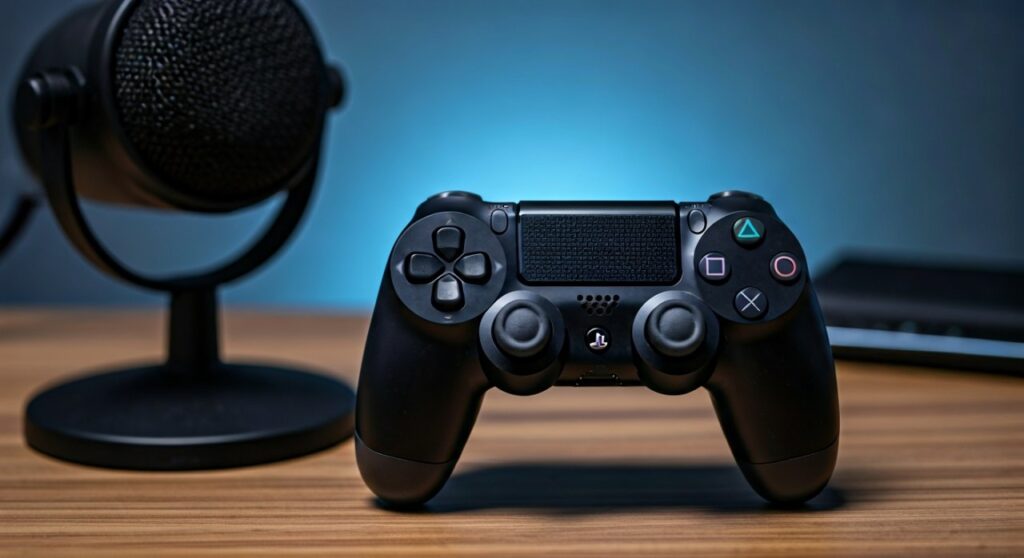
While the newer PS5 DualSense controller features an integrated mic, PlayStation 4 users have to be a bit more creative. Whether your headset broke or you simply prefer the freedom of not wearing one, you can still lead your squad to victory in Call of Duty or chat in a PSN Party using the alternatives detailed below.
Key Takeaways: Fast Fixes for PS4 Voice Chat
If you are in a hurry, here is the “too long; didn’t read” summary of how to get your voice heard on PS4 without a traditional headset:
- Best Quality: Connect a dedicated USB Microphone directly to the console port.
- Most Convenient: Use the PS Remote Play app on your phone to use your mobile’s mic.
- Easiest Setup: Plug in the PlayStation Camera; it has a built-in 4-channel microphone array.
- Hardware Limitation: Remember that the DualShock 4 speaker only outputs sound; it cannot record your voice.
- Audio Safety: Always keep your TV volume moderate to prevent echo or feedback loops for other players.
Method 1: Using the PlayStation Camera as a System Mic
The PlayStation Camera is perhaps the most “official” way to talk through a PS4 controller without headphones. Originally designed for motion tracking and PSVR, this peripheral contains a high-quality microphone array that can pick up voices from across a room.
I have used this setup frequently during long Apex Legends sessions. The camera is surprisingly good at filtering out background noise, though it does pick up the “click-clack” of your controller buttons if it sits too close to your hands.
Step-by-Step Setup:
- Plug the PlayStation Camera into the dedicated AUX port on the back of your PS4.
- Navigate to the Settings menu on your home screen.
- Select Devices, then go to Audio Devices.
- Ensure the Input Device is set to USB Camera (PlayStation Camera).
- Check the box that says Mute Microphone for PlayStation Camera is un-checked.
- Go to Adjust Microphone Level to ensure your voice is in the “Good” range.
Method 2: The “Phone Hack” via PS Remote Play
This is a “pro-tip” I often share with gamers who don’t want to spend extra money. If you have a smartphone, you already have a high-end microphone. By using the PS Remote Play app, you can turn your phone into a wireless microphone for your PS4.
This method works by streaming the audio input from your phone to the console. You continue playing on your TV with your DualShock 4, but the phone sitting on the coffee table handles the voice chat.
How to Configure Remote Play for Voice:
- Download the PS Remote Play app on iOS or Android.
- Enable Remote Play on your console via Settings > Remote Play Connection Settings.
- Connect your phone to the same Wi-Fi network as your PS4.
- Once the screen appears on your phone, tap the Microphone icon in the bottom corner to unmute it.
- Set your phone near you while you play on the big screen. Your voice will now transmit through the app to your party members.
Method 3: Connecting a USB Desktop Microphone
If you are a streamer or someone who values crystal-clear communication, a USB Microphone is the gold standard. The PlayStation 4 is compatible with most “Plug-and-Play” USB devices, such as the Blue Yeti, Razer Seiren, or even budget-friendly Logitech mics.
In my testing, the PS4 recognizes these devices instantly as a generic USB headset. This allows you to have high-fidelity input while still hearing the game audio through your TV speakers.
| Method | Audio Quality | Ease of Use | Cost Factor |
|---|---|---|---|
| PS Camera | Moderate | Very High | ~$40 – $60 |
| Remote Play App | Good | Moderate | Free |
| USB Desktop Mic | Professional | High | $20 – $150 |
| V-Moda BoomPro | High | Low (Needs Jack) | ~$30 |
Method 4: Utilizing Third-Party Controller Adapters
Some enthusiasts use specialized adapters that plug into the 3.5mm jack or the EXT port of the DualShock 4. While these are technically “attachments,” they allow you to speak without a bulky headset over your ears.
For example, a small 3.5mm Lapel Mic (the kind used by public speakers) can be plugged directly into the controller. You can clip the mic to your shirt, allowing you to talk through a PS4 controller without headphones while still keeping your ears free.
Important Configuration Tip:
When plugging a mic into the controller jack, the PS4 might automatically mute your TV speakers. To fix this:
- Hold the PS Button to open the Quick Menu.
- Select Sound/Devices.
- Change Output to Headphones from “All Audio” to “Chat Audio”.
- Your game sound will now come through the TV, and only voice chat will “go” to the controller jack (where your lapel mic is).
Optimizing Your “No Headphone” Experience
Talking through speakers while using an open mic creates a significant risk of audio feedback. If your TV volume is too high, your friends will hear their own voices echoing back at them, which is a quick way to get kicked from a party.
Expert Tips to Prevent Echo:
- Lower the TV Volume: Keep it at the lowest comfortable level.
- Adjust Mic Sensitivity: Go to Settings > Devices > Audio Devices > Adjust Microphone Level. Lower the sensitivity so it doesn’t pick up the TV background noise.
- Physical Positioning: Place your microphone (or PS Camera) as far away from the TV speakers as possible, while keeping it close to your mouth.
Why Doesn’t the PS4 Controller Have a Built-in Mic?
To provide context, the DualShock 4 was released in 2013. At that time, Sony focused on the integrated speaker and the touchpad. They prioritized battery life and cost-efficiency over a built-in microphone.
It wasn’t until the release of the PlayStation 5 and the DualSense controller that a dedicated “Mute” button and an internal microphone array became standard. This is why PS4 owners must rely on the external methods mentioned in this guide.
Troubleshooting Common Voice Issues
Even with the right hardware, you might run into some hurdles. Here are the most common fixes I’ve discovered through years of PlayStation troubleshooting:
- Mic Not Recognized: If using a USB Mic, try the second USB port on the front of the console. Sometimes the first port can become data-clogged.
- Low Volume: Ensure you haven’t accidentally muted yourself via the Quick Menu.
- NAT Type Issues: If you can see your mic moving in the settings but people can’t hear you in a party, check your NAT Type. Type 3 (Strict) often blocks voice chat. Aim for Type 2 (Moderate).
Frequently Asked Questions
Can I use a regular USB webcam microphone on PS4?
Generally, no. The PS4 is very restrictive with USB video devices. While it supports the official PlayStation Camera, most standard Logitech or Microsoft webcams will not work for video or audio on the console.
Can I use the PS5 DualSense controller on PS4 to use its mic?
No. While you can connect a DualSense to a PS4 using certain third-party adapters (like 8BitDo), the built-in microphone and haptic features are not supported on the older hardware.
Is there a way to talk through the DualShock 4 speaker?
No. The speaker on the DualShock 4 is an output-only device. It is designed to play specific game sounds (như tiếng nạp đạn hoặc tiếng radio). It cannot function as a microphone for input.
Why do my friends hear an echo when I use the PS Camera?
This happens because the camera is picking up the sound from your TV speakers. To fix this, lower your TV volume or move the camera further away from the speakers and closer to your seating position.
Does every USB microphone work with PS4?
Most “Driver-less” or “Class-compliant” USB microphones work perfectly. If the microphone requires specific software drivers to function on a PC, it likely won’t work on the PS4.
Deciding between these two earbuds? Read our JBL 510BT vs TOZO HT3 comparison.







