

To identify which audio jack is for headphones, look for a 3.5mm port marked with a headphone icon or a lime green color ring on desktop PCs. On modern laptops and smartphones, there is often only one “combo” jack that serves both headphones and microphones simultaneously.
Identifying Your Audio Ports: The Expert Quick-Start Guide
Plugging your headphones into the wrong hole is a common frustration that can lead to no sound, muffled audio, or a non-functional microphone. Based on my experience testing hundreds of PC builds and mobile devices, the physical port you are looking for is almost always the 3.5mm (1/8″) TRS or TRRS jack.
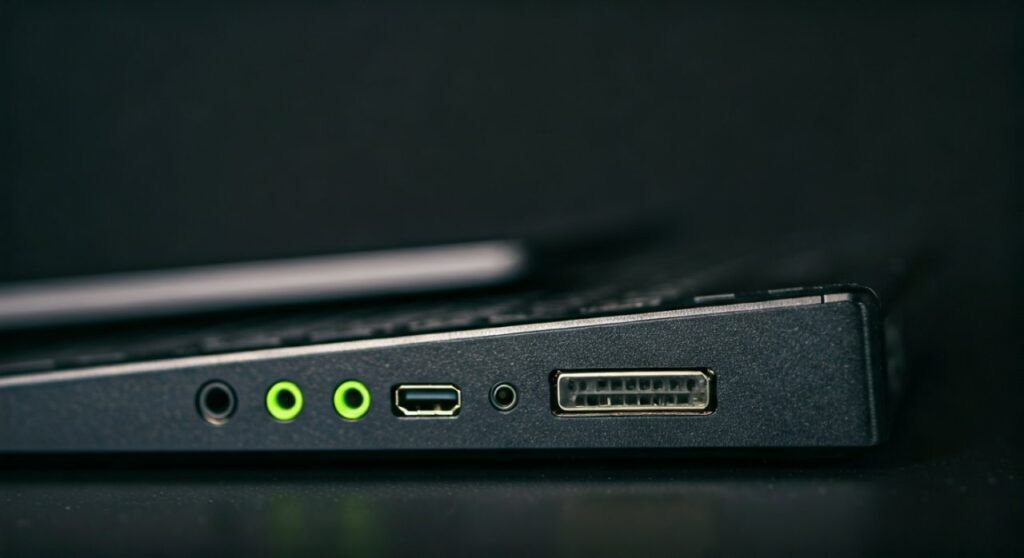
If you are working with a desktop computer, the industry-standard PC99 color scheme makes identification easy. If you are using a laptop, you will need to rely on tiny engraved icons.
Key Takeaways: How to Find Your Headphone Jack
- Color Coded: On a PC, the Lime Green port is for headphones or front speakers.
- Icons: Look for the headset symbol (headphones with a mic) or headphone symbol.
- Combo Jacks: Most modern laptops use a single port for both audio out and mic in.
- Pro Audio: Professional gear may use a larger 6.35mm (1/4″) jack, requiring an adapter.
- Desktop Placement: Use the Front Panel for convenience, but the Rear Motherboard ports for better sound shielding and quality.
Decoding the Colors: Which Audio Jack is for Headphones on a PC?
Desktop computers usually have multiple audio ports on the back of the motherboard and a few on the front of the case. These follow the Intel/Microsoft PC99 standard, which has been the benchmark for decades.
The Standard Audio Port Color Chart
The following table breaks down the most common colors you will see on the back of a computer:
| Port Color | Function | Connectivity |
|---|---|---|
| Lime Green | Headphones / Front Speakers | Primary Audio Output |
| Pink | Microphone | Mono Mic Input |
| Light Blue | Line In | Audio from external players (MP3, Mixers) |
| Orange | Center / Subwoofer | Surround Sound Setup |
| Black | Rear Speakers | Surround Sound Setup |
| Grey | Side Speakers | 7.1 Surround Sound Setup |
If you are simply trying to hear audio, the lime green port is your target. In my years of troubleshooting hardware, I’ve found that plugging headphones into the Light Blue port is the most common mistake; this will result in extremely low volume or no sound at all because it is designed for powered input signals, not for driving headphone drivers.
Identifying Symbols on Laptops and Tablets
Laptops rarely have room for color-coded rings. Instead, they use small icons laser-etched into the chassis next to the port. Understanding these symbols is crucial for determining which audio jack is for headphones.
The Headphone Icon
This icon looks like a pair of over-ear headphones. It signifies that the port is an Audio Out only port. It is designed for standard headphones or external speakers.
The Headset Icon (With Microphone)
This symbol shows headphones with a small boom microphone attached. This is a Combo Jack (technically known as a TRRS port). It supports:
- Standard headphones (Audio only).
- Headsets with built-in mics (Audio + Microphone).
- External speakers.
The “Line Out” Symbol
Usually depicted as an arrow pointing out of a circle or a series of concentric waves. This is less common on modern laptops but frequent on docking stations. While you can plug headphones into a Line Out port, the volume may be lower because it isn’t always amplified for headphones.
The Technical Difference: TRS vs. TRRS Jacks
To truly understand which audio jack is for headphones, you need to look at the “rings” on your headphone plug. This physical design determines compatibility.
- TRS (Tip-Ring-Sleeve): Has two black or white rings on the plug. This supports Stereo Audio only. It works in almost any green or combo jack.
- TRRS (Tip-Ring-Ring-Sleeve): Has three rings. This supports Stereo Audio and Microphone. This is standard for smartphone earbuds and gaming headsets.
Expert Insight: If you plug a TRRS headset into a green TRS jack (like on the back of a PC), the audio will work fine, but the microphone will not. You will need a Y-Splitter Cable to separate the single plug into two (one green for audio, one pink for mic).
Step-by-Step: How to Connect Headphones Properly
Follow these steps to ensure you get the best audio quality and functionality.
Step 1: Check the Plug Size
Most consumer headphones use a 3.5mm plug. If your plug is much larger (about the width of a pencil), it is a 6.35mm (1/4 inch) plug used for high-end audiophile gear. You will need a Step-down Adapter to fit this into a standard computer jack.
Step 2: Locate the Correct Port
- On Desktop: Go for the Lime Green port on the back for a permanent setup. Use the front panel jack for temporary use.
- On Laptop: Look for the Headset icon.
Step 3: Insert Firmly
Ensure the plug is pushed all the way in. You should feel a slight “click.” A loose connection is the #1 cause of static or audio only coming out of one ear.
Step 4: Configure Software Settings
Sometimes, even after finding which audio jack is for headphones, the sound doesn’t switch automatically.
- Right-click the Speaker Icon in your Windows Taskbar.
- Select Sound Settings.
- Under Output, choose your headphones (often labeled as Realtek Audio or High Definition Audio Device).
Troubleshooting: Why Your Headphones Aren’t Working
Even if you’ve found the right jack, things can go wrong. Here is what I check when a client says their headphones are silent:
- Front Panel Header Disconnected: On custom-built PCs, the front-case audio jacks are often not plugged into the motherboard. If the front doesn’t work, try the Green port on the back.
- Muted in Windows: Ensure the specific output device isn’t muted in the Volume Mixer.
- Driver Issues: If the computer doesn’t recognize the jack, you likely need to update your Realtek Audio Drivers.
- Impedance Mismatch: High-end headphones (like the Sennheiser HD600 series) have high impedance. If you plug them into a standard laptop jack, the volume might be extremely low. In this case, you need a DAC/Amp.
Frequently Asked Questions (FAQs)
Can I plug headphones into the pink jack?
No. The pink jack is specifically for Microphone Input. It does not output sound. If you plug headphones in there, you will hear nothing.
Why does my PC have two headphone jacks?
Usually, one is on the Front Panel (for convenience) and one is on the Rear I/O (for permanent speakers or headphones). The rear port is generally connected directly to the motherboard, often resulting in less electromagnetic interference (static).
What do I do if my laptop only has one jack but my headset has two plugs?
You need a Headset Joiner (Female to Male Y-Splitter). This merges the pink (mic) and green (audio) plugs into a single 3.5mm TRRS plug that fits your laptop’s combo jack.
Is the headphone jack the same as the AUX port?
Physically, yes. Both use the 3.5mm standard. However, an AUX (Auxiliary) port is usually an input on a car or speaker, whereas a headphone jack is an output on a phone or computer.
Why is the sound muffled when I plug my headphones into the jack?
This usually happens if you are using a TRRS headset in a TRS jack that isn’t deep enough, or if the plug isn’t pushed in all the way. It can also happen if you plug into the Blue Line-In port by mistake.









