

Choosing the Best Headphone with Mic: Your Ultimate Guide to Crystal Clear Audio
Are you tired of sounding like you are underwater during important Zoom meetings or losing competitive Valorant matches because your teammates can’t hear your callouts? Choosing the right headphone with mic is the single most effective way to upgrade your professional and digital life. A high-quality headphone with mic (also known as a headset) integrates high-fidelity speakers with a dedicated microphone, ensuring you hear every detail while your voice remains sharp and professional.
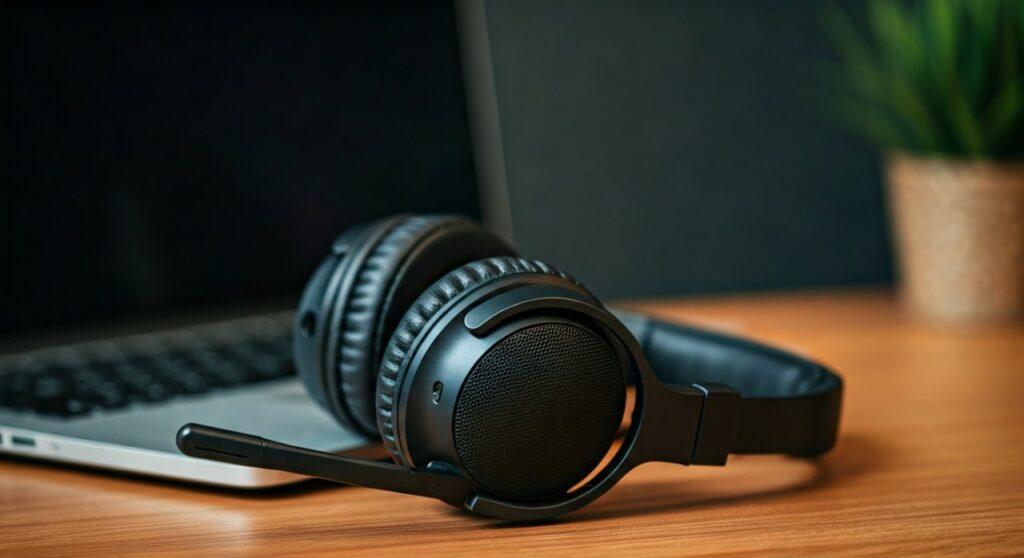 Best Headphone with Mic Guide: Setup, Tips & Top Picks” title=”Best Headphone with Mic Guide: Setup, Tips & Top Picks” class=”wp-image-13551″ />
Key Takeaways (TL;DR)
- Purpose Matters: Choose open-back for natural sound or closed-back for noise isolation.
- Mic Quality: Look for noise-canceling cardioid microphones for the best voice clarity.
- Connection Types: USB and USB-C usually offer better mic processing than 3.5mm analog jacks.
- Comfort is King: Prioritize memory foam ear cushions and adjustable headbands for long-term wear.
- Top Recommendation: The Sony WH-1000XM5 for travel/office and the HyperX Cloud III for gaming.
Understanding the Different Types of Headphones with Mic
Before you hit the “buy” button, you must understand that not all headsets are created equal. My years of testing audio gear in noisy open-office environments have shown that the physical design of the headphone with mic dictates its performance more than the price tag.
Over-Ear (Circumaural) Headsets
These are the most common for gaming and office work. The cups completely surround your ears, providing natural passive noise isolation. Based on my experience, over-ear headphones with protein leather pads provide the best seal for Active Noise Cancellation (ANC).
On-Ear (Supra-aural) Headsets
These rest directly on the earlobes. They are generally lighter and more portable, making them ideal for quick calls. However, they can cause “ear fatigue” after two or three hours of continuous use.
In-Ear Monitors (IEMs) with Inline Mics
Professional streamers often prefer IEMs for their discreet look. While the audio quality is often superb, the inline microphone found on the cable often picks up fabric rustle from your shirt, which can be distracting for listeners.
Critical Features to Evaluate Before Purchasing
When shopping for a headphone with mic, don’t get distracted by “RGB lighting” or “7.1 Virtual Surround Sound.” Focus on the technical specifications that actually impact your voice and hearing.
Microphone Polar Patterns
The polar pattern determines how much background noise the mic picks up. Most high-end headphones with mic use one of two types:
- Omnidirectional: Picks up sound from all directions. Great for natural sound but terrible in noisy rooms.
- Cardioid (Unidirectional): Focuses on your mouth and rejects sound from the sides and back. This is the gold standard for office headsets.
Frequency Response
Most human voices fall between 80Hz and 15kHz. Ensure your headphone with mic supports a wide frequency range to prevent your voice from sounding “thin” or “robotic.” Professional-grade headsets like the Sennheiser PC38X excel here.
Connection Stability: Wired vs. Wireless
- Wired (USB/3.5mm): Zero latency and no battery anxiety. Ideal for competitive gaming.
- Wireless (Bluetooth/2.4GHz): Maximum freedom. Always look for Bluetooth 5.2 or higher to ensure stable multipoint connections (connecting to your phone and laptop simultaneously).
Step-by-Step Setup: Getting the Most Out of Your Headphone with Mic
Once you have unboxed your new headphone with mic, follow these steps to ensure you aren’t accidentally using your laptop’s low-quality internal microphone.
Step 1: Physical Positioning
Adjust the boom arm of the microphone. It should be approximately two fingers’ width away from the corner of your mouth. Avoid placing it directly in front of your lips to prevent “plosives” (popping sounds from “P” and “B” words).
Step 2: Windows 11/10 Audio Configuration
- Plug in your headset or pair via Bluetooth.
- Right-click the Speaker Icon in the taskbar and select Sound Settings.
- Under Input, ensure your headphone with mic (e.g., “SteelSeries Arctis Nova 7”) is selected as the default device.
- Click Device Properties and set the Volume to roughly 80%. Setting it to 100% often causes digital clipping.
Step 3: macOS Audio Setup
- Open System Settings and navigate to Sound.
- Select the Input tab.
- Highlight your headset. Speak at a normal volume and watch the Input Level bar. It should peak around 75% for optimal clarity.
Professional Comparison: Top-Rated Headphones with Mic in 2024
| Model Name | Connection Type | Mic Type | Best For | Noise Cancellation |
|---|---|---|---|---|
| Sony WH-1000XM5 | Bluetooth / 3.5mm | Beamforming | Business Travel | Best-in-class ANC |
| HyperX Cloud III | USB-C / 3.5mm | Detachable Cardioid | Hardcore Gaming | Passive Only |
| Jabra Evolve2 85 | Bluetooth / Link 380 | Retractable Boom | Open Office | Professional Grade |
| Bose QuietComfort Ultra | Bluetooth 5.3 | Integrated Array | General Productivity | Exceptional Comfort |
| Logitech G Pro X 2 | 2.4GHz Wireless | Blue VO!CE Boom | Esports | Passive / High Detail |
Expert Tips for Optimizing Voice Quality
I have spent hundreds of hours in virtual meetings, and I have found that software often matters as much as hardware. Here is how to make your headphone with mic sound like a studio setup:
Use AI Noise Suppression
If your environment is loud, use software like NVIDIA Broadcast (for RTX GPU users) or Krisp. These tools use AI to strip away barking dogs and keyboard clicks while keeping your voice intact.
Enable Sidetone (Mic Monitoring)
Many people shout when wearing a headphone with mic because they cannot hear themselves. Enable Sidetone in your headset’s software (like Logitech G Hub or Razer Synapse). This feeds a small amount of your own voice back into your ears, preventing vocal strain.
Check Your Sample Rate
In Windows, go to More Sound Settings > Recording > Properties > Advanced. Ensure your mic is set to “2 channel, 16 bit, 48000 Hz (DVD Quality)”. This prevents the muffled “telephone” sound quality.
Troubleshooting Common Issues
Even the best headphone with mic can run into technical glitches. Here is how to fix the most common problems I encounter.
The Microphone is Not Picked Up
- Check the Mute Switch: Many headsets have a physical mute button or a “flip-to-mute” boom.
- Privacy Settings: On Windows and Mac, ensure “Microphone Access” is toggled ON in the Privacy & Security settings.
- Driver Update: For USB headsets, check the manufacturer’s website for the latest firmware update.
Hearing Static or Hissing
- USB Interference: If using a wired USB headset, try a port on the back of your PC rather than the front panel to avoid electromagnetic interference.
- Battery Levels: On wireless models, low battery can often lead to a degraded signal and “crackling” audio.
Maintenance and Longevity: Caring for Your Investment
A premium headphone with mic can last 5+ years if maintained correctly. I recommend a monthly cleaning routine to keep the hardware in peak condition.
- Earpad Care: Use a slightly damp microfiber cloth to wipe away sweat and skin oils. For leatherette pads, a tiny drop of unscented soap helps prevent cracking.
- Mic Mesh Cleaning: Dust can clog the tiny holes in your microphone. Use a soft-bristled toothbrush to gently clear debris from the mic capsule.
- Cable Management: If you use a wired headset, avoid wrapping the cable tightly around the earcups. This causes internal wire breakage. Use a loose “over-under” wrap technique instead.
Frequently Asked Questions (FAQs)
Is a dedicated headphone with mic better than using a laptop’s built-in mic?
Yes, significantly. A headphone with mic places the receiver closer to your mouth, which increases the signal-to-noise ratio. This eliminates echoing and reduces the “hollow” room sound typical of built-in microphones.
Can I use a gaming headphone with mic for professional office work?
Absolutely. While some gaming headsets have flashy designs, their microphone quality is often superior to standard office gear. Models like the Razer BlackShark V2 Pro offer excellent vocal clarity that is perfect for Microsoft Teams or Slack calls.
Do I need a DAC or Amp for my headphone with mic?
Most modern headphones with mic are designed with low impedance, meaning they work perfectly with standard laptops and smartphones. You only need a DAC (Digital-to-Analog Converter) if you notice significant background hiss from your computer’s motherboard or if you are using high-end studio headsets.
What is the difference between ANC and ENC?
ANC (Active Noise Cancellation) helps you hear better by blocking out external noise. ENC (Environmental Noise Cancellation) helps the person you are talking to hear you better by filtering out the noise around you through the microphone.







