

TL;DR: Quick Solutions for Casting Video
You can easily cast streaming video from a PC to a projector using either a wired connection or a wireless solution. If you need a reliable setup without lag, a HDMI cable is your best bet. For a clean, cable-free environment, use Miracast, Google Chromecast, or native Smart Projector streaming apps.
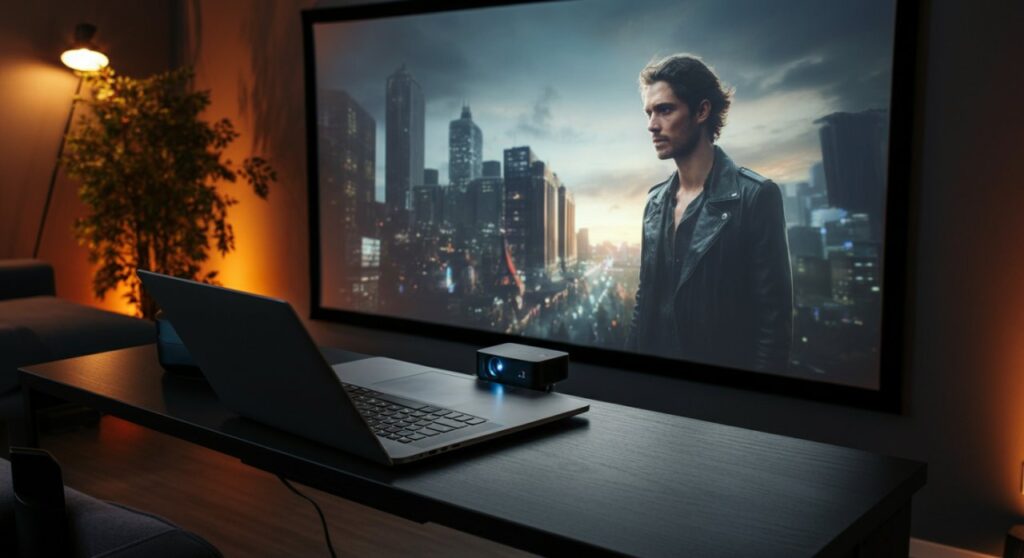
Quick Comparison of Casting Methods
| Method | Reliability | Setup Difficulty | Best For |
|---|---|---|---|
| HDMI Cable | Excellent | Very Easy | High-quality, zero-lag movies |
| Chromecast | Good | Moderate | Seamless browser/app streaming |
| Miracast | Fair | Easy | Quick screen mirroring (Windows) |
| Smart Projector App | Good | Moderate | Standalone streaming without a PC |
Why Casting Streaming Video Matters
Nothing beats the cinematic feel of a home theater. However, many users struggle with complex cables or poor connection stability when trying to display content from their computers. Learning how to cast streaming video from a PC to a projector ensures you don’t waste time troubleshooting while your guests are waiting for the movie to start.
Based on my experience setting up professional home cinema systems, the difference between a frustrating evening and a perfect screening lies in choosing the right transmission protocol for your specific hardware.
How to Cast Streaming Video from PC to Projector via HDMI
The HDMI cable remains the “gold standard” for stability. It bypasses Wi-Fi interference entirely, which is critical when streaming high-bitrate 4K content.
- Check your ports: Ensure both your PC and projector have an available HDMI port. If your PC only has USB-C, you will need a USB-C to HDMI adapter.
- Connect the hardware: Plug one end into your PC and the other into the projector’s “HDMI 1” or “HDMI 2” input.
- Select the source: Power on the projector and use the remote to select the correct Input Source that matches the port you used.
- Configure display settings: On your PC, press
Windows + Pand select Duplicate or Extend to send the signal to the projector. - Launch your stream: Open your preferred browser or streaming app (like Netflix or Disney+) and move the window to the projector screen.
Utilizing Wireless Methods: Chromecast and Miracast
If you prefer a cable-free aesthetic, wireless casting is the modern standard. Many users ask how to cast streaming video from a PC to a projector wirelessly; the secret is choosing the right technology.
Google Chromecast
The Google Chromecast is highly effective because it offloads the stream processing.
- Plug the Chromecast device into the projector’s HDMI port.
- Connect the Chromecast to your local Wi-Fi network via the Google Home app.
- On your PC, open the Google Chrome browser.
- Click the three dots in the top right corner and select Cast.
- Choose your projector’s Chromecast device from the list to begin streaming.
Windows Miracast
Miracast is built into Windows 10 and 11, acting as a “wireless HDMI” cable.
- Ensure your projector supports Miracast (common in newer smart projectors).
- On your PC, press
Windows + Kto open the Cast menu. - Select your projector from the list of available devices.
- The projector will immediately mirror your PC screen without needing third-party software.
Expert Tips for a Better Casting Experience
When I calibrate projectors for clients, I often see common mistakes that ruin the experience. Follow these tips to ensure a smooth viewing session:
- Update your drivers: Ensure your Graphics Card drivers are up to date on your PC to prevent stuttering.
- Manage background apps: Close bandwidth-heavy apps like OneDrive, Steam, or Dropbox to keep your network clear for the stream.
- Audio routing: Sometimes audio continues to play through the PC speakers. Check your Sound Settings and change the “Output Device” to your projector or connected sound system.
- Resolution matching: Set your PC’s output resolution to match the native resolution of your projector (e.g., 1080p or 4K) for the sharpest image.
Troubleshooting Common Casting Issues
If your stream isn’t working, don’t panic. Start with these quick fixes:
- HDCP Errors: If you see a black screen while trying to play protected content (like Netflix), it is likely an HDCP handshake error. Try unplugging and replugging the HDMI cable or restarting the stream.
- Laggy Playback: If using Wi-Fi, ensure your PC and projector are close to the router or on a 5GHz band. Interference from other household appliances can slow down 2.4GHz connections.
- Aspect Ratio Problems: If the image looks stretched, toggle the Aspect Ratio button on your projector remote until it matches the source content (usually 16:9).
Frequently Asked Questions (FAQs)
Can I cast to a projector without Wi-Fi?
Yes, you can use an HDMI cable to connect your PC directly to the projector. This is the most reliable method for high-quality streaming without an internet connection requirement for the link itself.
Why is there a delay when I cast wirelessly?
Wireless casting involves data compression and transmission, which creates latency. If you notice a significant lag, try switching to a 5GHz Wi-Fi network or using a wired HDMI connection for gaming or live sports.
Do all projectors support wireless casting?
No, only “Smart” projectors or projectors with built-in Wi-Fi and Miracast/AirPlay support wireless casting. If your projector is older, you will need an external dongle like a Chromecast or Roku Stick.
Is a USB-C to HDMI adapter reliable for 4K?
Yes, provided you purchase a high-quality, active adapter that explicitly supports 4K at 60Hz. Cheap, unbranded adapters often struggle with high-bitrate streaming.









