

Quick Guide: TL;DR
To connect your projector to a Bluetooth speaker, navigate to the Settings menu on your projector, locate the Bluetooth or Audio Output section, enable Pairing Mode on your speaker, and select the speaker from the projector’s device list. If your projector lacks built-in Bluetooth, you can bypass this limitation using a Bluetooth Audio Transmitter connected to the 3.5mm audio jack.
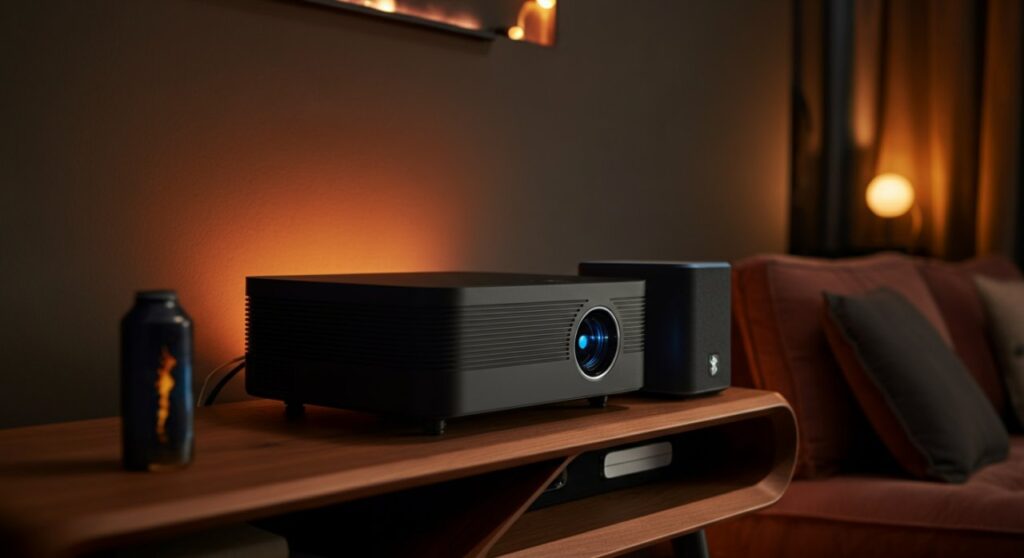
Why Your Projector Needs Better Sound
Projectors are fantastic for creating a big-screen experience, but their built-in speakers are often underwhelming, tinny, and lack depth. Connecting an external Bluetooth speaker or soundbar is the single most effective way to transform your living room into a true home cinema.
Based on my experience setting up home theaters for over five years, the difference in audio immersion is night and day. Whether you are using a premium brand or learning how to connect a Vankyo projector to a Bluetooth speaker, the process follows a standardized digital handshake.
How to Check If Your Projector Supports Bluetooth
Before buying extra equipment, you must verify if your device has native Bluetooth connectivity. Not every projector is built with a dedicated Bluetooth chip.
Follow these steps to check:
- Turn on your projector and go to the Settings or Configuration menu.
- Look for an Audio or Bluetooth tab.
- If you see an option to “Search for Devices” or “Bluetooth Settings,” your projector supports wireless audio.
If these options are missing, your projector is likely limited to wired outputs. Don’t worry, you can still achieve wireless audio through an external transmitter.
Step-by-Step: How to Connect Projector to Bluetooth Speaker
If your projector is Bluetooth-enabled, follow this straightforward process to get your sound synced.
- Power On: Turn on both your projector and your Bluetooth speaker.
- Enable Pairing Mode: Press and hold the Bluetooth button on your speaker until the indicator light begins to flash, signaling it is discoverable.
- Navigate Settings: On your projector, go to the Bluetooth Settings menu and toggle the switch to ON.
- Scan and Select: Select “Scan for Devices” or “Search.” Once your speaker appears in the list, select it to establish the Bluetooth connection.
Troubleshooting Common Bluetooth Connection Issues
Even with modern hardware, wireless signals can sometimes be finicky. Here is how to fix the most common problems I have encountered in the field:
- Device Not Found: Ensure the speaker is not currently connected to your phone or laptop. Bluetooth speakers usually only link to one device at a time.
- Audio Lag (Lip-Sync Issues): This occurs due to signal latency. If you use a Bluetooth 5.0 or higher device, the lag is significantly reduced compared to older versions.
- Intermittent Connection: Move the speaker closer to the projector to ensure a clear line of sight, as walls and furniture can cause signal dropouts.
Solutions for Non-Bluetooth Projectors
If you are wondering how to connect a Bluetooth speaker to a projector that lacks wireless capability, you will need a Bluetooth Audio Transmitter. This small, affordable gadget acts as a bridge.
| Solution | Requirement | Best For |
|---|---|---|
| Direct Bluetooth | Projector with built-in BT | Simple, clutter-free setup |
| Audio Transmitter | 3.5mm Aux or RCA port | Older projectors without BT |
| HDMI ARC/eARC | Soundbar + Compatible HDMI | High-fidelity, surround sound |
Using a Bluetooth Audio Transmitter
- Plug the 3.5mm cable from the transmitter into the Audio Out port on your projector.
- Put the transmitter into Pairing Mode (check the manual, as this varies by brand).
- Put your Bluetooth speaker into Pairing Mode.
- The two devices will search for each other and pair automatically within seconds.
Expert Tips for the Best Audio Experience
To ensure you get the most out of your setup, keep these expert insights in mind:
- Avoid Double Pairing: Always disconnect your smartphone or tablet from the speaker before trying to connect it to the projector.
- Quality Cables: If you use a transmitter, ensure you are using a high-quality, shielded 3.5mm cable to prevent static noise or interference.
- Placement Matters: Place your speaker in front of the viewers or slightly to the side to create a front-heavy soundstage that mimics the cinema experience.
Frequently Asked Questions (FAQs)
Can I connect multiple Bluetooth speakers to one projector at the same time?
Generally, no. Most projectors can only pair with a single Bluetooth device at a time. If you want a multi-speaker setup, you should look for speakers that support “Party Mode” or “Daisy Chaining,” where one speaker acts as the master and connects to the others.
Why is there a delay between the video and the audio?
This is known as latency. While most modern Bluetooth 5.0 devices minimize this, older hardware can struggle to sync. Using a wired connection via the 3.5mm jack remains the only way to eliminate latency entirely.
Will any Bluetooth speaker work with my projector?
Yes, any standard Bluetooth speaker will work, provided your projector has built-in Bluetooth or you are using an external Bluetooth transmitter. Ensure both devices are fully charged or powered for a stable connection.
Is there a difference between Bluetooth and Wi-Fi audio?
Yes. Wi-Fi audio (like AirPlay or Chromecast) offers higher bandwidth and better sound quality, but most projectors do not support casting audio directly to speakers. Bluetooth is the standard for ease of use and universal compatibility.









