

Understanding Phone-to-Projector Connectivity via USB
Learning how to connect phone to projector using usb without hdmi is simpler than it sounds, provided your device supports specific hardware standards. Most modern smartphones, including Android and iPhone (15 and later), rely on a technology called DisplayPort Alt Mode over USB-C to output video signals directly. If your phone and projector both feature USB-C ports with video support, you can establish a direct, high-quality digital connection without needing bulky adapters or complex wireless setups.
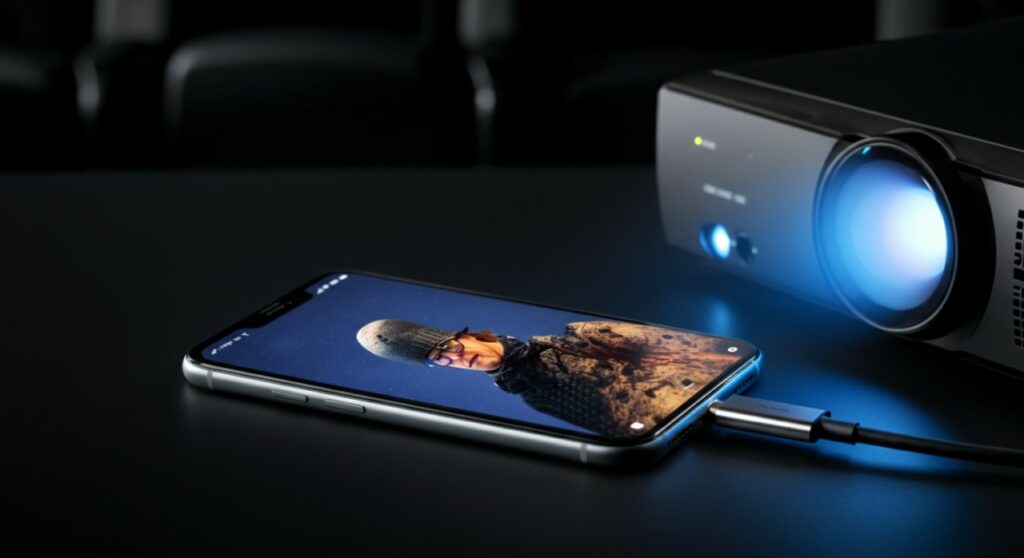
TL;DR: Quick Connection Methods
If you are in a rush, here is the fastest way to get your content on the big screen:
- USB-C to USB-C Cable: Best for modern Android phones and iPhone 15/16. Requires the projector to have a “Video-In” USB-C port.
- USB-C to HDMI Adapter (The Workaround): While technically using an HDMI port on the projector, this is the most reliable method for older projectors lacking USB-C inputs.
- USB-A to Projector (Media Player): Connecting a thumb drive directly to the projector’s USB-A port is often the most stable way to view files without streaming issues.
Check Your Compatibility First
Before purchasing cables, you must verify your hardware compatibility. Not all USB-C ports are created equal; some are designed only for charging or data transfer, not for video output.
Essential Hardware Requirements
- Smartphone: Must support DisplayPort Alt Mode (common in flagship Samsung, Pixel, and iPhone 15+ models).
- Projector: Must have a USB-C port specifically marked for Video Input.
- Cable: Use a high-quality, USB-IF certified cable capable of handling video data (rated for 10Gbps or higher).
| Connection Type | Requires Video-Out Support | Best Use Case |
|---|---|---|
| USB-C to USB-C | Yes (Phone & Projector) | Modern Home Theater |
| USB-C to HDMI | Yes (Phone only) | Legacy Projector Setup |
| USB-A (Flash Drive) | No (Storage support) | Presentations/Slideshows |
Step-by-Step: How to Connect Phone to Projector via USB Without HDMI
Follow these steps to establish a direct connection if your projector supports native USB-C video input.
- Power on both devices: Ensure your projector is fully booted and your phone is charged to at least 50%.
- Select the Input Source: Use the projector’s remote to toggle the Input Source to “USB-C” or “Video-C.”
- Connect the Cable: Plug the USB-C cable into your smartphone’s charging port and the other end into the projector’s designated USB-C port.
- Confirm Permissions: If prompted on your phone screen, select “Allow” or “Start Now” to enable screen casting or video output.
Troubleshooting Common Connection Issues
- No Signal: Try reversing the orientation of the USB-C cable. If that fails, ensure your cable is not just a “charging-only” cable that came in the box with your phone.
- Audio Issues: Check your phone’s sound settings; ensure the output device is set to the projector rather than the phone speaker.
- Display Resolution: If the image looks blurry, navigate to your phone’s Display Settings and adjust the output resolution to match the native resolution of your projector.
Why Use USB Instead of Wireless?
Many users ask how to connect projector to phone without hdmi because they want to avoid the lag associated with wireless casting (like AirPlay or Miracast). Wired connections offer several distinct advantages for professionals and movie enthusiasts.
- Zero Latency: Perfect for gaming or live presentations where every millisecond counts.
- Stability: No interference from Wi-Fi congestion or low signal strength.
- Battery Management: Some high-end projectors can even trickle-charge your phone while it is connected, keeping your battery full during a long movie.
Expert Tips for Optimal Performance
From my experience testing various hardware configurations, the “hidden” culprit for connection failure is almost always the cable quality. Do not use generic, ultra-thin cables sold in bargain bins. Always opt for cables labeled as USB 3.1 Gen 2 or USB 4 to ensure sufficient bandwidth for high-definition video transmission.
Additionally, keep your smartphone firmware updated. Manufacturers frequently patch DisplayPort Alt Mode drivers in monthly security updates, which can resolve handshake issues with specific projector models.
Frequently Asked Questions
Can I connect any smartphone to a projector via USB?
No, only phones that support DisplayPort Alt Mode can output video over a USB-C port. Check your manufacturer’s official specifications page.
Does a USB-A to USB-A cable work for video?
No, USB-A ports on projectors are almost exclusively for reading media files (photos/videos) from flash drives. They do not accept live video signals from smartphones.
Is there a way to mirror my screen if my projector lacks a USB-C video port?
If your projector lacks USB-C video input, you must use a USB-C to HDMI adapter. While this uses an HDMI cable to reach the projector, it is the standard hardware-based way to connect a phone to an older projector.









