

Key Takeaways: Connecting Your Fire TV Stick
- Compatibility: Yes, a Fire TV Stick works on any projector that features an HDMI input port.
- Audio Matters: Most projectors have weak internal speakers; consider using Bluetooth to connect external speakers or soundbars for a better experience.
- Power Supply: Always use the original USB power cable and adapter provided with your Fire TV Stick for stable performance.
- Resolution: Ensure your projector supports the native resolution of your stick (e.g., 4K or 1080p) to avoid display issues.
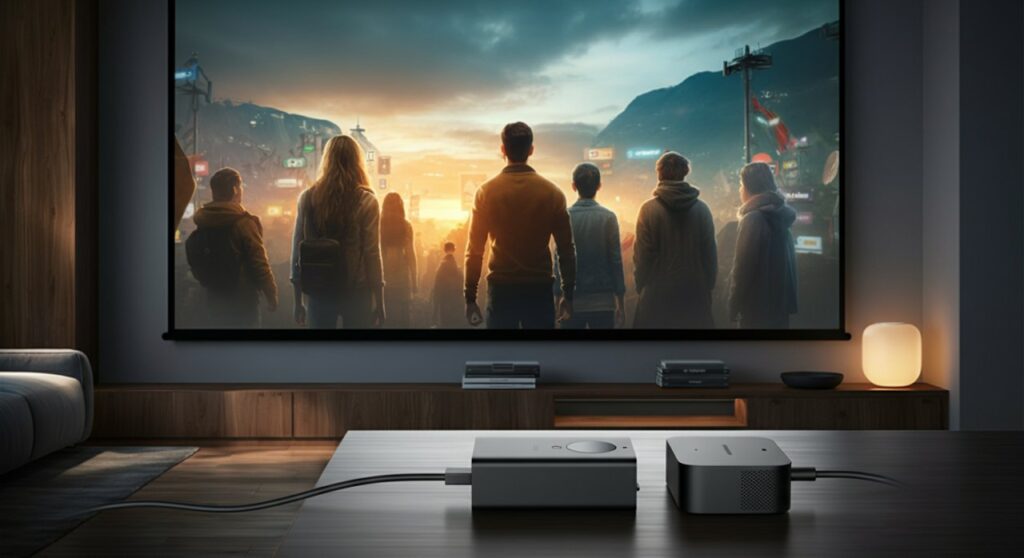
How to Connect a Fire TV Stick to a Projector
Learning how to connect a fire tv stick to a projector is the fastest way to turn any blank wall into a home theater. In my experience testing various setups, the process is nearly identical to plugging the device into a standard television.
You simply need an available HDMI port on your projector. If your projector is ceiling-mounted or in a tight space, I highly recommend using a short HDMI extension cable to prevent the weight of the stick from straining the port.
Step-by-Step Installation Guide
Follow these simple steps to ensure your device runs smoothly:
- Insert the Fire TV Stick: Plug the device directly into the HDMI input on your projector. If it’s a tight fit, use the included HDMI extender.
- Provide External Power: Connect the USB power cable to the side of the Fire TV Stick. Plug the other end into a wall outlet using the power adapter, rather than a USB port on the projector, to ensure consistent voltage.
- Switch the Input Source: Turn on your projector and use the remote or the unit’s buttons to select the HDMI source corresponding to where you plugged in the stick.
- Pair the Remote: Once the Amazon logo appears on the projection screen, press and hold the Home button on your remote for 10 seconds to sync it.
- Connect to Wi-Fi: Follow the on-screen prompts to select your local network and enter your credentials.
Does Fire Stick Work on Projector Setups with Audio Issues?
Many users often ask, “Does fire stick work on projector audio systems properly?” While the video quality is usually excellent, projector speakers are often underwhelming for a cinematic experience.
I personally prefer using the Bluetooth capabilities of the Fire TV Stick. You can go to Settings > Controllers & Bluetooth Devices to pair a wireless soundbar or Bluetooth headphones directly to the stick, bypassing the projector’s weak audio hardware entirely.
| Component | Connection Method | Benefit |
|---|---|---|
| Video | HDMI Cable | High-definition, low-latency streaming. |
| Audio | Bluetooth / Aux | Superior sound quality compared to internal speakers. |
| Power | Wall Adapter | Stable, reliable performance without rebooting. |
| Control | Fire TV Remote | Full navigation of apps like Netflix and Prime Video. |
Troubleshooting Common Connectivity Issues
Even when you know how to connect firestick to projector correctly, technical glitches can happen. If you see a “No Signal” message, double-check that you have selected the correct HDMI source on the projector menu.
If the image is flickering or cutting out, check the HDMI cable connections. In my experience, older or damaged HDMI cables are the most common culprits for poor display quality. Also, ensure your projector’s firmware is updated to support the HDCP (High-bandwidth Digital Content Protection) standards used by streaming services.
Maximizing Your Projector Experience
Once connected, take time to calibrate your projector settings. Adjust the Keystone settings to square up the image if the projector is tilted, and tweak the Contrast and Brightness to match your room’s ambient light levels.
For the best viewing experience, keep the room as dark as possible. Using a dedicated projector screen rather than a plain white wall will significantly improve color accuracy and sharpness.
Frequently Asked Questions
Can I connect a Fire TV Stick to an old projector without HDMI?
Yes, but you will need an HDMI to VGA or HDMI to RCA converter box. Keep in mind that these converters often result in lower video quality and may not support HDCP-protected content.
Do I need a Wi-Fi connection for the Fire TV Stick?
Yes, the Fire TV Stick requires an active internet connection for streaming content. While you can navigate menus offline, you will not be able to play movies or shows without Wi-Fi.
Why is there a delay between the audio and video?
This is often caused by the projector’s internal processing. Try setting your Fire TV Stick audio settings to “PCM” or use an external audio device connected directly to the stick via Bluetooth to sync the sound perfectly.
Is it better to plug the Fire TV Stick into the projector or an AVR?
If you have a home theater setup, plug the stick into an Audio/Video Receiver (AVR). This allows the receiver to handle the high-quality surround sound audio while passing the video signal through to the projector.









