

TL;DR: How to Project Your Mobile Screen Without a Projector
To project your mobile screen onto a wall without a dedicated projector, the most effective method is using a Smart TV or Streaming Device (like Chromecast, Roku, or Fire TV Stick) via Screen Mirroring. If you lack these, you can use a DIY Camera Obscura setup with a smartphone, a cardboard box, and a magnifying glass, though this results in lower image quality.
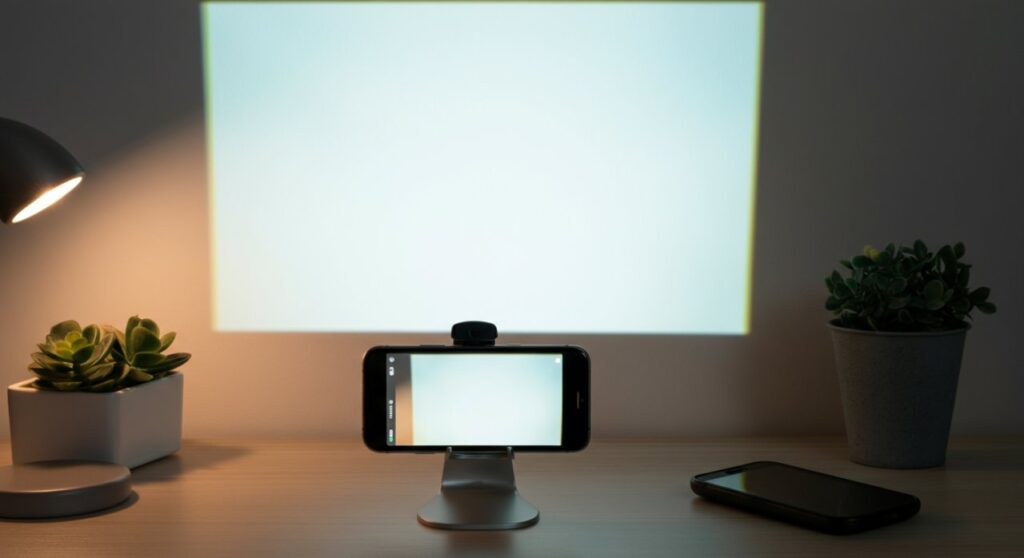
Understanding Your Options for Mobile Screen Projection
You do not need an expensive piece of hardware to enjoy your smartphone content on a larger surface. While a traditional projector is the standard, modern wireless display protocols have made screen mirroring accessible to almost everyone with a Smart TV or connected monitor.
If you are looking to replicate a “cinematic” experience at home, here is how the methods compare:
| Method | Quality | Cost | Ease of Use |
|---|---|---|---|
| Smart TV / Cast | High | $0 – $50 | Very Easy |
| HDMI Adapter | Very High | $15 – $30 | Moderate |
| DIY Box Projector | Low/Blurry | $5 – $10 | Difficult |
Using Smart TV Features for Screen Mirroring
The most reliable way to “project” your screen without a projector is to use the Smart TV you likely already own. Most modern televisions support Miracast, AirPlay, or Google Cast.
For Android Users
- Ensure your phone and TV are on the same Wi-Fi network.
- Open the Quick Settings panel on your phone.
- Tap on Screen Cast, Smart View, or Screen Mirroring.
- Select your TV from the list of available devices.
For iPhone Users
- Connect your device to the same Wi-Fi as your Apple TV or AirPlay-compatible TV.
- Open the Control Center by swiping down from the top-right corner.
- Tap the Screen Mirroring icon (two overlapping rectangles).
- Select your TV from the list to begin streaming.
High-Definition Options: The Wired Connection
If you prioritize image stability and zero lag—ideal for mobile gaming—a wired HDMI connection is superior to wireless mirroring. You will need a USB-C to HDMI adapter (for Android) or a Lightning to HDMI adapter (for older iPhones).
- Plug the adapter into your phone’s charging port.
- Connect an HDMI cable from the adapter to your TV or computer monitor.
- Select the corresponding HDMI input on your display device.
- Your phone screen will instantly reflect on the screen in high definition.
The DIY Method: Cardboard Box Projector
If you want to experiment with true “projection” onto a plain wall, you can build a DIY smartphone projector. Please note: This method provides a significantly lower resolution image and is best for dark rooms only.
What You Need
- A shoebox or a medium-sized cardboard box.
- A large magnifying glass (the bigger, the better).
- Black duct tape or electrical tape.
- A paperclip or stand to hold your phone.
Step-by-Step Construction
- Cut a hole: Trace the outline of your magnifying glass on one side of the box and cut it out.
- Mount the lens: Tape the magnifying glass securely over the hole, ensuring no light leaks through the edges.
- Position your phone: Place your phone inside the box. You may need to invert the phone screen settings if the image appears upside down, as the lens will flip the projection.
- Adjust focus: Move the phone back and forth inside the box until the image projected on the wall becomes clear.
Key Takeaways for Success
- Lighting matters: For DIY methods, the room must be completely dark to see any image.
- Stability: If using a DIY setup, use a tripod or stable books to keep your phone from shifting.
- Audio: When mirroring to a TV, use the TV speakers or a connected Bluetooth soundbar for a better experience.
- Battery: Screen mirroring drains battery quickly; keep your phone plugged into a power bank if possible.
Frequently Asked Questions (FAQs)
Can I project my phone screen to a wall without a projector or TV?
Yes, using the DIY magnifying glass method, you can project an image onto a white wall. However, expect very low brightness and resolution compared to electronic devices.
Why is my DIY projector image blurry?
Blurriness usually occurs because the distance between your phone and the lens is not perfectly aligned. Adjust the phone’s position within the box until the image snaps into focus.
Will an HDMI adapter work with all phones?
Most modern Android phones with a USB-C port support DisplayPort Alt Mode for HDMI output, but some budget models do not. Check your device specifications for “video output support” before buying an adapter.
Can I use a mirror to project my screen?
No, a mirror only reflects light; it does not magnify or focus an image. You require a convex lens (magnifying glass) to gather light and project it clearly onto a surface.









