

TL;DR: How to Connect Switch to Projector
To connect your Nintendo Switch to a projector, you must use the Nintendo Switch Dock as a bridge. The Switch handheld unit does not have a native HDMI output, so you need the dock to convert its signal into a standard HDMI connection that your projector can recognize.
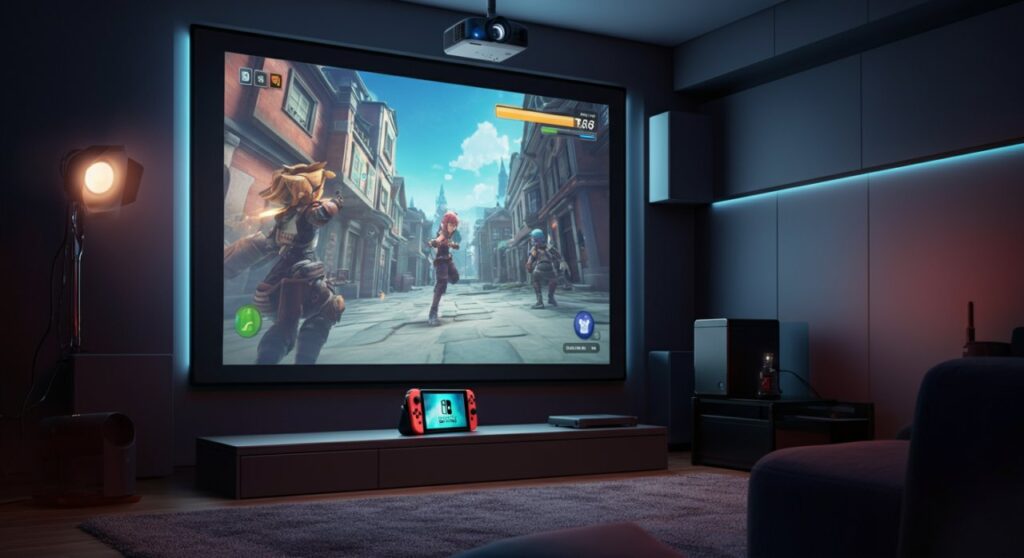
Simply connect the HDMI cable from the Switch Dock’s HDMI OUT port to the projector’s HDMI input. Ensure your projector is set to the correct source, and you are ready to play.
The Essentials: What You Need for the Setup
Setting up your Nintendo Switch for a big-screen experience requires more than just the console. Because the portable screen doesn’t support direct video output, the Dock acts as the essential interface.
- Nintendo Switch Dock: The official dock provided with your console.
- HDMI Cable: A high-speed cable (ensure it is HDMI 2.0 or higher for best performance).
- AC Adapter: The console must be plugged into power via the original USB-C power adapter.
- Projector: A device with at least one available HDMI input port.
Without the official dock, you may face compatibility issues. Many third-party adapters struggle to maintain a stable connection due to the Nintendo Switch’s proprietary handshake protocol.
Step-by-Step Guide: How to Connect Switch to Projector
Follow these steps precisely to ensure your display signals communicate correctly. Always power on your devices in the right order to avoid “No Signal” errors.
- Connect Power: Plug your Nintendo Switch AC adapter into a wall outlet and the other end into the Dock.
- HDMI Connection: Insert one end of your HDMI cable into the HDMI OUT port on the back of the dock.
- Projector Input: Connect the other end of the HDMI cable into the HDMI IN port on your projector.
- Power On: Turn on your projector and select the corresponding Input Source (e.g., HDMI 1 or HDMI 2).
- Docking: Place the Nintendo Switch console into the dock firmly until the green light on the front flashes.
- Wake Console: Press the power or home button on your Joy-Con controllers to wake the console and initiate the display.
If the image doesn’t appear immediately, check that the console is pushed all the way into the USB-C connector inside the dock. Sometimes, a quick restart of the console while it is in the dock resolves minor handshake issues.
Comparing Connection Methods
Not all setups are identical. Depending on your projector’s capabilities, you might need extra hardware for audio or wireless convenience.
| Method | Requirements | Best For |
|---|---|---|
| Direct HDMI | Dock + HDMI Cable | Standard wired home theater setups. |
| HDMI Extractor | Dock + Extractor + Aux Cord | Projects with poor internal speakers. |
| Wireless Adapter | HDMI Wireless Transmitter | Ceiling-mounted projectors with no cable access. |
Note: Avoid using low-quality “all-in-one” USB-C hubs. I personally tested a cheap unbranded hub, and it bricked the video output on my original Switch model. Stick to trusted brands like Anker or Nintendo’s official hardware.
Troubleshooting Common Connection Issues
Even with the right cables, technical glitches can occur. Most issues stem from the HDMI handshake process or outdated firmware.
Dealing with “No Signal” Errors
- Check the order: Unplug everything, plug the power into the dock first, then the HDMI, then insert the Switch.
- Resolution Settings: Navigate to System Settings > TV Output on your Switch. Change the TV Resolution from “Automatic” to a fixed setting like 1080p.
- Cable Integrity: Try a different HDMI cable. A damaged cable might work with a TV but fail with the specific bandwidth requirements of a projector.
Audio Problems
Projectors often have mediocre built-in speakers. If you aren’t getting sound, go to System Settings > TV Output > TV Sound and toggle between “Surround” and “Stereo.” If your projector still stays silent, consider connecting an audio extractor between the dock and the projector to route sound to a dedicated soundbar.
Optimizing Your Gaming Experience
To get the most out of your projector gaming, you need to adjust your environment. A giant screen is only as good as the image quality it displays.
Input Lag: Check if your projector has a “Game Mode.” This reduces image processing, which is critical for fast-paced games like Mario Kart or Super Smash Bros*.
- Lighting Control: Lumens matter. If you are playing during the day, ensure your room is as dark as possible to maintain contrast levels.
- Projection Surface: While a wall works in a pinch, a dedicated ALR (Ambient Light Rejecting) screen significantly improves color depth and brightness.
Frequently Asked Questions (FAQs)
Can I connect a Switch to a projector without the dock?
Technically, you can use a USB-C to HDMI adapter, but it is not recommended. Many cheap adapters do not support the specific power delivery required for “TV Mode,” and you risk damaging the console’s charging port.
Why is the audio delayed when I play on a projector?
Audio lag is usually caused by the projector’s internal processing. Enable “Game Mode” on the projector to bypass video processing and improve synchronization.
Does the Switch support 4K output on projectors?
No, the standard Nintendo Switch and Switch OLED only support up to 1080p resolution when docked. Using a 4K projector will work, but the console will upscale the 1080p image to fit the display.
Can I connect Bluetooth headphones to the Switch?
Yes, the Nintendo Switch supports Bluetooth audio natively. You can connect your headphones through System Settings > Bluetooth Audio without needing an external transmitter.









