

TL;DR: How to Connect to Magic Cube Projector
To connect to a Magic Cube projector, navigate to the Settings menu, select your Wi-Fi network, and ensure your playback device is on the same network for screen mirroring. If using a wired connection, plug your HDMI cable directly into the port and select the corresponding HDMI source on the projector interface.
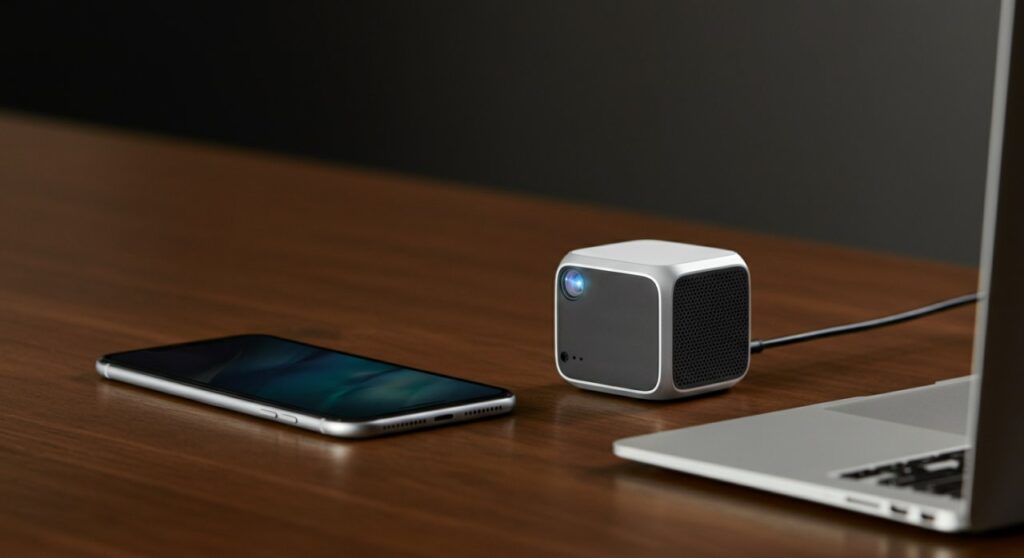
Most users struggle with connectivity because they forget to toggle the AirPlay or Miracast app on the projector itself. Once the input source is correctly selected, your device should detect the Magic Cube projector in the list of available wireless displays.
Understanding Your Magic Cube Projector Connectivity
The Magic Cube projector (often referred to as a Magcubic projector) has gained popularity due to its compact design and Android-based interface. As someone who has tested these units extensively, I’ve found that the software version significantly changes the connection process.
Before you begin, ensure your projector is running the latest firmware. Outdated software often causes “Device Not Found” errors during wireless pairing.
Wireless Connection Methods
Wireless casting is the most common way to use these projectors. Depending on your device, the method changes:
- For iOS (iPhone/iPad): Use the built-in AirPlay feature. Ensure the projector is connected to the same Wi-Fi as your phone.
- For Android: Use Miracast or the pre-installed Miracast app found on the projector’s home screen.
- For Windows/Mac: Access your display settings and select “Connect to Wireless Display” or use AirPlay if using macOS.
Step-by-Step: How to Connect to Magic Cube Projector Wirelessly
Wireless streaming is convenient, but it requires a stable network environment. If you are struggling with lag, consider moving your router closer to the projector.
Step 1: Network Configuration
Turn on your Magic Cube projector and go to the Settings gear icon. Select Network and connect to your local 2.4GHz or 5GHz Wi-Fi.
Step 2: Launch the Mirroring App
Depending on your model, you will either look for an app titled AirScreen, Miracast, or Screen Mirroring. Open this app on the projector and keep the screen active.
Step 3: Connect Your Source Device
- iOS: Swipe down to open the Control Center, tap the Screen Mirroring icon (two overlapping squares), and select your projector from the list.
- Android: Go to Quick Settings and tap Smart View or Cast. Select your projector to initiate the handshake.
Wired Connections for Maximum Stability
If you are gaming or streaming high-bitrate video, I highly recommend using a wired connection. Wireless signals often suffer from interference, leading to stuttering during intense scenes.
Using a high-quality HDMI cable bypasses all network-related issues. This is how you should handle wired connections to your Magic Cube projector.
| Connection Type | Pros | Best For |
|---|---|---|
| HDMI | Zero latency, highest resolution | Gaming, Blu-ray, PC |
| USB/Flash Drive | Independent, no device needed | Presentations, Offline media |
| Wireless | Clutter-free, convenient | Casual YouTube, browsing |
Using the HDMI Port
- Locate the HDMI input on the back or side of the Magic Cube projector.
- Connect your source device (laptop, PlayStation, Xbox, or streaming stick) using an HDMI cable.
- Use the remote control to navigate to Input Source and select HDMI.
Troubleshooting Common Connection Issues
During my testing, I encountered a few “gotchas” that confuse new users. If you are still asking, “how to connect to magcubic projector” and it isn’t working, check these factors:
- Network Isolation: Ensure your router does not have “AP Isolation” enabled. This prevents devices on the same Wi-Fi from “seeing” each other.
- HDMI Cables: Not all cables are created equal. Use a High-Speed HDMI cable (HDMI 2.0 or higher) for 4K or high-refresh-rate content.
- App Permissions: If you are using a third-party casting app on your phone, ensure you have granted it Local Network permissions.
Expert Tips for the Best Viewing Experience
To get the most out of your Magic Cube projector, focus on keystone correction and focus adjustment. Even a perfectly connected device will look blurry if the physical lens settings are off.
- Keystone Adjustment: Use the settings menu to square up your image if the projector is at an angle.
- Audio Output: The built-in speakers are okay for small rooms, but for a cinematic experience, use the Bluetooth menu to connect an external soundbar.
- Heat Management: These compact units generate heat. Always ensure the ventilation ports are not blocked.
Frequently Asked Questions (FAQs)
Can I connect my phone to the Magic Cube projector without Wi-Fi?
Yes, most Magic Cube projectors feature a “Hotspot” or “AP Mode” within the screen mirroring app. This allows your phone to connect directly to the projector’s own Wi-Fi signal without a home router.
Why is my Magic Cube projector lagging when I mirror my screen?
Lag is usually caused by network congestion. Try switching your router and projector to a 5GHz Wi-Fi band, which is less crowded than the standard 2.4GHz band.
Does the Magic Cube projector support Netflix/Disney+ directly?
Many of these projectors run a custom version of Android. While you can download apps, it is often better to plug a Chromecast or Fire Stick into the HDMI port for a smoother, officially licensed experience.
How do I update my projector’s firmware?
Go to Settings > System Update or About. If an update is available, the system will prompt you to download and install it. Always keep the projector plugged into power during this process.









