

TL;DR: How to Connect Rapsodo to Projector
To connect your Rapsodo MLM2PRO to a projector, you must utilize a PC or Laptop running the Rapsodo PC software as the intermediary. You cannot connect the device directly to a projector via HDMI; instead, you connect your computer to the projector via HDMI and mirror your screen to display the simulation software.
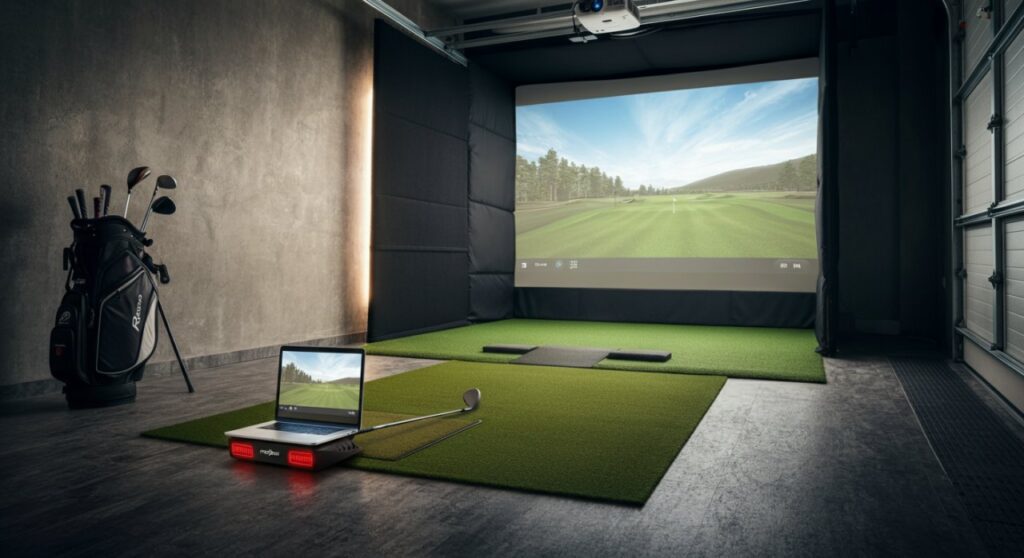
Quick Setup Checklist
- Device: Rapsodo MLM2PRO
- Interface: PC/Laptop (Windows 10/11)
- Connection: HDMI cable (Computer to Projector)
- Software: Rapsodo PC Application
Understanding the Connection Workflow
Many users mistakenly believe the Rapsodo launch monitor has a direct video-out port. In reality, the device captures high-speed ball and club data and transmits that data wirelessly to your computing device.
The “connection” happens through the software environment, not a physical cable between the monitor and the projector. Your PC acts as the “brain,” processing the data and sending the visual output to your projector via an HDMI cable.
Step-by-Step Guide: How to Connect Rapsodo to Projector
Follow these precise steps to get your home simulator up and running.
Preparing Your Hardware
Before starting, ensure your Rapsodo MLM2PRO is fully charged. You will need a high-quality HDMI cable—preferably rated for 4K/60Hz—to ensure minimal input lag during your swing.
- Connect one end of the HDMI cable to your laptop or PC’s HDMI port.
- Connect the other end to the projector.
- Switch your projector input to the corresponding HDMI source.
Software Configuration
You must download and install the official Rapsodo PC software from their website. The mobile app version does not support a direct projector output for the simulator mode.
- Launch the Rapsodo app on your Windows PC.
- Log in to your account.
- Ensure your MLM2PRO is paired via Bluetooth or Wi-Fi to your PC.
- Navigate to the Settings menu and select Display Mode.
- Choose “Full Screen” to ensure the interface fills your projector’s projection area.
Display Settings (Windows Optimization)
To get the best visual experience, you must configure your Windows display settings to “Extend” or “Duplicate” your screen.
| Feature | Setting Recommendation |
|---|---|
| Display Mode | Second Screen Only (Best for immersion) |
| Resolution | Match Projector Native Resolution (e.g., 1920×1080) |
| Refresh Rate | 60Hz or higher |
| Scaling | 100% |
Troubleshooting Common Connection Issues
In my experience setting up home simulators, the most common issues are related to resolution mismatches or outdated drivers. If you encounter a black screen or distorted graphics, try these fixes:
- Update GPU Drivers: Ensure your PC’s NVIDIA or AMD graphics drivers are up to date.
- HDMI Cable Quality: Long cables (over 20 feet) may lose signal strength. Use an Active HDMI cable if your PC is far from the projector.
- Audio Issues: If your projector has built-in speakers, ensure the “Audio Output” in Windows is set to the projector, or connect external speakers to your PC for better sound quality.
Frequently Asked Questions
Can I connect Rapsodo to a projector using an iPad or Android tablet?
While you can mirror an iPad to a projector using an Apple Lightning/USB-C to HDMI adapter, the experience is often limited by aspect ratio differences. Using a PC is highly recommended for the best performance and UI scaling.
Does the projector resolution affect the Rapsodo tracking accuracy?
No, the projector resolution only affects the visual output. The Rapsodo MLM2PRO tracks data internally using its high-speed cameras and radar; the visual display is merely a representation of the data.
Is a high-end gaming PC required for this setup?
You do not need a top-tier enthusiast PC, but you do need a computer with a decent dedicated graphics card (GPU) to ensure the simulation runs smoothly without stuttering during your swing animation.
How do I minimize input lag between my swing and the screen?
To reduce lag, set your PC’s power plan to “High Performance” and ensure no background applications are running while you are playing your simulated round.









