

Quick Guide: Connecting Your Android to a Projector
The most reliable way to connect Android to a projector using HDMI is by using a USB-C to HDMI adapter that supports DisplayPort Alt Mode. Simply plug the adapter into your phone’s charging port, connect a standard HDMI cable to the adapter and the projector, and switch the projector to the correct input source. While some older devices may require a specific Micro-USB MHL adapter, most modern Android smartphones now utilize the plug-and-play simplicity of USB-C connectivity.
TL;DR: Best Methods at a Glance
If you are in a rush, here is the fastest way to get your presentation or movie on the big screen:
- For USB-C Androids (Most modern phones): Use a USB-C to HDMI hub or adapter. Ensure your phone supports DisplayPort Alt Mode (check manufacturer specs).
- For Older Androids (Micro-USB): You will likely need an MHL (Mobile High-Definition Link) adapter or a SlimPort adapter, depending on your specific device model.
- Wireless Alternative: If wired isn’t an option, use Google Chromecast or Miracast to screen mirror via Wi-Fi.
| Connection Type | Reliability | Ease of Use | Hardware Required |
|---|---|---|---|
| USB-C to HDMI | Excellent | Very High | USB-C Adapter |
| MHL/SlimPort | Moderate | Moderate | Device-specific cable |
| Wireless (Cast) | Low/Variable | High | Chromecast/Smart Projector |
Understanding Hardware Compatibility
Before you buy any cables, you must determine what port your phone uses. Not all Android devices are created equal, and this is the most common point of failure for users.
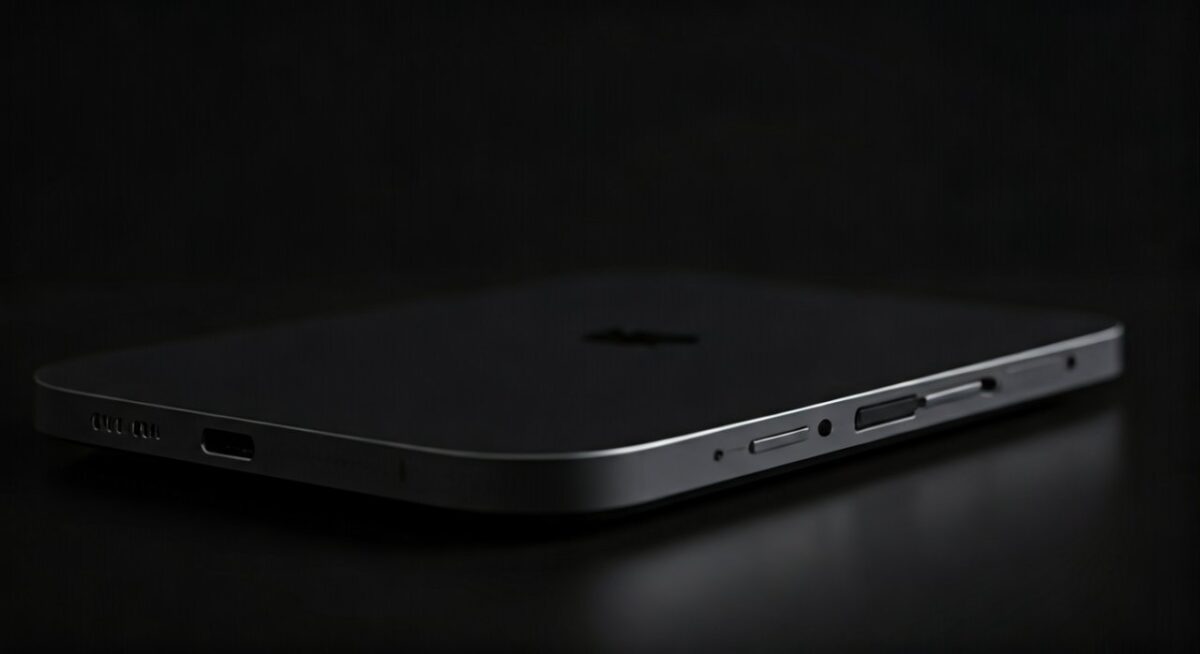
Check Your Charging Port
- USB-C: These are oval-shaped ports found on almost all phones released after 2017. Most USB-C devices support HDMI output, but you must verify DisplayPort Alt Mode compatibility.
- Micro-USB: These are the older, trapezoid-shaped ports. You will need to check if your specific model supports MHL or SlimPort technology, as many older budget phones did not include this feature.
Selecting the Right Adapter
Don’t just grab the cheapest cable on the shelf. In my experience, high-quality active adapters prevent signal drops and overheating during long presentations.
- Look for “Active” HDMI adapters to ensure better signal conversion.
- Check for 4K support if your projector is high-resolution, though 1080p is usually standard for most conference room setups.
- Consider a USB-C Hub that includes a Power Delivery (PD) pass-through port. This allows you to charge your phone while it is connected to the projector, preventing your battery from dying mid-presentation.
Step-by-Step: How to Connect Android to Projector Using HDMI
Follow these steps to establish a stable wired connection between your device and your projection hardware.
Preparation
Ensure both your Android smartphone and the projector are powered on. Connect the HDMI cable firmly into the HDMI input port on the back of the projector. Note the input number (e.g., HDMI 1 or HDMI 2).
Physical Connection
Plug your USB-C to HDMI adapter into your phone. Connect the other end of the HDMI cable to the adapter. If you have an adapter with charging pass-through, connect your phone’s power cable to the hub now to maintain battery levels.
Configure the Projector
Use the projector’s remote control or physical buttons to navigate to the Input Source menu. Select the specific HDMI port that you connected your cable to.
Adjust Display Settings
Once connected, your Android phone should automatically detect the external display. If it doesn’t, go to Settings > Connected Devices > Cast (or Display > Screen Mirroring). Select the external display output to initiate the handshake between the devices.
Troubleshooting Common Connection Issues
Sometimes the screen remains black despite everything being plugged in correctly. Don’t panic; follow these professional troubleshooting tips.
- Check Input Selection: It sounds simple, but 90% of connection issues occur because the projector is set to the wrong input source. Cycle through all available HDMI inputs on the device.
- HDCP Handshake Errors: Some streaming apps (like Netflix or Disney+) block output to projectors due to Copyright Protection (HDCP). Try testing with a local video file stored on your phone to verify if the hardware is working.
- Adapter Incompatibility: If you are using a cheap, non-branded adapter, it may lack the necessary chipsets. Try testing the setup with a different HDMI cable or a known-working adapter from a reputable brand like Anker or Cable Matters.
- Restart Hardware: A quick reboot of the phone often refreshes the display driver and forces the system to re-scan for external outputs.
Frequently Asked Questions
Can I connect any Android phone to a projector using HDMI?
No. Your Android phone must support DisplayPort Alt Mode (for USB-C) or MHL/SlimPort (for Micro-USB). Always check your device’s technical specifications on the manufacturer’s website before purchasing adapters.
Why is there no sound coming from my projector?
Check your phone’s media volume and ensure the projector’s volume is unmuted. Sometimes Android defaults the audio output to the phone speaker; check your Bluetooth or Audio Output settings in the notification shade to ensure it is set to “HDMI” or “External Device.”
Is wireless better than a wired HDMI connection?
Wireless (like Chromecast or Miracast) is more convenient but often suffers from latency or buffering. For professional presentations or high-quality video, connecting Android to a projector using HDMI remains the gold standard for stability and lag-free performance.









