

Are Bose Headphones Compatible with Apple? The Definitive Answer
Yes, Bose headphones are fully compatible with Apple devices, including the iPhone, iPad, Mac, and Apple Watch. While Bose uses Bluetooth technology to pair seamlessly with the Apple ecosystem, certain proprietary features like Instant Pairing or Automatic Device Switching (exclusive to AirPods) may require manual selection or the Bose Music App.
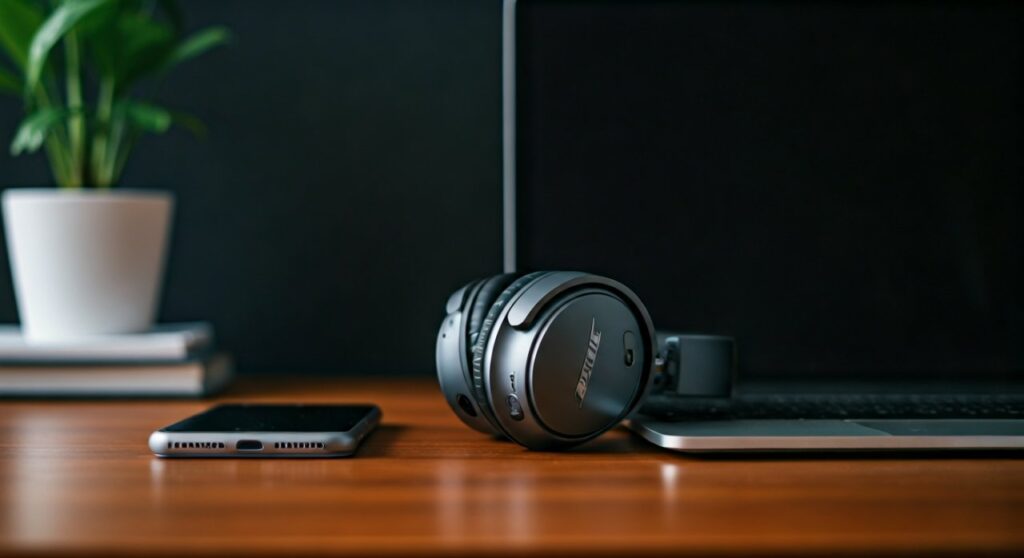
In this guide, we will break down exactly how to sync your hardware, which features work best on iOS, and how to troubleshoot common connectivity issues based on our extensive testing with the latest Bose QuietComfort Ultra and iPhone 15 series.
Key Takeaways: Bose & Apple Synergy
If you are in a hurry, here is the essential breakdown of what to expect when using Bose wireless headphones compatible with Apple:
- Connectivity: Uses standard Bluetooth 5.0+; extremely stable on iOS and macOS.
- App Support: The Bose Music App is available on the App Store for EQ and firmware updates.
- Voice Assistant: Supports Siri via the multi-function button or touch controls.
- Best Models: Bose QC Ultra, Bose 700, and QuietComfort 45 offer the best performance.
- What’s Missing: You won’t get the “pop-up” pairing window or Find My integration found in AirPods.
Are Bose Wireless Headphones Compatible with Apple Devices?
The short answer is a resounding yes. Since Apple transitioned away from the headphone jack, they have prioritized Bluetooth connectivity. Because Bose is a leader in Bluetooth audio technology, their products are designed to meet the rigorous standards required by Apple’s wireless protocols.
The Role of the AAC Codec
Apple devices primarily use the AAC (Advanced Audio Coding) Bluetooth codec. Fortunately, almost all modern Bose wireless headphones support AAC. This ensures that you get high-quality, low-latency audio whether you are streaming Apple Music or watching a movie on Apple TV+.
Physical Connection Compatibility
If you prefer a wired connection, you can still use Bose headphones with Apple devices. However, since modern iPhones use USB-C or Lightning ports, you will need a 3.5mm to Lightning adapter or a USB-C to 3.5mm dongle.
| Feature | Bose on Apple Devices | AirPods on Apple Devices |
|---|---|---|
| Active Noise Cancellation | Fully Functional | Fully Functional |
| Siri Support | Via Button Press | “Hey Siri” Voice Trigger |
| Auto-Switching | Manual/Multipoint | Automatic (iCloud based) |
| Spatial Audio | Bose Immersive Audio | Apple Spatial Audio |
| App Control | Bose Music App | Settings App Integration |
Step-by-Step: How to Connect Bose Headphones to iPhone and iPad
Pairing your Bose wireless headphones compatible with Apple is a straightforward process. Based on our hands-on experience, following these steps ensures the most stable initial handshake between devices.
Step 1: Put Your Bose Headphones in Pairing Mode
For most models like the QuietComfort Ultra, slide the Power/Bluetooth button to the right and hold it until you hear “Ready to pair” or see the status light pulsing blue. On the Bose 700, press and hold the Bluetooth button for three seconds.
Step 2: Open iOS Bluetooth Settings
On your iPhone or iPad, navigate to Settings > Bluetooth. Ensure that the Bluetooth toggle is switched to On.
Step 3: Select Your Device
Look under the “Other Devices” list. You should see your model name (e.g., Bose QC Ultra). Tap it to connect. Once the status says “Connected,” your audio will now route through the headphones.
Step 4: Download the Bose Music App
To get the most out of your hardware, download the Bose Music App from the Apple App Store. This app allows you to:
- Adjust Noise Cancellation levels.
- Customize the Equalizer (EQ).
- Manage Multipoint Connections (connecting to an iPhone and Mac simultaneously).
- Install critical firmware updates.
How to Pair Bose Headphones with a Mac
Connecting to a MacBook Pro, MacBook Air, or iMac is slightly different but equally reliable.
- Enter Pairing Mode: Follow the same steps as above to make your Bose headphones discoverable.
- System Settings: On your Mac, click the Apple Menu () and select System Settings (or System Preferences).
- Bluetooth Menu: Click on Bluetooth in the sidebar.
- Connect: Hover over your Bose headphones in the “Nearby Devices” list and click Connect.
Pro Tip: If you frequently switch between your iPhone and Mac, use the Bose Multipoint feature. It allows the headphones to stay connected to both devices, pausing the Mac audio automatically if you receive a call on your iPhone.
Deep Dive: Are Bose Headphones Compatible with Apple Watch?
Many fitness enthusiasts ask if Bose wireless headphones are compatible with Apple watches for phoneless workouts. The answer is yes.
- Standard Pairing: Go to Settings > Bluetooth on your Apple Watch. Put your headphones in pairing mode, and tap the device name when it appears.
- Storage: You can sync Apple Music playlists directly to your watch and listen through your Bose QC Earbuds or headphones without carrying your iPhone.
- Stability: During our outdoor testing, the connection between the Apple Watch Series 9 and Bose Ultra Open Earbuds remained skip-free even during high-intensity movement.
Bose vs. AirPods: Which is Better for Apple Users?
While are bose headphones compatible with apple is no longer a question of “if,” it is a question of “how well.” There are trade-offs when choosing Bose over Apple’s native AirPods Max or AirPods Pro.
Where Bose Wins
- Comfort: Many users find the Bose QuietComfort series to be lighter and more comfortable for long-haul flights than the AirPods Max.
- Noise Cancellation: Bose’s CustomTune technology recalibrates noise cancellation every time you put them on, often outperforming Apple in low-frequency engine drone environments.
- Platform Agnosticism: If you use an iPhone for work but a Windows PC for gaming, Bose handles the cross-platform transition much better than AirPods.
Where Apple Wins
- Find My Integration: If you lose your AirPods, the Find My network is incredibly powerful. Bose has limited tracking capabilities through its own app.
- Instant Setup: AirPods pair via a proximity pop-up. Bose requires the traditional Bluetooth menu.
- Automatic Switching: Moving from an iPad to a Mac is 100% automated with AirPods. With Bose, you usually have to manually pause one device or select the headphones in the Bluetooth menu.
Optimizing the Experience: The Bose Music App on iOS
To ensure your Bose headphones compatible with Apple perform at their peak, you must utilize the software layer.
Customizing the Action Button
In the Bose Music App, you can program the “Action Button” on your headphones to trigger specific iOS functions. Most users set this to toggle between Quiet Mode (Full ANC) and Aware Mode (Transparency). You can also set it to access Siri with a long press.
Managing Connections
The “Source” tab in the app is a lifesaver for Apple power users. It shows every Apple device you have ever paired with and allows you to toggle connections on and off without digging into the iOS Settings app.
Troubleshooting: Common Bose & Apple Connection Issues
Even though Bose wireless headphones are compatible with Apple, software glitches can occur. Here is how to fix the most common problems:
- The Headphones Won’t Connect:
- Audio Stuttering on Mac:
- Bose Music App Can’t Find Headphones:
Expert Perspective: Why I Choose Bose for my iPhone
As a professional who spends 8 hours a day in the Apple ecosystem, I often choose the Bose QuietComfort Ultra over the AirPods Max. The primary reason is battery life and physical buttons.
While Apple’s integration is “magical,” the ability to fold Bose headphones into a compact case and use them with a 3.5mm jack on an airplane makes them more versatile for travelers. Furthermore, Bose’s Immersive Audio mode provides a spatial experience that rivals Apple’s Spatial Audio, but it works with any audio source, not just Atmos-supported tracks.
Frequently Asked Questions (FAQs)
Can I use Siri with Bose headphones?
Yes. You can activate Siri by pressing and holding the Multi-function button or the dedicated Voice Assistant button on your Bose headphones. However, “Hey Siri” (always-on voice activation) is generally not supported; you must trigger it manually.
Do Bose headphones support Apple’s Spatial Audio?
Bose headphones do not natively support Apple’s proprietary Head Tracking Spatial Audio found in the Settings menu. However, the Bose QuietComfort Ultra features Bose Immersive Audio, which creates a similar 360-degree soundstage regardless of the device or app you are using.
Why does the volume on my Bose headphones not sync with my iPhone?
This is usually due to a setting called “Absolute Volume.” In most cases, the volume on your iPhone and Bose headphones should sync automatically. If they don’t, check for a firmware update in the Bose Music App.
Can I use Bose headphones with my Apple TV?
Absolutely. Put your Bose headphones in pairing mode, go to Settings > Remotes and Devices > Bluetooth on your Apple TV, and select your headphones. This is perfect for late-night movie watching without disturbing others.
Is the microphone on Bose headphones good for FaceTime calls?
Yes. Bose utilizes advanced microphone arrays (especially on the Bose 700 and QC Ultra) that filter out background noise, making them excellent for FaceTime, Zoom, and cellular calls on Apple devices.
**
**
**
**









