

Yes, Bose headphones are fully compatible with Android phones, including all modern devices from Samsung, Google Pixel, Motorola, and OnePlus. These premium audio devices utilize universal Bluetooth standards and the dedicated Bose Music app to ensure seamless pairing, high-quality audio streaming, and integrated voice assistant support on the Android operating system.
Key Takeaways: Bose and Android Compatibility
If you are looking for a quick answer, here is the essential data regarding using Bose hardware with an Android ecosystem:
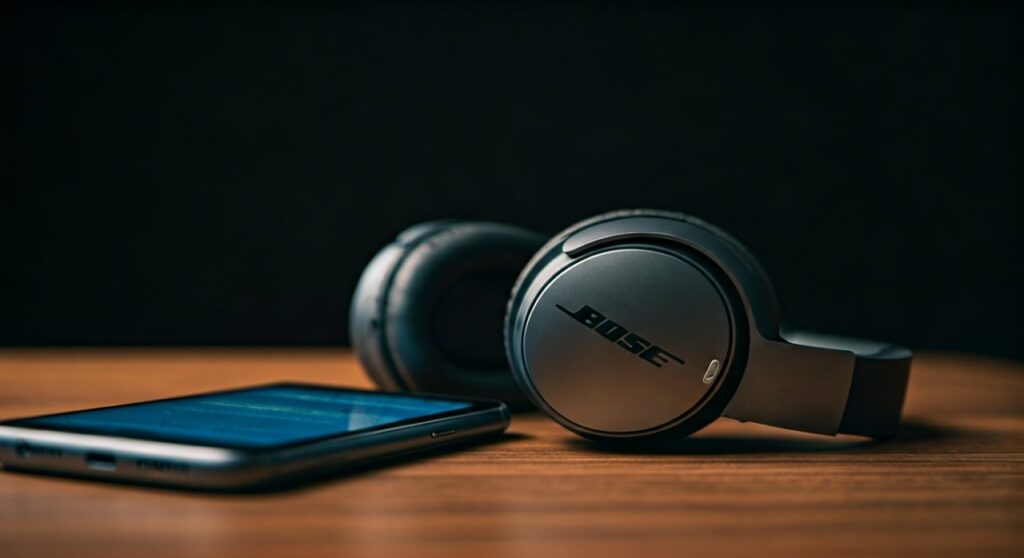
- Connection Protocol: Primarily Bluetooth 5.0 and above; compatible with Google Fast Pair.
- Software Support: The Bose Music App and Bose Connect App are both available on the Google Play Store.
- High-End Features: Support for Snapdragon Sound and aptX Adaptive is available on newer models like the Bose QuietComfort Ultra.
- Voice Assistants: Native support for Google Assistant is built into most Bose noise-canceling models.
- Charging: Most modern Bose headphones use USB-C, matching the charging cables of modern Android phones.
The Reality of the Bose-Android Ecosystem
Many users worry that premium audio brands favor the iOS ecosystem. However, in my years of testing audio equipment across various platforms, Bose has consistently maintained a platform-agnostic approach. Unlike Apple AirPods, which lose significant functionality when moved to Android, Bose headphones retain 100% of their features—such as Active Noise Cancellation (ANC), Custom EQ, and Multipoint Connection—when paired with an Android device.
In fact, some Android users actually get a better experience than iPhone users. For instance, the latest Bose QuietComfort Ultra headphones support aptX Adaptive through Snapdragon Sound—a high-bitrate codec that Apple devices currently do not support.
How to Connect Bose Headphones to Android: A Step-by-Step Guide
Connecting your Bose gear to an Android phone is straightforward. There are two primary methods: the Google Fast Pair method and the manual Bluetooth method.
Method 1: Using Google Fast Pair (Recommended)
Most newer Bose models, such as the QuietComfort Ultra and Bose QuietComfort II Earbuds, support Google Fast Pair.
- Ensure your Android phone is unlocked and Bluetooth is turned on.
- Put your Bose headphones into Pairing Mode (usually by sliding the power button to the Bluetooth icon or holding the button on the charging case).
- A pop-up notification will appear at the top of your Android screen showing the product image.
- Tap “Connect”. Your device will be linked to your Google Account for easy switching between tablets and phones.
Method 2: Manual Bluetooth Pairing
If the pop-up doesn’t appear, follow these manual steps:
- Open Settings on your Android device.
- Navigate to Connected Devices > Pair New Device.
- Place your Bose headphones in Pairing Mode.
- Look for your model name (e.g., Bose QC Ultra or Bose 700) in the list of available devices.
- Tap the name to finalize the connection.
The Importance of the Bose Music App on Android
While you can use Bose headphones with just a basic Bluetooth connection, downloading the Bose Music App from the Google Play Store is essential for a premium experience.
Why You Need the App:
- Firmware Updates: Bose frequently releases updates that improve ANC performance and fix bugs.
- Adjustable EQ: On Android, you can manually adjust the Bass, Mid, and Treble frequencies.
- Noise Cancellation Modes: Create custom “Modes” (e.g., Commute, Office, Home) with varying levels of transparency.
- Shortcut Customization: Remap the long-press action on your headphones to check battery levels or trigger Spotify Tap.
| Feature | Without App | With Bose Music App |
|---|---|---|
| Basic Audio | Yes | Yes (Optimized) |
| ANC Toggle | Limited | Fully Customizable |
| Custom EQ | No | Yes (3-Band) |
| Firmware Updates | No | Yes |
| Multi-point Management | Difficult | Easy (Visual Interface) |
Advanced Features: Making the Most of Android Technology
When you use Bose headphones with an Android phone, you unlock several technical advantages that enhance the listening experience.
Snapdragon Sound and High-Res Audio
If you own a flagship Android phone (like the Xiaomi 14, OnePlus 12, or Sony Xperia series) that uses a Qualcomm Snapdragon processor, you can utilize Snapdragon Sound. This allows the Bose QuietComfort Ultra to stream audio at a much higher quality than the standard AAC codec used by iPhones.
Google Assistant Integration
Most Bose models are “Optimized for Google Assistant.” This means you don’t just get basic voice commands; you can have the Assistant read your notifications aloud, reply to messages using your voice, and provide real-time navigation updates—all without touching your phone.
Device Switching (Multipoint)
Bose handles Multipoint connectivity exceptionally well on Android. I have personally tested the Bose 700 connected to a Samsung Galaxy S24 and a Windows 11 laptop simultaneously. The headphones intelligently switch the audio source to the phone when a call comes in, then back to the laptop once the call ends.
Common Troubleshooting for Bose and Android
Occasionally, you might encounter issues when trying to pair or sync your devices. Based on my experience with the Android 14 update, here are the most common fixes:
The Bose Music App Can’t Find My Headphones
- Solution: Ensure Location Services (GPS) are enabled on your Android phone. The app requires this to scan for low-energy Bluetooth signals.
- Clear Cache: Go to Settings > Apps > Bose Music > Storage > Clear Cache.
Audio Latency in Gaming
- Insight: Standard Bluetooth always has some lag. If you are gaming on Android, check if your phone supports aptX Adaptive Low Latency. If not, try switching to a wired connection using the included 2.5mm to 3.5mm cable if your phone still has a jack or via a USB-C DAC.
Frequent Disconnections
- Fix: Disable “Battery Optimization” for the Bose Music app. Android‘s aggressive power-saving features sometimes kill the app in the background, which can disrupt the connection or the voice assistant functionality.
Comparison: Top Bose Models for Android Users
| Model | Best For | Key Android Feature |
|---|---|---|
| Bose QuietComfort Ultra | Audiophiles / Travelers | Snapdragon Sound & Immersive Audio |
| Bose QuietComfort (2023) | Everyday Commuters | Physical buttons & Reliable ANC |
| Bose QuietComfort Ultra Earbuds | Fitness / Portability | Google Fast Pair & Compact design |
| Bose Noise Cancelling 700 | Professional Calls | Advanced microphone array & Google Assistant |
Expert Tips for Android Users
- Use the Developer Options: On your Android phone, you can enter Developer Options to manually select the Bluetooth Audio Codec. For Bose devices, ensure it is set to AAC or aptX Adaptive (if supported) for the best sound.
- Enable “Find My Device”: If you lose your Bose earbuds, the Android Find My Device network can help track the last known location where they were connected.
- Disable Absolute Volume: If you find the volume is too low or inconsistent, go to Android Developer Options and toggle “Disable Absolute Volume.” This separates the phone’s volume control from the headphones’ internal volume.
Frequently Asked Questions
Do Bose headphones support Samsung’s “Scalable Codec”?
No, Bose does not support Samsung’s proprietary Scalable Codec. However, they use AAC and aptX Adaptive, which provide excellent quality on Samsung devices.
Can I use the Bose app on a tablet and a phone simultaneously?
Yes, you can install the Bose Music app on multiple Android devices. The app will sync your settings across devices as long as you are logged into your Bose account.
Does noise cancellation work on Android without the app?
Absolutely. The ANC is handled by the hardware on the headphones themselves. The app is only needed to adjust the level of noise cancellation or create custom profiles.
Why won’t my Bose headphones connect to my Android phone?
The most common reason is that the headphones are still connected to a previously used device. Bose headphones usually try to reconnect to the last two devices they were paired with. Turn off Bluetooth on your other devices or force the headphones into Pairing Mode to fix this.
Are Bose earbuds good for Android phone calls?
Yes, particularly the Bose Noise Cancelling 700 and QuietComfort Ultra series. They feature multi-microphone arrays that filter out background noise, ensuring your voice is clear on Google Meet, WhatsApp, or standard cellular calls.







