

Can 2 Headphones Connect to One Laptop? The Quick Answer
Yes, can 2 headphones connect to one laptop is a question with multiple solutions depending on your hardware. You can achieve this using a physical 3.5mm Y-splitter, specialized software like Voicemeeter (Windows) or Audio MIDI Setup (Mac), or via Bluetooth 5.0+ multipoint capabilities on modern systems.
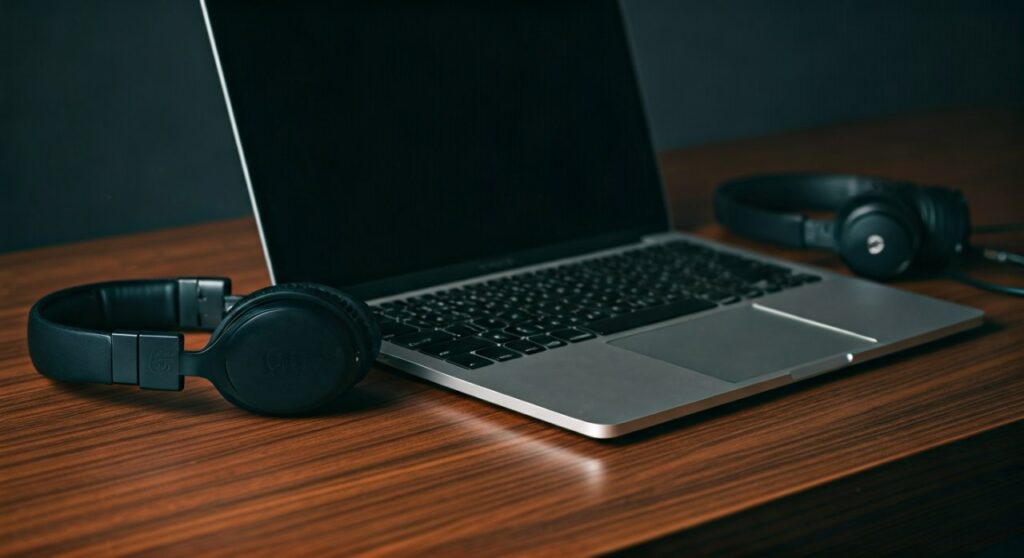
Whether you are trying to watch a movie with a friend on a plane or collaborating on a podcast edit, the method you choose will depend on whether your headphones are wired or wireless. This guide provides step-by-step instructions for every possible configuration to ensure high-fidelity audio for both listeners.
Key Takeaways: Quick Solutions for Dual Audio
If you are in a hurry, here is the fastest way to get two pairs of headphones working on your laptop right now:
- For Wired Headphones (Windows/Mac): Buy a 3.5mm Y-Splitter or a USB-to-3.5mm adapter.
- For Mac Users (Wireless/Wired): Use the built-in Audio MIDI Setup to create a “Multi-Output Device.”
- For Windows Users (Wireless): Download Voicemeeter or enable “Listen to this device” in the Sound Control Panel.
- Best for Quality: Use an external USB DAC/Amp with dual output ports to avoid volume loss.
- Bluetooth Limitations: Most Windows laptops cannot natively stream to two Bluetooth devices without third-party transmitters.
Method 1: Connecting Two Wired Headphones (Hardware Solutions)
The most reliable way to answer can 2 headphones connect to one laptop is through hardware. Physical connections eliminate latency (audio lag) and are generally “plug-and-play,” requiring no software configuration.
The 3.5mm Y-Splitter (Best for Budget)
A 3.5mm Audio Splitter is a small cable that plugs into your laptop’s headphone jack and provides two female ports.
- Step 1: Plug the splitter into your laptop’s 3.5mm audio jack.
- Step 2: Plug both sets of headphones into the splitter’s ports.
- Step 3: Adjust the volume on the laptop.
- Note: Using a passive splitter can sometimes reduce the maximum volume because the power from the laptop’s sound card is divided between two drivers.
Using a USB Audio Adapter
If your laptop only has one jack (or none, like modern thin ultrabooks), a USB-to-3.5mm adapter is an excellent secondary option.
- Expert Insight: You can plug one pair into the standard 3.5mm jack and the second pair into the USB adapter.
- However, Windows usually only outputs to one device at a time. To make this work, you will need to follow the software steps in Method 2.
External DAC/Headphone Amplifiers
For audiophiles, a Dual-Output DAC (Digital-to-Analog Converter) is the gold standard. Devices like the Creative Sound BlasterX G6 or certain FiiO models allow for two outputs without sacrificing sound pressure or frequency response.
| Solution | Best For | Pros | Cons |
|---|---|---|---|
| Y-Splitter | Casual Movies | Very Cheap, No Latency | Lower Volume, Wired only |
| USB Adapter | Modern Laptops | Independent Volume Control | Requires Software Setup |
| Dual DAC/Amp | Music/Production | High Fidelity, Powerful Drive | Expensive, Bulky |
| Bluetooth Hub | Wireless Freedom | No Cables | Potential Sync Issues |
Method 2: How to Connect 2 Headphones to a Windows Laptop
Windows 10 and Windows 11 do not offer a native “dual audio” button. However, you can bypass this limitation using built-in settings or free software.
Using “Stereo Mix” (The Native Hack)
This method works best if you have one pair of headphones plugged into the jack and another pair connected via USB or Bluetooth.
- Open the Sound Control Panel (Search “Change system sounds”).
- Go to the Recording tab.
- Right-click and select “Show Disabled Devices.”
- Find Stereo Mix, right-click it, and select Enable.
- Right-click Stereo Mix again and go to Properties.
- In the Listen tab, check the box for “Listen to this device.”
- Under “Playback through this device,” select your second set of headphones.
- Set your first set of headphones as the Default Playback Device in the main sound settings.
Using Voicemeeter (The Professional Way)
If you want to know can 2 headphones connect to one laptop with perfect sync and independent volume, Voicemeeter is the answer. I have used this software for years to manage complex audio routing during live streams.
- Download: Install Voicemeeter (the basic version is free/donationware).
- Set Input: Set your laptop’s main audio output to Voicemeeter Input.
- Hardware Out (A1): Select your first pair of headphones (WDM or MME driver).
- Hardware Out (A2): Select your second pair of headphones.
- Result: Both headphones will now play the same audio simultaneously.
Method 3: How to Connect 2 Headphones to a Mac (The Native Way)
Apple makes it incredibly easy to manage multiple audio outputs. You do not need third-party software to solve the can 2 headphones connect to one laptop puzzle on a MacBook.
Using Audio MIDI Setup
- Connect both pairs of headphones (e.g., one via Bluetooth, one via the jack, or two via Bluetooth).
- Open Finder > Applications > Utilities > Audio MIDI Setup.
- Click the “+” icon in the bottom left corner.
- Select “Create Multi-Output Device.”
- On the right panel, check the boxes for both pairs of headphones you want to use.
- (Optional) Check “Drift Correction” for the second device to ensure the audio stays perfectly in sync.
- Right-click the “Multi-Output Device” in the sidebar and select “Use This Device For Sound Output.”
Method 4: Connecting Two Bluetooth Headphones Simultaneously
Connecting two sets of Bluetooth headphones (like AirPods or Sony WH-1000XM5) to one laptop is the most requested feature for travelers.
On macOS (Shared Audio)
If you are using AirPods or Beats headphones, macOS has a native “Share Audio” feature similar to the iPhone. Simply click the AirPlay icon in the Control Center and select both sets of headphones.
On Windows (The Hardware Bridge)
Windows lacks a native “Share Audio” feature for Bluetooth. Even if your laptop has Bluetooth 5.2, the Windows stack usually restricts audio to one A2DP sink.
- The Fix: Purchase a Bluetooth Dual-Link Transmitter.
- This device plugs into your 3.5mm jack or USB port and handles the Bluetooth pairing independently of Windows.
- Brands like Avantree or 1Mii offer transmitters that can pair with two headphones simultaneously with aptX Low Latency support.
Troubleshooting Common Issues
Audio Latency (Lag)
When using two different headphones, especially one wired and one wireless, you might notice one is slightly behind.
- Solution: In Voicemeeter, you can adjust the “Internal Sampling Rate.” On Mac, always ensure Drift Correction is enabled in the MIDI setup.
Volume Mismatch
One pair of headphones may be much louder than the other.
- Solution: If using a splitter, use one with independent volume sliders. If using software, use the Voicemeeter faders to balance the levels for each listener.
Microphone Not Working
Most “dual headphone” setups only support one microphone input.
- Solution: You must manually select which headset’s microphone you want to use in your meeting software (like Zoom or Teams). You cannot easily “merge” two microphones without an XLR interface.
Expert Tips for the Best Experience
Through testing dozens of configurations, I’ve found that the “best” way to handle can 2 headphones connect to one laptop depends on your environment:
- For Plane Travel: Stick to a physical splitter. Bluetooth interference in a crowded cabin can cause dropouts.
- For Professional Editing: Use Voicemeeter Banana. It provides a virtual mixer that ensures no frequency loss.
- For Gaming: Avoid using “Stereo Mix” as it introduces about 30-50ms of lag, which can be distracting in fast-paced games. Use a USB Sound Card instead.
- Battery Check: Remember that running two Bluetooth streams or a high-powered DAC will drain your laptop battery significantly faster. Keep your charger handy.
Frequently Asked Questions (FAQs)
Can I connect one Bluetooth and one wired headphone at the same time?
Yes. On Windows, you must use the “Stereo Mix” or Voicemeeter method. On Mac, you can simply create a Multi-Output Device in the Audio MIDI Setup and select both the “External Headphones” (wired) and your Bluetooth device.
Does Windows 11 support dual audio natively?
No, Windows 11 still does not have a simple toggle to play audio through two devices. You must use the “Listen to this device” recording tab workaround or third-party apps like EarTrumpet or Voicemeeter.
Will using a splitter reduce the sound quality?
A passive 3.5mm splitter will not reduce “quality” (clarity), but it will reduce the volume (amplitude) because the electrical signal is split. If you are using high-impedance studio headphones, they may sound quiet or “thin” without an amplifier.
Can I use two USB headphones at once?
Yes, but this requires software routing. Since each USB headphone acts as its own sound card, Windows/Mac needs to be told to mirror the audio stream to both “cards” using the software methods mentioned above (Voicemeeter for PC, MIDI Setup for Mac).
Is there an app to connect 2 Bluetooth headphones to a laptop?
For Mac, it is built-in. For Windows, there isn’t a single reliable “app” that does this perfectly across all hardware, but Voicemeeter is the closest solution. For a hardware-based “app” experience, a Bluetooth 5.0 transmitter is recommended.









