

Can Bose Headphones Be Used for Phone Calls? The Definitive Answer
Yes, Bose headphones can absolutely be used for phone calls, and they are widely considered some of the best in the industry for this purpose. Most modern models, including the Bose QuietComfort Ultra, Bose 700, and Bose QuietComfort Headphones, feature sophisticated built-in microphone arrays specifically engineered to isolate your voice while cancelling out background noise.
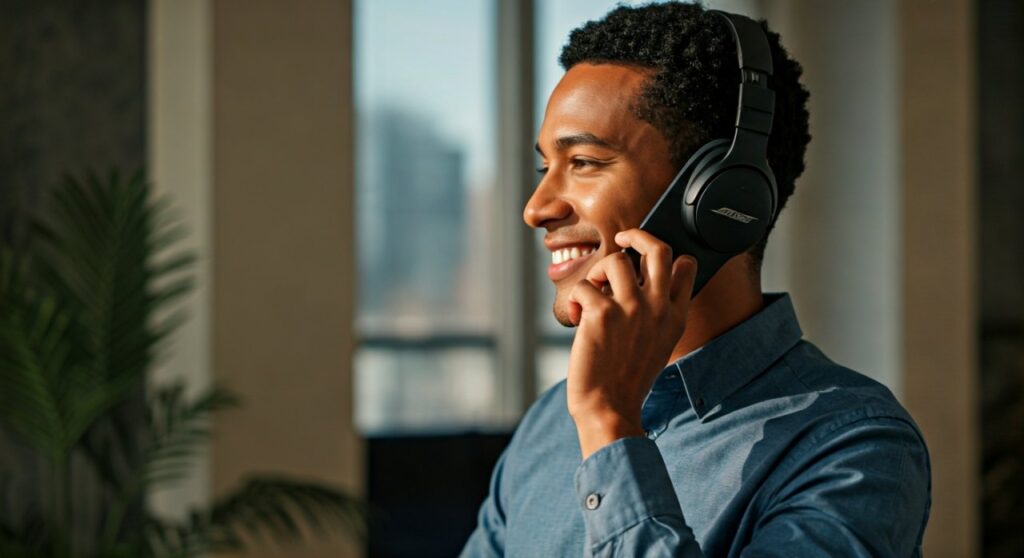
Whether you are walking through a busy city or sitting in a noisy office, Bose technology uses adaptive mic systems to ensure your voice remains clear. These headphones connect seamlessly via Bluetooth to both iOS and Android devices, allowing you to take calls, use voice assistants, and participate in video conferences with ease.
Key Takeaways: Bose for Phone Calls
If you are in a hurry, here are the essential facts about using your Bose headphones for communication:
- Integrated Microphones: Every current Bose wireless model has multiple microphones dedicated to voice pickup and noise rejection.
- Best Model for Calls: The Bose Noise Cancelling Headphones 700 and the QC Ultra offer the best call quality due to their advanced beamforming arrays.
- Multi-point Connection: Most Bose models allow you to stay connected to two devices at once (e.g., your laptop and phone), so you never miss a call.
- Self Voice (Sidetone): You can adjust how much of your own voice you hear during a call via the Bose Music App, preventing you from shouting.
- Device Compatibility: They work perfectly with iPhone, Android, Windows, and macOS for cellular calls, Zoom, Microsoft Teams, and WhatsApp.
Why Bose Microphones Excel in Phone Call Quality
When asking “can bose headphones be used for phone calls,” it is important to understand the technology that makes them stand out. Bose doesn’t just stick a microphone in the ear cup; they use a complex Digital Signal Processing (DSP) system.
Beamforming Technology
The Bose 700 and QC Ultra series use beamforming arrays. These microphones physically “focus” on your mouth while actively ignoring sounds coming from the sides or behind you. This is why a person on the other end of the line can hear you clearly even if there is a wind gust or a loud engine nearby.
Active Noise Cancellation (ANC) for the Caller
While ANC usually refers to what you hear, Bose uses similar logic to filter what the caller hears. The headphones distinguish between the frequency of a human voice and the frequency of ambient “clutter” (like an air conditioner or keyboard clicking), suppressing the latter.
Comparing Bose Models for Call Performance
Not all Bose headphones are created equal when it comes to call clarity. Depending on your environment, one model might serve you better than another.
| Model | Mic Count for Calls | Best Feature | Call Quality Rating |
|---|---|---|---|
| Bose QC Ultra | 12 total (sharing for ANC/Calls) | Best Wind Resistance | 9.5/10 |
| Bose 700 | 8 Microphones | Industry-leading voice isolation | 9.8/10 |
| Bose QC Headphones | 4 Microphones | Reliable and comfortable | 8.5/10 |
| Bose QC Earbuds II | 4 Microphones per bud | Great for on-the-go calls | 8.0/10 |
How to Use Bose Headphones for Calls: A Step-by-Step Guide
Using your Bose headphones for a call is straightforward, but optimizing the settings ensures the best experience for both parties.
Step 1: Pairing Your Device
- Turn on your headphones and put them in Pairing Mode (usually by sliding the power button or holding the Bluetooth button).
- Open Bluetooth Settings on your smartphone.
- Select your Bose model (e.g., “Bose QC Ultra”) from the list.
- Once “Connected,” your headphones are automatically set as the default audio input and output.
Step 2: Managing an Incoming Call
- Answer a Call: Tap the touch surface on the right earcup or press the Multi-function button once.
- Decline/End a Call: Press and hold the button or double-tap the touch surface.
- Mute Yourself: Most Bose models allow you to mute by pressing the Action button or through the Bose Music App interface.
Step 3: Adjusting Sidetone (Self Voice)
One of the most common complaints during calls is not being able to hear yourself, which causes you to talk too loudly.
- Open the Bose Music App.
- Tap on your connected headphones.
- Go to Settings > Self Voice.
- Adjust the slider to High, Medium, or Low so you can hear your own voice naturally through the speakers.
Using Bose Headphones with PC and Mac for Work Calls
In the era of remote work, knowing if can bose headphones be used for phone calls extends to Zoom, Slack, and Microsoft Teams.
On Windows 11/10
Ensure you select the correct “Profile” in your sound settings. For calls, you must select “Headset (Bose Hands-Free AG Audio)”. If you select “Headphone (Stereo),” the microphone will not activate, and you won’t be heard.
On macOS
Go to System Settings > Sound. Ensure both Input and Output are set to your Bose device. Bose headphones are highly compatible with Mac’s Bluetooth stack, making them a favorite for creative professionals.
Common Issues: Why is My Bose Mic Not Working?
Even though the answer to “can bose headphones be used for phone calls” is yes, you might occasionally encounter technical glitches.
- Firmware Updates: Always check the Bose Music App for updates. Bose frequently releases patches that improve microphone performance and Bluetooth stability.
- Bluetooth Interference: If your voice sounds robotic, you may be too far from your phone or near a strong Wi-Fi router. Stay within 30 feet for the best results.
- Wrong Input Selected: On laptops, the computer often defaults to the internal webcam mic. Manually switch the input to “Bose” in your meeting software (Zoom/Teams).
- Dirt in Mic Ports: The small holes on the outside of the earcups house the microphones. Use a soft, dry brush to ensure they aren’t clogged with dust or lint.
Expert Tips for the Best Call Experience
As someone who has used the Bose 700 for hundreds of hours of consulting calls, I recommend these professional “hacks”:
- Use Aware Mode: If you are in a quiet room, switch to Aware Mode (Transparency). It feels more natural than having full noise cancellation on while you speak.
- Single Earbud Use: If you use Bose QuietComfort Earbuds, you can use either the left or right bud independently for calls. This is great for long calls where you want to swap buds to save battery.
- Disable “Voice Assistants” During Critical Calls: Sometimes, accidentally triggering Alexa or Google Assistant can interrupt a call. You can toggle these off in the app.
- Multipoint Mastery: Use Multipoint to stay connected to your phone and laptop. If you are watching a video on your laptop and a call comes in on your phone, the Bose system will automatically switch audio sources.
Frequently Asked Questions (FAQs)
Can I use Bose headphones for phone calls on an iPhone?
Yes, Bose headphones are fully compatible with iOS. They work for standard cellular calls as well as FaceTime, iMessage audio, and third-party apps like Telegram.
Do Bose headphones work for calls when using the wire?
It depends on the cable. If you use a standard 3.5mm or 2.5mm audio cable without an in-line microphone, the headphones will usually disable their internal Bluetooth mics. For wired calls, it is best to use a dedicated Bose communications cable with a built-in mic.
Which Bose headphones have the best microphone?
The Bose Noise Cancelling Headphones 700 are widely regarded as having the best microphone system for calls, even slightly edging out the newer QC Ultra in extreme noise isolation tests.
How do I mute my mic on Bose headphones during a call?
On most newer models, you can mute the microphone by pressing the Voice Assistant/Action button once during an active call. You will hear a voice prompt saying “Mute on” or “Mute off.”
Can the person on the other end hear my background noise?
Bose’s noise-rejecting microphone system is designed to minimize background noise. While it may not eliminate 100% of sudden, sharp noises (like a dog barking nearby), it effectively removes constant drones like traffic or office hum.
**
**
**
**









