

Understanding Projector Casting
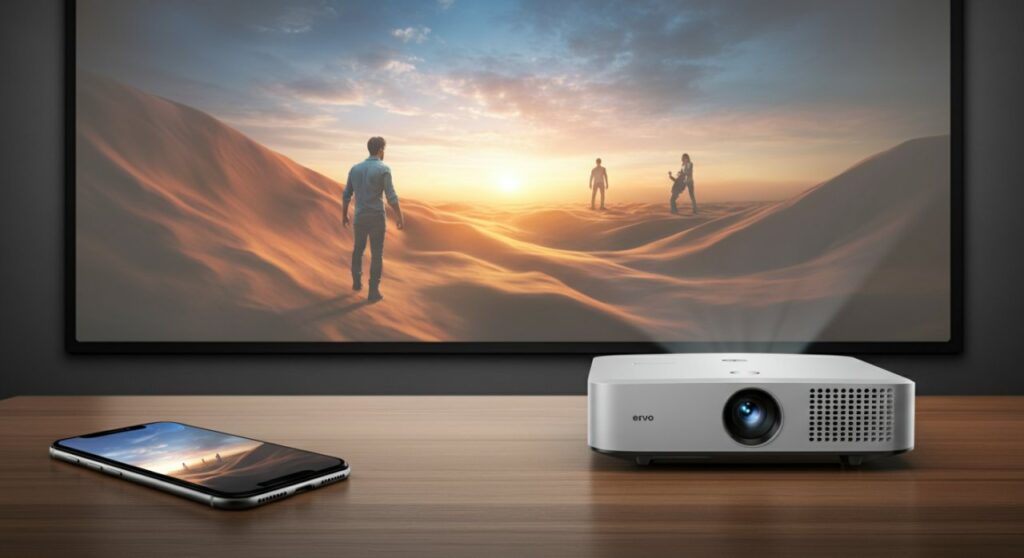
Yes, you absolutely can cast to a projector, transforming your living room or office into a cinema-sized display. Whether you use a smart projector with built-in Wi-Fi or a standard model connected to a streaming stick, the process is straightforward. Casting allows you to bypass messy HDMI cables and mirror your favorite apps like YouTube, Netflix, or Disney+ directly from your smartphone, tablet, or laptop.
TL;DR: Quick Comparison of Casting Methods
| Method | Equipment Needed | Best For | Ease of Use |
|---|---|---|---|
| Streaming Stick | Roku, Chromecast, Fire Stick | Most projectors | High |
| Built-in Casting | Smart Projector (Android TV/WebOS) | Modern units | Very High |
| Wireless Adapter | Miracast/AirPlay Dongle | Older projectors | Medium |
| Direct HDMI | Laptop/Tablet + Adapter | Wired stability | Low (Cable needed) |
How to Cast Using a Streaming Device
If your projector is not “smart,” the most reliable way to enable casting is by plugging a streaming device into its HDMI port. Devices like the Google Chromecast, Amazon Fire TV Stick, or Roku Streaming Stick act as a receiver for your wireless signals.
- Plug the streaming stick into an available HDMI port on your projector.
- Connect the device to power (usually via a USB port or wall outlet).
- Switch your projector’s input source to the corresponding HDMI channel.
- Follow the on-screen instructions to connect the device to your Wi-Fi network.
- On your phone or laptop, tap the Cast icon within your media app to select the device.
Utilizing Built-in Smart Features
Many newer LED and laser projectors come equipped with integrated Android TV or proprietary OS systems. These units often support Chromecast built-in or Apple AirPlay natively, meaning you don’t need any extra hardware.
- Ensure your projector and your streaming device (phone/PC) are on the same Wi-Fi network.
- Open the app you wish to stream from.
- Look for the Cast icon (a rectangle with signal waves) in the corner of the player.
- Select your projector’s name from the list of available devices.
- Wait a few seconds for the connection to handshake and begin playback.
Troubleshooting Common Casting Issues
Even with the best hardware, you might run into connectivity snags. In my experience testing various portable projectors, these small adjustments usually resolve 90% of issues.
- Network Mismatch: Always verify both devices are on the exact same 2.4GHz or 5GHz Wi-Fi network.
- Update Firmware: Check your projector’s settings menu for firmware updates to ensure compatibility with the latest casting protocols.
- Distance to Router: Wi-Fi signal strength drops significantly with walls and distance; keep your router relatively close to the projector.
- App Restrictions: Some streaming services (like specific banking apps or protected media) may block screen mirroring due to DRM (Digital Rights Management) policies.
Enhancing Your Wireless Experience
If you find that the video quality looks choppy or stuttery, you might be dealing with latency. This is common in high-resolution streaming.
- Use 5GHz Wi-Fi: If your router supports dual-band, prioritize the 5GHz band for a more stable, faster connection.
- Limit Background Apps: Close unnecessary apps on your phone or laptop to free up processing power for the casting stream.
- Check Resolution Settings: If the projector is struggling, try lowering the output resolution on your casting device from 4K to 1080p.
Frequently Asked Questions
Can I cast to a projector without Wi-Fi?
Yes, you can use a Miracast dongle that supports Wi-Fi Direct. This creates a peer-to-peer wireless connection directly between your phone and the projector without needing a home network.
Why is there a delay when I cast to my projector?
Wireless casting involves data compression and transmission, which naturally introduces slight input lag. This is usually fine for movies, but it may be noticeable if you are trying to play fast-paced video games.
Can I cast from an iPhone to any projector?
You can cast from an iPhone to a projector if the projector supports AirPlay or if you are using an Apple TV device connected to the projector’s HDMI port. Otherwise, you may need a third-party app like AirScreen.
Does casting drain my phone battery?
Yes, casting uses your device’s Wi-Fi radio and some processing power, which will drain your battery faster than normal playback. It is recommended to keep your device plugged into a power source during long movie sessions.









