

Can I Play Music on Two Bluetooth Headphones Simultaneously?
Yes, you can i play music on two bluetooth headphones at the same time, but the method depends entirely on your hardware and software. Modern solutions like Samsung Dual Audio, Apple Audio Sharing, and dedicated Bluetooth Transmitters make this process seamless without the need for messy wires.
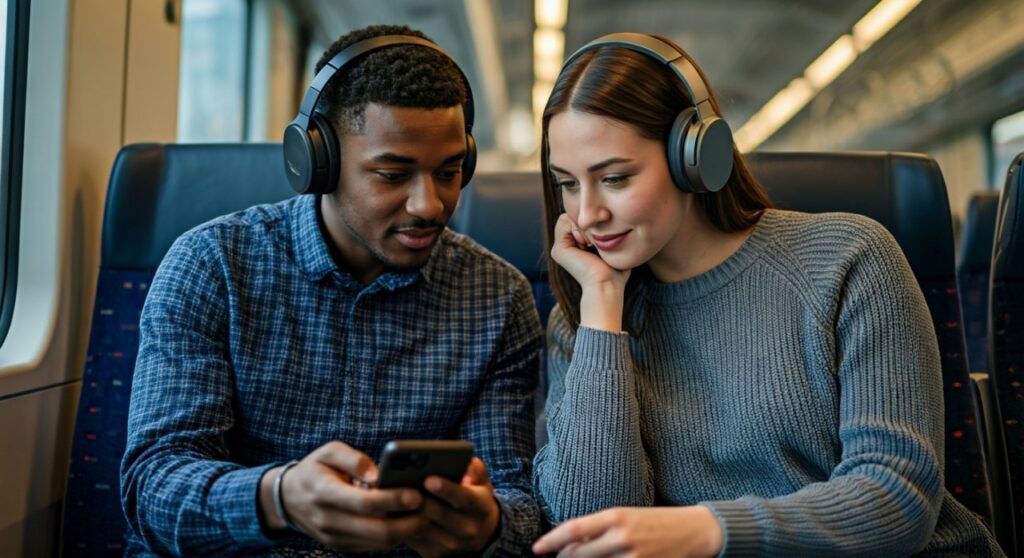
Sharing a private listening experience used to mean splitting a pair of wired earbuds, which was both uncomfortable and lowered the volume. Today, whether you are using an iPhone, a Samsung Galaxy, or a Windows PC, specialized protocols allow for dual-stream audio. This guide provides the exact steps to sync multiple headsets for movies, music, or podcasts.
Key Takeaways for Dual Bluetooth Audio
- Best for Apple Users: Audio Sharing works natively with AirPods and Beats headphones on iPhone, iPad, and Apple TV.
- Best for Android Users: Samsung’s Dual Audio feature is the gold standard, allowing any two Bluetooth headsets to connect.
- Universal Solution: A Bluetooth 5.0+ Transmitter with “Dual Link” capability works for any device with a 3.5mm or Optical jack.
- PC/Mac Fixes: You can use Audio MIDI Setup on Mac or Stereo Mix settings on Windows to route audio to two outputs.
- Future Tech: Auracast is the next-gen standard that will allow one device to broadcast to an unlimited number of nearby headphones.
How to Play Music on Two Bluetooth Headphones: Comparison of Methods
| Method | Compatible Devices | Required Hardware | Latency Level |
|---|---|---|---|
| Apple Audio Sharing | iPhone 8+, iPad Air 3+, Apple TV 4K | AirPods or Beats | Ultra-Low |
| Samsung Dual Audio | Galaxy S8 and newer | Any 2 Bluetooth Headphones | Low |
| Bluetooth Transmitter | Any TV, PC, or Phone | External Dual-Link Adapter | Low to Medium |
| Mac MIDI Setup | All MacBooks & iMacs | Any 2 Bluetooth Headphones | Low |
| Windows Stereo Mix | Most Windows 10/11 PCs | Any 2 Bluetooth Headphones | Medium (Sync issues) |
Can I Play Music on Two Bluetooth Headphones on iPhone?
Apple provides a built-in feature called Audio Sharing. It is specifically designed for users who want to watch a movie or listen to a track together using their own individual headsets.
Requirements for Apple Audio Sharing
To use this, both users must have compatible headphones. This includes all versions of AirPods, AirPods Pro, AirPods Max, and most modern Beats products (like Powerbeats Pro or Beats Solo Pro). Your source device must be an iPhone 8 or later, running at least iOS 13.1.
Step-by-Step Guide for iOS:
- Connect your first pair of AirPods to your iPhone and start playing audio.
- Open the Control Center by swiping down from the top-right corner.
- Tap the AirPlay icon (the triangle with circles) located in the music playback widget.
- Select Share Audio.
- Hold the second pair of headphones near your iPhone. If they are in a case, open the lid.
- When the second pair appears on the screen, tap Share Audio again.
- You can now adjust the volume for each person independently or sync them together.
Using Samsung Dual Audio for Android
If you own a Samsung Galaxy device (S8 or newer), you have the most flexible solution available. Unlike Apple, Samsung Dual Audio allows you to connect any two brands of Bluetooth headphones simultaneously, such as a pair of Sony WH-1000XM5 and Bose QuietComfort.
How to Enable Dual Audio on Samsung:
- Go to Settings and select Connections.
- Tap on Bluetooth and pair both sets of headphones individually to your phone.
- Once both are connected, swipe down from the top of the screen to open the Quick Settings panel.
- Tap on Media Output.
- Check the boxes next to both Bluetooth headphones listed under the output devices.
- You can now play music from Spotify or YouTube, and the sound will stream to both units.
Expert Tip: If you notice a slight delay between the two headphones, try using two identical models. Different brands often have varying internal processing speeds, which can cause a “hallway” echo effect.
Solutions for Other Android Devices
Not all Android phones have a native “Dual Audio” toggle like Samsung. If you use a Google Pixel, Motorola, or OnePlus, your options are more limited due to the standard Android Bluetooth stack.
Using Bluetooth 5.0 and Multipoint
Some high-end headphones support Multipoint Connection, but this usually means one pair of headphones connects to two sources (like a phone and a laptop). It rarely means one phone connects to two headphones.
Brand-Specific Apps
Brands like Ultimate Ears (UE) and JBL have apps that allow you to “Daisy Chain” speakers. However, this feature is rarely available for their headphone lineups. For non-Samsung Android users, the most reliable way to can i play music on two bluetooth headphones is to purchase a hardware Bluetooth Transmitter.
Connecting Two Bluetooth Headphones to a PC or Mac
Using two headsets on a computer is a common request for remote workers sharing a space or couples watching movies on a laptop.
On macOS (Audio MIDI Setup)
Macs have a hidden tool called Audio MIDI Setup that makes this incredibly easy.
- Pair both Bluetooth headphones to your Mac.
- Open Finder, go to Applications, then Utilities, and launch Audio MIDI Setup.
- Click the “+” button at the bottom-left and select Create Multi-Output Device.
- Check the boxes for both Bluetooth headphones in the list on the right.
- Right-click the “Multi-Output Device” and select Use This Device For Sound Output.
On Windows 10/11 (Stereo Mix)
Windows is slightly more difficult and may require third-party software like Voicemeeter if the following steps don’t work.
- Connect both headphones to your PC.
- Go to Sound Settings > More sound settings.
- Under the Recording tab, right-click Stereo Mix and select Enable. (If you don’t see it, right-click and check “Show Disabled Devices”).
- Right-click Stereo Mix again, go to Properties, and click the Listen tab.
- Check Listen to this device and select your second pair of headphones from the dropdown menu.
- Set your primary headphones as the default playback device in the Playback tab.
Hardware Solutions: Bluetooth Transmitters
If your device doesn’t support dual audio natively (like a TV or an older smartphone), a Bluetooth Transmitter is the best investment. Look for devices labeled with “Dual Link” or “Multi-Point Transmitter”.
Why use a transmitter?
- No Software Hassle: It handles the pairing and splitting at the hardware level.
- Compatibility: Works with any device that has a headphone jack or USB port.
- Better Range: Many external transmitters have antennas that provide up to 100 feet of range.
- Codec Support: Look for aptX Low Latency to ensure the audio stays perfectly in sync with the video on your TV.
Brands like Avantree, 1Mii, and Taotronics dominate this space. My personal favorite is the Avantree Orbit, which even has an LCD screen to show you exactly which two headphones are connected.
The Future of Shared Listening: Bluetooth LE Audio & Auracast
The “can i play music on two bluetooth headphones” dilemma is soon becoming a thing of the past thanks to Bluetooth LE (Low Energy) Audio.
The standout feature of LE Audio is Auracast. This allows a single source—like a smartphone, a TV in a gym, or an airport terminal—to broadcast an encrypted or open audio stream to an unlimited number of receivers. Unlike current methods that struggle with two devices, Auracast is built for mass sharing. As more headphones with Bluetooth 5.3 and above hit the market, this will become the standard way we share audio.
Troubleshooting Common Issues
Audio Latency (Lag)
When streaming to two devices, the processor has to work twice as hard. If the audio is out of sync with the video, ensure both headphones support the same codec (like AAC or aptX).
Volume Imbalance
On Samsung and Apple, you can control volumes independently. On Windows “Stereo Mix,” you may find one is much louder. You will need to use the physical volume buttons on the headphones themselves to balance the sound.
Connection Drops
Bluetooth operates on the crowded 2.4GHz frequency. If you experience stutters, move away from Wi-Fi routers or microwaves. Keeping the phone within 3-5 feet of both listeners is ideal for dual-streaming.
FAQs About Playing Music on Two Bluetooth Headphones
Can I connect two Bluetooth headphones to a Smart TV?
Most modern LG and Samsung Smart TVs have a “Multi-output” or “Dual Audio” setting in the sound menu. If yours doesn’t, you must use a Bluetooth transmitter plugged into the TV’s optical or 3.5mm port.
Does Spotify have a “Dual Audio” feature?
Spotify has a feature called “Group Session” or “Jam”, but this allows multiple people to control a playlist from their own phones/accounts. It does not natively split one phone’s audio to two Bluetooth headsets; that is still handled by your phone’s operating system.
Will using two headphones drain my battery faster?
Yes. Encoding two separate audio streams requires more CPU power and radio frequency energy. Expect your phone’s battery to drain about 15-20% faster when using dual audio modes.
Can I use one Bluetooth headphone and the phone speaker at the same time?
On Samsung devices, you can use “Separate App Sound” to play one app (like Spotify) on headphones and another (like YouTube) on the speaker. Generally, most phones will mute the speaker once a Bluetooth device is connected.
Is there an app to play music on two Bluetooth headphones?
For most Android users, apps like AmpMe allow you to sync multiple phones together to play the same music, but there isn’t a reliable app that forces a standard Android phone to output to two Bluetooth devices simultaneously without hardware support.









