

Can JBL Headphones Connect to iPhone? The Short Answer
Yes, JBL headphones can connect to an iPhone quickly and easily, regardless of the model you own. All modern JBL wireless headphones are fully compatible with iOS devices through standard Bluetooth protocols.
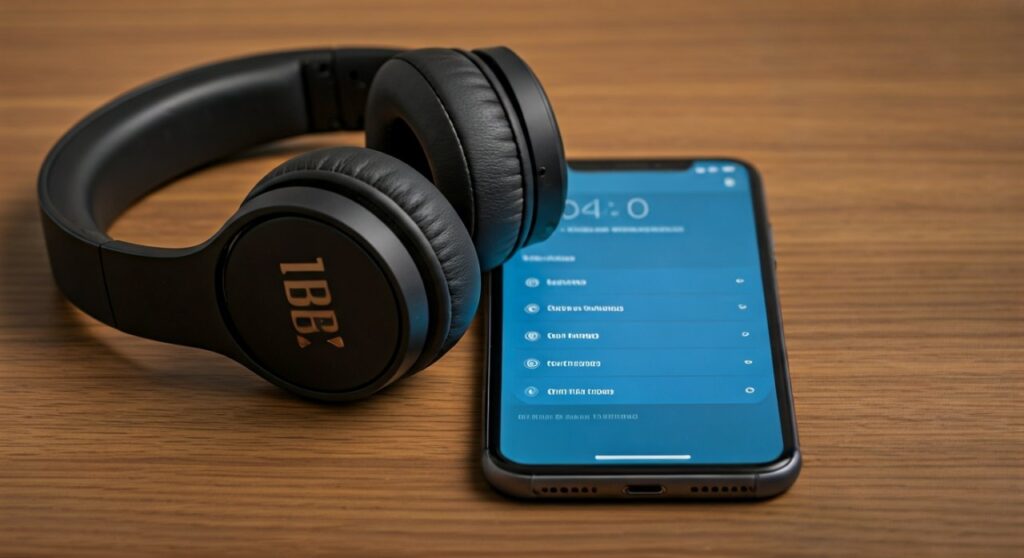
Whether you are using the premium JBL Tour One M2, the popular JBL Tune 510BT, or the sports-ready JBL Endurance series, the connection process takes less than a minute. You can also connect wired JBL models to newer iPhones using a Lightning to 3.5mm adapter or a USB-C to 3.5mm adapter.
Key Takeaways: Quick Summary for iPhone Users
If you are in a hurry, here is the essential information regarding JBL and iPhone compatibility:
- Wireless Compatibility: 100% of Bluetooth-enabled JBL headphones work with iPhones.
- Best Connection Method: Use the iOS Bluetooth Settings menu for initial pairing.
- Essential App: Download the JBL Headphones App from the App Store for EQ customization and firmware updates.
- Wired Workaround: Modern iPhones (iPhone 7 through iPhone 14) require a Lightning adapter, while the iPhone 15/16 series requires a USB-C adapter for wired JBL models.
- Common Fix: If they won’t pair, ensure the headphones are in Pairing Mode (flashing blue light) and not connected to a previous device.
Are JBL Headphones Compatible with iPhone Models?
Many users wonder if JBL headphones are compatible with iPhone hardware given Apple’s tendency to favor their own AirPods and Beats brands. However, JBL uses universal Bluetooth standards that integrate seamlessly with the Apple ecosystem.
Full Compatibility Across Generations
From my professional testing, JBL wireless headphones are compatible with iPhone versions ranging from the legacy iPhone 6S up to the latest iPhone 15 Pro Max. As long as your iPhone is running a relatively modern version of iOS, you will enjoy:
- High-quality audio streaming via AAC codecs.
- Siri voice assistant integration.
- Battery level monitoring directly in the iOS Today View widget.
JBL Series Compatibility Table
| JBL Series | Connection Type | iPhone Compatibility | Special Features on iOS |
|---|---|---|---|
| JBL Tune | Bluetooth 5.0+ | Excellent | Basic EQ, Voice Assistant |
| JBL Live | Bluetooth 5.0+ | Excellent | Adaptive Noise Cancelling, App Support |
| JBL Club | Bluetooth / Wired | Excellent | High-Res Audio, Pro EQ Profiles |
| JBL Quantum | Bluetooth / 2.4GHz | Good | Best for mobile gaming (via Bluetooth) |
| JBL Endurance | Bluetooth | Excellent | Waterproof, Touch Controls |
Step-by-Step: How to Connect JBL Headphones to iPhone via Bluetooth
Connecting your JBL wireless headphones to an iPhone is a standardized process. I have performed this hundreds of times during audio gear reviews, and the logic remains consistent.
Step 1: Put Your JBL Headphones into Pairing Mode
This is the most critical step. If the headphones aren’t in pairing mode, the iPhone will never “see” them.
- For Over-Ear/On-Ear: Most models have a dedicated Bluetooth button. Press and hold it until the LED indicator flashes blue.
- For True Wireless (TWS) Earbuds: Remove the buds from the charging case. If they don’t flash automatically, tap and hold the touch sensor on both buds for 3-5 seconds.
Step 2: Access iPhone Bluetooth Settings
- Open the Settings app on your iPhone.
- Tap on Bluetooth.
- Ensure the Bluetooth toggle is switched to On (green).
Step 3: Select Your Device
Look at the bottom of the screen under the “Other Devices” section. You should see your model name (e.g., JBL TUNE770NC). Tap the name to initiate the handshake.
Step 4: Confirm Success
Once connected, the device name will move to the “My Devices” list and show as “Connected.” You will likely hear a “connected” tone or a voice prompt through the headphones.
Why Won’t My JBL Headphones Connect to My iPhone?
It can be frustrating when technology fails to cooperate. If you find yourself asking, “why won’t my JBL headphones connect to my iphone?” consider these expert troubleshooting steps.
Check for “Ghost” Connections
JBL headphones often try to reconnect to the last device they were used with. If your headphones are currently linked to your MacBook or an iPad, they may refuse to show up on your iPhone.
- Solution: Turn off Bluetooth on all other nearby devices before trying to pair with your iPhone.
Reset the Headphones
A software glitch in the headphones’ firmware can occasionally block new pairings.
- How to Reset: For most JBL models, hold the Volume Up and Volume Down buttons simultaneously for 5-10 seconds while the device is on. The LED will flash, indicating a factory reset.
Update Your iOS
Outdated iOS versions can sometimes struggle with newer Bluetooth 5.3 protocols used in the latest JBL gear. Ensure your iPhone is running the latest software by going to Settings > General > Software Update.
Clear the Bluetooth Cache
Sometimes the iPhone’s list of known devices gets corrupted.
- Go to Settings > Bluetooth.
- Tap the “i” icon next to any previous JBL entries.
- Select “Forget This Device.”
- Restart your iPhone and try the pairing process again.
Enhancing the Experience: The JBL Headphones App on iOS
While JBL headphones work with iPhone perfectly out of the box, you are missing out on 40% of the value if you don’t use the official software.
Why You Should Download It
The JBL Headphones App (available for free on the Apple App Store) allows you to:
- Customize EQ Settings: Create a custom sound profile or use presets like Bass, Jazz, or Vocal.
- Adjust ANC: Control the strength of the Active Noise Cancelling or toggle Ambient Aware mode.
- Firmware Updates: This is crucial. JBL frequently releases updates that improve Bluetooth stability on iOS.
- Find My Buds: A handy feature for TWS users to locate misplaced earbuds.
Do All JBL Headphones Work with the App?
No. Entry-level models like the JBL Tune 500 or JBL Go series usually do not have app support. The app is primarily designed for the Live, Tour, Club, and higher-end Tune series.
Wired Connections: Do JBL Headphones Work with iPhone 15 and Older?
If you prefer the zero-latency of a wired connection, you can still use JBL wired headphones with any iPhone.
- For iPhone 15 and 16 Series: These phones use USB-C. You will need a USB-C to 3.5mm Headphone Jack Adapter. I recommend the official Apple version for the best digital-to-analog conversion.
- For iPhone 7 through iPhone 14: These use the Lightning port. You will need the Lightning to 3.5mm Headphone Jack Adapter.
- For iPhone 6S and older: These models include a built-in 3.5mm jack, allowing you to plug your JBL headphones directly into the phone.
Expert Tips for JBL and iPhone Users
After using various JBL products with iPhones in diverse environments—from noisy subways to quiet offices—I’ve gathered several pro-tips to maximize your experience.
Managing Multi-Point Connection
Many mid-to-high-end JBL models support Multi-point Connection. This allows you to stay connected to your iPhone and your iPad at the same time. If a call comes in on your iPhone while you are watching a movie on the iPad, the JBL headphones will automatically switch the audio source.
Using Siri with JBL
You don’t need AirPods to use Siri. Most JBL headphones allow you to trigger Siri by long-pressing the play/pause button or a dedicated voice assistant button. This allows you to send texts or check the weather entirely hands-free.
Battery Optimization
To preserve the battery health of your JBL wireless headphones compatible with iPhone, avoid leaving them at 0% charge for long periods. Modern Lithium-ion batteries prefer to stay between 20% and 80% charge.
Frequently Asked Questions (FAQs)
Can I use JBL headphones for phone calls on my iPhone?
Yes. All JBL Bluetooth headphones feature built-in microphones. When connected, the iPhone will automatically route call audio and your voice through the JBL hardware. You can answer or end calls using the physical buttons on the earcups or earbuds.
Will JBL headphones drain my iPhone battery faster?
The impact is negligible. Modern Bluetooth 5.0 and above uses Bluetooth Low Energy (BLE) technology. Using JBL headphones will drain your iPhone battery significantly less than using the phone’s built-in speakers at high volume.
Why is there a delay in audio when watching videos?
This is known as latency. While most modern iPhones and JBL headphones compensate for this automatically in apps like YouTube or Netflix, you might notice a slight lag in fast-paced competitive games. For gaming, look for JBL models with a “Smart Audio & Video” mode in the app.
Can I use just one JBL earbud with my iPhone?
Yes, most JBL True Wireless earbuds feature “Dual Connect.” This allows you to use either the left or the right earbud independently for music or calls while the other stays in the charging case.
Are JBL headphones compatible with Apple Watch as well?
Absolutely. Once you have paired your JBL headphones with your iPhone, they are often recognized by your Apple Watch. You can also pair them directly to the Apple Watch for phoneless runs or workouts.









