

Can You Connect Headphones to TV?
Yes, you can connect headphones to a TV using several methods, including Bluetooth pairing, wired 3.5mm connections, or external wireless transmitters. Whether you own a brand-new Samsung Smart TV or an older analog model, there is a technical solution to enjoy private, high-quality audio without disturbing others.
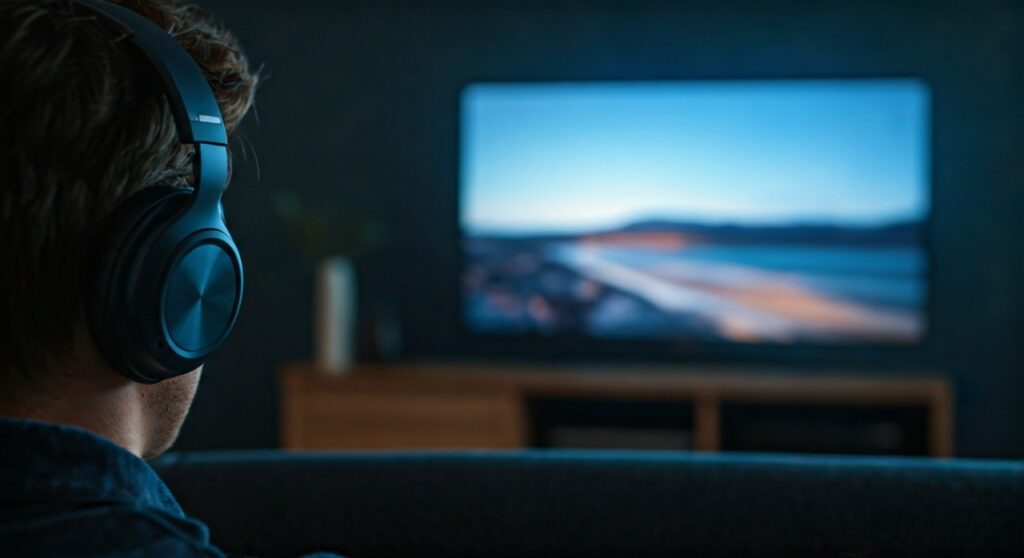
Most modern Smart TVs (post-2018) feature built-in Bluetooth support, while older units require a Bluetooth transmitter or a Digital-to-Analog Converter (DAC). This guide provides a step-by-step breakdown of every possible connection method for any TV brand.
Key Takeaways: Quick Summary of Connection Methods
If you are in a hurry, here is a comparison of the most effective ways to connect headphones to your TV:
| Method | Best For | Audio Latency | Setup Difficulty |
|---|---|---|---|
| Built-in Bluetooth | Smart TVs (Samsung, LG, Sony) | Low to Medium | Very Easy |
| 3.5mm Audio Jack | Older TVs / Zero Latency | None | Plug-and-Play |
| Bluetooth Transmitter | TVs without Bluetooth | Variable | Moderate |
| Streaming Device App | Roku, Fire TV, Apple TV | Low | Easy |
| RF Headphones | Seniors / Long Range | None | Moderate |
How to Connect Bluetooth Headphones to TV (Smart TVs)
Most modern users want to know how to connect bluetooth headphones to tv because it offers the most freedom. Modern Smart TVs from brands like Samsung, LG, and Sony have built-in Bluetooth modules specifically for audio output.
How to Pair Bluetooth Headphones with TV
- Enter Pairing Mode: Put your headphones (e.g., Sony WH-1000XM5 or AirPods Pro) into pairing mode. Usually, this involves holding the power button until a light flashes.
- Navigate to TV Settings: Use your remote to go to the Settings menu.
- Locate Sound Output: Look for “Sound,” then “Sound Output,” or “Audio Out.”
- Select Bluetooth Speaker List: Choose the option for “Bluetooth Speaker List” or “Bluetooth Audio Device.”
- Pair and Connect: Your TV will scan for nearby devices. Select your headphones from the list to finalize the link.
How to Connect Bluetooth Headphones to Samsung TV
Samsung uses a specific interface called Smart Hub. To connect bluetooth headphones to samsung tv, follow this specific path:
- Go to Settings > Sound > Sound Output.
- Select Bluetooth Speaker List.
- Pick your headphones and select Pair and Connect.
How to Connect Bluetooth Headphones to LG TV
For LG TVs running webOS:
- Open Settings > All Settings > Sound.
- Select Sound Out and then choose Bluetooth Device.
- Click the Selection Icon to search for your headphones.
How to Connect Wireless Headphones to TV Without Bluetooth
Many people ask, “can you connect headphones to a tv if it doesn’t have Bluetooth?” The answer is a resounding yes. You can use a Bluetooth Transmitter that plugs into the TV’s 3.5mm Headphone Jack, RCA (Red and White), or Optical (Toslink) ports.
Using a Bluetooth Transmitter
A Bluetooth Transmitter like the Avantree Oasis Plus acts as a bridge. It takes the audio signal from your TV and broadcasts it via Bluetooth.
- Plug the transmitter into the TV’s Audio Out port.
- Power the transmitter via a USB port on the TV.
- Pair your headphones directly to the transmitter instead of the TV.
Dedicated RF (Radio Frequency) Headphones
If you want the best range and zero lag, RF headphones (like the Sennheiser RS 175) are superior. These come with a base station that plugs into the TV. They offer better wall penetration than Bluetooth and are ideal for large living rooms.
How to Plug Headphones into TV (Wired Method)
Sometimes the simplest solution is the best. If you want to know how to plug headphones into tv for a zero-latency gaming or movie experience, check the back or side of your television.
Direct 3.5mm Connection
Look for a port labeled “H/P” or a small icon of headphones.
- Simply plug your 3.5mm cable into this jack.
- Most TVs will automatically mute the internal speakers when a jack is detected.
- If your cable is too short, you can buy a 3.5mm Extension Cable for under $10.
Using RCA-to-3.5mm Adapters
If your TV only has red and white RCA ports, you can still hook headphones to tv.
- Purchase an RCA to 3.5mm Female Adapter.
- Plug the RCA ends into the TV’s “Audio Out” and your headphones into the 3.5mm end.
- Expert Tip: Ensure the RCA ports are labeled “Out” and not “In,” as “In” ports will not send audio to your headphones.
How to Use Bluetooth Headphones with TV via Streaming Devices
If your TV’s native Bluetooth is laggy or non-existent, your streaming box can solve the problem. This is often the most reliable way to connect headphones to tv wireless.
Roku Private Listening
Roku has a brilliant feature called Private Listening.
- Download the Roku App on your smartphone.
- Connect your headphones to your smartphone (wired or Bluetooth).
- Tap the Headphones Icon in the Roku App. Audio will now stream through your phone to your headphones while the video plays on the TV.
Apple TV and Fire TV
- Apple TV: Hold the Home button on the Siri Remote and select the AirPlay icon to choose your AirPods or Beats.
- Fire Stick: Go to Settings > Controllers & Bluetooth Devices > Other Bluetooth Devices to add your headphones.
Troubleshooting Common Issues
Even when you know how do you connect headphones to a tv, you might encounter technical glitches.
Fixing Audio Sync (Latency)
Bluetooth can sometimes have a delay where the sound doesn’t match the lips on the screen. To fix this:
- Use headphones with aptX Low Latency support.
- Check TV settings for “Audio Delay” or “A/V Sync” and adjust the slider.
- Switch to a wired connection if gaming competitively.
No Sound After Connecting
If you successfully hook up headphones to samsung tv but hear nothing:
- Ensure the TV volume is turned up (sometimes headphone volume is independent).
- Change the Digital Output Audio Format in settings from “Bitstream” or “Dolby Digital” to “PCM”. Many headphones cannot decode surround sound signals.
Expert Perspective: Which Connection Is Best for You?
In my experience testing dozens of home theater setups, the “best” way to connect headphones to a tv depends on your specific use case:
- For Seniors: Dedicated RF Headphones are best. They have a “cradle” for charging and don’t require navigating complex Bluetooth menus.
- For Gamers: A wired connection or a 2.4GHz wireless headset (like the SteelSeries Arctis) is mandatory to avoid the 100ms-200ms lag inherent in standard Bluetooth.
- For Movie Lovers: Using a Bluetooth 5.0 or higher transmitter with aptX HD ensures high-fidelity sound that rivals wired quality.
Frequently Asked Questions (FAQs)
Can I connect multiple headphones to one TV?
Most TVs only support one Bluetooth connection at a time. To connect two pairs, you need a Dual-Link Bluetooth Transmitter (like those from 1Mii or Avantree) which can broadcast to two devices simultaneously.
Why won’t my Bluetooth headphones connect to my Samsung TV?
This is often due to the headphones being paired with another nearby device, like your phone. Turn off Bluetooth on your phone, reset your headphones, and try the Samsung Bluetooth Speaker List menu again.
Does every Smart TV have Bluetooth?
No. While most high-end models do, many budget TVs (especially older Vizio or Insignia models) do not. Always check your manual or the “Sound Output” settings to confirm.
Can I use my AirPods with my TV?
Yes, AirPods work like any other Bluetooth headphones. Put them in the case, hold the back button until the light flashes white, and then find them in your TV’s Bluetooth settings.
How do I connect headphones to a TV without a headphone jack?
You must use a Digital-to-Analog Converter (DAC). This device plugs into the TV’s Optical (Toslink) port and converts the signal into a 3.5mm jack or RCA output for your headphones.
**
**
**
**









