

Yes, you can customize Beats headphones through several methods ranging from simple aesthetic additions like vinyl skins and replacement ear pads to professional bespoke paint jobs and laser engraving. While Apple offers limited official customization (mostly engraving on specific models), the third-party ecosystem provides limitless ways to make your Beats Studio Pro, Solo 4, or Fit Pro unique.
Key Takeaways: How to Customize Your Beats
If you are looking for a quick answer, here is the breakdown of your customization options:
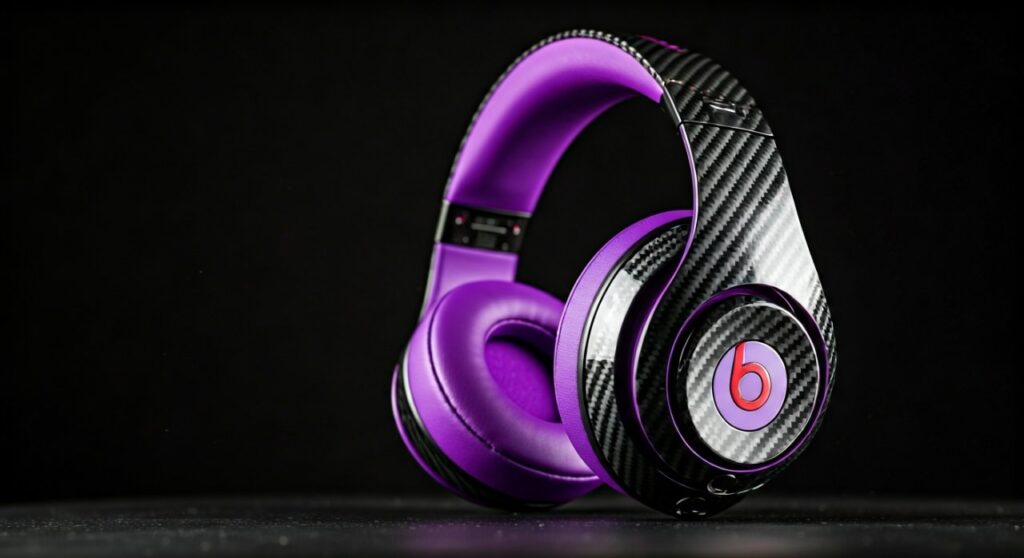
- Best for Beginners: High-quality vinyl skins (like 3M wraps) offer a non-permanent way to change colors and patterns.
- Best for Comfort: Swapping factory cushions for Wicked Cushions or Dekoni Audio pads improves both look and feel.
- Most Premium: Professional services like ColorWare provide factory-quality custom paint finishes.
- DIY Option: Advanced users can use hydro-dipping or spray painting, though this voids the manufacturer warranty.
- Official Way: Personalize with Apple’s free engraving service only when purchasing new through the official Apple Store.
| Customization Method | Cost Est. | Difficulty | Reversible? | Durability |
|---|---|---|---|---|
| Vinyl Skins | $20 – $35 | Easy | Yes | Medium |
| Custom Ear Pads | $20 – $50 | Easy | Yes | High |
| Professional Painting | $150 – $300 | Hard (Service) | No | Very High |
| Hard Shell Cases | $15 – $30 | Very Easy | Yes | High |
| DIY Painting | $40 – $60 | Very Hard | No | Variable |
Can You Customize Beats Headphones Officially Through Apple?
When you buy a brand-new pair of Beats, your first opportunity to customize comes directly from the source. Apple (which owns the Beats by Dre brand) offers a free engraving service for specific models like the Beats Fit Pro and Beats Studio Buds.
You can add a mix of emojis, names, or initials to the charging case. However, this is limited to the charging cases of true wireless earbuds, not the ear cups of the Beats Studio Pro or Solo 4 headphones.
Limited Edition Collaborations
Another way to “officially” customize is by purchasing limited-run collaborations. Over the years, Beats has partnered with icons like Fragment Design, Kim Kardashian, and Stüssy. These designs offer unique textures and colorways that aren’t available through standard retail channels.
Using Vinyl Skins for an Instant Makeover
If you want to change the color of your Beats Studio or Solo without the risk of permanent damage, vinyl skins are the gold standard. I have found that high-quality skins from brands like Slickwraps, DecalGirl, or Mightyskins use 3M vinyl, which ensures no sticky residue is left behind.
Step-by-Step: Applying a Skin to Your Beats
- Surface Prep: Use an isopropyl alcohol wipe to remove oils and fingerprints from the plastic surface.
- Alignment: Start with the smallest pieces (like the “b” logo) to get a feel for the material.
- Heat Application: Use a hairdryer on a low setting to warm the vinyl. This makes it pliable enough to curve around the rounded edges of the ear cups.
- Smooth Out Bubbles: Use a credit card or a soft cloth to push air bubbles toward the edges.
Upgrading Comfort and Style with Custom Ear Pads
One of the most effective ways to customize Beats headphones is by replacing the ear cushions. The stock pads on Beats Solo and Studio models are notorious for peeling after 1-2 years of heavy use.
Why Custom Pads?
Expert users often switch to brands like Wicked Cushions. Not only do they offer “funky” patterns (like floral, camo, or galaxy), but they are often thicker and use cooling gel technology.
Pro Tip: If you have the Beats Studio Pro, look for “Extra Thick” replacement pads. They increase the distance between your ear and the driver, which can actually improve the soundstage and prevent your ears from touching the inner mesh.
How to Replace Beats Ear Pads
- Removal: Carefully use a plastic pry tool to separate the old adhesive from the headphone frame.
- Cleaning: Use a dull knife or tweezers to scrape off every bit of the old 3M tape. The new pads won’t stick if the surface isn’t perfectly smooth.
- Attachment: Most custom pads come with pre-applied adhesive. Line up the holes with the plastic pins on the headphones and press firmly for 30 seconds.
Professional Painting Services: The ColorWare Experience
For those who want a “factory-fresh” look in a color that Beats doesn’t manufacture (like Chrome, Neon Green, or Pearl White), ColorWare is the industry leader.
I have seen their work firsthand, and the finish is often superior to the original plastic. They completely disassemble the headphones, paint each component individually, and then reassemble them.
- Pros: Incredible finish, durable automotive-grade paint, retains full functionality.
- Cons: Very expensive (often doubling the price of the headphones), long wait times for shipping.
DIY: Can You Paint Your Own Beats?
Yes, you can paint them yourself, but it requires extreme patience. Beats headphones are made of high-quality polycarbonate, which requires specific preparation to ensure the paint doesn’t flake off.
Materials Needed
- Fine-grit sandpaper (400 to 1000 grit)
- Plastic-adhesion promoter (like Krylon or Rust-Oleum)
- Automotive-grade spray paint
- High-quality masking tape (Tamiya tape is preferred for clean lines)
The DIY Process
- Masking (The Most Important Step): You must mask off the Active Noise Cancelling (ANC) microphones, the USB-C port, and the “b” buttons. If paint gets into the ANC mics, your noise cancellation will be ruined.
- Sanding: Lightly sand the surface to remove the glossy finish. This creates “teeth” for the paint to grip.
- Priming: Apply two light coats of primer.
- Painting: Apply multiple thin layers of color. Never try to cover it in one coat, or you will get “runs.”
- Clear Coat: Finish with a matte or glossy clear coat to protect the paint from sweat and skin oils.
Customizing the Internal Features (The Tech Side)
Customization isn’t just about how the headphones look; it’s also about how they function. You can customize your Beats experience through the Beats App (Android) or iOS Settings.
Software Customization Options:
- Rename Your Beats: Go to Bluetooth settings to give your headphones a custom name that appears on everyone’s screen.
- Button Customization: On models like the Beats Fit Pro, you can change what a “long press” does (e.g., toggle between ANC and Transparency, or trigger Siri/Google Assistant).
- Find My Integration: Ensure your custom pair is linked to your Apple ID for tracking.
Frequently Asked Questions
Does customizing my Beats void the warranty?
Yes, any permanent physical modification like painting or disassembling will void the Apple Limited Warranty. However, applying removable vinyl skins or replacing ear pads typically does not void the warranty, as these are considered non-permanent or consumable parts.
Can I get my Beats engraved after I buy them?
Unfortunately, no. Apple only offers the engraving service at the time of purchase through their online store. If you already own them, you would need to use a local laser engraving shop, but be careful as the heat from the laser can damage the plastic or internal electronics.
Where can I buy “Bespoke” Beats?
You can find artists on platforms like Etsy or specialized sites like ColorWare and Earskinz. Always check reviews to ensure the artist uses high-quality finishes that won’t rub off on your skin.
What is the easiest way to customize Beats Studio Buds?
The easiest way is to buy a silicone protective case. These come in thousands of designs, from classic leather to Nintendo-themed cases, and they protect the original charging case from scratches.
Can I change the LED light color on my Beats?
No, the LED indicators are hard-coded into the hardware. There is no software setting to change the charging light or pairing light colors.









