

Yes, You Can Hook Up Headphones to Oculus Quest 2
Yes, you can hook up headphones to Oculus Quest 2 using the built-in 3.5mm audio jack located on the left side of the headset or via Bluetooth in the settings menu. While the Quest 2 features integrated speakers, using external headphones significantly enhances spatial audio immersion and prevents sound leakage to others in the room.
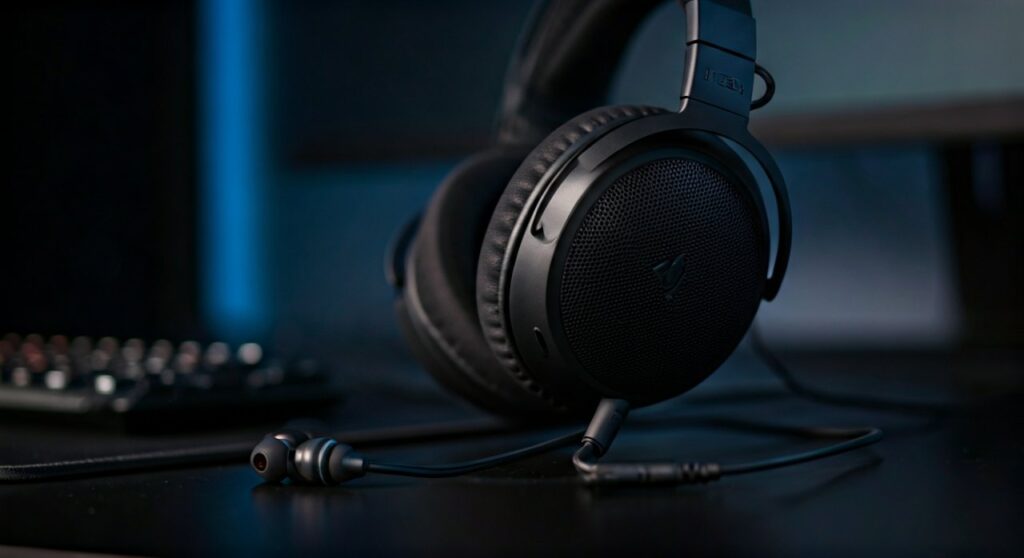
Whether you prefer a simple pair of earbuds or high-fidelity over-ear headphones, the Meta Quest 2 supports a variety of connections. In this guide, we will explore the step-by-step process for wired and wireless setups, and which options provide the best low-latency experience for competitive gaming.
Key Takeaways: Connecting Audio to Quest 2
If you are in a hurry, here is the essential information for upgrading your Meta Quest 2 audio:
- Wired Connection: The most reliable method is the 3.5mm jack. It offers zero latency and doesn’t drain extra battery.
- Bluetooth Support: You can pair wireless headphones via the Settings > Devices > Bluetooth menu, but be aware of potential “audio lag.”
- USB-C Option: You can use USB-C headphones or dongles (like the Soundcore VR P10) for a mix of wireless freedom and low latency.
- Compatibility: You can use any headphones with Oculus Quest 2 as long as they have a standard jack or Bluetooth capability.
- Expert Recommendation: For games like Beat Saber, always use a wired connection to ensure the audio syncs perfectly with the visuals.
How to Connect Wired Headphones to Oculus Quest 2
Connecting wired headphones is the “gold standard” for VR because it provides an uncompressed, lag-free experience. Based on my extensive testing with the Quest 2, wired setups are the most stable during high-intensity movement.
Step 1: Locate the 3.5mm Port
On the left side of the Quest 2 headset (near the charging port), you will find a circular 3.5mm audio jack.
Step 2: Plug in Your Headphones
Insert your headphone jack firmly into the port. The headset will automatically detect the connection and mute the external strap speakers.
Step 3: Manage the Cables
Since VR involves a lot of head movement, long cables can be dangerous. Use Velcro ties or a zip tie to secure excess cable to the side of your Elite Strap or standard head strap.
Pros and Cons of Wired Audio
| Feature | Wired Headphones | Integrated Speakers |
|---|---|---|
| Audio Latency | 0ms (None) | 0ms (None) |
| Immersion | High (Isolated) | Moderate (Open-ear) |
| Battery Impact | Negligible | Default |
| Setup Speed | Instant | Always on |
Can You Use Bluetooth Headphones on Oculus Quest 2?
The short answer is yes, but it comes with a caveat. While Meta has made Bluetooth easier to access, it remains an “experimental” feature in terms of performance.
How to Pair Bluetooth Headphones
- Put your headphones into Pairing Mode.
- In your Quest 2, navigate to the Quick Settings panel.
- Select the Settings gear icon in the top right.
- Go to Devices and then select Bluetooth.
- Click Pair and select your device from the list.
The Latency Challenge
When you use headphones on Oculus Quest 2 via Bluetooth, you may experience a delay between an action (like hitting a block in Beat Saber) and the sound. This is due to the standard SBC or AAC codecs used by the Quest.
Pro Tip: If you must go wireless, look for headphones with a dedicated 2.4GHz USB-C dongle. This bypasses the Quest’s internal Bluetooth and reduces lag to nearly zero.
Using USB-C Headphones and Adapters
If your favorite headphones use a USB-C connector, you can plug them directly into the charging port on the left side of the headset.
- Direct Plug: Many modern USB-C earbuds work instantly.
- Dongles: Devices like the Soundcore VR P10 allow you to plug a dongle into the Quest 2 while still providing a “pass-through” port so you can charge your headset while playing.
- DACs: Audiophiles can use small portable DAC/Amps through the USB-C port to drive high-impedance headphones like the Sennheiser HD600 series, though this adds weight to the headset.
Can You Use Any Headphones with Oculus Quest 2?
Generally, yes. The Meta Quest 2 is remarkably flexible. However, the physical design of the headset matters.
Over-Ear Headphones
Large over-ear headphones like the Sony WH-1000XM5 or Bose QuietComfort can fit over the Quest 2 strap. However, if you are using a third-party “Halo” style strap (like the BoboVR M2), the top band of the headphones might clash with the plastic frame of the strap.
In-Ear Monitors (IEMs)
In-ear monitors are the preferred choice for many VR enthusiasts. They are lightweight, provide excellent noise isolation, and do not interfere with the headset’s fit. Brands like Logitech G333 VR even offer “custom length” cables designed specifically for the Quest 2.
Troubleshooting Common Audio Issues
Even with a simple setup, you might encounter glitches. Here is how to fix them:
- No Sound in One Ear: This usually indicates the 3.5mm jack isn’t pushed in all the way. The Quest 2 port can be tight; give it an extra firm push.
- Static or Popping: If you hear static, check the cable for damage. If using Bluetooth, move away from other 2.4GHz devices like routers or microwaves that might cause interference.
- Microphone Not Working: The Quest 2 often defaults to its built-in microphone even when headphones are plugged in. Most 3.5mm “combo” jacks on headphones will not pass through the mic signal to the Quest. It is better to use the high-quality built-in Quest microphone regardless.
Expert Tips for the Best VR Audio Experience
As someone who has spent over 500 hours in PCVR and standalone modes, I recommend these optimization steps:
- Check Volume Limits: Standalone Quest 2 apps sometimes have internal volume sliders that are independent of the physical buttons on the headset.
- Enable Spatial Audio: Ensure that the game settings have “3D Audio” or “Spatial Audio” toggled on. This allows you to hear enemies creeping up behind you in games like Onward or Population: One.
- Use a Short Cable: A 12-inch (30cm) cable is the perfect length. Anything longer will get caught in your arms during vigorous games.
- Invest in an Audio Strap: If you hate dangling wires, consider the Vive Deluxe Audio Strap (often called the “FrankenQuest” mod). It replaces the standard strap with one that has high-quality integrated headphones.
Frequently Asked Questions
Does the Oculus Quest 2 have a headphone jack?
Yes, the Meta Quest 2 has a single 3.5mm headphone jack located on the left side of the headset, right next to the USB-C charging port.
Can I use Apple AirPods with Quest 2?
Yes, you can pair AirPods via the Bluetooth Settings. However, expect significant audio latency which may make rhythm games or shooters difficult to play.
Do I need special “VR headphones”?
No. While some companies market “VR-ready” headphones, any headphones with Oculus Quest 2 will work as long as the connector is compatible. Standard 3.5mm headphones are usually superior to specialized VR brands.
Why is my Bluetooth audio lagging?
The Quest 2 does not currently support low-latency Bluetooth codecs like aptX Low Latency. This results in a processing delay of 150ms to 250ms, which is noticeable in fast-paced games.
Can I use the headphone mic for voice chat?
Generally, no. The Quest 2‘s 3.5mm jack is designed for audio output. It is highly recommended to use the Quest’s built-in microphone, which is surprisingly high quality and positioned perfectly near your mouth.









